
Figma Make Review for Product Teams in 2027
Figma Make review, in brief: Make is a strong choice for turning a prompt or Figma design into a clickable, code-backed web prototype. It is less straightforward when your team needs to prove that a change fits an existing product, preserves its design system, handles failure states, and is ready for engineering review. For 2027 planning, this review uses the latest verified documentation available from 2026. It does not assume new 2027 features, prices, or hands-on results.
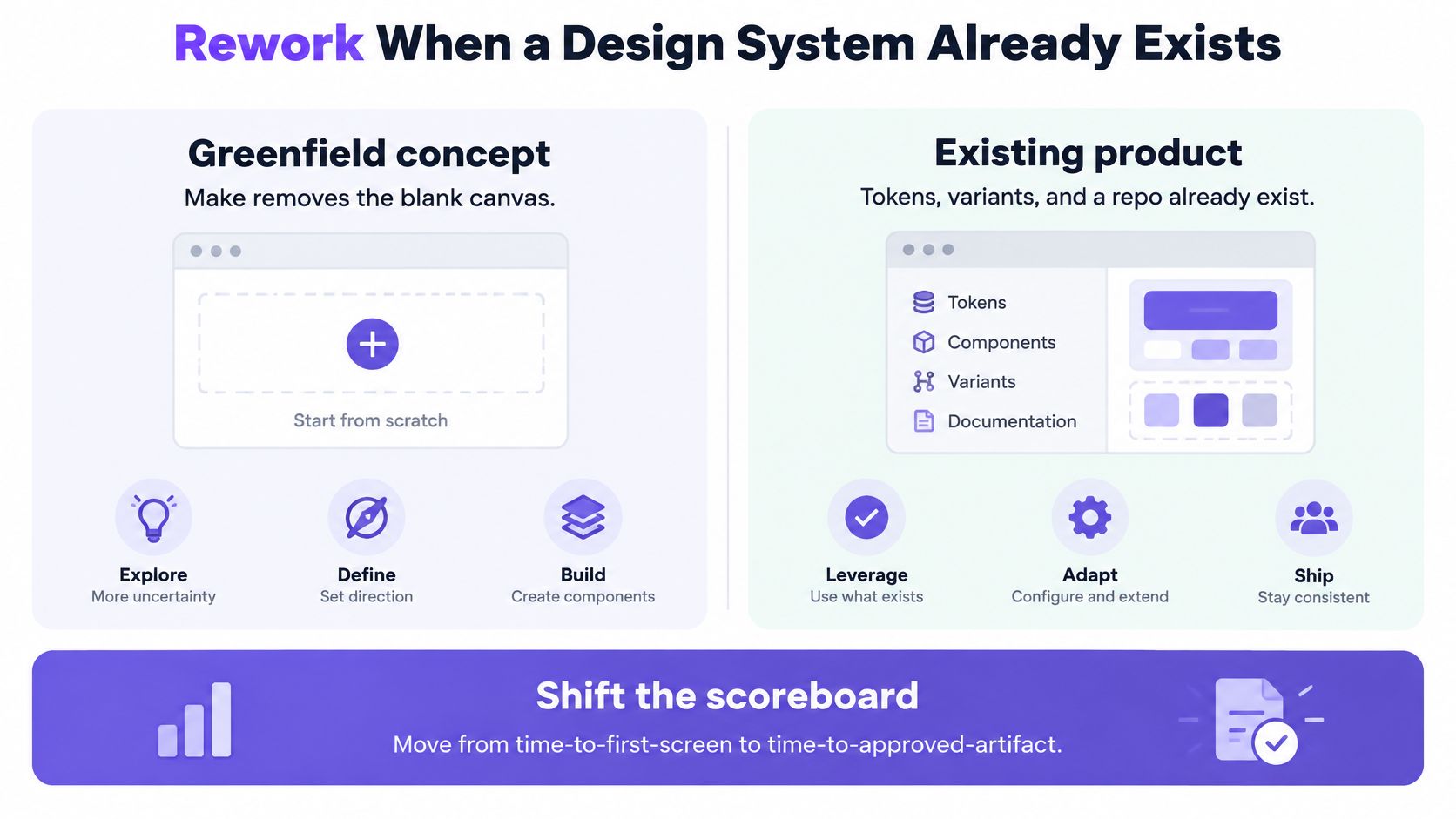
A product team should compare the time from brief to approved artifact, not the time from prompt to first screen. Make's newer kits, direct editing, design-layer copying, and limited local-code beta address some early workflow gaps. They do not eliminate the need to validate behavior, component use, accessibility, and handoff.
Figma Make review: quick verdict
Figma Make works best when the immediate deliverable is an interactive prototype inside a Figma-centered workflow. Its fit becomes conditional when the deliverable is a production change in a governed application.
Product-team job: Explore a new interaction or pitch a concept
Verdict: Strong fit
What to verify before adopting: Confirm the generated flow answers one specific question.
Product-team job: Demo a feature to stakeholders
Verdict: Strong fit
What to verify before adopting: Label simulated data and check sharing permissions.
Product-team job: Test an existing product workflow
Verdict: Conditional
What to verify before adopting: Supply product context, roles, and all required states.
Product-team job: Extend a strict component and token system
Verdict: Conditional
What to verify before adopting: Test a Make kit against real components and guidelines.
Product-team job: Move a prototype into Figma Design
Verdict: Useful, with limits
What to verify before adopting: Check copied layers, variables, and interaction loss.
Product-team job: Modify a real repository
Verdict: Limited beta
What to verify before adopting: Confirm access, platform, Git provider, and code-review ownership.
Product-team job: Ship a production application
Verdict: Not a standalone solution
What to verify before adopting: Run engineering, security, accessibility, and release checks.
Pros: fast prompt-to-interaction workflow; familiar Figma collaboration; reusable Make kits; direct preview and code editing; an editable Design snapshot. Cons: generated behavior still needs validation; design-layer copying does not preserve interactivity or a live connection; usage consumes shared AI credits; the local-code workflow has beta eligibility restrictions.
In a May 2025 independent review, Roger Wong scored the early product 58/100 and questioned its production path. That is useful historical evidence, not a current score: Figma has since shipped features that change parts of the workflow. Judge today's documented capabilities and your own pilot, not the age of a screenshot or the polish of a generated demo.
What is Figma Make?
Figma Make is Figma's AI tool for creating functional, code-backed web prototypes and apps from prompts and design context. A team can start with natural-language requirements, a Figma file or other supplied assets, then refine the generated result through further prompts, visual edits, and code editing. Figma introduced Make at Config in May 2025; the current creation guide describes the prompt, planning, editing, and sharing workflow.
That makes Make different from a set of linked static frames. A PM can ask for a settings panel with validation and click through a working proposal. But a working proposal is not evidence that permissions, data ownership, API behavior, or error recovery match the shipped product. Interactive describes the artifact; it does not certify the product decision.
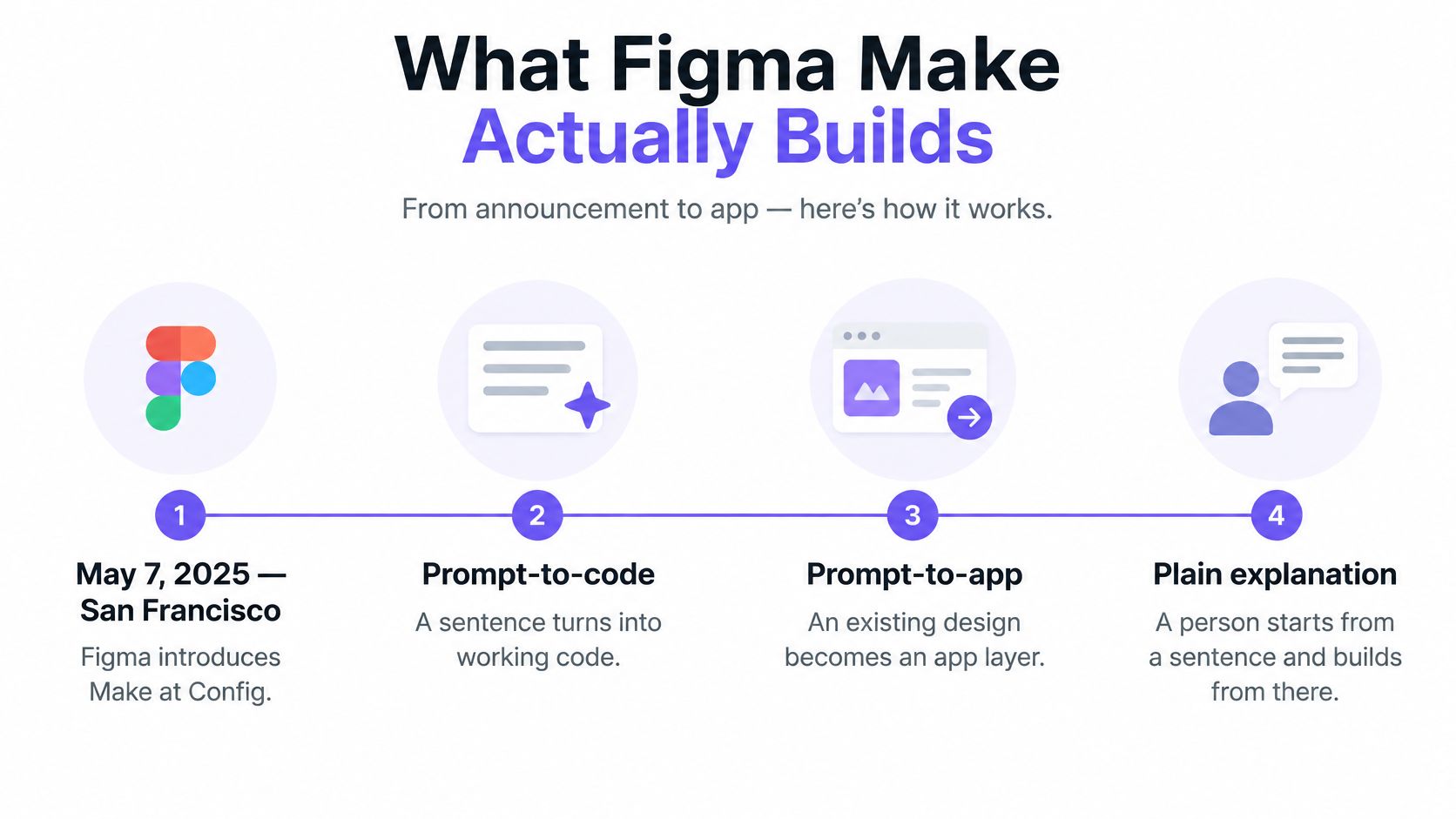
Access has also changed since the early beta. Figma's rollout record notes broader Starter and paid-seat availability in July 2025. Check the date of any review that treats a launch-period seat restriction as a permanent product limitation.
Figma Make AI features that matter in practice
The most consequential Figma Make features are generation, reusable context, reviewable iteration, and controlled sharing. The question is how much of your team's actual workflow each feature supports.
Feature: Prompting and attachments
Documented capability: Generate from instructions and add relevant files or constraints through Make attachments.
Product-team implication: Start with one bounded flow and explicit acceptance criteria.
Feature: Make kits
Documented capability: Package components, library styles, tokens, npm packages, and usage guidelines in a reusable kit.
Product-team implication: Test whether generated UI follows your actual rules, not merely their appearance.
Feature: MCP connectors
Documented capability: Bring context from connected tools using Make resources and MCP.
Product-team implication: Review connector permissions, freshness, and which context the prompt uses.
Feature: Plan mode
Documented capability: On paid plans, inspect a proposed implementation plan before code generation.
Product-team implication: Resolve missing states and scope before spending credits on revisions.
Feature: Visual and code editing
Documented capability: Adjust the preview or inspect and edit generated code.
Product-team implication: Review changed files and manually verify resulting behavior.
Feature: Sharing and publishing
Documented capability: Share previews or publish an interactive app.
Product-team implication: Audit the audience before using real product details.
Make kits are a meaningful addition for established teams, not a guarantee of consistency. A kit's guidelines/ folder can describe components, valid props, tokens, and usage rules, and administrators can govern published kits. Review generated guidelines before relying on them. A connected source or supplied library only improves the result if the relevant rules are present, current, and actually followed.
Figma's 2026 product updates also describe properties-panel edits and annotations for refining a preview. They make small changes less dependent on rewriting the whole prompt. For a larger requirement change, use plan mode, inspect the resulting code, and retest states that an apparently local edit could affect. Make's last-turn review workflow shows additions and deletions; it does not substitute for tests or a security review.
Design systems and existing-product context
Figma Make can use an existing design system, but teams should measure adherence at the component, token, and behavior level. Published libraries and Make kits give Make more than a screenshot to work from. Figma's library guidance explains the access rules; its package-to-kit instructions cover published npm packages and private-package constraints.
In a mature application, visual similarity is the easiest standard to meet and the least sufficient. Does a role selector use the approved component or a custom approximation? Does it support disabled options, keyboard use, and the same validation language as the product? Does the generated layout respect responsive and accessibility rules? Compare actual component substitutions and token violations, not just screenshots.
An account published by TheValueist raises concerns about variant flattening and unexpectedly broad regeneration in complex systems. Treat that as a failure mode to investigate, not a universal benchmark. A simple concept and a token-heavy change to an existing product require different tests.
For additional context-setting, see AI workflows for design systems and dashboard design best practices. A generated chart may be visually on-brand yet still lack a defined audience, meaningful data, or a decision it helps someone make. Figr's Visual Context Graph, described in its official changelog, takes a different approach to existing-product work by connecting visual, behavioral, design-system, product-knowledge, and implementation context. That approach is worth evaluating when the team's primary problem is preserving established decisions rather than producing a quick concept.
Prototyping, iteration, and developer handoff
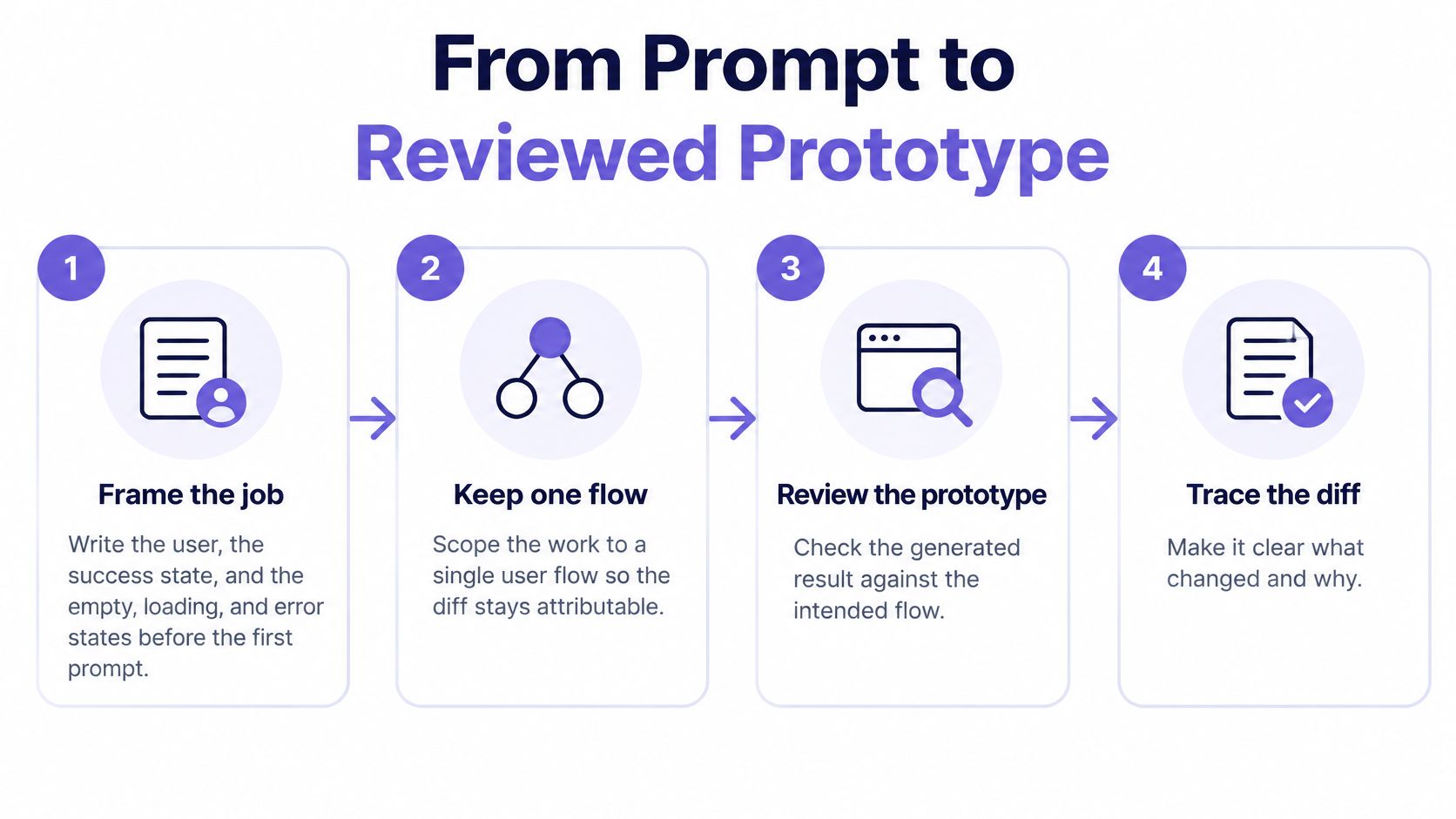
Make can produce and refine interactive prototypes, but a prototype, a Design artifact, and a code change have different handoff rules. Ask which artifact the next person must own before choosing the workflow.
For a research prototype, specify the happy path, loading, empty, validation, permission-denied, and service-error states before generation. The PM edge-case checklist is a useful prompt for omissions. If a flow branches by role, test each role instead of assuming the generated default branch represents all users. The practical prototyping guide can help define how much fidelity the research question actually needs.
A moderator may explain simulated data during a session; an unmoderated participant cannot. Do not treat a fake successful save as evidence that real validation or failure recovery works. A reviewable diff tells an engineer what changed, not whether the app is accessible, secure, or maintainable. For repeated prompting, approval practices for shared prompts can help keep instructions consistent, but prompt approval is not code approval.
Figma Make to Figma Design: On eligible paid plans, Copy designs turns the current preview into editable Design layers. The copied output is a snapshot: it is not interactive, does not stay linked to the Make file, and is not automatically connected to your design system. Check variables, components, text, and layout in the destination file. Do not promise pixel-perfect or component-perfect conversion.
Figma Make to code: Make supports code inspection and manual application handoff, including the advanced Make workflow for downloading a ZIP. External code edits do not automatically synchronize back into a separate Make prototype. The Git and code-layer guide also describes repository and runnable-web-app constraints; check your environment rather than assuming native mobile or desktop support.
A separate local-codebase workflow connects a running app and Git repository, allows prompted or visual UI edits, and can create local commits, branches, and pull requests. As documented in 2026, it is a limited closed beta for accepted paid-plan users on the Figma Beta desktop app for Mac. Setup guidance distinguishes GitHub's fuller integration from partial GitLab and Bitbucket support. Make does not autonomously merge or replace CI and deployment. Follow a normal design-to-development handoff, with a named engineer responsible for reviewing and integrating changes.
Figma Make pricing, seats, and limitations
Figma Make has a free entry point, but meaningful team use depends on seat type, shared AI credits, and plan-specific controls. The figures below reflect Figma's published pricing available in October 2026, not guaranteed 2027 prices.
Plan: Starter
Verified full-seat price: Free
Included AI credits: 150 per day, capped at 500 per month
Make evaluation note: Suitable for limited exploration; check library and publishing restrictions.
Plan: Professional
Verified full-seat price: $16 per full seat/month
Included AI credits: 3,000 per month
Make evaluation note: Paid full seat includes Make; plan mode and Design copying are relevant.
Plan: Organization
Verified full-seat price: $55 per full seat/month, billed annually
Included AI credits: 3,500 per month
Make evaluation note: Evaluate admin, kit, library, and publishing controls.
Plan: Enterprise
Verified full-seat price: $90 per full seat/month, billed annually
Included AI credits: 4,250 per month
Make evaluation note: Evaluate governance alongside seat and credit requirements.
These are full-seat prices, not the price of Make as a separate product. Figma's AI credits are shared across its AI products and features, and the credits used by a prompt vary with complexity and context. Dev, Collab, and View seats have different privileges from paid Full seats; the general credit allocation for those seats is 500 per month. Consult the Make FAQs and pricing page for the exact seat mix your pilot requires. Figma's AI getting-started guide covers plan and admin prerequisites.
Publishing deserves its own check. Preview sharing and a publicly published app are not interchangeable. Figma's Make sharing documentation describes sharing and publication options; published public URLs may not offer the access controls you expect from a private design file. Open the artifact from an account without the creator's privileges before sharing it. Keep customer data, credentials, and authenticated production flows out of an uncontrolled pilot. NDA guidance for sharing prototypes complements technical controls but cannot replace them.
Other limitations are operational rather than a missing button: reviewers must learn when to prompt, edit directly, or edit code; generated dependencies and edge cases need human review; and a Design snapshot may require manual cleanup. Apply the principle behind the UX of silence when presenting a demo: remove decorative claims or fake success signals that distract from the decision under test.
A practical evaluation for an existing B2B product
The best pilot is one small, consequential change to a real workflow, evaluated against criteria written before generation. Imagine a B2B SaaS permissions feature: an admin can invite a teammate, assign a role, change an existing role, and recover from a failed save. This is a hypothetical test case, not a reported Make result.
Give the PM, designer, and engineer the same brief, existing screens, approved components, role rules, and acceptance criteria. If testing another tool, provide equivalent context. Then use this checklist:
- Roles and authorization: Can only permitted users see and commit role changes? What does a non-admin see?
- Validation: What happens with an invalid email, a duplicate invite, or an attempt to remove the last admin?
- States and branching: Show default, loading, empty, success, error, and permission-denied paths for each relevant role.
- Design-system fit: Count token violations, unapproved component substitutions, missing variants, and incorrect usage guidance.
- Iteration: Add one requirement after the first draft. Record whether the change breaks an existing branch or state.
- Handoff: Inspect the code changes, copied Design layers, repository fit, and any manual repairs needed before an owner accepts the work.
- Governance: Confirm seat access, connector permissions, publish audience, and whether test data can safely be shared.
Record minutes from ready brief to accepted artifact, including prompting, review, corrections, and handoff. This is a measurement method, not a benchmark or an invented test result. The number that matters is not how quickly the first preview appears, but how much work returns to design, engineering, and QA afterward. Production AI pilot guidance is a useful companion if the experiment may feed a real release.
Figma Make alternatives and where Figr fits
Choose a Figma Make alternative by the artifact and context your team needs, not by a general claim that one AI tool is better. A comparison of AI prototyping tools, Figr's Figma-connected tools guide, and its alternatives overview offer additional shortlists.
Tool or category: Figma Make
Best-fit workflow: Fast interactive prototypes with Figma-based review and optional code editing.
Tradeoff to check: Confirm system adherence, credits, and the destination artifact.
Tool or category: Figr
Best-fit workflow: Explore a feature within an existing product using reusable product and design-system context.
Tradeoff to check: Verify that the supplied context is complete and review its output in Figma.
Tool or category: v0 or Lovable
Best-fit workflow: Code-oriented app generation when implementation behavior is the primary deliverable.
Tradeoff to check: Check design-system fit, code quality, and integration with existing work.
Tool or category: Anima or Builder.io
Best-fit workflow: Design-to-code workflows and developer handoff.
Tradeoff to check: Assess code ownership and fidelity to the production components.
Tool or category: ProtoPie
Best-fit workflow: Interaction-heavy prototypes needing detailed behavior.
Tradeoff to check: Weigh setup time against the fidelity the test requires.
Figr is an AI design tool for product teams focused on extending existing products. Its Visual Context Graph connects visual, behavioral, design-system, product-knowledge, and implementation context. A Context Pod lets a team reuse product materials and decisions across canvases. UX Reasoning examines flows, constraints, and failure paths; Design System Intelligence uses supplied components, tokens, and usage guidance. These capabilities, including Context Pods, Direct Editing, and Figma Sync, are documented in Figr's changelog. Figr MCP documentation describes making design structure and rationale available to compatible coding agents.
Figr can map edge cases, generate multi-state prototypes, edit prototype details directly, and use Figma Sync to import design-system context. It can then produce Figma-ready designs and supporting specifications or scenarios for human review. This does not make it automatically superior to Make. Stay in Make when rapid Figma-native, code-backed interaction is the decision. Evaluate Figr when the decision depends on understanding the live product, its prior decisions, and its system of components before drawing the next state.
The design handoff playbook and Figr's design collaboration guide are useful reminders that neither a prototype nor an AI-generated specification removes owner approval. For teams comparing first drafts, also count who inherits the repair work. UserTesting reported in 2025 that 69% of surveyed designers were satisfied with their AI tools versus 83% of developers. That result is about AI tools broadly, not Make or Figr, and does not explain the difference. It is a reason to ask designers and engineers separately whether a pilot actually saved them time.
Should your team use Figma Make?
Use Figma Make if you need a clickable, Figma-native proposal quickly and can give the team a clear review boundary. It is especially appealing for early interaction ideas, stakeholder demos, and scoped experiments. Use a Make kit where system consistency matters; verify each state and component instead of assuming the kit guarantees compliance.
If you are extending a mature product, choose based on the bottleneck. When product context, permissions, edge cases, and established patterns are the hard part, compare Make with a context-first workflow such as Figr. When the deliverable is production code, test the local-code beta's eligibility or use your established engineering path. No tool should bypass CI, accessibility testing, dependency review, or deployment approval.
Make the adoption decision explicit: assign an interaction owner, design-system reviewer, engineer, and research owner; set a fixed scope; record total acceptance time and defects; and stop if publication cannot be controlled or required customer data cannot be safely simulated. A production-readiness checklist can help keep the pilot from becoming an accidental release. For a live flow, a good result is not simply a better-looking screen. It is a proposal the right people can inspect, challenge, and accept with known remaining work.
Figma Make FAQ
These five answers summarize the main buying and workflow questions for product teams.
What is Figma Make?
Figma Make is Figma's AI tool for generating and editing interactive, code-backed web prototypes and apps from prompts and supplied design context.
Is Figma Make free?
Starter offers limited free access and a capped AI-credit allowance. Paid Full seats provide larger credit allocations and additional workflows; confirm current pricing and seat permissions before buying.
Can Figma Make create production-ready apps?
It can generate working application code, but generated output is not automatically production-ready. Engineering must review behavior, security, accessibility, dependencies, tests, and deployment.
Can Figma Make use existing design systems?
Yes. Published libraries and Make kits can supply components, tokens, styles, npm packages, and guidelines. Verify that output actually follows approved variants and usage rules.
Is Figma Make better than Figr for product teams?
Neither is universally better. Choose Make for fast Figma-native interactive prototyping; evaluate Figr for feature design grounded in existing product, behavioral, and design-system context.
Figr uses your product and Figma context to surface missing states, explain tradeoffs, and generate specs, test scenarios, and Figma-ready designs. Visit Figr to evaluate an existing flow alongside a Make prototype, then decide which route reduces the work to an approved artifact.