

A polished prototype can still hide the wrong product decision.
You've probably seen the scene: a Product Manager, a Designer, and a founder review a beautiful clickable prototype, nod along, and approve the direction, then engineering starts asking the questions the prototype never held, empty states, conditional logic, analytics evidence, keyboard paths, component constraints, and what happens when the user does the inconvenient thing instead of the happy-path thing.
That's why choosing UI prototyping tools by polish alone keeps costing teams time. It creates rework during handoff, shaky stakeholder confidence, and user tests that validate the wrong layer of the experience. The better lens is simpler: choose the tool by the question you need to validate. If your team prototypes from a live product instead of a blank canvas, Figr belongs in that conversation because it starts from screens, Figma files, docs, recordings, analytics, and implementation context rather than isolated prompts.

Choose by validation job, not by visual polish
UI prototyping tools work best when you match them to the decision your team needs to make.
A lot of buying guides flatten the category into fidelity tiers, low-fi, high-fi, advanced, but that's only half the story. A prototype can be a stakeholder alignment artifact, a user-testing surrogate, a design-system stress test, or a near-code interaction model. Nielsen Norman Group explicitly treats prototypes as valid test objects for user testing across websites, applications, and other interfaces in its user testing guidance.
This is what I mean: the tool should answer the question in front of you.
Validate interaction behavior: Choose tools with variables, conditions, state handling, and motion control.
Validate stakeholder direction: Choose tools that are fast to edit, easy to share, and close enough to your product language.
Validate existing-product fit: Choose tools that can absorb live screens, research, analytics, design systems, and edge cases.
Validate engineering feasibility: Choose tools with stronger handoff or code-backed components.
Validate usability early: Choose whatever lets you test flows before code exists, even if fidelity is lower.
A useful historical note sits underneath all of this. A review of prototyping tools mapped the field into three eras, before 1995, 1995 to 2005, and after 2005, showing how prototyping moved from developer-oriented interface systems into a broader commercial design category with substantial growth after 2005, as described in this academic review of prototyping tools. That shift explains why modern tools are really collaboration systems as much as drawing tools.
Practical rule: If your prototype has to survive contact with product reality, evaluate context, editability, and handoff before you evaluate animation polish.
Figr for context-heavy product work
Figr fits teams that need prototypes grounded in a real product, not a blank canvas.
That sounds small until you've watched a handoff fail because the prototype ignored the current information architecture, token usage, event logic, or existing states. Last week I watched a Product Manager try to explain why a feature mockup looked correct and still felt wrong. The issue wasn't aesthetics. The prototype had no memory of the product around it.
Where Figr earns its place
Figr is built for teams working inside existing software. It can take in live screens, Figma files, design systems, PRDs, research, analytics, recordings, screenshots, code or component context, and existing flows. From there, it generates high-fidelity prototype directions, flow maps, edge-case views, and Figma-ready artifacts.
That matters for a specific workflow: you're not inventing a new app, you're changing one screen in a living system.
A few practical strengths stand out:
Context retention: The Context Pod acts as reusable product memory across sessions, so teams don't keep re-explaining the same product logic.
Design-system fit: Design System Intelligence focuses on tokens, components, variants, states, usage rules, and design judgment.
Reasoning support: Figr can map intent, flow logic, edge cases, states, constraints, and tradeoffs. It doesn't replace designer judgment, but it helps teams start from a more truthful substrate.
Input breadth: Live Product Capture, Figma input, screen recording analysis, analytics context, and docs all support the same workflow.
When it works best
Figr is strongest when the prototype has to answer hard questions about an existing product.
That includes:
feature redesigns inside mature software
workflows with lots of states or branching
design-system-heavy teams
handoffs where Product Manager, Designer, QA, and engineering all need the same source of context
You can see the shape of that work in the Figr gallery examples, including product flows like a Gmail AI reply prototype and component-state explorations such as task assignment states.
There's a broader pattern behind this. Recent coverage of AI prototyping points to growing interest in tools that convert existing designs and product context into usable prototypes, rather than only generating first-pass ideas, as discussed in this AI prototyping tools overview. For product teams, that's usually the job.
Figma for collaborative default workflows
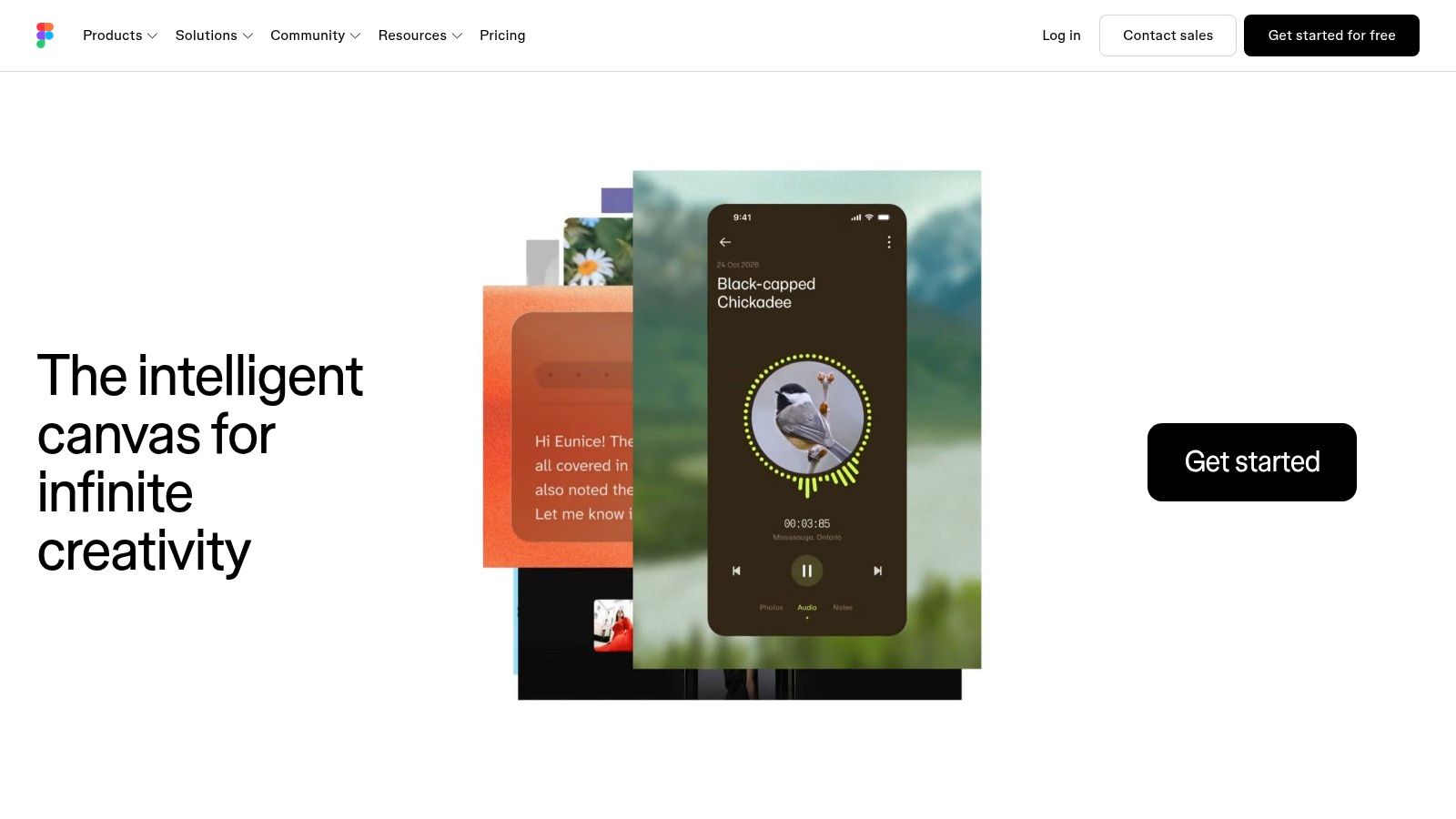
Figma is the default choice when your team wants design, collaboration, and interactive flows in one familiar place.
That default status is real. The latest UX Tools survey reports Figma is used by 82.3% of UI designers, with a 46:1 lead over Sketch, and inside corporate design environments its share rises to 93.1% with a 4.59/5 satisfaction rating in the UX Tools design survey. If you hire Designers, work with agencies, or collaborate across functions, that ubiquity changes the buying decision.
What Figma is good at
Figma's own documentation defines prototyping around interactive user flows, feedback, testing, iteration, and stakeholder presentations in its guide to prototyping in Figma. That's the right mental model. Figma prototypes aren't just static mockups with links. They simulate navigation and behavior.
Its mechanics have also grown up. Figma supports interactions like on click, hover, scroll-based behavior, Smart Animate, overlays, conditionals, state management, variable modes, and connections from main components in its prototype feature documentation.
That makes Figma the safest default for:
Shared editing
Clickable prototype reviews
High fidelity wireframe work
Design system reuse
Developer handoff inside the same file
Where teams outgrow it
Figma starts to strain when interaction logic gets dense, motion gets intricate, or product context lives outside the canvas.
The basic gist is this: teams stay in Figma because speed beats tool-switching. UX Tools found strong ecosystem lock-in in basic prototyping, with 86.8% of Figma UI designers also using Figma for prototyping, but specialized advanced-prototyping tools score higher on satisfaction, averaging 4.54/5 versus 4.08/5 for Figma in the advanced prototyping survey.
If your team wants AI support around that workflow, this roundup of top Figma AI tools 2026 is a useful companion.
Axure RP for logic-heavy enterprise flows
Axure RP is the tool to evaluate when your prototype needs to behave like a rules engine.
Some products need more than clickable screens. They need conditional paths, role-based behavior, complex forms, data states, and enough realism that legal, operations, or enterprise buyers can react to actual flow logic. Axure has stayed relevant because it handles those questions directly.
Where Axure still wins
Axure is strong when a screen's visual design matters less than the consequences of user choices.
It's a good fit for:
Branch-heavy workflows
Form logic and validation
Enterprise admin surfaces
Documentation-heavy reviews
Clickable HTML prototypes for stakeholder walkthroughs
I still think of Axure as the meeting-room prototype. It's what you use when someone in the room says, “What happens if the user has partial permissions?” and you need the prototype to answer, not just the presenter.
Trade-offs to accept
The trade-off is obvious once you open it. Axure asks for more setup and more craft in logic modeling than lighter tools. Its visual design workflow also feels less native to modern design-system habits than Figma-first teams usually want.
That doesn't make it outdated. It makes it selective.
If your team is weighing older rapid-prototyping patterns against newer AI-assisted context workflows, this guide to prototyping tools and Figr gives a broader buying lens.
ProtoPie for interaction fidelity and device feel
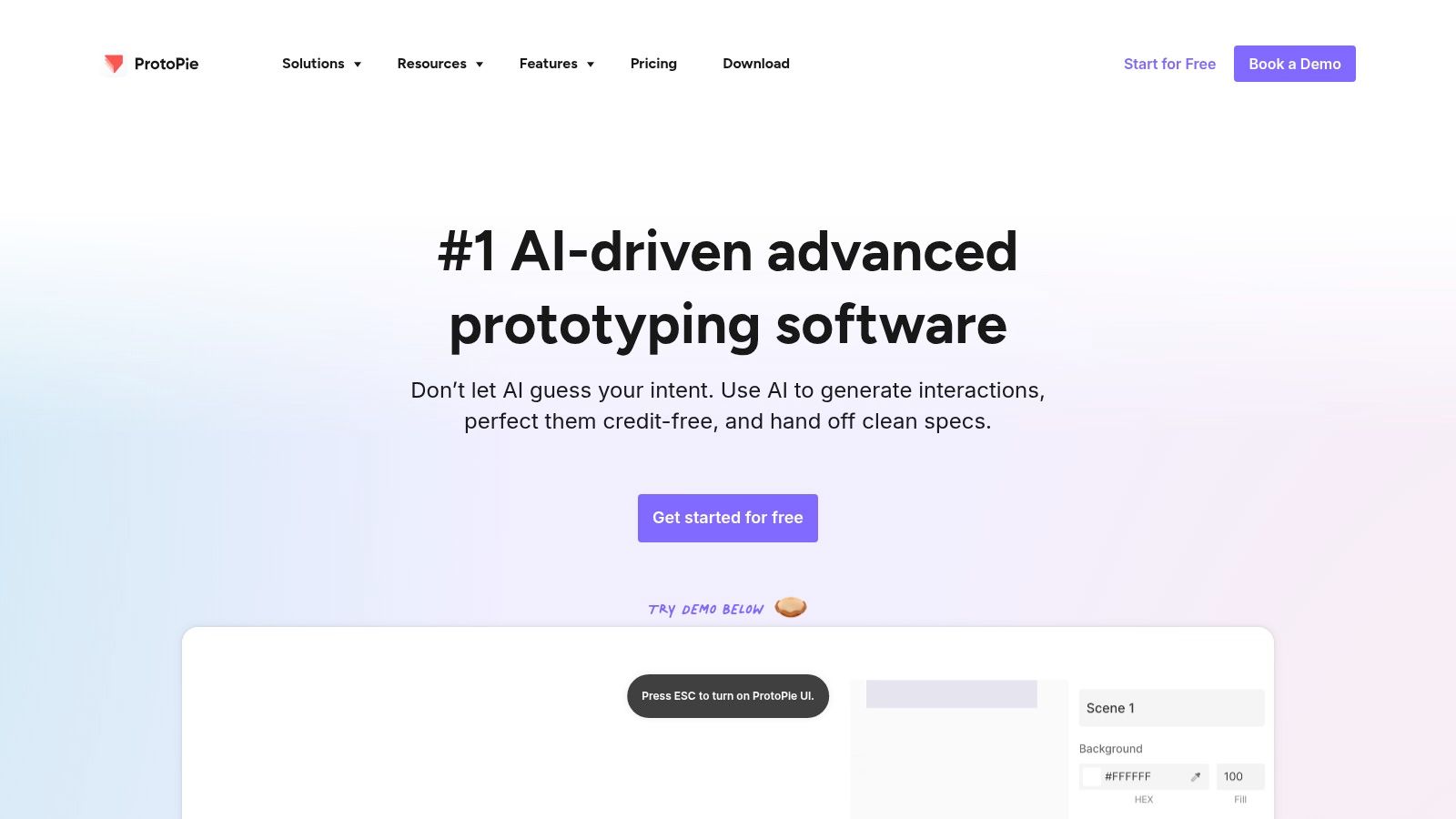
ProtoPie is the strongest choice when the quality of the interaction itself is what you need to validate.
A lot of prototypes only need to show where a user goes next. ProtoPie is for the harder question: how does the product feel while they get there? If you care about micro-interactions, multi-device behavior, motion nuance, or hardware-aware triggers, it belongs on the shortlist.
Why teams pick it
ProtoPie gives Designers a way to work on trigger-response behavior without shifting into code. That matters for prototypes where movement, timing, or sensory feedback changes the decision.
Use it when you need:
Native-feeling mobile interactions
Motion-rich onboarding
Input combinations and gestures
Precise behavior specs for engineering
This is also where generic AI generation often falls short. A generated screen can look plausible. A weak interaction model collapses as soon as someone tests it.
The prototype that wins approval fastest is often the one that hides the most implementation truth. ProtoPie pushes in the other direction.
Where workflow friction appears
ProtoPie usually sits beside your main design workspace rather than replacing it. So the question becomes whether your team is willing to carry a second tool for better interaction fidelity.
That's worth it for motion-heavy products, hardware-linked experiences, or concept validation where the feeling of the interface is the decision. It's less worth it for routine SaaS flows where Figma already gets you close enough.
Framer for publishable web prototypes
Framer is useful when you want a prototype that behaves like a live website quickly.
That makes it appealing for founders, growth teams, and product-marketing-adjacent work where the line between prototype and public artifact gets blurry. Framer's strength is simple: it can turn interactive ideas into hosted web experiences with less ceremony than most design tools.
Best use cases
Framer is strongest for web-centric validation.
Think:
Landing pages
Marketing-product hybrids
Website redesign concepts
Shareable stakeholder demos that feel live
The immediate advantage is distribution. A hosted prototype gets reviewed differently than a design file. People click more, skim less, and react to pacing, hierarchy, and transitions in a more realistic way.
Constraints to remember
Framer is less natural for complex native app logic, design-system governance across a big product surface, or flows that depend on modeled states.
So if your question is “Will this web experience communicate the idea clearly?” Framer is strong. If your question is “Will this interaction survive product complexity?” you may need another layer.
For teams comparing web-first publishing tools against product-design workflows, this look at the best Framer competitor for UI gives a practical contrast.
Sketch for Mac-first teams that want a familiar rhythm
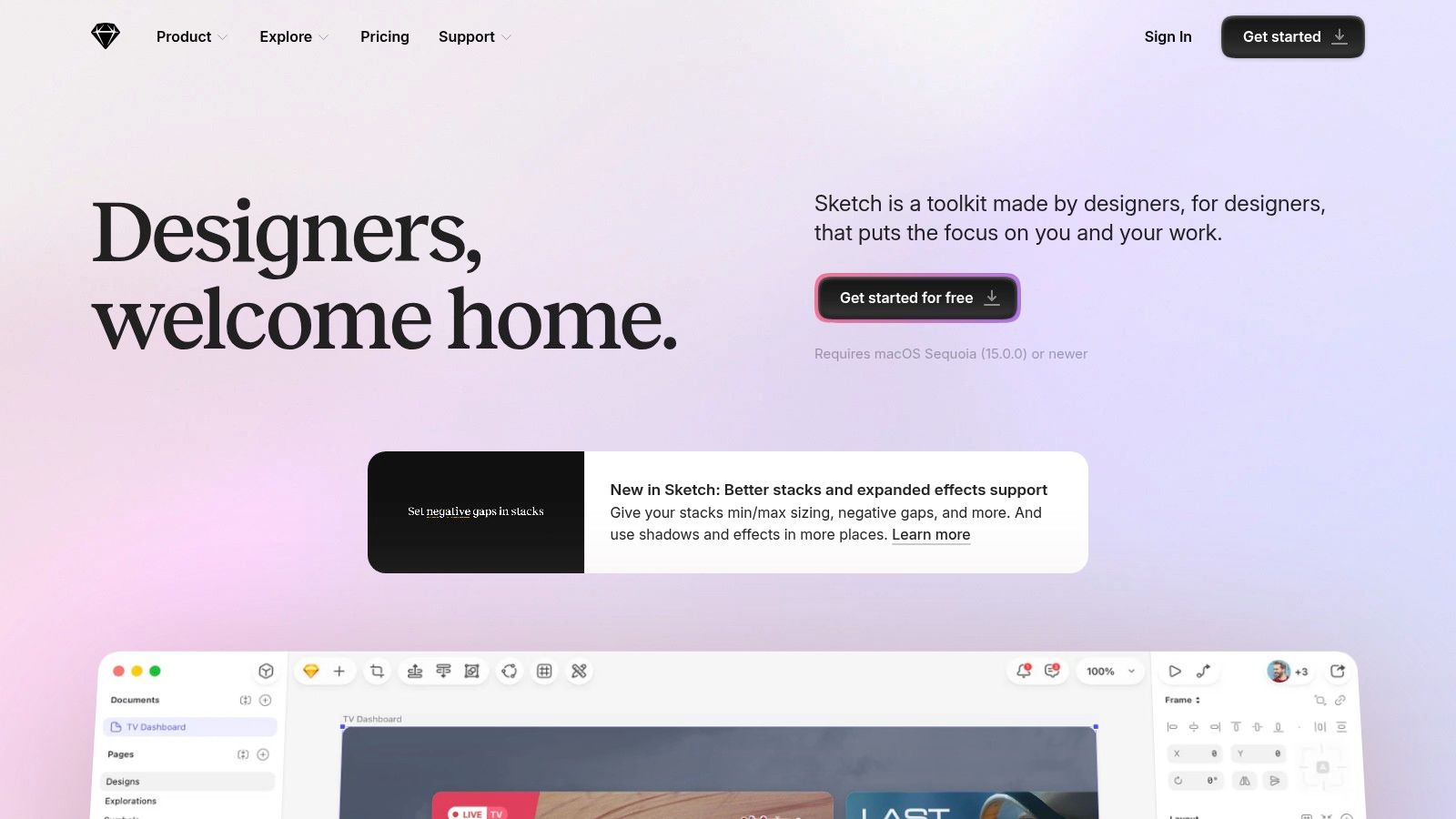
Sketch still makes sense for teams that want a focused Mac-native design workflow with built-in prototyping.
It no longer defines the category, but it still serves a specific buyer well. If your design organization is Mac-first, prefers a lighter desktop feel, and doesn't need the broadest collaboration footprint, Sketch remains credible.
Why some teams stay
Sketch feels deliberate in a way browser-first tools often don't. Fast editing, native responsiveness, and a mature plugin ecosystem still matter to experienced Designers who care about local control and a less crowded interface.
It works well for:
Mac-based product design teams
Wireframe design tool workflows
Moderate-fidelity clickable prototype reviews
Teams with established Sketch libraries
Where the ceiling shows
The limits show when collaboration broadens or when prototyping needs more logic. Sketch can handle connected flows well enough, but it isn't the tool I'd choose for deep behavioral modeling or for teams with a lot of non-designer stakeholders editing directly.
If your team still works inside Sketch and wants cleaner early artifacts, this guide on how to wireframe in Sketch helps connect old habits to newer product workflows.
Justinmind for teams that prototype and document together
Justinmind is useful when prototype behavior and formal requirements need to travel together.
Some teams don't just need a shareable flow. They need user flows, specification output, integration with delivery workflows, and a more structured artifact package for review. Justinmind sits in that space.
When it fits
Justinmind makes sense for product teams that work in regulated environments, documentation-heavy organizations, or any process where requirements need to stay close to the prototype.
Its strengths usually show up in:
Complex business applications
Requirements reviews
Flow documentation
Specification-oriented handoff
That combination can reduce ambiguity for cross-functional teams. The Product Manager gets traceability. The Designer gets interaction modeling. Engineering gets more explicit behavior cues.
Why it isn't the default
It feels more traditional than newer cloud-first tools, and that affects adoption. Teams that already live in Figma or a tightly managed design system may see it as one more place to maintain truth.
Even so, some organizations want precisely that formalism. They'd rather accept a heavier interface than risk a loose handoff.
Origami Studio for experimental native interactions
Origami Studio is the option for teams exploring motion and native behavior on macOS.
It has never been the mass-market choice, and that's part of its value. Origami is for Designers who want fine control over interactions, often in R&D or concept-heavy work where standard transition tools feel too shallow.
Where it shines
Origami is strong when the prototype itself is a design research instrument.
That includes:
Novel interaction patterns
Animation-heavy concepts
Hardware-aware behaviors like haptics or audio
Internal experimentation before a broader design-system pass
There's a reason advanced interaction specialists keep it in their toolkit. It lets them explore the edge of what an interface could feel like.
The cost of that freedom
The learning curve is real, and collaboration workflows are less straightforward than in mainstream cloud tools. It also demands enough maturity from the team to know why they need that level of control.
If you're validating a standard B2B workflow, Origami is probably too much tool. If you're exploring interaction design where timing and native cues carry the idea, it can be exactly enough.
UXPin for code-backed design system alignment
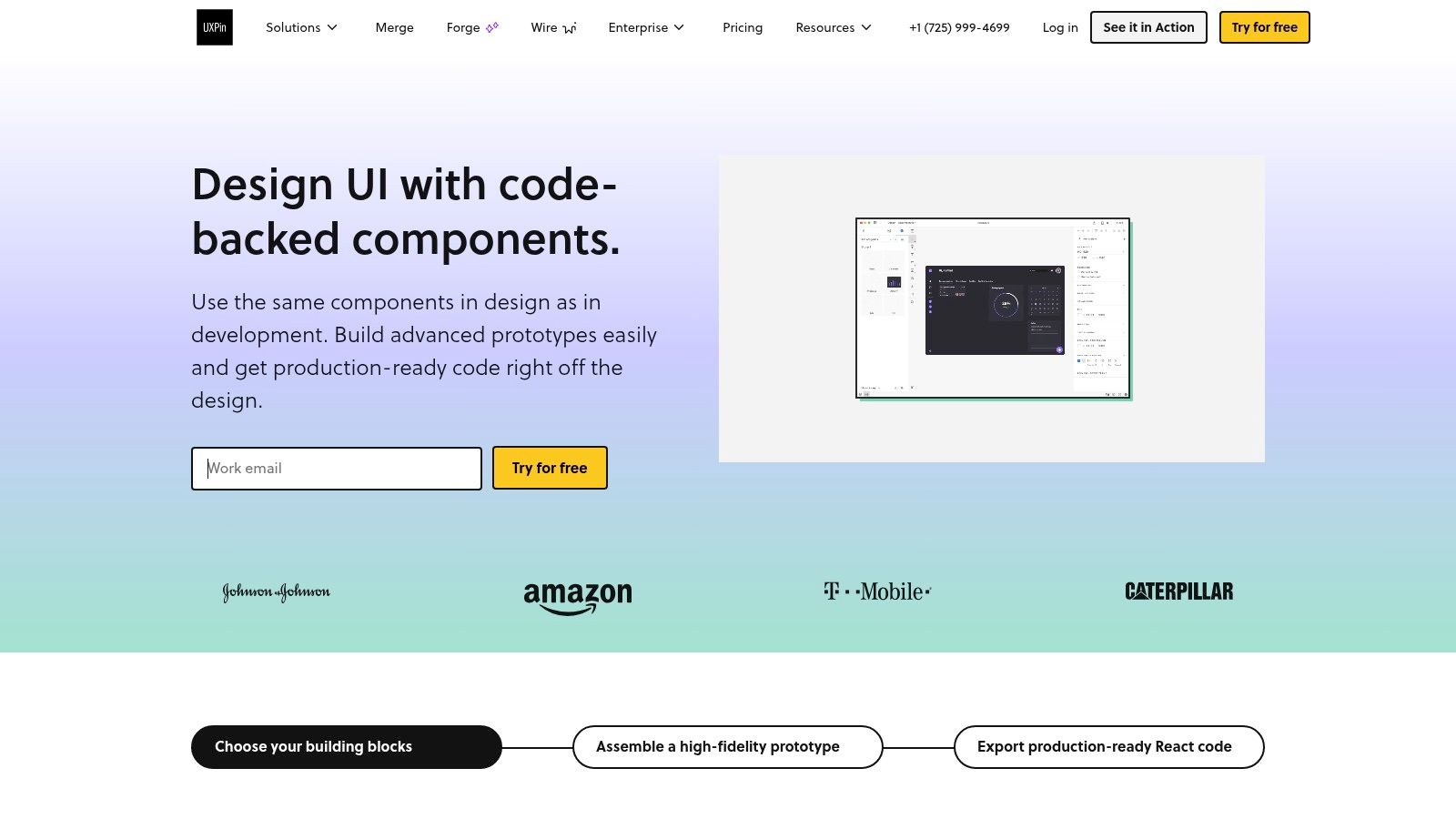
UXPin is worth evaluating when your core problem is drift between prototype and production.
That's a different job from screen exploration. It's about governance, coded components, and the confidence that what stakeholders approve maps closely to what engineering can build. UXPin leans hard into that territory.
Why code-backed prototypes matter
When your design system already exists in code, there's a strong case for prototyping with real components. You reduce translation risk, tighten engineering trust, and make state behavior more faithful.
UXPin fits teams that care about:
React or Storybook-connected systems
Governed component usage
Conditional logic in systemized interfaces
Design-engineering alignment over visual experimentation
When the setup is worth it
The setup burden is the filter. Small teams or fast-moving startups may not want to invest in the component integration needed to get full value.
But at scale, the economics change. A team shipping across many surfaces pays heavily for inconsistency, duplicate interpretation, and token drift. That's the zoom-out moment with UI prototyping tools: the larger the org, the more a prototype becomes a governance artifact, not just a design artifact.
Penpot for open-source control and vendor independence
Penpot is the right tool to consider when governance, openness, or self-hosting matters as much as prototyping itself.
Teams won't choose a design tool because it's open source. Some absolutely will. Public-sector teams, privacy-sensitive organizations, and cost-conscious groups with large viewer bases often care about deployment control and vendor independence.
Why Penpot earns consideration
Penpot covers the core workflow well enough for many collaborative design and clickable prototype tasks. The web-based editor, component support, and self-hosting path make it attractive for teams that want control over where the work lives.
Use it when these constraints matter:
Open standards
Self-hosting
Cross-platform access
Budget sensitivity around broad access
Where it trails the leaders
The ecosystem is smaller, and that affects integrations, plugins, and hiring familiarity. That won't bother every team, but it changes the total cost of adoption.
Still, there's a practical niche here. Some organizations would gladly accept a narrower ecosystem in exchange for control and transparency. If that's your angle, Penpot belongs in the shortlist alongside other wireframing tools for product teams.
Top 10 UI Prototyping Tools Comparison
Figr
Core focus: Context-first AI design agent built around your live product and design system.
Key capabilities: One-click Chrome capture, Visual Context Graph, PRDs, user flows, prototypes, accessibility checks, analytics-backed recommendations, and Figma export.
UX & collaboration: Produces high-fidelity outputs that match the existing product, reducing rework. Supports enterprise security requirements including SOC 2, SSO, and zero data retention.
Best for: PMs, product designers, researchers, and QA teams at SaaS companies with existing products and design systems.
Price / Notable differentiator: 14-day trial with enterprise pricing via sales. Key differentiator is context-grounded UX combined with analytics-driven recommendations.
Figma
Core focus: Cloud-based UI design and prototyping.
Key capabilities: Interactive components, variables, plugins, team libraries, prototyping, and developer handoff.
UX & collaboration: Excellent real-time collaboration and sharing, with a large ecosystem and widespread adoption across product teams.
Best for: Cross-functional product teams and design-driven organizations.
Price / Notable differentiator: Freemium with paid tiers. Key differentiator is its massive ecosystem and collaboration capabilities.
Axure RP
Core focus: Logic-heavy enterprise prototyping.
Key capabilities: Conditional logic, variables, data-driven widgets, HTML prototypes, and Axure Cloud.
UX & collaboration: Supports interaction fidelity close to production, although it has a steeper learning curve than many visual design tools.
Best for: Enterprise UX teams, complex interaction design, and stakeholder validation.
Price / Notable differentiator: Paid licenses. Key differentiator is its ability to create complex conditional flows and detailed specifications.
ProtoPie
Core focus: Micro-interactions and device-integrated prototyping.
Key capabilities: Triggers, timelines, variables, hardware integrations, and ProtoPie Connect.
UX & collaboration: Creates highly realistic device interactions, although it generally operates as a separate workflow from primary design files.
Best for: Motion designers, mobile and native prototyping, and hardware-integrated product testing.
Price / Notable differentiator: Paid. Key differentiator is precise micro-interaction design and hardware support.
Framer
Core focus: Interactive web design and hosting.
Key capabilities: Modern animations, components, A/B testing, hosting, and AI-assisted features.
UX & collaboration: Provides a fast path from design to hosted, shareable prototypes and websites, with a strong web-first approach.
Best for: Web and product teams validating interactive web experiences.
Price / Notable differentiator: Freemium with usage-based credits. Key differentiator is the ability to quickly publish hosted interactive prototypes.
Sketch
Core focus: Mac-native UI design.
Key capabilities: Native Mac editor, prototyping, cloud documents, and developer handoff.
UX & collaboration: Offers fast native and offline performance alongside cloud collaboration, but the editor is limited to macOS.
Best for: Mac-centric design teams and enterprises operating primarily within the Apple ecosystem.
Price / Notable differentiator: Paid subscription. Key differentiator is its native Mac experience combined with enterprise capabilities.
Justinmind
Core focus: Wireframing and requirements-driven prototyping.
Key capabilities: Variables, interactions, user flows, specification export, and integrations such as Jira.
UX & collaboration: Strong for documentation and formal product specifications, though its interface and workflow are more traditional.
Best for: Teams that need requirements, flows, specifications, and interactive prototypes in a single workflow.
Price / Notable differentiator: Paid. Key differentiator is its strong requirements management and specification export workflow.
Origami Studio
Core focus: Advanced motion and native interaction prototyping.
Key capabilities: Patch editor, variables, animation, and native hardware APIs including haptics and audio.
UX & collaboration: Supports extremely high-fidelity motion and interaction design. It is free but Mac-only and has a relatively steep learning curve.
Best for: R&D teams, motion and UI experimentation, and advanced native-interaction prototyping.
Price / Notable differentiator: Free. Key differentiator is Meta's powerful native interaction and motion tooling.
UXPin
Core focus: Code-based prototyping using real components.
Key capabilities: UXPin Merge, React and Storybook integration, variables, logic, and enterprise integrations.
UX & collaboration: Helps reduce prototype-to-production drift by allowing teams to design with production components, though initial setup is required.
Best for: Design-engineering teams and large organizations with mature design systems and governance requirements.
Price / Notable differentiator: Paid. Key differentiator is the ability to build prototypes using production-ready components.
Penpot
Core focus: Open-source collaborative product design.
Key capabilities: Web-based editor, components, prototyping, self-hosting, cloud deployment, and an Enterprise tier.
UX & collaboration: Offers open-source flexibility and self-hosting, although its plugin ecosystem is smaller than Figma's.
Best for: Teams prioritizing vendor independence, public-sector organizations, education, and companies that need self-hosting.
Price / Notable differentiator: Free with paid Enterprise options. Key differentiator is its open-source architecture and self-hosting capability.
Accessibility and testing are still underweighted
Accessibility support and prototype testability should be part of the buying decision, not a postscript.
This is one of the most consistently missed angles in UI prototyping tools. An ACM study evaluating 10 popular tools found that accessible design support is still mostly delivered through third-party plug-ins rather than built-in capabilities, with support varying widely, and an accessibility-focused review cited in that paper noted a study where 55% of GUI controls in prototyping tools had accessibility issues for screen reader users in the ACM accessibility study.
What that means in practice
A prototype can look polished and still fail the review conditions that matter.
Ask these questions during evaluation:
Can keyboard-only reviewers move through the flow meaningfully?
Can screen reader users participate in reviews?
Can your team inspect accessible states during design, not only after handoff?
Does the tool support testing workflows, or only presentation workflows?
There's another old but important finding here. Research summarized in a Human Factors review found no significant difference in the number or severity of usability issues uncovered by paper versus computer prototypes, though paper testing took about 30% longer, and another study reported 28 participants generated 1,270 comments and identified 169 distinct usability issues with no significant difference between paper and computer conditions in issues found, according to the usability review on paper and computer prototypes.
So yes, fidelity matters. But the tool's real value is whether it helps your team surface problems before code.
Why Figr's Visual Context Graph changes the prototyping job
Figr's Visual Context Graph matters because it treats prototypes as connected product evidence, not isolated screens.
Most tools are excellent at representing the artifact. Figr is trying to represent the situation around the artifact. That's a subtle difference, and for context-heavy product work it's a useful one.
The five layers that shape better prototypes
Figr explicitly organizes context across five connected layers:
Visual context: what the current product looks like, from captured screens and UI structure
Behavioral context: how flows work, including states, user paths, and interaction logic
Design system context: tokens, components, variants, states, and usage rules
Product knowledge context: PRDs, research, recordings, and broader product intent
Implementation context: code or component realities that affect what can be built and how
When a prototype fails in handoff, it usually fails because one of those layers was absent. The screen looked right, but the behavior was guessed. Or the flow was thoughtful, but the components violated system rules. Or the concept made sense, but nobody carried over implementation constraints.
Why this helps teams working on real products
A context-first prototype changes what gets discussed in review.
Instead of asking only, “Do we like this screen?” the team can ask:
Does this reflect the current product architecture?
Are the states credible?
Does it respect our design system?
Does it align with what analytics and research suggest?
Can engineering and QA use it without backfilling missing reality?
For teams shipping new capabilities into an existing app, that's the right problem to solve. If that sounds like your workflow, Figr is especially relevant for designing new product features, and the broader framing in prototyping for product teams is worth reading too.
Choose the Question Before the Tool
The right choice comes from the job you need the prototype to do.
If you need the fastest shared workflow for mainstream product design, Figma is still the center of gravity. If you need heavy logic, Axure earns its complexity. If motion and device behavior are the decision, ProtoPie and Origami become more relevant. If governance and code alignment matter most, UXPin moves up the list. If openness matters, Penpot has a real angle. If your team works from a live product with accumulated context, Figr is one of the few tools built around that reality.
That's the framework I'd use in a real buying conversation:
Validation job
Required fidelity
Product-context depth
Design-system fit
Editability during review
Handoff path
Testing needs
Operational constraints
A short personal rule has saved me more than once: never approve a prototype until you know what it excludes. That one question exposes whether you're looking at a decision tool or just a polished story. Founders usually care about speed. Product Managers care about alignment. Designers care about craft and truthfulness. Engineering cares about ambiguity. Good prototyping tools reduce ambiguity for all four, but they do it in different ways.
There's also a system-level reason this matters. As tools get easier, teams can generate more interface options faster. The bottleneck shifts from production to judgment. The scarce thing isn't mockup output. It's trustworthy context, believable behavior, and artifacts that survive the trip from concept to release. That's why prototypes now sit inside a broader UX audit loop, one that should include analytics, session evidence, accessibility review, design-system rules, and handoff readiness.
Your next step doesn't need to be dramatic.
Pick one unresolved workflow, the one that keeps bouncing between product, design, and engineering. Score it against the framework above. Then test the tool that matches the decision, not the one with the prettiest gallery. If that workflow depends on real product context, reusable memory, design-system intelligence, and Figma-ready output, try Figr.
FAQ
What are UI prototyping tools?
They're tools for creating interactive interface models before code exists. Teams use them to simulate flows, test behavior, gather feedback, and support handoff.
How do I choose between low and high fidelity?
Choose based on the question. Early usability and flow checks can work with low fidelity, while stakeholder approval, motion review, and handoff usually need higher fidelity.
Which tools support complex logic best?
Axure, ProtoPie, and UXPin are stronger when flows need conditions, variables, or richer behavioral modeling. Figma handles many common cases well.
When do code-backed prototypes make sense?
They make sense when design-to-code drift is expensive, especially in mature design systems. UXPin is the clearest fit for that workflow.
How does Figr fit context-heavy product work?
Figr fits when your team is prototyping inside an existing product. It works from live screens, Figma files, design systems, docs, research, analytics, and implementation context.
Figr is useful when the hard part of prototyping isn't drawing screens, it's carrying real product context into the work so reviews, handoff, and QA stay grounded. If your team is tired of polished prototypes that fall apart the moment someone asks about states, system rules, or existing flows, visit Figr.