

Splitting a form into steps won't save a bad form. That's the part most multi step form ux advice skips, even though long forms usually lose people at the first tedious or sensitive question.
When that moment isn't handled, you don't just lose a conversion. You get abandoned onboarding, half-finished applications, bad data, and support tickets from people who couldn't tell what you wanted or why.
Good multi step form design makes the work feel finishable. It groups related fields, shows position clearly, preserves answers, and lets people recover from mistakes without starting over.
What Multi-Step Form UX Covers and What It Does Not
A multi-step form splits one data collection task across sequential screens. Each screen holds a coherent group of fields, shows where the user is, and lets them move back without losing work.
Last week I watched a PM defend a four-screen signup that asked for three fields total. Why did it need four screens? It didn't. The team had mistaken motion for progress.
The basic gist is this: steps should remove effort from view, not add clicks around the same effort.
Three Terms Teams Keep Mixing Up
- Multi-step form: Collects data for one goal across screens, such as checkout or registration.
- Wizard: Guides a user through decisions and branches, often setup or configuration where later options depend on earlier choices.
- Stepper: Shows position in a sequence and can sit on top of either pattern. It's an indicator, not the flow itself.
That distinction matters in reviews. If you're arguing about the stepper, you're arguing about chrome. If you're arguing about branching, order, and dependencies, you're designing a wizard. If you're arguing about fields, grouping, and recovery, you're designing the form.
A multi-step form has two jobs. First, it lowers perceived complexity by showing an achievable chunk. Second, it keeps state recoverable when the user goes back, gets interrupted, or hits an error.
It does not fix unclear pricing, pointless fields, or a sensitive question with no explanation. It also doesn't justify splitting a short form. If the whole task fits comfortably on one screen and carries low risk, leave it there.
Ask a harder question in the design review: what does this step boundary buy the user? If the answer is only visual cleanliness, you probably don't need the boundary.
Choosing Multi-Step or Single-Page by Field Count and Sensitivity
Use multi-step for long, sensitive, or branching forms. Keep short, low-risk forms on one page.
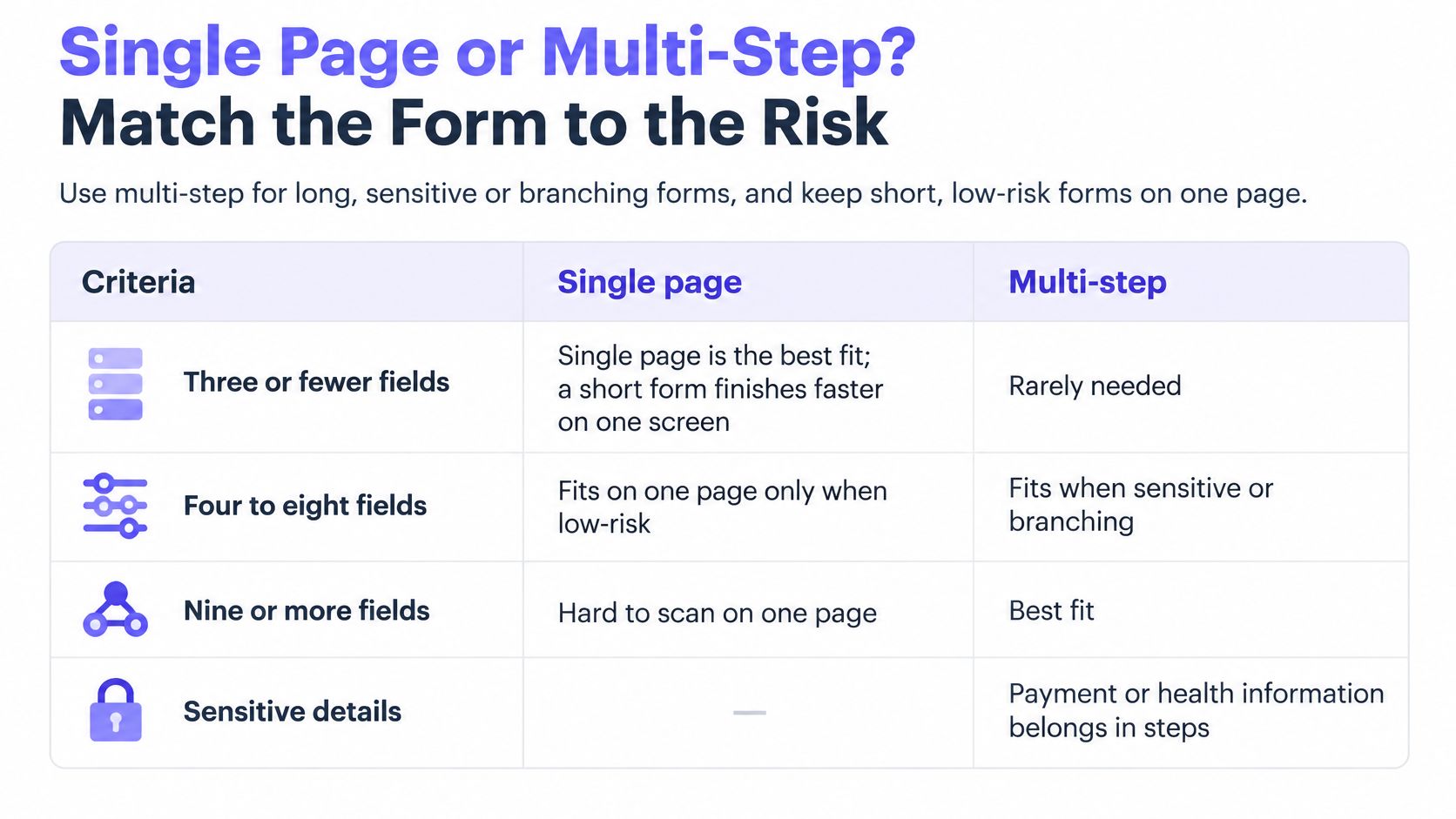
Form profile: Three or fewer low-risk fields
Recommended structure: Single page
Why: Splitting adds clicks without reducing effort
Watch for: Do not add steps for appearance
Form profile: Four to eight fields, mixed types
Recommended structure: Two or three steps grouped by intent
Why: Groups lower perceived load
Watch for: Each step needs a clear name
Form profile: Nine or more fields, branching
Recommended structure: Multi-step with saved progress
Why: Hides total effort until committed, so state the length first
Watch for: Lost data on mobile interruption
Form profile: Sensitive data after contact details
Recommended structure: Multi-step, sensitive question early and flagged
Why: Users decide with context
Watch for: Late surprises such as fees or account creation
Form profile: Evidence conflict in your own tests
Recommended structure: Run a controlled test
Why: Published benchmarks vary by industry and traffic
Watch for: Do not copy a three-step template blindly
The published numbers look decisive until you read them closely. A benchmark summary of multi-step form best practices attributes an average conversion rate of approximately 13.85–13.9% to multi-step forms, compared with about 4.5–4.53% for single-page forms. The same summary reports an average 14% lift over equivalent single-page forms, rising to 21% for B2B lead-generation forms containing six or more fields.
Treat those as directional, not as a promise. For forms with three or fewer fields, splitting can be neutral or slightly harmful. One reported case moved an 11-field form to three steps and rose from 0.96% to 8.1%, which is useful as a single data point, not as a rule for your funnel.
In short, field count starts the decision, but sensitivity, interruption risk, and branching finish it.
What will the user need before they start? Say so on an intro screen for applications, quotes, and onboarding. People tolerate effort they can predict. They resent effort that ambushes them on step three.
Grouping Fields and Keeping Each Step Short
Group fields by the user's goal, not by your database table. Give each step one decision the user can name.
Baymard's large-scale checkout research found that the average checkout in 2024 contained 11.3 form fields across 5.1 steps, while 17% of users abandoned because the process felt too complex. Baymard also reports that usability tends to deteriorate when a flow exceeds roughly eight steps.
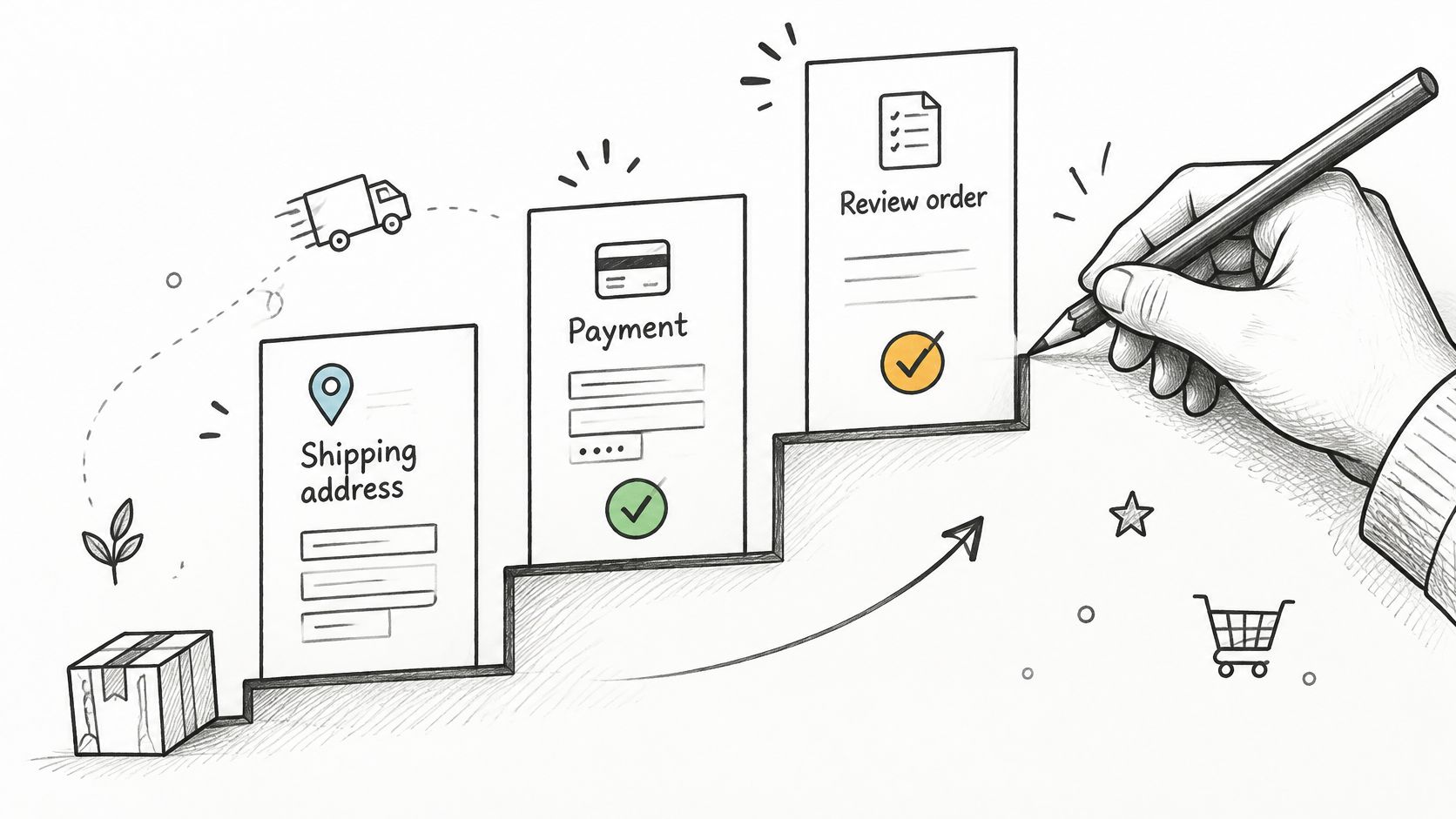
Treat every field as a cost. Remove nonessential inputs, defer optional questions, and use autofill plus sensible defaults. A three-step flow with 12 demanding fields can be harder than a five-step flow with six easy ones, so count effort before you count screens.
Use flowchart process examples to test whether each group holds together. Then apply this check:
- One memory per step: Ask together for answers the user recalls together, such as a full address.
- Name it plainly: "Confirm your business" works. If the name needs a second sentence, split or merge the step.
- Flag sensitivity early: Payment, identity, and health questions get context before the field, not after an error.
- Move optional later: Keep the required path clean, then offer enrichment after the core task.
Progress Indicators, Navigation and Saved Progress
Every multi-step form needs a visible position, a safe way back, and data that survives navigation. Without those three, form progress indicators become decoration.
Use "Step 2 of 4" with plain-language names when the path is fixed. For branching flows, show the conditional path instead of a percentage. A percentage that jumps backward when a new branch appears teaches users not to trust it.
Navigation Rules Worth Enforcing
- Back never clears input: Returning to an earlier step restores every value exactly as typed.
- Completed steps stay editable: Let users click a finished step in the indicator and correct it.
- Changed answers flag downstream effects: If an earlier edit invalidates a later choice, keep the later value and mark it for review. Don't discard it without telling the user.
- Keep the primary button enabled: When pressed with missing data, explain what's missing. A disabled button hides the reason from keyboard and assistive technology users.
Where else does this show up? Outside software, families comparing care options face the same sequencing problem, which is why resources like three steps to assisted living placement break a stressful decision into named stages. The pattern works when each stage earns the next one.
For flows that span sessions, offer save and resume through an account draft or emailed link, and state the expiry plainly. Onboarding, applications, and quotes all qualify. A two-minute signup usually doesn't.
Map those return paths before you polish screens. A user journey mapping guide helps you see interruptions, handoffs, and re-entry points that a screen-by-screen review misses.
End with a summary screen before final submission. Users should review grouped answers, jump back to fix one section, and return to the summary without re-entering anything. Watch for the classic failure: an indicator reading "Step 3 of 3" followed by a surprise fourth screen after a branch. That single lie can undo the trust the whole flow built.
Validation and Error Recovery Across Steps
Validate at the cheapest point to correct. That's the core of multi-step form validation, and it's where most flows quietly bleed users.
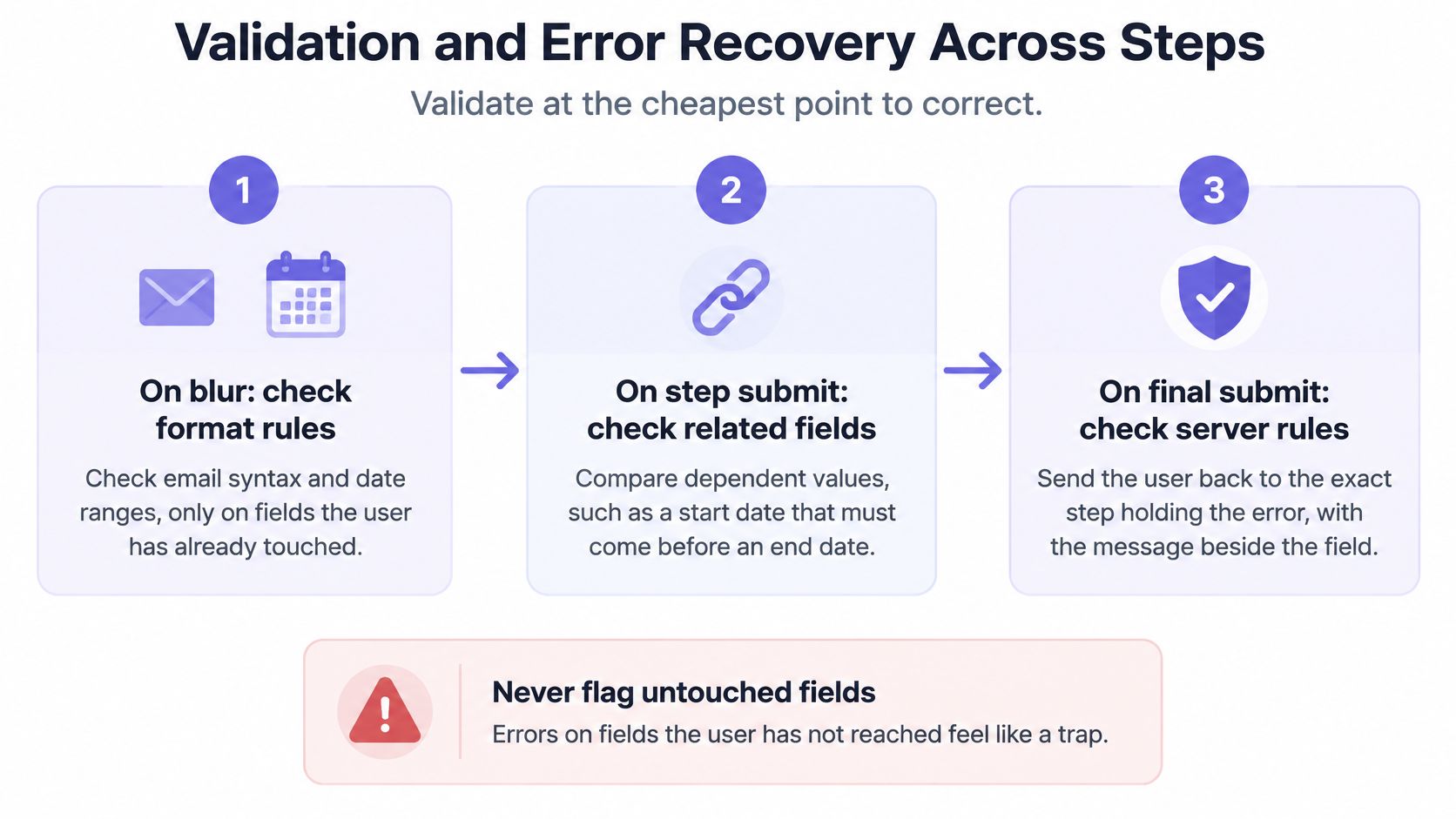
Step 1. Check format on blur.
- Test deterministic rules such as email syntax and date ranges.
- Only check fields the user has touched. Errors on untouched fields feel like a trap.
Step 2. Check relationships on Next.
- Run required-field and cross-field rules, such as a start date before an end date.
- Keep the user on the step, preserve entries, and move focus to the first fixable error.
Step 3. Report server results where the fix lives.
- Surface uniqueness, eligibility, or payment authorization failures beside the relevant field.
- If the error belongs to an earlier step, take the user there with context intact.
Cross-step dependencies need the same care. Say a postal code on step two contradicts the tax region chosen on step one. Show the conflict on the step the user can fix, name both values, and link back to the source field.
This is underexplored territory. Accessible error message guidance recommends field-specific text, programmatic associations such as aria-describedby, aria-invalid state, and an error summary with focus management when multiple errors exist. WCAG 2.2 also addresses redundant entry, stating that users should not be required to re-enter information already supplied elsewhere in a process.
A user should never need to restart a flow to fix one field.
Measure recovery separately from completion. Track whether values persist, whether keyboard users can correct the field, and whether screen readers announce the problem. For state patterns worth reusing, see designing better failure experiences with Figr and apply the same discipline to inline, summary, and server errors.
Write messages that name the fix. "Invalid input" is a shrug. "Enter a billing postcode with five digits" is help.
Five Multi-Step Form Examples and Where Each Breaks
These five multi step form examples cover most product work. Each one fails in a predictable place.
Context: SaaS onboarding
Step grouping: Workspace, role, team size, first project
Design decision: Show value before asking for team invites
Likely break point: Invitations requested on step one
Context: Checkout
Step grouping: Contact, shipping, payment, review
Design decision: Show total cost early and keep summary editable
Likely break point: Extra costs appear only at the final step
Context: Account registration
Step grouping: Email and password, profile, verification
Design decision: Explain why an account is needed before step one
Likely break point: Account forced before the user sees the benefit
Context: Team invitations
Step grouping: Emails, roles, optional message
Design decision: Allow bulk paste and inline role choice
Likely break point: One invite per screen
Context: Complex configuration
Step grouping: Product, option branches, quote summary
Design decision: Show conditional steps and running total
Likely break point: Hidden branches and unclear totals
Checkout Lives or Dies on Price Honesty
Say a retailer splits checkout cleanly and still loses people at payment. The usual culprit is a total that changes late, after shipping and fees appear. The structure looks fine in a prototype. The economics don't.
Pull back for a second. At scale, every hidden cost trains users to treat your early steps as a negotiation they didn't agree to. Show estimated totals early, explain what can still change them, and keep the review step editable so a shipping change doesn't force a restart.
Configuration Lives or Dies on Visible Branching
Complex configuration is a wizard wearing form clothes. Product choice changes options, options change price, and some combinations rule each other out. Users can handle that complexity if they can see it.
Show conditional steps as they become relevant, keep a running total visible, and explain why an option disappeared. "This battery size isn't available with the rack you selected" preserves trust. An option that vanishes without explanation destroys it.
For each pattern, design four states before you call it done: empty, partially complete, error, and saved and returning. Onboarding depends most on the first screen earning the second. Registration depends on explaining the account before demanding a password. Invitations depend on bulk paste, duplicate detection, and inline role changes.
Which state does your current flow handle worst? That's usually the step your analytics keeps pointing at.
Mobile and Accessibility Checks for WCAG 2.2
Mobile and accessibility are set at the step level. You can't bolt them on after the flow is built.
On mobile, put one question group per screen and match the keyboard to the input: email, numeric, telephone. Add autocomplete attributes so autofill works for names, addresses, and payment fields. Keep sticky Next buttons from covering the focused field when the keyboard opens, and support resume when users switch apps to find a code or document.
Keyboard behavior needs explicit design too. On each step change, move focus to the new step heading or first field. Let Enter submit the step, keep Back reachable, and never trap focus inside the progress indicator.
Criterion: 2.5.8 Target Size (Minimum)
Level: AA
Requirement for multi-step forms: Controls are at least 24 by 24 CSS pixels, subject to the criterion's exceptions
Criterion: 3.3.7 Redundant Entry
Level: A
Requirement for multi-step forms: Don't make users re-enter information already supplied in the process
Criterion: 3.3.8 Accessible Authentication (Minimum)
Level: AA
Requirement for multi-step forms: Don't rely on memory or transcription tests for login steps when an alternative such as paste or a password manager can work
Criterion: 3.3.1 Error Identification
Level: A
Requirement for multi-step forms: Describe each error in text beside the field, not by color alone
Screen readers need announcements for step changes and error summaries, plus a programmatic label on every control. Announce the new step without yanking focus somewhere unexpected. A risk-based accessibility testing for mobile apps approach helps you prioritize the steps where failure blocks completion entirely.
Pre-Release Checklist for Every Step
- Keyboard pass: Complete, go back, trigger an error, and fix it without a pointer.
- Screen reader pass: Confirm step changes and errors are announced in order.
- Autofill pass: Fill contact, address, and payment groups from browser or device autofill.
- Interruption pass: Leave mid-step, return, and verify every value survived.
- Target pass: Check Back, Next, and step links meet the minimum target size.
Measure Journey Completion, Then Test Variants in Figr
Measure journey completion first, then find the weakest step before you change the structure.
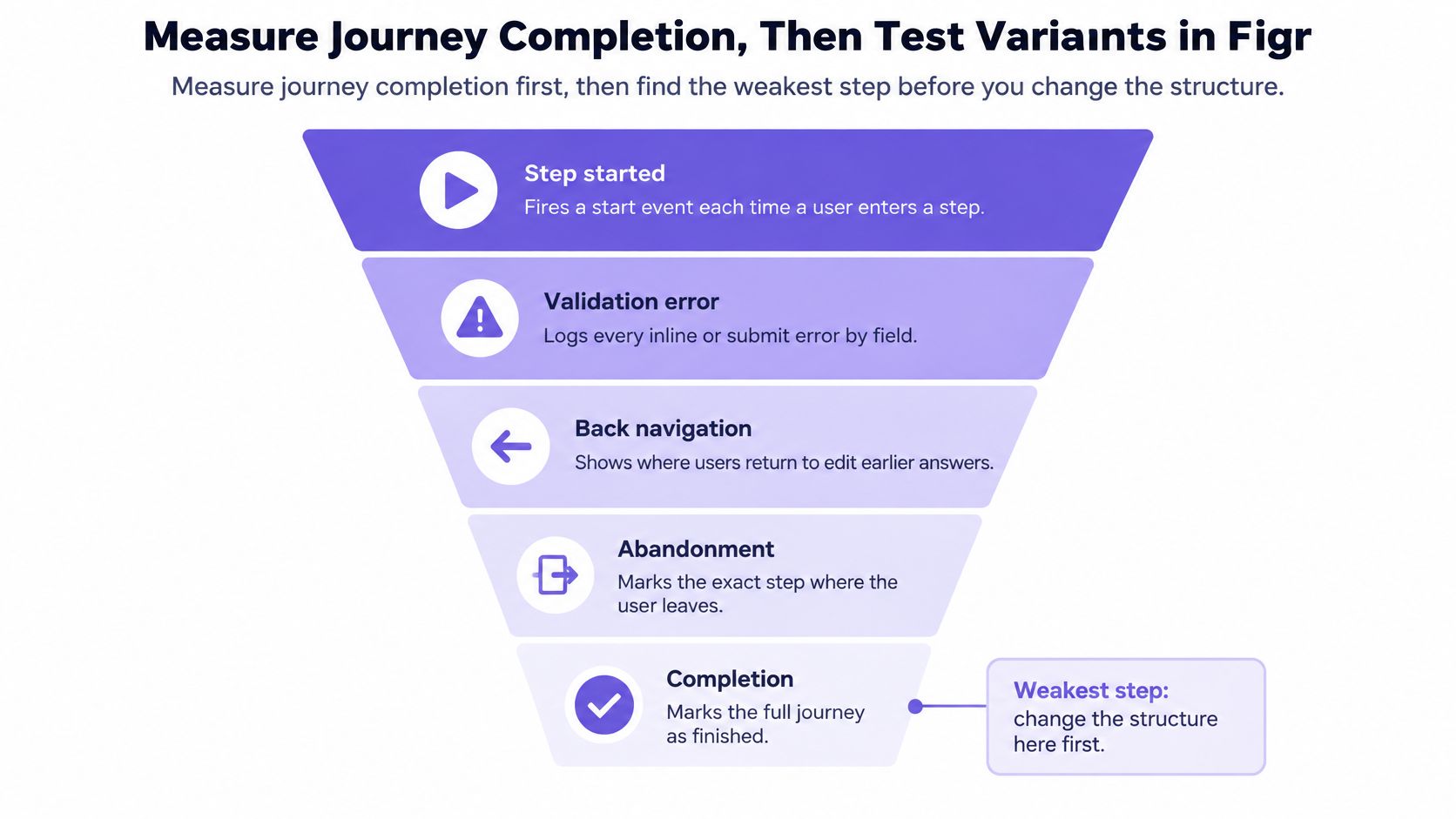
Instrument each step with start, validation-error, back-navigation, abandonment, and completion events. That separates structural friction from interaction friction. Too many steps is structural. Unclear labels, repeated entry, and premature account creation are interaction problems wearing a structural disguise.
Take a hypothetical funnel. 1,000 users start step one, 820 finish it, 690 finish step two, 540 finish step three, and 430 submit. Journey completion is 43%. Step three converts 540 of 690, or 78.3%, the weakest step rate, so you investigate there first even though step one loses more people in absolute terms.
Metric: Step completion rate
Formula: Users who finish step n divided by users who entered step n
What it points to: The step losing users
Metric: Journey completion rate
Formula: Users who submit the final step divided by users who started step one
What it points to: The headline outcome
Metric: Field error rate
Formula: Users with an error on a field divided by users who edited that field
What it points to: Comprehension or input constraint
Metric: Correction latency
Formula: Median seconds from error shown to valid input
What it points to: Cost of recovery
Metric: Back-navigation rate
Formula: Users who return to an earlier step divided by users who reached step n
What it points to: Hidden requirements or uncertainty
Metric: Time per step
Formula: Median seconds from step load to Next
What it points to: Effort, to compare with field count
Guidance from b13 on online form best practices recommends measuring error rate per field, correction latency, backtracking, and repeated submissions alongside completion. Those numbers tell you whether a step fails on comprehension, input constraints, or state handling.
Then test one variable at a time: step grouping, a pre-form overview, or moving one sensitive field. Set sample size before launch, segment by device, and check lead quality alongside volume. Sound A/B testing best practices keep a promising variant from winning on noise.
Figr supports that variant work by helping teams explore complete flows, compare step-grouping options with UX Reasoning, map validation and error states as multi-state prototypes, and hand off Figma-ready output grounded in your design system. It doesn't guarantee conversion gains or validate usability for you. Your users and your funnel still decide.
Start this week: pull thirty days of step events, find the largest percentage loss, write one hypothesis, and test one change.
Frequently Asked Questions
What is a multi-step form in UX
It splits one data collection task across sequential screens. Each screen holds a coherent group of fields, shows the user's position, and lets them move back without losing entries.
Are multi-step forms better than single-page forms
Not always. Benchmarks favor multi-step forms for long, complex tasks, while three or fewer low-risk fields often perform the same or worse when split. Test your own form and traffic.
How many steps should a multi-step form have
Use the fewest steps that keep each one coherent. Forms with four to eight fields usually work in two or three steps. Beyond roughly eight steps, users lose track of the sequence and abandon more often.
What are the best practices for multi-step form validation
Check format on blur for touched fields only. Run required and cross-field rules on Next, report server errors beside the field that needs fixing, preserve every entry, and move focus to an error summary when several errors exist.
How do you improve multi-step form completion rates
Measure journey completion from first start to final submit. Find the step with the largest loss, change one variable in a controlled test, and track error recovery and data quality alongside completion.
Bring your existing screens, funnel data, and design system into Figr to map the full form flow, compare step groupings, and design validation, error, and resume states before engineering builds them. You'll hand off Figma-ready variants with the reasoning attached, then let a controlled test with real users decide which structure ships.