
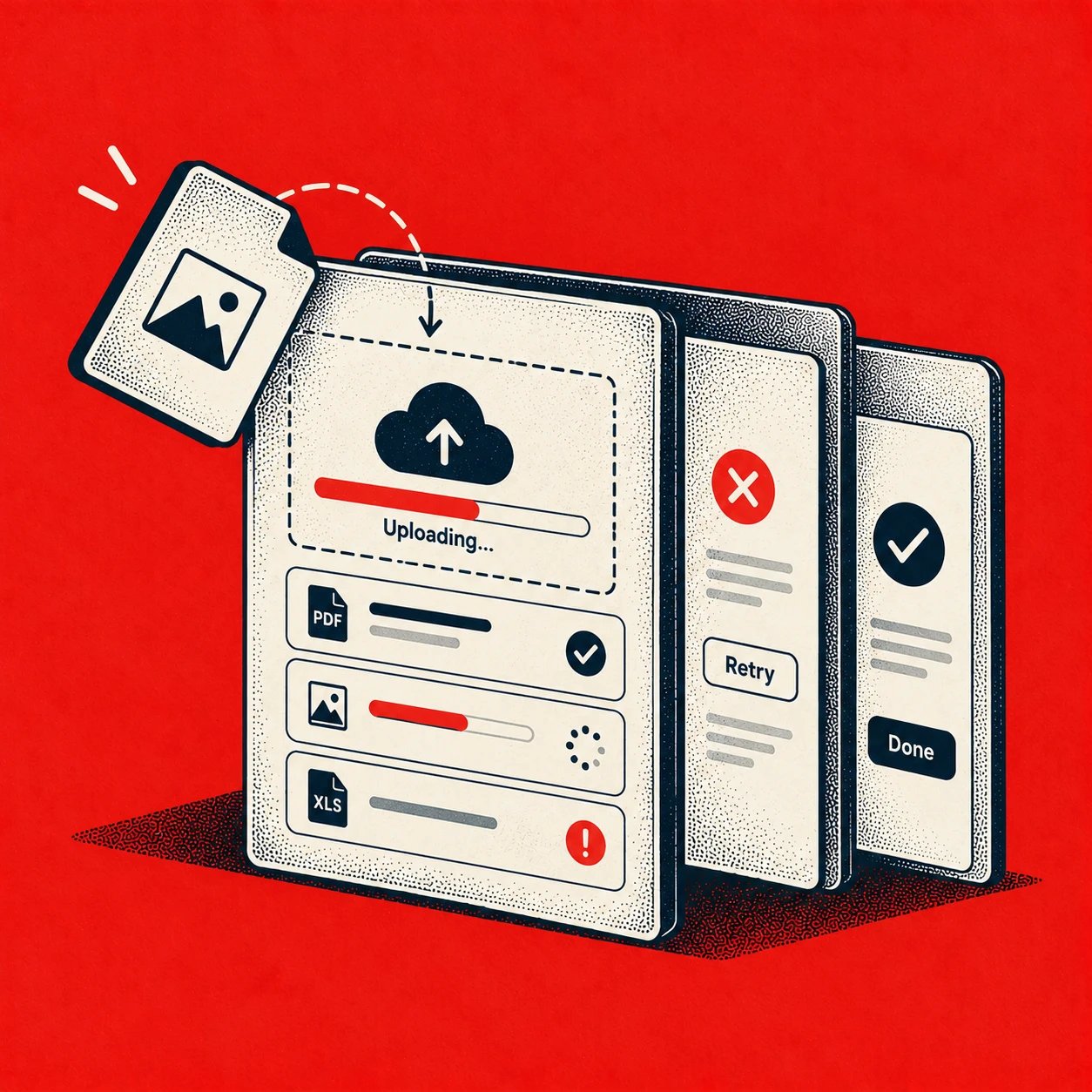
File upload UX is the design of every state between selecting a file and confirming it's stored, processed, and recoverable if something fails. Good patterns state limits before selection, show honest progress during transfer and processing, preserve work after errors, and offer specific retries. That's the standard your flow should meet.
When those states are missing, users can't tell a stall from a success. They refresh, reselect, or abandon a form they'd almost finished, often on mobile where finding the document again means leaving your product entirely. A required document then blocks onboarding, claims, applications, and identity checks for reasons that have nothing to do with eligibility.
Treating the upload as a state machine changes the work. You design idle, validating, transferring, processing, failed, and complete as distinct moments, each with its own copy and recovery path. What does the user know at each moment, and what can they do next?
Why Uploads Break When You Treat Them Like a Button
Last week I watched a tester upload a tax document during a loan application review. She selected the PDF, the button dimmed, and nothing else changed for a long stretch. Was it working?
She refreshed. The form reset, her earlier answers vanished, and she had to locate the file again on her phone. The button had worked exactly as built. The workflow around it hadn't been designed at all.

The Missing Middle
The basic gist is this: selection is the shortest part of an upload. Most of the user's time and doubt live in validation, transfer, server processing, and whatever happens after a failure. If your spec covers browse and drop but leaves those moments implied, engineering will fill the gaps under deadline pressure, usually with a spinner and a generic error.
That gap has a cost at scale. Uploads sit inside your highest intent flows, where users have already decided to continue and now need a document to prove something. Every avoidable retry taxes that intent. Support teams absorb the rest as tickets about files users believe they already sent.
Every transition should tell the user what just happened, what's happening now, and what they can do next.
Name that principle early and reviews get sharper. Designers stop debating button labels in isolation, engineers get states they can instrument, and QA gets transitions they can test. Sound like more work upfront? It is, and it replaces far more expensive work after launch.
The Anatomy of a Document Upload
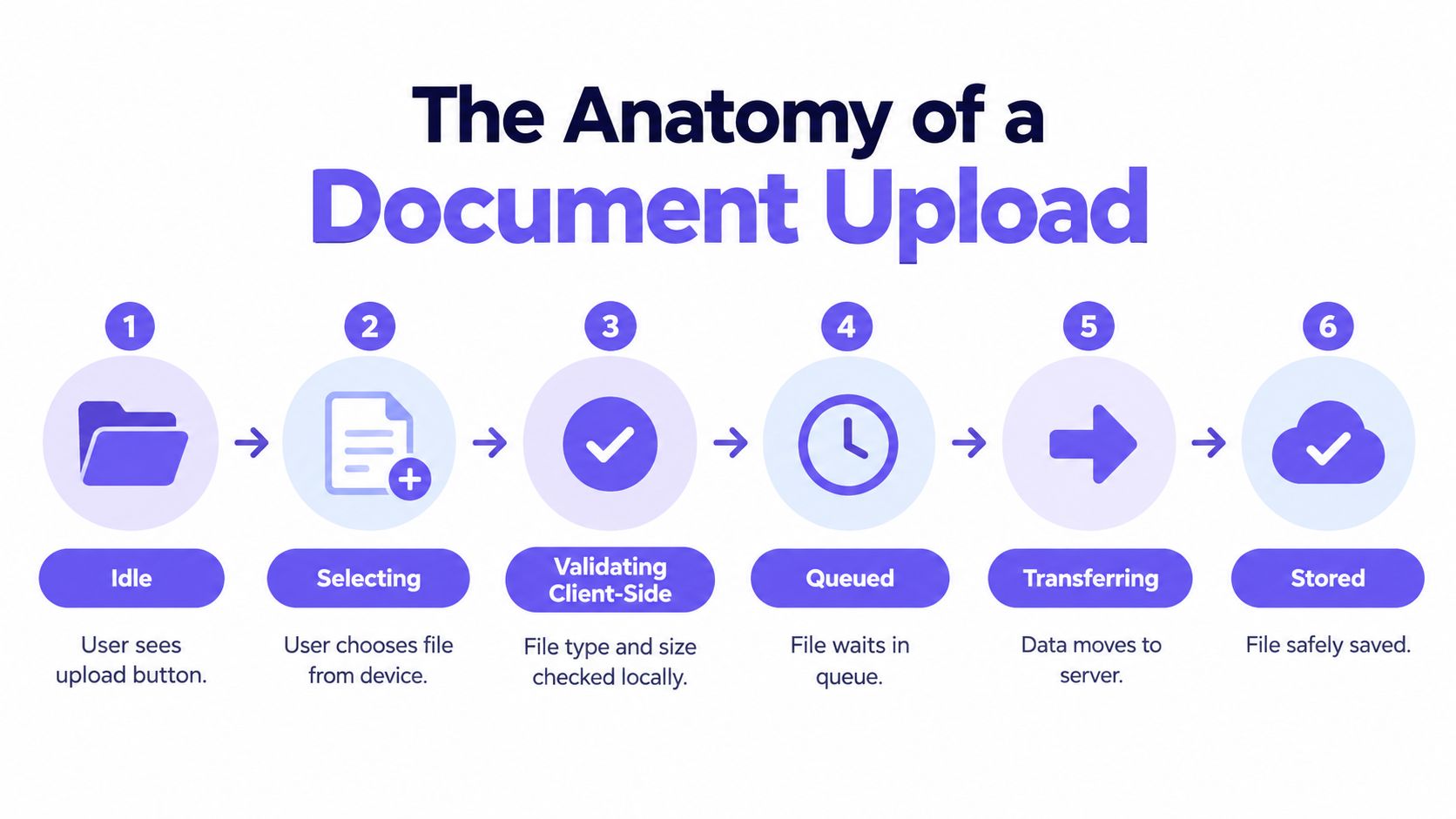
A document passes through more states than most specs name, and unnamed states default to silence. Mapping them as flowchart process examples do for other workflows gives your team shared language for reviews and bug reports.
The Upload State Model
- Idle: The user sees the control, its label, and the constraints before touching anything.
- Selecting: The system file picker, camera, or photo library opens. Your product waits without timing out the session.
- Validating client-side: Type and size are checked locally, before any bytes move.
- Queued: In a batch, the file waits its turn while others transfer. It needs a visible position.
- Transferring: Bytes move to the server. This is the only state a progress percentage can describe.
- Processing: The server scans, converts, or generates a preview. Transfer is done, the file isn't ready yet.
- Complete, failed, cancelled, retrying: Each ending states what happened and what remains possible.
Collapsing transferring and processing into one spinner is the most common error I see in shipped flows. A file can finish transferring in seconds and then sit in a malware scan or conversion queue far longer. If the interface stays silent, users read processing time as a hang.
This distinction is measurable, not cosmetic. In cloud storage research with 349 users, uploading earned a Mean Opinion Score of 4.47 against 3.33 for watching photos, a difference significant at p = .02. Users judge the upload itself as a distinct experience. Doesn't that earn it distinct states?
Pre-Selection Design and the Drag-and-Drop Layer
Most upload failures are decided before the picker opens. If users learn your rules only after a rejection, you've spent their time and bandwidth teaching them something a hint line could have said for free.
Step 1. State constraints in human terms.
- Name accepted formats beside the control, such as PDF, JPG, or PNG.
- Give the size limit in readable units, not bytes.
- Say how many files are allowed if there's a cap.
Step 2. Narrow the picker itself.
- Set the HTML accept attribute so the picker filters to valid types, as U.S. Web Design System file input guidance describes.
- Treat accept as a convenience, never the only validation layer.
- Show a specific error if a dragged file still doesn't match.
The payoff is documented, not theoretical. In one documented KYC scenario, hiding a 10 MB limit until after upload meant about a third of first attempts failed and roughly half of affected users abandoned. Moving the limit into pre-upload guidance and compressing images on the client cut first-attempt failures to below 4 percent.
Drop Zones and Mobile Entry Points
A drop zone earns its place on desktop, where dragging from a folder is fast. It should wrap the input, respond visibly on drag-over, and open the picker on click or keyboard activation. Wedding platforms that collect guest photos show the same pattern at consumer scale: a generous target, clear invitation, and a browse fallback for anyone who doesn't drag.
On mobile, drag rarely applies, so offer the routes people use. Camera capture suits documents photographed on the spot, the photo library suits existing images, and recent files suits downloads and email attachments. Which route fits your document type? Answer that before styling anything.
Progress Feedback That Means What It Shows
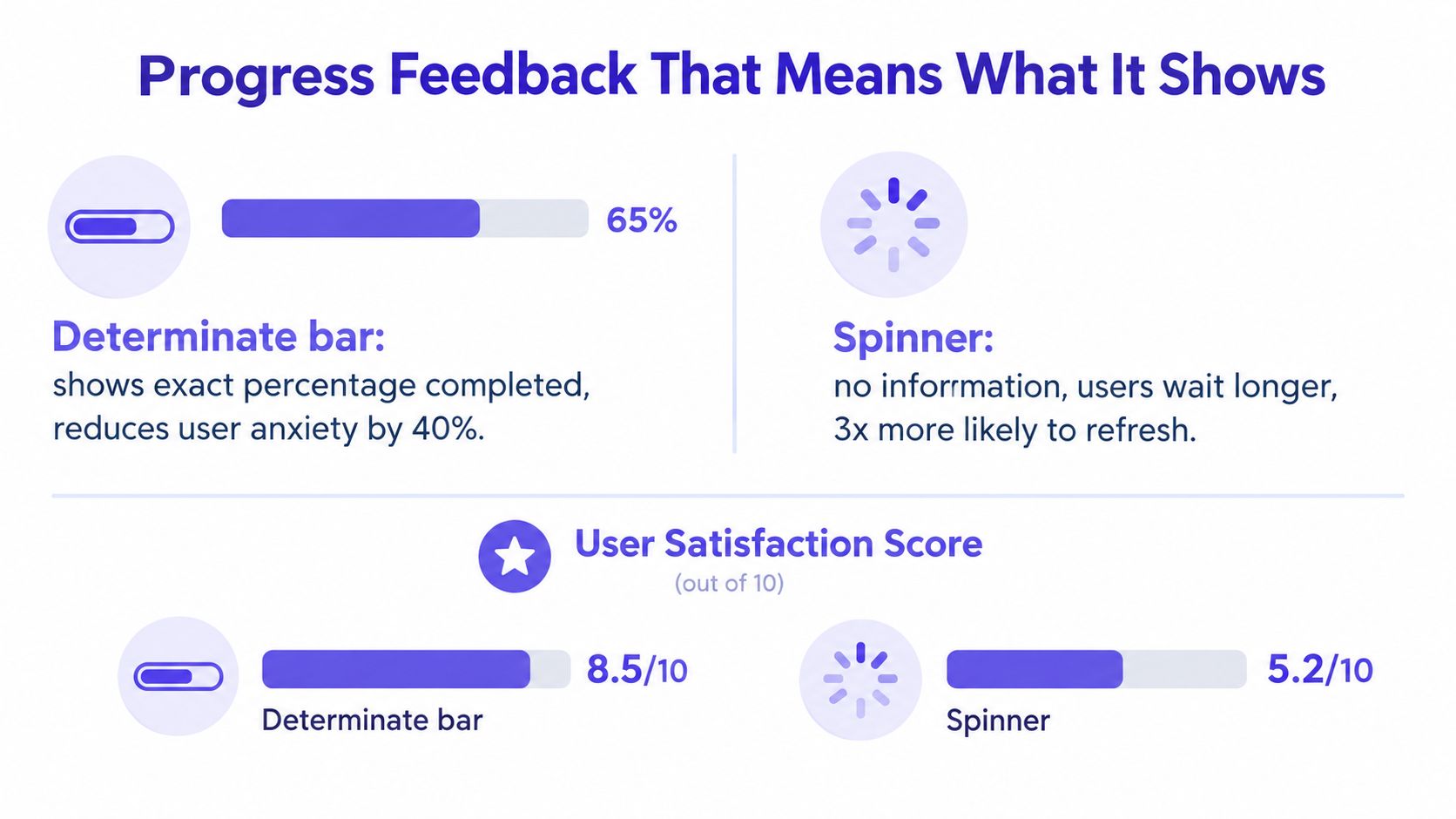
A progress bar that animates on a timer teaches users to distrust every indicator you show afterward. Honest feedback is possible more often than teams assume, because the browser knows the file's byte size before transfer begins.
Transfer, Then Processing, Then Review
Step 1. Show determinate progress during transfer.
- Pair the bar with a numeric percentage.
- Add estimated time remaining when you can compute it credibly.
- Keep a cancel action visible throughout.
Step 2. Announce the handoff to processing.
- Change the message when bytes finish moving, for example to checking your file.
- Switch to an indeterminate indicator only here, where duration is unknown.
- Let users continue other form work where the flow allows it.
Step 3. Separate awaiting review from both.
- Say the file arrived and a person or system will review it.
- Give the expected response channel, such as email or in-product notification.
For batches, keep state per file rather than per batch. Guidance on long-running processes in UI makes the same point: per-file state lets users spot which item stalled and which succeeded, instead of facing one ambiguous indicator. One failed payslip shouldn't cast doubt on three completed documents.
Why do teams still ship a lone spinner? Usually because progress events weren't in the original ticket, which is how upload work joins the offline upload scenario breakdown of cases priced after launch instead of before it. Spec the events with the design, not after it.
Show movement that corresponds to actual bytes transferred, not motion that imitates progress.
Validation, Errors, and the Recovery Layer
Errors decide whether a user finishes or walks away, so each failure mode needs an assigned recovery path before build starts. Validate on the client for speed and on the server for enforcement, since client checks can be bypassed. When both layers disagree with the user, the message and the preserved work matter more than the rejection itself.
State by State Microcopy and Recovery
Wrong type. Message: This file is a DOCX. Upload a PDF, JPG, or PNG. Action: choose a different file, with the rest of the form untouched.
Oversize. Message: PDF is 14 MB; the limit is 10 MB, wording Australian government design system guidance recommends over a generic invalid file notice. Action: compress automatically where appropriate, or replace the file without re-entering form data.
Partial batch failure. Message: Two files uploaded. One needs attention. Action: retry or replace only the failed item, keeping successful files confirmed in place.
Duplicate file. Message: You already added this file. Action: keep one copy, replace it, or add anyway if your workflow allows duplicates. Never append without telling users and let them discover doubles at review.
Interrupted connection. Message: Upload paused. Your file is saved up to the last completed part. Action: resume from that checkpoint when connectivity returns, rather than restarting the transfer.
Server rejection after client approval. Message: We couldn't accept this file after checking it, with the specific reason your server can safely disclose. Action: replace the file or contact support with a reference, while the selected file context stays visible.
These patterns align with broader patterns for when things go wrong, and public sector teams keep refining them. GOV.UK file upload guidance was revisited in March 2025 to improve accessibility, a reminder that mature systems still find defects here. What would your last accessibility pass have caught in your own upload?
Recovery rule: Preserve user work whenever the security model allows it, and make the user repeat only the step that actually failed.
Accessibility and Mobile Requirements
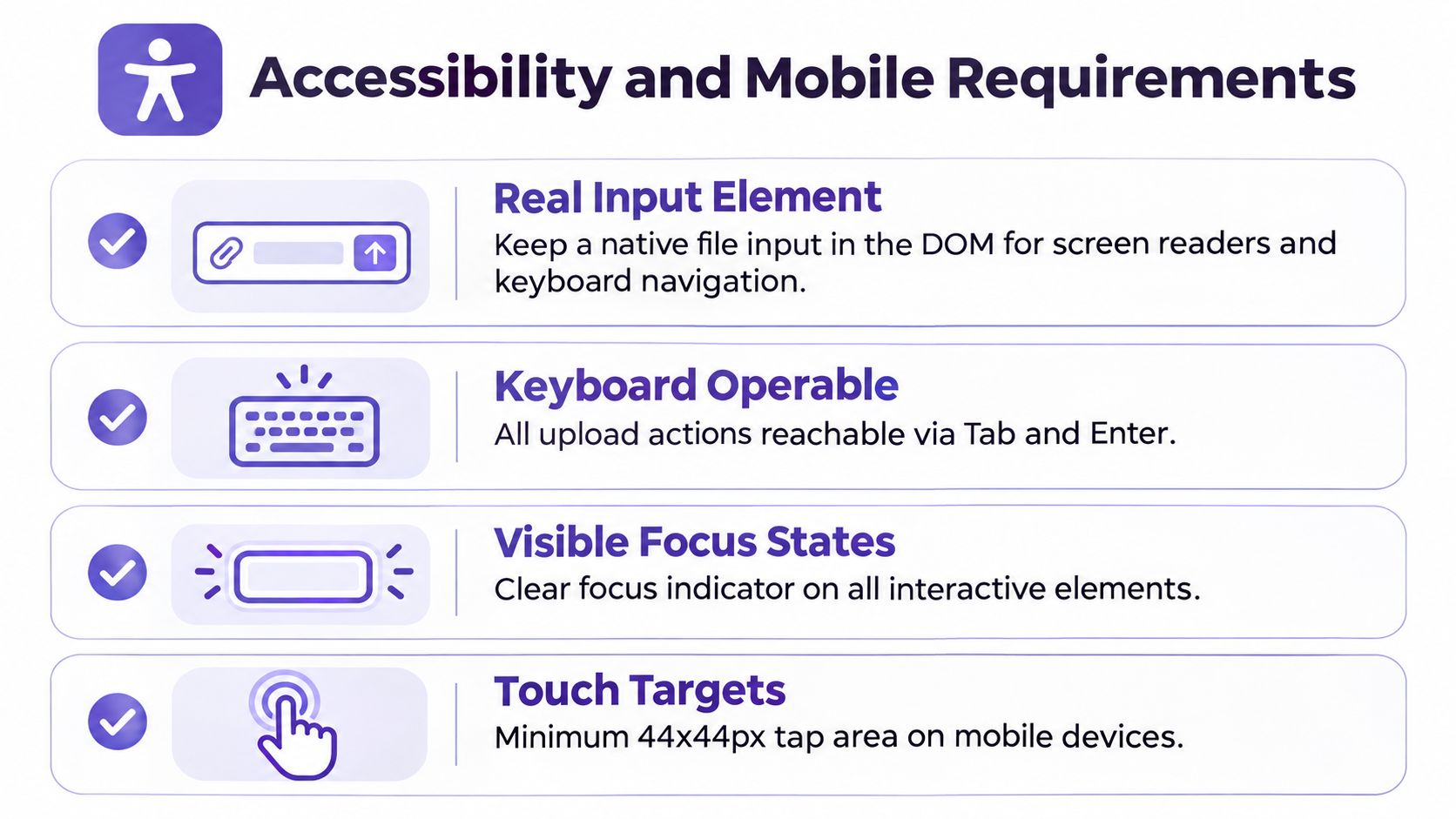
Accessibility here is architecture, not a final checklist. Style the drop zone however you like, but the underlying control determines whether keyboard and screen reader users can complete the task at all.
The Semantic Foundation
- Real input: Keep a genuine file input in the document, reachable in tab order with a visible focus state.
- Associated hint text: Put format and size rules in visible text linked with aria-describedby so they're announced with the control.
- Programmatic errors: Set aria-invalid on failure and link the error message so assistive technology announces the specific cause.
- Live regions: Announce start, completion, and failure for users who can't see visual movement, as accessible file upload guidance sets out.
These details support WCAG 2.2 AA expectations around name, role, and status messages, though the criteria themselves are requirements and the techniques above are implementation advice. Keep that distinction in your spec so engineering knows what's mandatory and what's a chosen method. Conflating the two produces either overclaiming or underbuilding.
Mobile Specifics and a QA Script
Touch targets need room for thumbs, hover-only states need tap equivalents, and progress needs to survive the user glancing away. Test on a real device with a throttled connection, following the discipline in accessibility testing for mobile apps. Can you reach every action one-handed? Can you cancel mid-transfer? Does the picker return you to the same form position?
Run the same script with a screen reader enabled and the screen dimmed. If you can't tell whether the upload finished, your live region copy needs work, and no visual polish will compensate.
A Worked Document Upload Example
Take an income document inside a loan application. The applicant has finished several screens of questions and now needs to attach a payslip, possibly as a phone photo. Same task, two very different experiences.
What Most Teams Ship
Bad example. A single button labeled Upload sits under the question with no format or size information. The applicant selects a photo, watches a spinner that covers both transfer and scanning, and gets an error reading Upload failed. Nothing says the photo exceeded the limit, the file selection is cleared, and retrying means finding the photo again. On a second failure, many applicants reasonably decide the lender doesn't want their business.
The State Model Applied
Good example. The pre-selection view reads Upload your most recent payslip, with hint text naming PDF or JPG and the size ceiling. The control is keyboard reachable and the hint is programmatically associated. Selection triggers instant client validation, then a determinate bar with percentage and cancel. When transfer ends, the message changes to checking your document while the applicant reviews other answers.
If the scan rejects the file as unreadable, the error names that reason, suggests a flatter, well-lit photo, and keeps every other answer intact. A second document added later carries its own state, so its progress never overwrites the first file's confirmation. Completion shows a preview thumbnail, file name, and a remove action, confirming the right document landed.
When I map flows like this in Figr, I generate the retry and partial success screens from our existing product screens and design system first, then judge them against the state model. The tool speeds up producing reviewable variants. For examples to compare against your flow, browse the Figr gallery and UI templates, then adapt the relevant states to your product rather than copying a screen wholesale. Deciding which failures should be recoverable remains a human product call, informed by your security and compliance constraints.
Where does your current flow sit between those two versions? You are likely closer to the first than you expected.
Designer-to-Engineer Checklist and FAQs
Field-level analysis estimates uploads can contribute roughly 30 to 50 percent of form drop-off when users must complete them synchronously, according to research on form friction surfaces. That framing makes this a product concern worth a testable handoff, and the checklist below pairs well with a developer handoff guide.
Testable Checklist
- Pre-selection: Formats, size limit, and file count are visible before the picker opens, and the accept attribute matches them.
- Validation: Client checks run on selection, server checks run on receipt, and errors state the value and the limit.
- Progress: Transfer shows percentage based on bytes, processing has its own message, and cancel works in both.
- Recovery: Failed files retry without reselection where security allows, partial batches keep successes, interruptions resume.
- Accessibility: The input is keyboard operable, hints and errors are programmatically linked, and a live region announces completion and failure.
- Mobile: Camera and library routes are offered where relevant, targets suit thumbs, and the flow survives switching apps mid-task.
- Asynchronous option: Users can finish the form and upload later through a follow-up link when the document isn't at hand.
Frequently Asked Questions
How long should an upload take before it feels broken? There's no universal threshold, because file size and network vary. Perceived quality depends on feedback during the wait, so show real progress early and name the processing stage once transfer ends.
Should the drop zone replace the file input? No. Wrap the input so keyboard and assistive technology users keep a native control, and let pointer users enjoy the larger target.
How should duplicate files be handled? Detect a matching name and size, tell the user plainly, and offer keep, replace, or add anyway based on what your workflow permits.
What if the server rejects a file that passed client checks? Preserve the selection context, disclose the specific safe reason, and offer replacement or support with a reference identifier.
Where can I find examples of upload states to adapt? Browse the Figr gallery and UI templates for product UI examples. Use them to compare layouts and state coverage, then check your own flow against the validation, progress, processing, and recovery requirements above. A template is a starting point, not a substitute for your product's file rules or security decisions.
In short, pick one upload flow in your product this week, map it against the state model, and find the first failure that should be recoverable but isn't. Fix that single transition before redesigning anything visual. Which failure will you find first?
Bring your current upload screens and design system into Figr to explore retry, processing, and partial success states as reviewable, Figma-ready variants grounded in your real product. You'll keep judgment over which failures become recoverable while skipping the blank canvas. Start with the one flow your checklist just exposed.