

8 AI UX Patterns Every Product Team Should Know in 2026
A PM asks an AI assistant to summarize a customer account before a renewal meeting. The summary appears, but the interface does not show which notes it used, whether the answer is complete, or what happens if the PM edits it. The problem is not only answer quality. The product has left the PM without a way to check, correct, or safely use the output.
AI UX patterns are reusable interface approaches for exactly these moments: helping people state an intent, see what the system is doing, inspect a result, and recover when it is wrong. For product managers, designers, and engineers adding AI to an existing SaaS product, the most useful patterns address specific interaction states rather than generic principles. This guide covers eight: prompt inputs, streaming, human approval, explainability, uncertainty, error handling, refinement, and context controls. Each includes a hypothetical workflow, implementation states, edge cases, and a design recommendation.
These are not a substitute for evaluating the model or testing with users. They give a team an interface vocabulary for making unpredictable behavior manageable. Google PAIR's People + AI Guidebook addresses mental models, explainability, feedback, and graceful failure; Microsoft's Human-AI Interaction Guidelines organize guidance across first use, ongoing use, errors, and use over time. The patterns below turn that guidance into UI decisions a team can prototype and test.
Compare the 8 AI UX Patterns Before Choosing One
Choose an AI interface pattern by the user's decision point and the cost of getting it wrong. A fast suggestion needs a different interface from an agent about to change a shared record. Use this table to identify the control a workflow is missing; combine patterns when the task spans multiple stages.
Pattern: Prompt input and suggested actions
Best fit: Users do not know what to ask
Essential user control: Choose an example or write a request
Failure to design for: Vague prompt produces the wrong task
Pattern: Streaming responses
Best fit: Output takes time to generate
Essential user control: Track progress and cancel
Failure to design for: Partial output looks final
Pattern: Human approval
Best fit: AI proposes consequential changes
Essential user control: Review, edit, approve, or reject
Failure to design for: A change is applied before review
Pattern: Explainability and sources
Best fit: Claims or recommendations need checking
Essential user control: Inspect evidence and rationale
Failure to design for: Citation does not support the claim
Pattern: Uncertainty communication
Best fit: Data is incomplete or predictions vary
Essential user control: See limitations and verify
Failure to design for: Guess is presented as fact
Pattern: Error handling
Best fit: Generation or actions can fail
Essential user control: Retry, correct, or use fallback
Failure to design for: Work is lost after failure
Pattern: Iterative refinement
Best fit: First output needs shaping
Essential user control: Edit, regenerate, and compare
Failure to design for: Regeneration overwrites good work
Pattern: Context and memory controls
Best fit: AI uses product or user data
Essential user control: Inspect, limit, and clear context
Failure to design for: Hidden or stale context shapes output
1. Prompt Input and Suggested Actions
Prompt input patterns help users start with a clear task and understand what the AI will return. Use them when a blank input box would force people to guess the system's capabilities, required context, or output format.
Hypothetical SaaS example: In a support dashboard, a case-summary panel offers actions such as “Summarize the last 30 days,” “List unresolved issues,” and “Draft a reply for review.” Selecting one prefills an editable request and previews the scope: account notes and tickets visible to this user. A free-text field remains available for other tasks.

- Key states: Empty input with examples; template selected; edited request; missing required scope; ready to submit.
- Edge cases: The example requests data the user cannot access, or a pasted prompt exceeds the field limit. Explain the constraint before submission and keep the user's text.
- Common mistake: Presenting suggested actions as if they guarantee a particular answer, or forcing every task into a rigid template.
- Design recommendation: Pair each suggestion with an expected output and editable scope. Ask a clarifying question only when the missing detail would materially change the answer; otherwise state the assumption. For short responses, AI-generated reply recommendations illustrate how suggestions can sit beside the user's work rather than replace it.
The point is not to teach prompt engineering. It is to make the product's available actions legible at the moment someone needs them.
2. Streaming Responses and Progress
Streaming patterns show that work is underway without implying a partial response is finished or verified. Use them when generation or retrieval is slow enough that a silent screen could look broken, particularly for multi-step analysis.
Hypothetical SaaS example: An analytics assistant answers “Why did trial conversion fall?” It first shows “Checking the selected date range,” then “Comparing segments,” followed by a streamed draft. A persistent label says “Generating,” and a Stop button ends generation without silently submitting an incomplete conclusion.
- Key states: Queued; retrieving; generating; partial result; completed; cancelled; timed out.
- Edge cases: Sources arrive after a sentence appears, a network interruption stops the stream, or the user changes the date range mid-response. Mark incomplete material, retain the input, and prevent an outdated result from replacing a newer one.
- Common mistake: Showing animated text as a final answer or presenting a fake percentage when progress cannot be measured.
- Design recommendation: Show meaningful stage labels when available, distinguish partial from complete output, and make cancellation explicit. Announce important status changes without moving keyboard focus. WCAG guidance on status messages applies to loading, results, and errors; test live announcements with screen readers rather than announcing every streamed token.
Streaming is useful because it makes waiting understandable, not because typing animation itself builds trust. If users must act on the answer, hold action controls until the relevant output is complete.
3. Human Approval Before AI Actions
Human approval keeps a proposed AI action separate from its application. Use it when the system drafts customer-facing text, edits shared artifacts, changes permissions, or performs anything difficult to reverse.
Hypothetical SaaS example: A CRM assistant proposes updating three account fields after a call. The review view shows old and new values, the source note behind each proposal, and controls to accept one change, edit it, reject it, or apply all reviewed changes. Sending a customer email requires a separate confirmation.
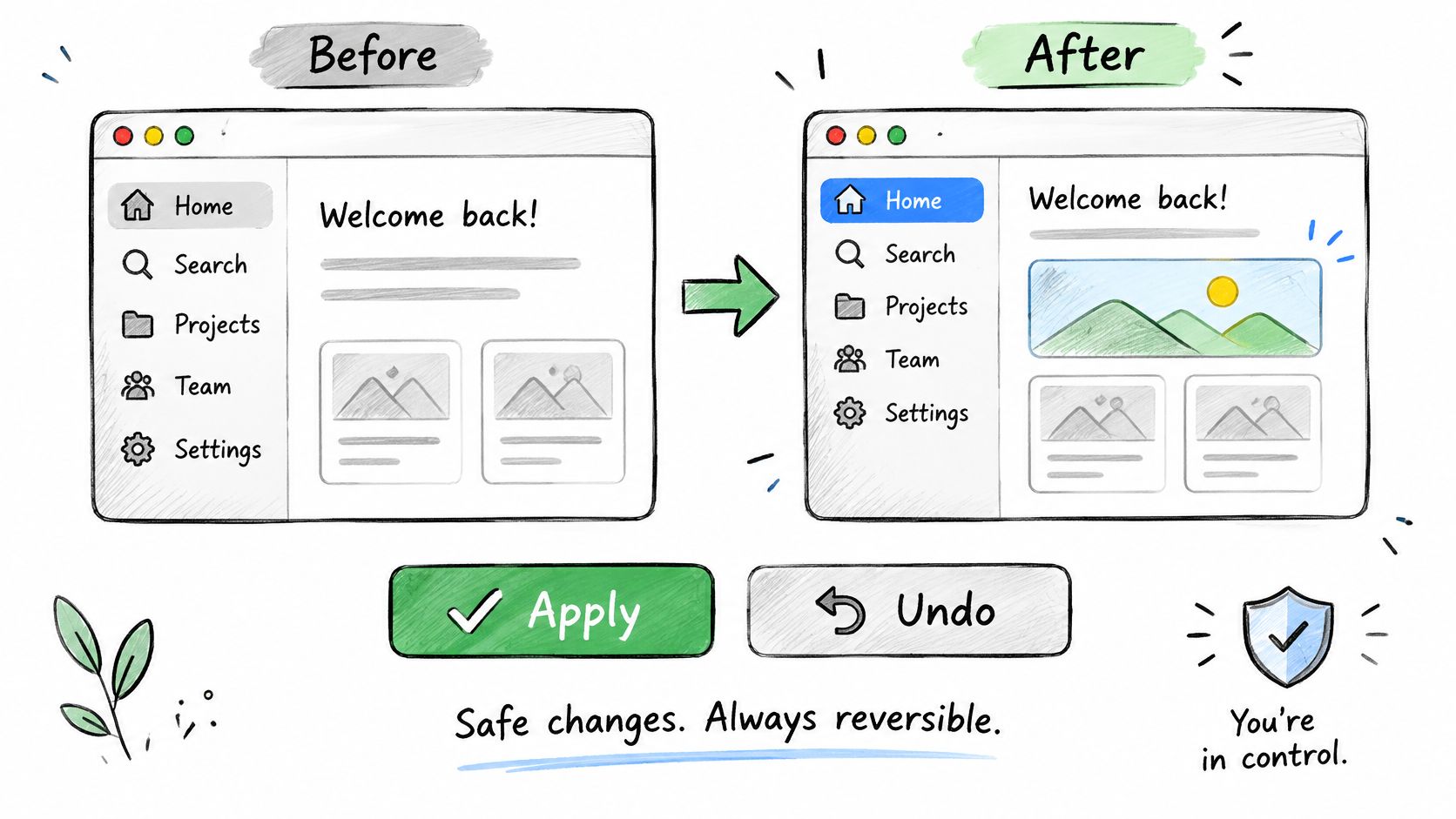
- Key states: Proposal; review; edited proposal; rejected; confirmed; applying; applied; undone.
- Edge cases: A record changes after the preview, the reviewer lacks permission, or only some updates succeed. Show conflicts before approval and report partial application accurately.
- Common mistake: Putting a generic “Confirm” button beneath an opaque plan, or interrupting every low-risk suggestion until approvals become reflexive.
- Design recommendation: Preview changes at the same level of detail as their consequences, keep the original intact until approval, and offer a clear undo path where possible. For code, a file diff serves this purpose; for product design, compare variants during rapid prototyping before committing to one.
A review surface must work with a keyboard and assistive technology. WCAG's name, role, and value guidance matters when a change list contains selectable controls: users need to know what each control affects and whether it is selected. For multi-step agents, place checkpoints before sending, publishing, deleting, or changing access, not merely at the start of the task. The same control question arises in AI product management workflows.
4. Explainability and Sources
Explainability patterns let users inspect the evidence or rationale behind a consequential output. Use them when someone must defend a summary, verify a recommendation, or understand why the AI selected an item.
Hypothetical SaaS example: A research workspace summarizes an interview theme. Each claim opens the supporting transcript excerpt, speaker, and recording time. The interface separates “What participants said” from “AI interpretation,” so a reviewer can challenge the interpretation without losing the original quote.
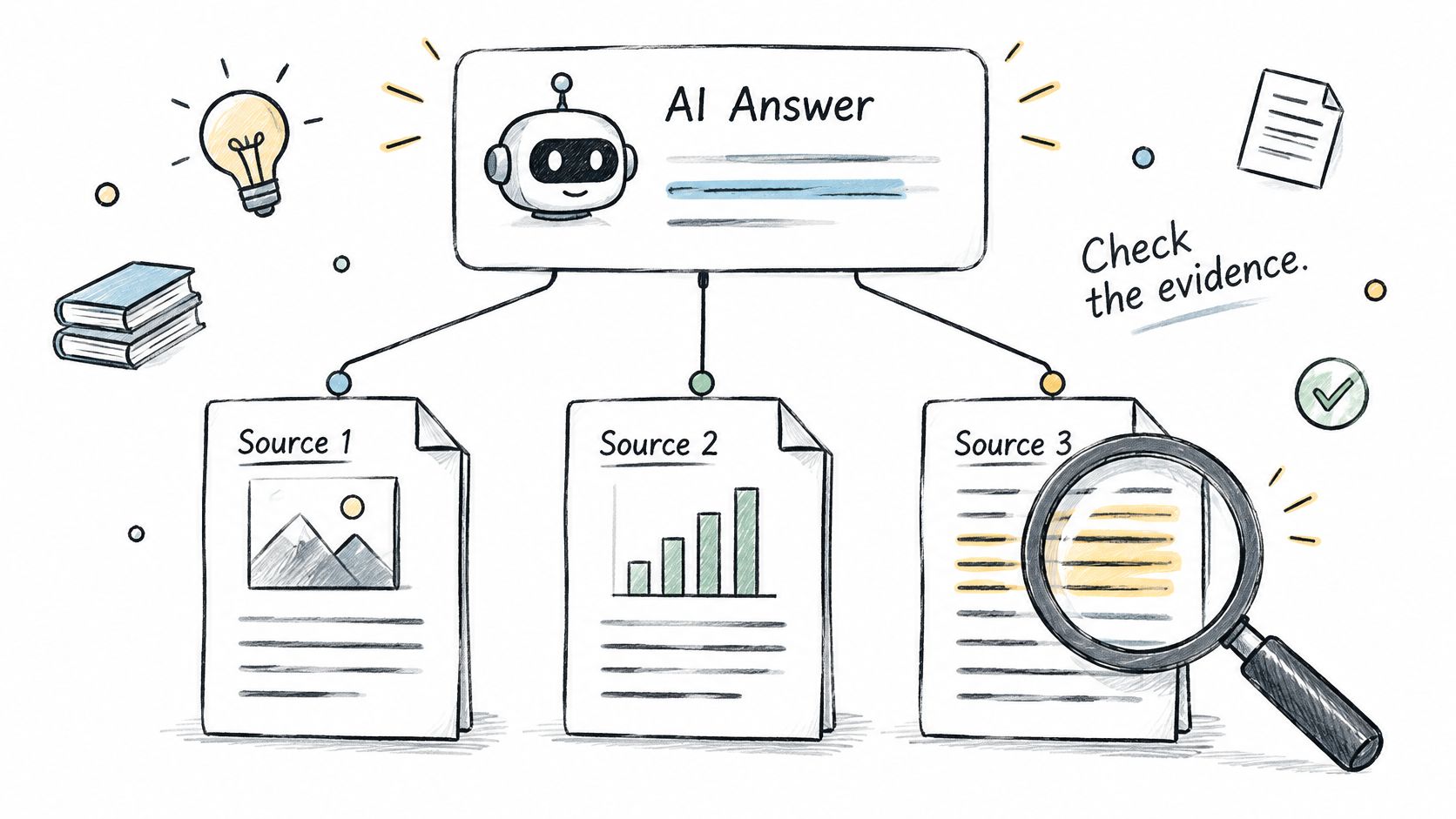
- Key states: Answer with supporting source; multiple sources; conflicting sources; inaccessible source; no source available.
- Edge cases: A real link supports a different claim, a document is updated, or a user cannot open the cited material. Mark unavailable evidence and avoid treating the citation alone as proof.
- Common mistake: Adding a sources footer without checking claim-to-source alignment, or presenting a generated rationale as if it were a faithful account of internal model reasoning.
- Design recommendation: Attach evidence to specific claims, show a relevant excerpt and source date where appropriate, and test citation accuracy separately from answer quality. Nielsen Norman Group's discussion of AI hallucinations warns that plausible citations can still mislead. An earnings-call summary that cannot be checked against its transcript makes the verification problem concrete.
Do not confuse explanation with disclosure of model internals. Usually the user needs to know what inputs were used, what the product inferred, and what can be checked. Google PAIR's guidebook frames explainability around the user's mental model and ability to act on an explanation.
5. Uncertainty Communication
Uncertainty patterns make missing evidence and consequential limitations visible at the point of use. Use them for forecasts, research synthesis, recommendations, and other outputs where fluent language might disguise a weak basis.
Hypothetical SaaS example: A revenue dashboard forecasts next month's renewals. It shows a range rather than only a single total and notes that two large accounts have no recent activity data. The forecast stays visible, but the missing inputs appear next to the decision it might influence.
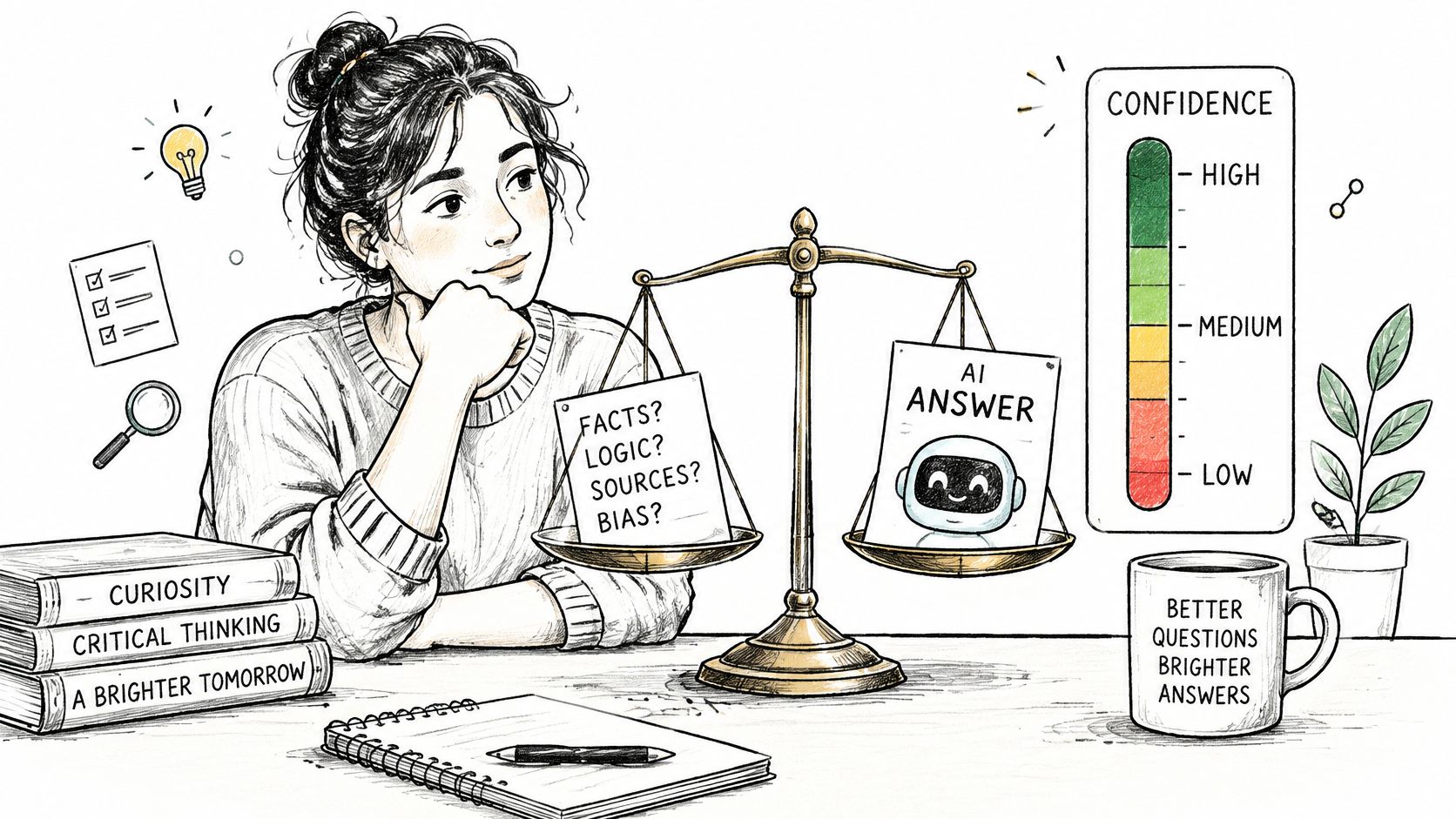
- Key states: Adequate evidence; limited evidence; conflicting inputs; unavailable data; estimate revised after new data.
- Edge cases: A displayed confidence score has not been calibrated, a source is stale, or a categorical answer hides variation across segments. Do not invent a precise percentage to decorate a guess.
- Common mistake: Putting the same vague disclaimer under every answer, or using confident copy to conceal missing data.
- Design recommendation: Name the specific limitation, explain what additional data would change the result, and place verification guidance near the action. If you show a probability or confidence label, validate that it corresponds to observed outcomes. The issue is especially consequential in workflows such as AI-assisted ad operations, where a recommendation can affect spending.
Nielsen Norman Group's research on explainable AI emphasizes that explanations can themselves create undeserved confidence. Test whether users understand the limitation and make better decisions, rather than assuming a warning improves calibration.
6. Error Handling, Retry, and Fallback
Error-handling patterns preserve the user's work and give them a useful next action when AI fails. Use them for generation, retrieval, tool calls, and agent workflows, especially when a failure might leave a partly completed task.
Hypothetical SaaS example: A project assistant attempts to create tasks from meeting notes. The service fails after drafting four tasks but before saving any. The screen says “No tasks were created,” keeps the draft and notes available, and offers Retry or Copy draft. If two tasks had been saved, the message would identify those two rather than imply the whole operation failed.
- Key states: Recoverable error; permission error; rate limit; timeout; partial completion; retrying; manual fallback.
- Edge cases: Retrying duplicates an action, connectivity returns after the user switches projects, or the input no longer exists. Use idempotent operations where appropriate and require review when a retry could repeat a consequential change.
- Common mistake: Showing “Something went wrong” with a blank slate, or retrying invisibly until users cannot tell whether an action happened.
- Design recommendation: Say what failed, what did or did not change, and what to do next. Preserve the request and any usable output. Provide a non-AI route for essential tasks, such as manually creating the tasks. Microsoft's guidelines for human-AI interaction explicitly address efficient dismissal and correction when an AI system is wrong.
Error messages are interaction states, not decorative copy. Announce failures accessibly, keep focus in a predictable place, and test the fallback end to end, including cases where the user has no permission to retry.
7. Iterative Refinement Without Losing Work
Iterative refinement patterns let users improve an AI result while preserving decisions they have already made. Use them for drafts, plans, UX flows, queries, and other outputs that are valuable as starting points but rarely correct on the first try.
Hypothetical SaaS example: A product team generates an onboarding flow from a PRD. A designer locks the approved account-creation step, asks for two alternatives to the invitation step, and compares both with the original. The tool shows what changed; it does not quietly regenerate the entire flow.
- Key states: Initial draft; targeted edit; alternative in progress; side-by-side comparison; selected version; restored version.
- Edge cases: A new instruction conflicts with a locked section, regeneration loses an inline comment, or the underlying PRD changes. Surface the conflict and keep earlier versions recoverable.
- Common mistake: Making “Regenerate” the only edit control, which forces users to trade good work for a new attempt.
- Design recommendation: Support edits at the smallest useful unit, show differences between versions, and make restore and undo easy. Treat user corrections as reviewable input, not invisible permanent memory. Microsoft's guidelines distinguish immediate correction from longer-term adaptation, and both need user control.
For a product team, the relevant question is not whether an AI can produce a polished screen. It is whether reviewers can identify and revise the assumption behind that screen. Examples of AI-generated UX designs and wireframes can start a discussion; comparison, feedback, and validation still decide which direction works.
8. Context and Memory Controls
Context and memory controls show what information the AI can use and let users change that scope. Use them when an assistant draws on accounts, documents, previous interactions, product rules, or connected tools.
Hypothetical SaaS example: Before drafting a customer response, a support assistant shows “Using this ticket, account history, and approved help-center articles.” The agent can exclude account history, inspect the included sources, or clear a saved tone preference. If access to a source is revoked, the next result explains that it was not used.
- Key states: Context selected; source excluded; permission requested; access revoked; memory saved; memory cleared; stale context detected.
- Edge cases: Two customers have similar names, a stored preference conflicts with a current instruction, or a shared workspace exposes data the current user cannot view. Enforce permissions at retrieval and action time, not only in the UI.
- Common mistake: Saying the AI “knows your product” without showing which data or saved assumptions shaped a particular result.
- Design recommendation: Make context inspectable before and after generation, distinguish temporary task context from retained memory, and give users a way to correct or remove saved preferences. For teams that need more context, a product-aware AI design workflow is most useful when product inputs and their limits remain visible.
Controls should match the underlying data rules. A toggle cannot make unauthorized retrieval safe; product, engineering, and security teams must agree on scope, retention, and permission changes before the interface promises control.
An AI UX Checklist for Existing Products
Audit one real workflow across input, generation, review, action, and recovery before adding another AI feature. Figr's guide to AI user interface design and its edge-case testing guide offer related starting points for examining failure and non-ideal states. Use this reusable checklist in a design review:
- Intent: Can the user tell what the feature does, choose an example, and change the requested scope?
- Status: Are queued, generating, partial, complete, and cancelled states distinguishable?
- Evidence: Can the user inspect relevant sources or inputs for consequential claims?
- Limits: Does the interface identify missing, stale, or conflicting data without false precision?
- Approval: Are proposals separate from actions, with review before consequential changes?
- Recovery: Do failures preserve input, describe partial effects, and offer a safe retry or fallback?
- Refinement: Can users edit part of an output, compare alternatives, and restore an earlier version?
- Context: Can users see and change data scope and retained preferences where applicable?
- Accessibility: Can someone complete the workflow by keyboard, understand state changes with a screen reader, and use a non-AI fallback?
Accessibility belongs in every state, not only the completed answer. WCAG 2.1's keyboard requirement applies to prompt controls, stop buttons, approval steps, and retry actions. A WCAG 2.1 recommendation also specifies contrast requirements for information that identifies interface components and states. Check status announcements, focus order, labels, and visual distinctions in actual components; the WCAG principles and criteria are more reliable than assuming an AI-generated interface is accessible. Guidance on UX and AI practice makes the same practical point: generated UI still needs an accessibility review.
Measure Whether the Patterns Actually Help
Evaluate AI interaction design by whether users can complete, verify, correct, and recover from tasks, not just by generation speed. Instrument the workflow and run usability tests with realistic good, wrong, incomplete, and failed outputs. A useful baseline includes:
Outcome: Task completion
What to measure: Success rate and time across AI and non-AI paths
Diagnostic question: Does AI help finish the task?
Outcome: Verification
What to measure: Time to find and confirm evidence; incorrect claims caught
Diagnostic question: Can users check an answer before acting?
Outcome: Control
What to measure: Proposal acceptance, edits, rejection, and undo success
Diagnostic question: Can users reject or repair an action?
Outcome: Recovery
What to measure: Retry success, duplicate actions, and fallback completion
Diagnostic question: Does failure strand the user?
Outcome: Calibration
What to measure: Decisions made after weak or conflicting evidence
Diagnostic question: Do users understand when to verify?
Outcome: Accessibility
What to measure: Keyboard completion and screen-reader state comprehension
Diagnostic question: Is the whole workflow usable?
Segment these measures by task risk and output type. A high acceptance rate can mean good suggestions, but it can also mean users are approving without reading. Likewise, fewer retries might reflect better reliability or a retry button nobody can find. Pair telemetry with observed task behavior and feedback. Nielsen Norman Group's AI-in-UX survey discusses output quality as a barrier; it is a reason to test both the model result and the surrounding experience, not to treat interface polish as a fix for factual errors. More broadly, research on AI UX underscores why users' actual understanding and behavior matter more than assumed trust.
How Figr Helps Teams Explore AI UX Patterns
Figr helps teams design and compare AI interactions in the context of an existing product; it does not guarantee the AI's answers will be correct or replace user testing. Its Visual Context Graph connects visual screens, behavior, design-system information, product knowledge, and implementation context. A Context Pod can hold reusable product inputs, while Design System Intelligence and UX Reasoning help teams examine how a proposed flow fits the product's existing conventions.
For example, a team designing an AI support assistant could map the prompt, loading, answer, citation, rejected suggestion, timeout, and permission-denied states before selecting a direction. Figr's edge-case maps, flows, test scenarios, and multi-state high-fidelity prototypes can help reviewers compare those directions. Figr's Direct Editing documentation and its design-collaboration guidance describe editing prototype elements and working with design-system values; the product also supports Figma-ready design output. These artifacts prepare a review and handoff, but teams still need to validate sources, permissions, accessibility, and user outcomes in the implemented feature. The same distinction matters for AI assistants inside a product: a convincing prototype is a testable proposal, not evidence that the deployed assistant will behave correctly.
Frequently Asked Questions
These answers define the patterns and explain how to select and test them in a product workflow.
What are AI UX patterns?
AI UX patterns are reusable interface solutions for AI interactions, such as showing progress, exposing sources, collecting approval, handling errors, and controlling context. They make system behavior and user choices easier to understand.
How is AI UX different from traditional UX?
AI outputs can vary for the same request and can be plausible but wrong. Traditional UX principles still apply, but AI interfaces need explicit ways to handle uncertainty, verification, correction, and changes in available context.
What are the best UX patterns for generative AI?
Start with clear input, visible progress, reviewable output, and a way to correct or undo it. Add sources, uncertainty signals, and context controls when the task depends on evidence, sensitive data, or consequential actions.
How do you design trustworthy AI interfaces?
Show what the system used, what it did not know, and what will happen before an action is applied. Let users inspect, edit, reject, and recover instead of relying on confident wording or a disclaimer.
How do you test AI UX patterns?
Test realistic tasks with correct, incorrect, incomplete, slow, and failed outputs. Measure completion, verification, correction, recovery, and accessibility with users; test the underlying AI quality separately.
Build for the Moment the AI Gets It Wrong
The most useful pattern is the one that fixes a specific loss of clarity or control in your current workflow. Start with an audit: can users frame the task, tell whether work is complete, inspect evidence, approve consequences, and recover without starting over? Design the missing state, then test it with real tasks and people. Strong AI UX design patterns make capability usable because they let users act with informed control, including when the answer is incomplete or wrong.
For a product-aware way to map those states, compare design directions, and prepare reviewable, Figma-ready artifacts, try Figr.