

Settings Page Design That Users Can Actually Finish
Good settings page design helps someone find the right control, understand its scope, change it, and know whether the change saved. For an existing SaaS product, that last step is often the hardest. A teammate mutes weekly emails but still receives them. An admin enables an authentication policy without realizing it applies to everyone. A billing form looks updated until a refresh reveals the old card.
These are workflow problems, not just layout problems. A useful settings page UI makes destinations recognizable, distinguishes personal from workspace changes, and accounts for loading, permission, error, and recovery states. This guide shows product managers, designers, and engineers how to design those paths and review whether users can actually finish them.
What makes a good settings page design?
A good settings page lets users complete a specific change confidently: find it, inspect its current value, predict its effect, save it, and recover if something goes wrong. Nielsen Norman Group's usability heuristics support that approach through visibility of system status, user control, error prevention, and recognition rather than recall.
A practical acceptance test is: Can someone explain what this control changes, whose experience it affects, and whether the new value persisted? If any answer requires asking a teammate or consulting internal documentation, the interface is unfinished.
Treat settings as task destinations, not a storage drawer for feature flags. General and Advanced may describe engineering organization. Change password, Manage invoices, and Workspace permissions describe jobs. The page should also distinguish a personal preference from a policy imposed by an administrator.
Baymard's account and self-service research identifies seven direct account-menu paths, including payment, addresses, and passwords, and reports that 96% of sites fail to provide all seven. That is commerce research, not a SaaS benchmark. The transferable lesson is to make high-intent account tasks directly discoverable.
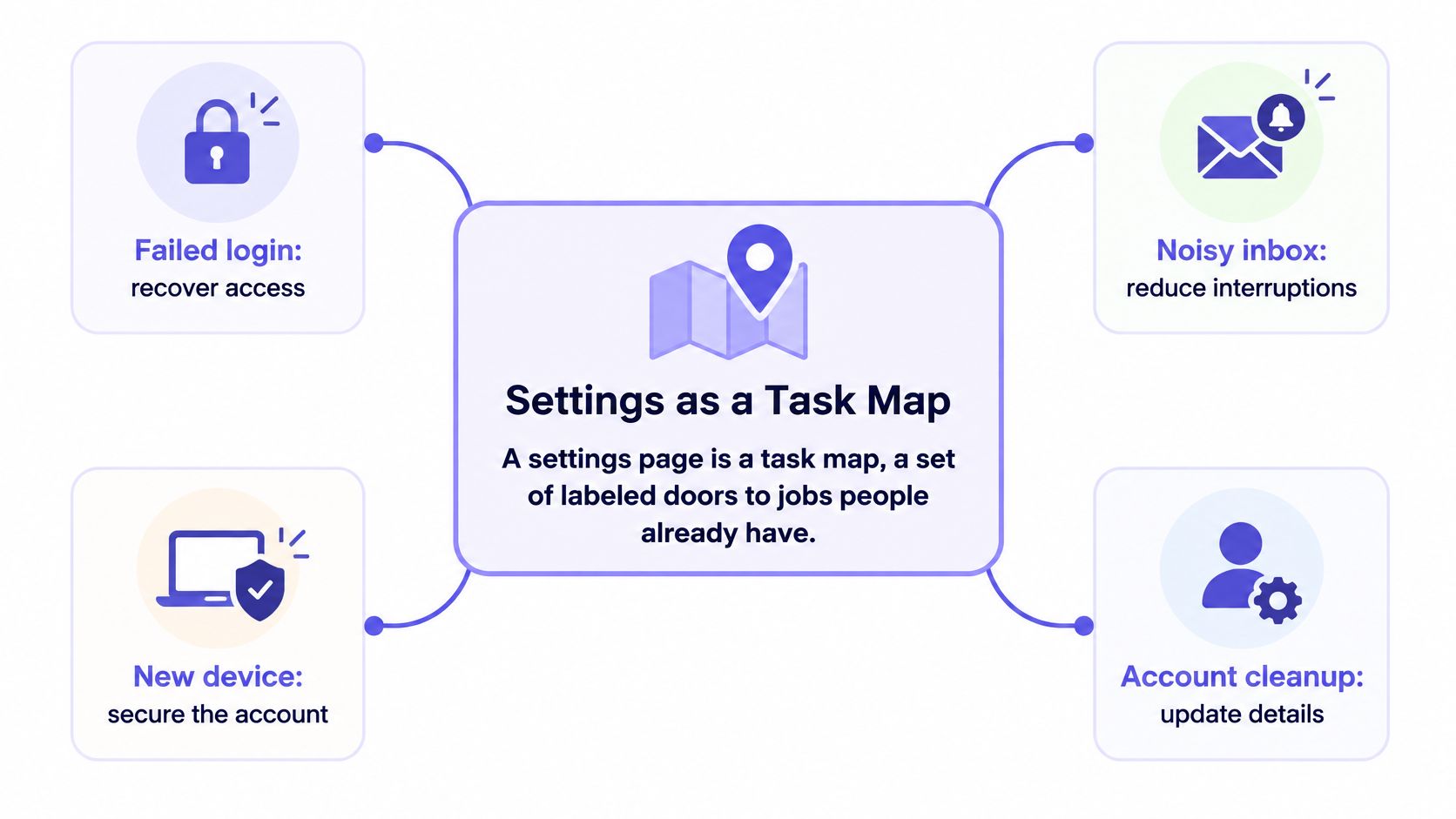
How should settings navigation be organized?
Organize settings navigation around tasks and ownership, then show scope at both the destination and control level. A personal profile field and an organization-wide identity policy might both relate to accounts, but they should never look interchangeable.
Destination: Profile and account
Typical tasks: Email, password, sessions, appearance
Scope cue: My account
Direct route worth testing: Account menu
Destination: Notifications
Typical tasks: Email, push, in-app, digest
Scope cue: My notifications or workspace policy
Direct route worth testing: Settings navigation
Destination: Security
Typical tasks: MFA, trusted devices, sign-in policies
Scope cue: Personal or workspace
Direct route worth testing: Account menu and admin navigation
Destination: Billing
Typical tasks: Plan, payment method, invoices, cancellation
Scope cue: Named workspace
Direct route worth testing: Account menu
Destination: Integrations
Typical tasks: Connected apps, credentials, webhooks
Scope cue: Personal or workspace
Direct route worth testing: Settings navigation
Destination: Workspace and permissions
Typical tasks: Members, roles, sharing, export rules
Scope cue: Named workspace
Direct route worth testing: Admin navigation
Destination: Privacy
Typical tasks: Visibility, consent, export, deletion
Scope cue: Personal or workspace
Direct route worth testing: Account menu
Keep desktop categories visible when space allows. On mobile, use the same category names in a short list, with a clear way back and a visible destination title. Do not quietly rename Security as Admin on smaller screens. If the product has many controls, add settings search that returns task names and synonyms, and identifies the destination and permission level; search should supplement, not repair, a confusing map.
Test uncertain categories with job-based card sorting: ask where someone would change a report recipient, not where they would file a feature named Notification Service. Card sorting for information architecture can expose disagreements before labels become code. For teams comparing prototyping options, find group deals on design tools.
Use brief category descriptions when a label alone cannot establish scope. For example, Billing might say, "Manage Acme Workspace's plan, payment method, and invoices." Where a control inherits a company policy, show the source next to its current value, not only on a separate permissions page.
Which settings UX best practices improve control clarity?
The most effective settings UX best practices make each control's current state, action, and consequence readable in one place. Show "Weekly report email: On" rather than a switch next to "Reports" with no explanation of delivery or ownership.
Choose controls for behavior, not visual consistency. Material Design's switch guidance treats a switch as a standalone setting that takes effect immediately. If users must make several selections and press Save, use checkboxes or other form controls instead of switches that appear to have already acted. Use radio buttons for one mutually exclusive choice and plain fields for values such as a digest time.
Defaults should reflect an approved product decision, not a desire to make the form look complete. Avoid expanding sharing, spending, or access by default. Put advanced options behind a meaningful parent task rather than hiding frequently used actions in Advanced. NN/g's discussion of progressive disclosure supports staging complexity without making relevant controls impossible to find.
Helper text should answer a decision question: "Security alerts will still be delivered" is useful beside a marketing-email preference. "Manage your notifications here" is not. For further control-level review, connect labels and feedback to your core UX principles.
IEEE Spectrum's history of graphical interfaces describes the Xerox Star's 1981 text-labeled menu bar. The relevant point is simple: visible, stable labels let people recognize choices rather than memorize hidden commands.
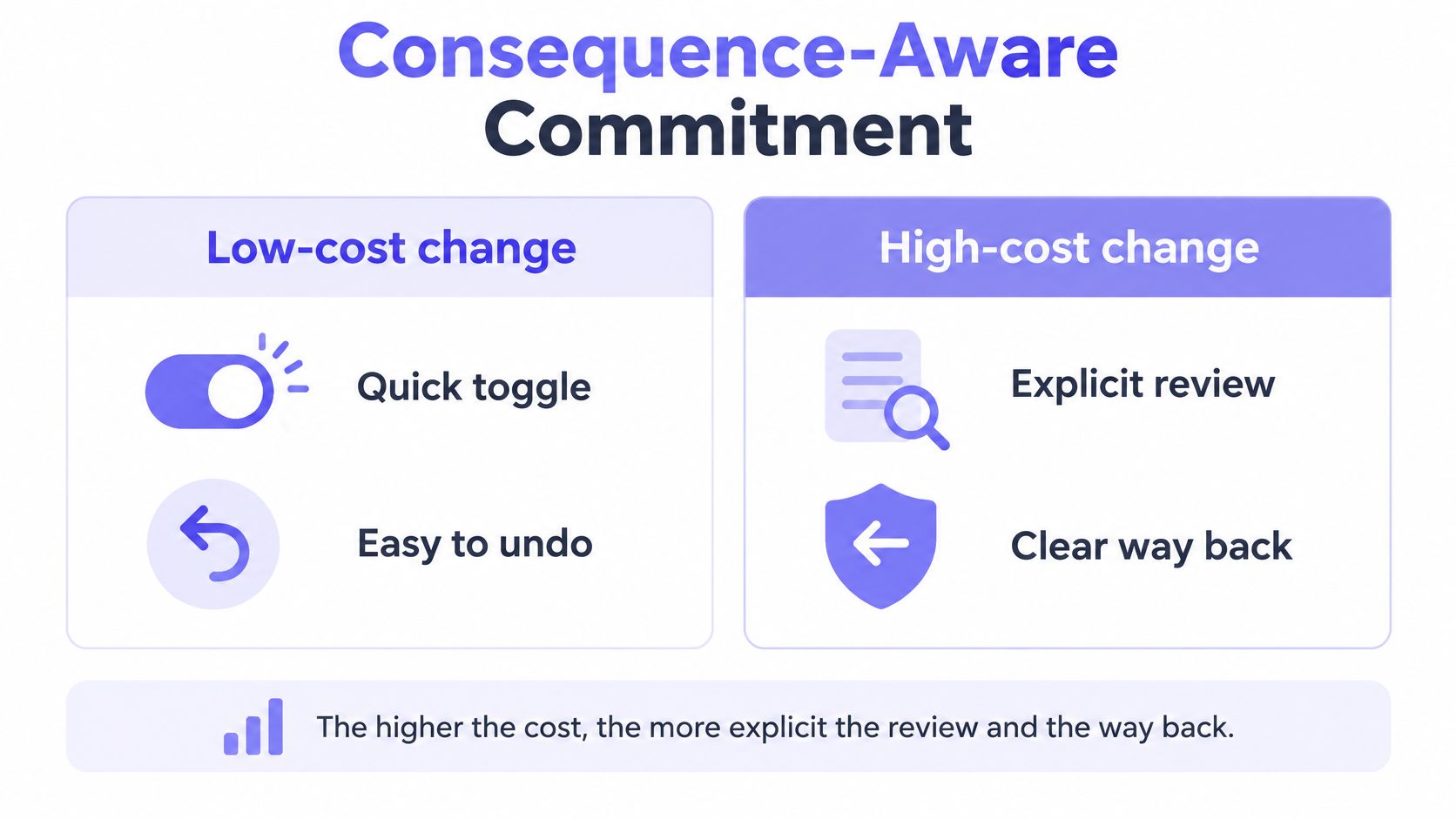
For risky actions, preview scope and timing before the final action. Deleting a workspace, requiring SSO, or canceling a plan should not resemble changing a theme. Put the affected people, effective date, and recovery route beside the action. That is consequence-aware commitment: the costlier the change, the more explicit the commitment.
Should settings save automatically or require a Save button?
Use autosave for isolated, low-risk changes that take effect immediately and can be reversed easily; use explicit Save and, when necessary, review for grouped or consequential changes. Never mix these behaviors on one screen without indicating which controls have already persisted.
Interaction: Immediate save
Appropriate example: Personal theme
Feedback and recovery: Show saving, then saved; keep a clear way to switch back
Interaction: Explicit Save
Appropriate example: Several notification selections
Feedback and recovery: Show unsaved state, validate, save together, confirm completion
Interaction: Review and confirm
Appropriate example: Workspace sign-in policy
Feedback and recovery: Preview affected members, confirm authority and timing, explain reversal
If a save is pending, say "Saving..." and avoid displaying success until the server confirms it. If it fails, restore or retain the user's attempted value with a clear explanation of what did and did not change. If users navigate away from a staged form, warn about unsaved edits and offer Stay, Discard, or a safe route back to saving. Material Design's dialog guidance includes confirming dismissal when a full-screen dialog contains unsaved changes.
Validation belongs next to the field, with valid entries retained. For complex forms, the GOV.UK Design System's error summary offers a useful pattern: link a focused summary to matching inline errors. Use form design guidance when settings require formats, dependent fields, or multiple steps.
The U.S. Access Board's explanation of WCAG 3.3.4 describes safeguards for covered legal, financial, and user-controlled-data submissions: reversibility, an opportunity to correct detected errors, or review and confirmation. A generic "Are you sure?" is weaker than "Requiring SSO will affect 24 members; review their access before applying."
What do useful settings page examples show?
Useful settings page examples show the layout, interaction, saved and failed states, and a mistake to avoid. These four briefs are hypothetical SaaS scenarios, not claims about measured user behavior or screenshots of shipped products.
Scenario: Profile preferences
Layout and annotated visual brief: Left navigation selects My account; main panel shows language and theme with current values, plus a preview using actual product text. Annotation A points to "Applies only to you"; B marks the return-to-previous-theme control.
Key interaction and states: A theme switch saves immediately. Show saving, saved, failed, and restored states; keep the preview legible if a theme reduces contrast.
Mistake to avoid: Making the preview change permanent without feedback or an obvious way back.
Scenario: Notification controls
Layout and annotated visual brief: Group messages by purpose, then show channel and frequency. Annotate a sample subject line and a note that security mail remains on.
Key interaction and states: Let users edit several optional channels and press Save. Show unsaved, saving, saved, and partial-failure states.
Mistake to avoid: A single "Disable notifications" toggle that appears to silence critical alerts.
Scenario: Security settings
Layout and annotated visual brief: Place personal MFA and devices in one area; place organization sign-in policy in an admin area with the workspace name. Annotate affected members and recovery instructions.
Key interaction and states: Review an SSO policy before applying it. Include denied permission, concurrent change, session-expired, and confirmation states.
Mistake to avoid: Styling an access-changing policy like a harmless personal preference.
Scenario: Workspace permissions
Layout and annotated visual brief: Show role, inherited rule, effective permission, and editable override in one reading path. Annotate the policy source and who can change it.
Key interaction and states: Preview who can export data, save the policy, and explain any conflict between role and organization rules. Include read-only and failed-save states.
Mistake to avoid: A disabled control with no reason, or an editable-looking field that cannot be saved.
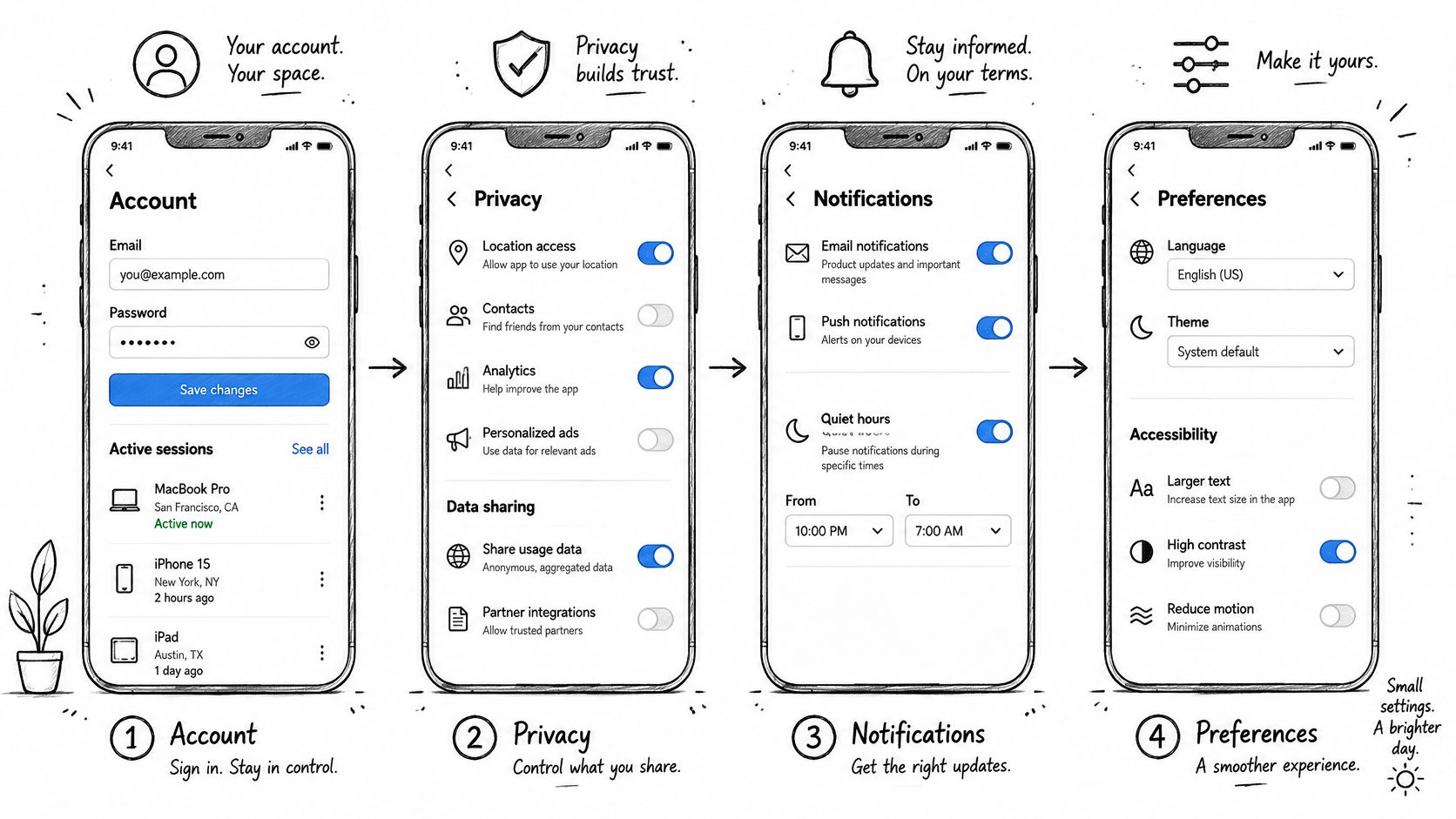
The mobile mockup illustrates category-level screens; use the annotated briefs above to specify the additional save, failure, and policy states your actual product needs. Research published in Frontiers involving adults aged 65 and older found difficulty understanding iconography and independently configuring accessibility options; some enabled features disrupted the original visual design. A reading preference is only helpful if someone can test and reverse it.
For a privacy destination, "Who can see your name?" communicates an outcome better than "Visibility configuration." Place export and deletion near each other, without implying that deletion is required to get a copy of personal data. In Dynata research commissioned by Bryj, 64% of 1,000 U.S. consumers surveyed in 2024 wanted customizable mobile privacy and security settings. That supports making those controls findable, not any particular SaaS layout.
How should permissions, errors, and edge cases work?
Permissions and errors should explain what happened, what remains unchanged, and the next available action. The settings page must not imply that a read-only value is editable or that a failed save succeeded.
- Admin-only or inherited control: Display the effective value, the rule's source, and the required role. Offer a relevant route to request access if the product supports one. See granular permissions and inheritance for the decision-point detail.
- Conflicting settings: Explain which rule wins, such as "Workspace policy requires weekly reports; your personal frequency cannot override it." Do not show an unexplained disabled switch.
- Network interruption: Keep attempted edits in the interface, state that nothing was saved unless confirmed, and offer Retry. Prevent duplicate submissions where repeating an action could have consequences.
- Partial save: Identify precisely which controls persisted and which did not. Do not show a blanket success message.
- Concurrent administrator edit: Before overwriting a newer policy, show the current server value and ask the administrator to review the difference.
- Expired session: Preserve edits where safely possible, explain the sign-in requirement, and return users to the pending task after authentication if supported.
- Expired undo window: State that undo is unavailable and name the remaining recovery route rather than leaving an inactive Undo control.
The W3C guidance on error identification calls for detected errors to identify the affected item and describe the problem in text. "Use at least 12 characters" is a helpful example only if 12 matches the product's actual password policy. Map these branches with error state design patterns, not only happy-path screens.
For authentication changes, the interface should explain its own consequences. A related resource on how teams review security before disabling verification can inform that review, but should never replace product-specific access and recovery instructions.
How do accessibility and responsive design affect settings pages?
Accessible settings pages preserve the same task, state, and recovery path for keyboard, screen-reader, touch, and narrow-screen users. Use semantic form controls and test the actual workflow, including a failed save, rather than checking only the initial layout.
WCAG 2.2 provides relevant checks: normal text contrast of 4.5:1 under 1.4.3; non-text component and state contrast of 3:1 under 1.4.11; visible keyboard focus under 2.4.7; focus not entirely hidden by sticky UI under 2.4.11; and 24 by 24 CSS pixel pointer targets or an applicable exception under 2.5.8. The 24-pixel criterion is not the same as Android's 48 density-independent-pixel touch-target recommendation. Apply the appropriate platform guidance and avoid presenting either value as universal.
Every control needs a persistent visible name. W3C's forms guidance describes associated labels and grouping related choices with fieldset and legend; a placeholder alone is not a durable label. Keep helper text connected to its control, use a logical reading order, and ensure expanded groups and disabled reasons are understandable without color alone. The accessibility guidance reporting WebAIM Million findings states that 51% of the top one million home pages had missing form labels in 2026, compared with 48.2% in 2025. Those are homepage findings, not a settings-page prevalence estimate.
Announce save and error status without unnecessarily moving focus; WCAG 2.2's 4.1.3 covers programmatically determinable status messages. For a form error summary, a deliberate focus move can instead help users reach the corrections. Test phone-width layouts with text enlarged: retain the selected category, scope, Save action, and error messages in a sensible order. Do not hide recovery behind a hover interaction.
How can teams measure settings page effectiveness?
Measure whether users complete real settings jobs, not whether the page looks tidy. Pick representative tasks such as finding an invoice, muting marketing email without muting security mail, or changing an export permission without changing its scope.
Track task success, time to find the control, save failures, abandonment after editing, and support requests about the same setting. Segment by role, device, and task risk. A low time to click is not success if a user saved the wrong policy.
In moderated usability tests, ask participants to state what they expect before they save and what they believe happened afterward. For high-impact settings, test a denied role, interrupted request, stale value, and recovery path. Compare observed behavior with the interface's promises; set targets from your own baseline rather than borrowing a benchmark from unrelated products.
Keep this review distinct from acquisition-page optimization. The goal here is a correct, understandable change, not a faster click-through. Captiwate's guide to better landing pages addresses conversion-focused acquisition pages, a different job with different success criteria.
How can Figr help design a complete settings workflow?
Figr can help teams explore a settings change inside an existing product by using product context to review the flow, map edge cases, and generate designs and prototypes that fit established patterns. For a hypothetical SaaS workspace export policy, start with the existing settings screens, relevant product documents, design files, and implementation constraints, not a blank canvas.
Figr's Context Pod holds reusable product knowledge such as terminology, flows, behavior, and constraints. Its Visual Context Graph connects visual, behavioral, design-system, product-knowledge, and implementation context. UX Reasoning can help surface questions before screen generation: Who can edit export access? Which rule is inherited? What happens to an unsaved override if the admin's session expires? Design System Intelligence helps ground the resulting screens in the product's visual rules.
From there, request a flow that includes the default state, admin-only edit, read-only role, unsaved change, confirmation, concurrent update, failed request, and saved result. Figr can produce edge-case maps, test scenarios, high-fidelity prototypes, and Figma-ready designs. Use its editing workflow to refine the proposal, then have the team verify policy behavior and implementation details before handoff. These are capabilities and a suggested workflow, not a claim that any prototype automatically enforces permissions.
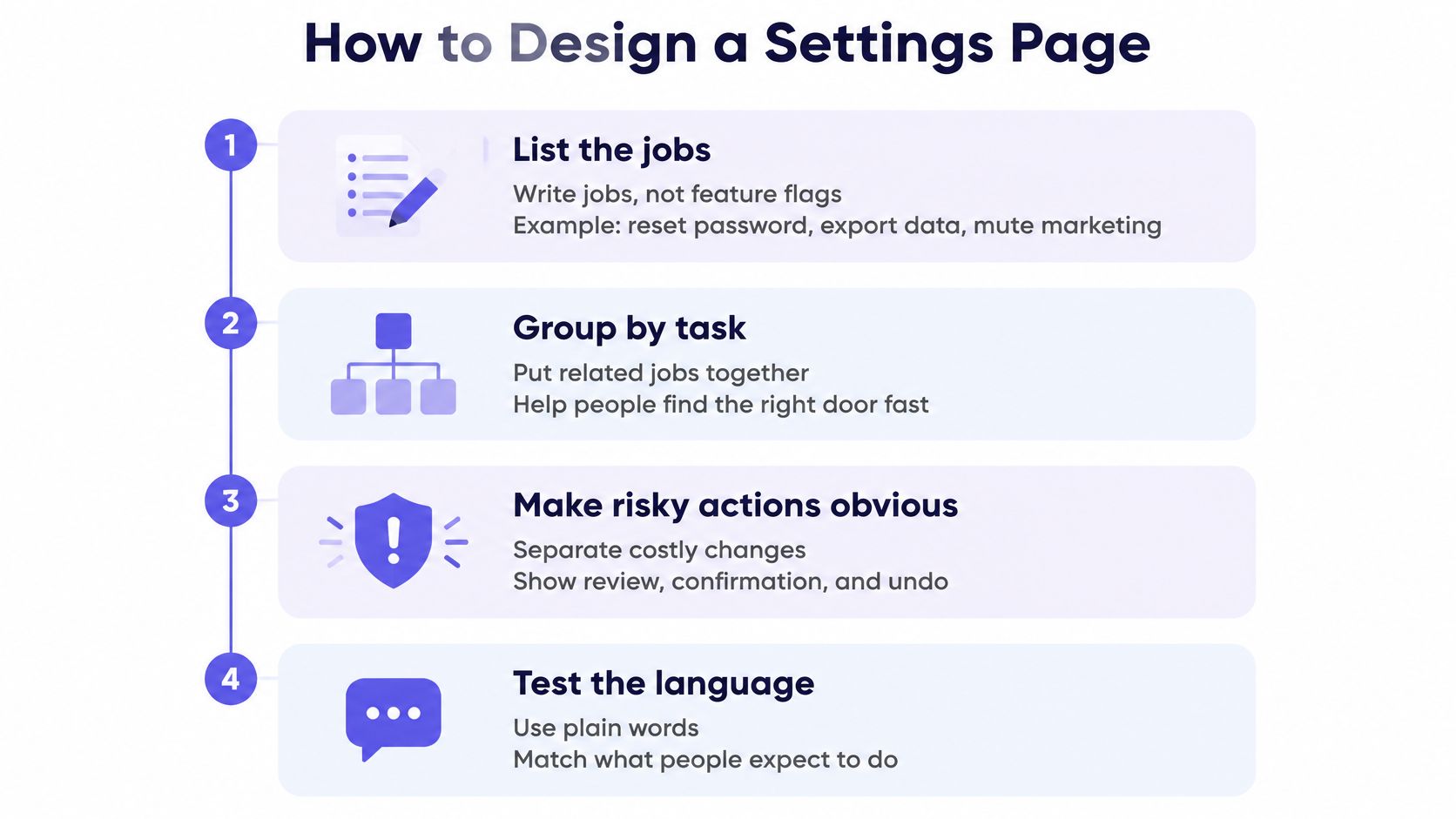
Start with one consequential control, such as workspace export access. Document its scope, current value, authority, save behavior, and recovery route. Then review the multi-state flow against the actual product before polishing every category. Bring that existing journey to Figr to explore its missing branches and prepare a design for review.
Frequently asked questions
What makes a good settings page design? A good page helps users find a control, understand its scope and current state, change it, verify the save, and recover from mistakes.
How should settings pages be organized? Group destinations by recognizable tasks, separate personal from workspace settings, and provide direct paths to high-intent actions.
Should settings save automatically or use a Save button? Autosave isolated, reversible preferences; use explicit Save for grouped edits and review for consequential changes.
How do you design accessible settings pages? Use labeled semantic controls, keyboard-visible focus, adequate contrast and target sizes, logical reading order, and accessible save and error feedback.
How do you handle errors and unsaved changes in settings? Preserve attempted input, identify what did and did not save, provide a correction or retry path, and warn before discarding staged edits.