

Most permission screens show configuration, not access. An admin can tick the right boxes, save with confidence, and still have no reliable answer to a simple question: who can now do what, where, and for how long?
Say a contractor receives export rights because a shared role was broadened for one busy team. Nobody notices until support fills with "why can't I see this" tickets from other users, and the audit takes weeks to reconstruct who changed what and which records were exposed in between.
A stronger Permission Management UI treats every screen as a decision interface. It shows effective access, previews blast radius, and gives denied users a recoverable path forward, so the pattern you choose depends on whether your real pain is assignment speed, review load, or exposure risk.
Five Permission UI Patterns and When Each One Fits
You can feel the mismatch in the first minute of an admin session. Does the person think in job titles, in teams, or in a single document they're trying to share? Each mental model wants a different surface, and forcing one surface to do all three jobs is where permission screens start to lie.
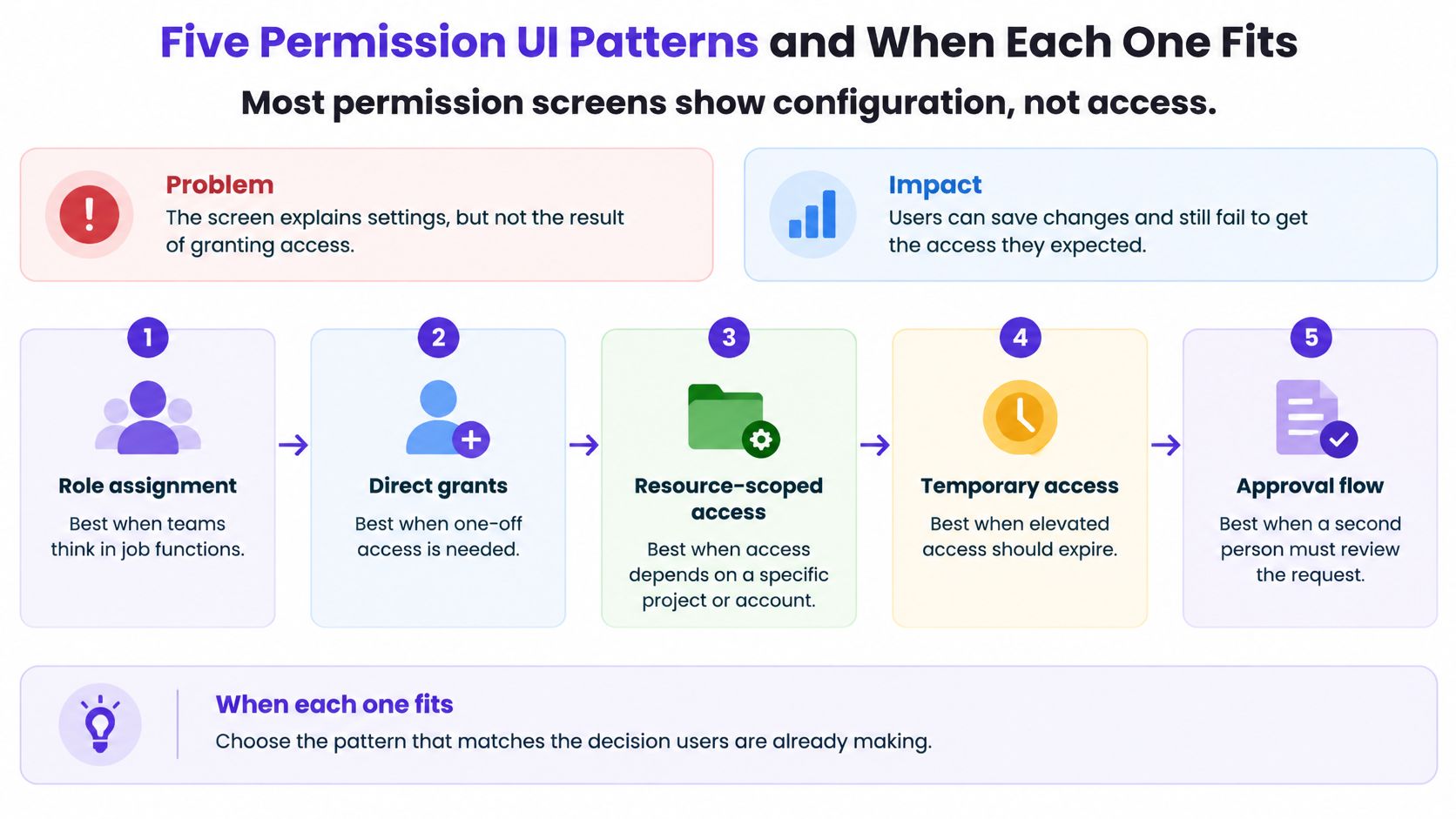
Five patterns compared by fit and failure point
| Pattern | Best for | Where it breaks | Typical scale |
|---|---|---|---|
| Role picker per user | Small teams assigning a few roles | Roles drift and no view shows effective access | Under 5 roles |
| Permission matrix | Admins reviewing many roles at once | Grid becomes unreadable past a few dozen columns | Dozens of roles across many resources |
| Scoped role builder | Enterprises with least-privilege requirements | Setup takes longer and admins fall back to broad roles | Hundreds of scoped grants |
| Group-based assignment | Organizations that map departments to access | Nested groups hide inherited access from the admin | Dozens of groups with nesting |
| Resource-centric sharing panel | Documents, projects and dashboards with owners | Sharing spreads quietly with no organization-wide view | Per resource, unbounded |
The role picker per user is fast because it matches how small teams onboard people. You pick Ana, you add Editor, you're done. It breaks once roles multiply, since nobody can see what those roles add up to for one person.
The permission matrix trades speed for sight. Reviewers can compare roles across resources in one grid, which is exactly what a quarterly review needs. Can anyone still read that grid once you've passed a few dozen columns? At that point admins start scanning for patterns instead of reading cells, and the review becomes theater.
A scoped role builder covering resource, action, environment, and expiry gives you the tightest control. It also asks the most from the admin. If building a narrow role takes ten careful minutes, busy admins will reuse a broad one and move on.
Group-based assignment mirrors the org chart, so moving someone into Finance grants Finance access in one step. The cost hides in nesting. Once Finance sits inside All Staff, inherited access stops being visible at the point of assignment.
The resource-centric sharing panel fits owner-led work on documents and dashboards. It feels natural because the owner already knows who should see the file. Its weakness is scale without sight, since no single view shows how sharing has spread across the company.
Physical access products face the same choice between convenience and a reviewable trail, and Nimbio features show how another category presents entry decisions to the people who control them. Most mature products combine two patterns on one screen, such as a matrix for review and a role picker for everyday assignment.
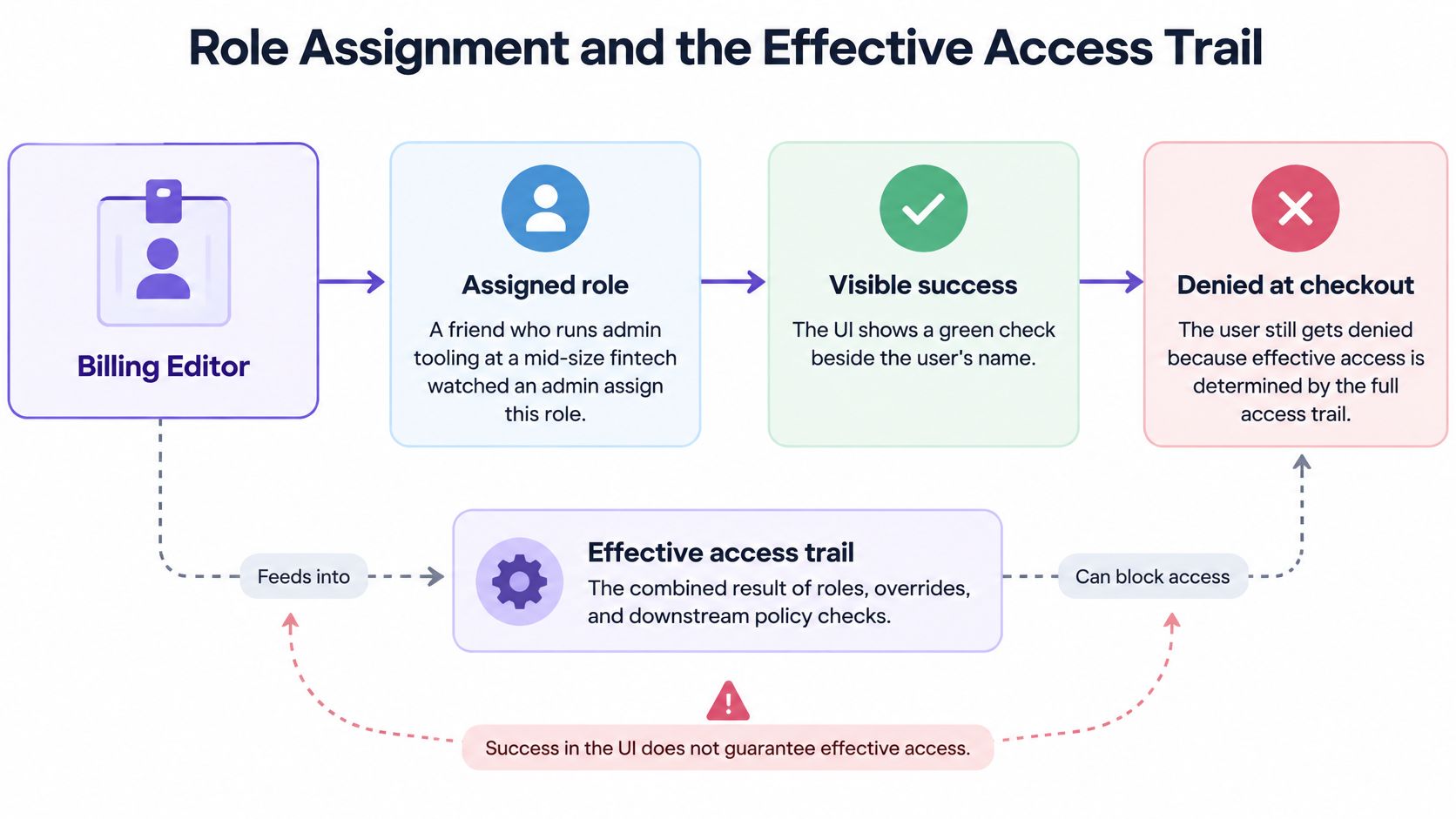
Role Assignment and the Effective Access Trail
Suppose an admin assigns Billing Editor, sees a green check beside the user's name, and closes the tab. At checkout, the user is still denied: the role is assigned but inactive in that workspace. The interface confirmed a saved assignment without explaining whether it changed access.
A saved role is only part of the answer.
The NIST RBAC FAQs describe three rules that a permission management UI should help reviewers distinguish: role assignment, role authorization, and transaction authorization. A user needs an assigned or selected role. Any active role must be authorized for that user, and the requested transaction must be permitted through their role memberships, subject to constraints.
Three panels that tell the truth
Translate those distinctions into three panels: assigned roles, active roles, and resulting actions. For the checkout example, the first shows Billing Editor, the second shows that it is inactive in the current workspace, and the third shows the denied action with its explanation.
Keep the workspace context visible across all three. Otherwise, an admin can read a correct role assignment and still reach the wrong conclusion about what the person can do.
In a 2025 survey of more than 200 engineers, 86.6% of platforms used RBAC and 62.2% had built custom authorization systems. A role label alone cannot explain organization-specific rules. The screen needs to connect that label to the action being reviewed.
Sources of effective access and how the UI should show them
| Access source | Example | What the UI should show | Lifetime |
|---|---|---|---|
| Direct assignment | Admin grants Export to one user | Direct badge with the granting admin and date | Until revoked or the configured expiry |
| Role membership | User joins the Billing Editor role | Role chip with permission count and active status in this workspace | While membership and activation conditions hold |
| Group inheritance | User in Finance inherits the Finance role | Path label reading via Finance | While the relevant membership and role assignment remain |
| Nested group | Finance sits inside All Staff | Full path, such as User → Finance → All Staff → role | While every required link in the path remains |
| Resource ownership | Creator owns a shared dashboard | Ownership on the resource, linked from the access explanation | While the user owns the resource |
| Temporary grant | Support engineer gets Export for one incident | Expiry countdown with an extend-request action | Until expiry or earlier revocation |
Show nested paths by default. A single Inherited badge hides which membership creates access and which change would remove it. As nesting grows, the path becomes more useful than another role chip.
The guide to workspace role assignments provides a reference for membership and role controls. For externally shared work, apply the same explanation standard to the sharing decisions discussed in Figr's guide to prototype IP protection.
Before approving a change, reviewers need four concrete answers:
- Explanation path: Why does this person have this permission?
- Impact preview: What access disappears if this role or group is removed, and what remains through another path?
- Time-bound view: Which grants expire, and when?
- Simulation: What would this person be able to do after the proposed change?
That trail also matters to the person denied at checkout. Give them the relevant workspace and inactive-role explanation rather than a success badge elsewhere that appears to contradict the denial.
Building a narrow role takes noticeably longer than assigning a broad one. Keep effective-access explanations beside the assignment controls so admins can judge the consequences before saving. The decision is whether the resulting access fits the task, including everything the assignment adds beyond the immediate request.
Granular Access Controls That Fit the Task
Granularity is a design choice that either helps administrators or pushes them toward broad roles. The NIST SP 800-171 guidance requires organizations to specify authorized users, group or role membership, and access authorizations for each account, then enforce access according to approved policies and intended system usage.
That same guidance sets a least-privilege requirement: users and processes receive no more access than necessary for assigned organizational tasks, with privileges reviewed at an organization-defined frequency. Your role editor is where that requirement either becomes usable or collapses into a wall of toggles.
The four scope dimensions
- Resource: the project, dataset, or workspace the grant covers, named specifically rather than left as everything.
- Action: view, edit, export, delete, or approve, picked individually so read access never smuggles in export.
- Environment: staging or production, separated clearly so testing rights don't become live data rights.
- Time boundary: an expiry such as 7, 30, or 90 days in a hypothetical grant, chosen at creation rather than added later.
When those four parts combine, a grant reads like a sentence: Export, Customer records, Production, expires in 30 days. Compare that with a bare toggle labeled Access. Which one could a reviewer challenge in an audit? The sentence names the risk, the toggle hides it.
I would treat that sentence as your unit of design. Every grant on screen should be readable as one, whether it came from a role, a group, or a direct assignment. If an admin can't restate a grant in plain words, the scope is probably too fuzzy to defend.
The trap that creates permanent broad roles
Here's the failure I see most often in scoped editors: building a precise role takes so long that administrators compensate with broad roles that last for years. The narrow option exists on paper. In practice, nobody uses it during a busy onboarding week.
Three controls keep granularity usable. First, offer reusable scope templates for common jobs, so precision starts from a sensible default. Second, show a preview of what the scope covers, including example records the grant would reach. Third, put a review date on every grant, so old access resurfaces for a decision instead of persisting by silence.
Scoped thinking matters outside admin screens too, since consent data moving between systems needs the same precision about purpose and limits, a problem explored in the breakdown of Salesforce and HubSpot consent sync. The principle transfers directly: a permission without a stated in scope or time tends to become permanent.
Finish with one visual rule. Privileged access must look different from routine access on screen, through labeling and placement rather than color alone. An admin scanning fifty grants should spot the three dangerous ones without reading every row.
Bulk Editing Without Blast Radius Surprises
A bulk change is one click but many access decisions, so the screen must show the decision count before the click. That single sentence is the whole discipline. Everything else is how you enforce it.
Bulk edits fail in three ways worth designing against. They touch more accounts than the admin intended, often through a group that grew unnoticed. They widen access without notice when a scope moves from team to organization. They orphan assignments when a role is deleted while people still depend on it.
Bulk permission operations and the preview each one needs
| Bulk operation | Blast radius | Preview to show | Confirmation rule |
|---|---|---|---|
| Remove a role from a group | Members lose access they may still need | Users losing access and active workflows affected | Show affected users and require explicit confirmation |
| Widen role scope from team to organization | Access expands to every resource in the organization | Resource count before and after | Second approver required |
| Move users between groups | Inherited access changes without a direct edit | Access gained and lost for each user | Show the diff before applying |
| Delete a role with active assignments | Assignments orphan or cascade-remove | Number of assignments affected | Blocked until assignments are reassigned |
| Import permissions from CSV | Typos map rows to the wrong role | Rows that failed to match and rows that will apply | Dry run before any write |
Notice what the table is really asking for: a diff before a decision. Admins are good at judging concrete outcomes and poor at predicting them from settings. Show the twelve people who lose invoice access and the admin pauses. Show a generic warning and the admin clicks through.
Where to set the threshold
I would set a hard threshold for extra friction. A practical rule is that any change affecting more than 25 users, or any scope widening at all, shows a before and after count and requires a second approver or a typed confirmation.
Why typed confirmation for the biggest changes? Because typing the role name forces a half-second of reading that a checkbox never does. It converts a reflex into a decision, which is precisely the point at this scale.
Practical rule: friction should scale with blast radius, so small edits stay fast and wide edits earn their pause.
For imports, a dry run is the cheapest safeguard you'll ever build. Most failures come from unmatched rows, misspelled role names, and email addresses that belong to former employees. Surface those rows before any write happens and the import stops being a gamble. Teams refining multi-select flows will find related selection patterns in Figr's guide to safer bulk actions.
One more detail decides whether bulk editing stays trustworthy: reversibility. Keep a snapshot of the pre-change state so a mistaken mass removal can be undone in one action. Without rollback, every bulk edit feels dangerous, and admins respond by making many slow manual edits that nobody reviews either.
How to Stage a Permission Change Safely
A permission change is a high-consequence form submission, and it deserves the same care you'd give a payment flow. The WCAG 2.2 specification states that labels for interface components must contain the text presented visually, while submissions must be reversible, checked for errors with correction opportunities, or confirmed before finalization.
It also requires that detected input errors be identified and described in text. For a Permission Management UI, that means each control uses a programmatically associated label such as Export customer data, and every warning explains itself in words an admin can act on.
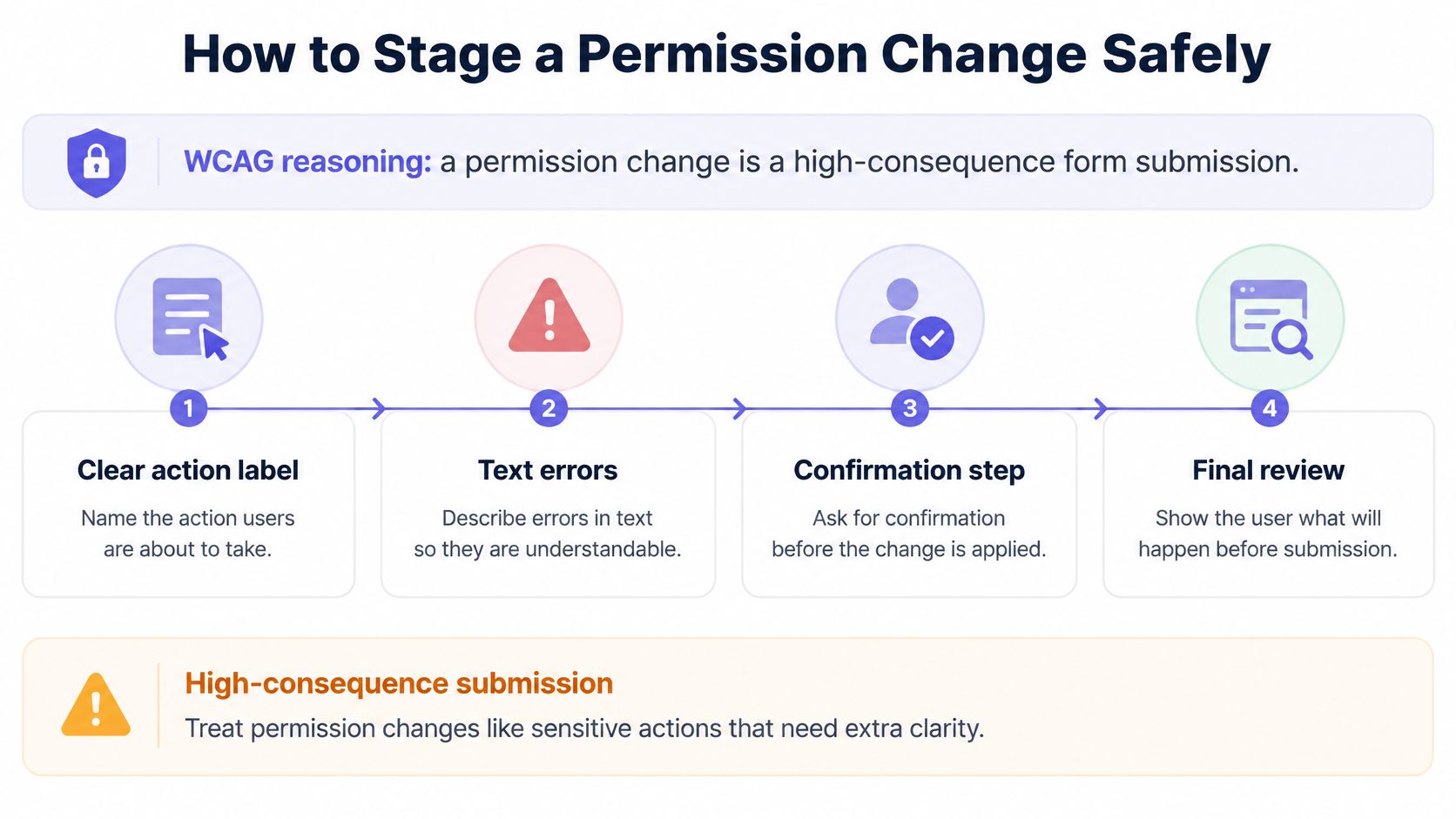
The six-step staging sequence
- Write it as a sentence, such as Export customer data for Ana in Production.
- Use that sentence as the heading for every later stage.
- Fetch what the affected user or group can do today, including inherited access.
- Show direct and inherited grants as separate lines.
- List impacted users, changed actions, and any sensitive resources newly exposed.
- Reuse the before and after preview as a side by side diff.
- Catch a grant already inherited through a group, so you don't create a redundant path.
- Catch access an active workflow still needs, and roles that break a separation-of-duties rule.
- Repeat the principal, scope, action, and resulting access level in the confirmation step.
- Keep the confirm button label specific, such as Grant export access.
- Allow rollback for a defined period after the change lands.
- Record who granted, who received, what changed, and when it expires.
Staging works the same way a gradual rollout does, limiting exposure until you trust the result, a mindset that Figr's guide to feature flags explores for releases. Permissions deserve that caution even more, since a bad grant exposes data immediately.
Now the misconception that undermines all six steps: color alone warns well. A red border tells a screen-reader user nothing and a low-vision admin very little. Does your warning still make sense with the color removed? If not, add inline text that names the conflict and says how to resolve it, such as removing the duplicate group grant first.
Labels carry the same weight. Access could mean view, edit, or the ability to download your entire customer list. Export customer data cannot be misread by a tired admin at the end of a long day, and tired admins are exactly who your confirmation step is protecting.
Making Denials Recoverable for Everyday Users
Most permission guidance is written for administrators and security reviewers. Ordinary users meet permissions differently: as a denial at the exact moment they need a file to finish their work. That moment decides whether your model feels safe or hostile.
Start with a plain test. A denied message should name the missing permission, the resource, and the person who can grant it. If it just says access denied, what is the user supposed to do next?
What opaque denials actually produce
People route around friction they can't understand. They ask a colleague to download the file for them, they request far broader access than they need to avoid a second denial, or they file a support ticket and wait. Each workaround weakens the control you were trying to enforce.
This is the quiet paradox of strict models. A tighter permission system with an unintelligible interface can produce more sharing through side channels than a moderate system people can use with confidence. The denial screen is a security control, whether you designed it as one or not.
A request flow that asks for the minimum
Build the request form so the user barely has to think. Pre-fill the resource and the action from the denied attempt, since the system already knows both. Offer the smallest useful scope and duration as the default, and route the request to the right approver automatically.
Show the expected approval time and let the user add a short reason. A request that reads "View, Q3 forecast, for 7 days, to finish the board deck" is easy to approve and easy to audit. It also teaches users that narrow requests move faster, which effectively trains least-privilege behavior better than any policy email.
The operational details decide whether this flow works for everyone. Every request control needs keyboard access, errors need inline text rather than color alone, and labels need to read well in other languages without truncation. The layout also has to work on a phone during a field visit, since that's where urgent denials often happen. Teams designing these recovery moments can borrow structure from graceful error handling patterns.
Protect confidentiality while you do it. Name the resource type and the action without leaking sensitive contents in the denial itself, and keep an auditable emergency path with automatic expiry for genuine urgency.
Every denial should show one next step the user can take without contacting support.
Confirm Your Permission Screen Before the Next Release
Patterns and safeguards only matter when your team applies them to its own screen. In short, run a five-question audit on the permission surface your admins use most, and treat every weak answer as a design defect rather than a training problem.
The five-question audit
- Can a reviewer explain access? Pick one user and one sensitive action, then ask a reviewer to explain why that access exists using only what the screen shows.
- Does every bulk change preview its blast radius? Any wide edit should show affected users and resources before the confirmation button becomes available.
- Does every label name its action and resource? Replace vague labels like Access with specific ones like Export customer data.
- Does every denial tell the user the next step? Each denial should name the missing permission and offer a request path the user can start immediately.
- Is every grant reviewed on a set date? Temporary grants need visible expiry or review dates that trigger a real decision.
Why run this now instead of after launch? Permission gaps surface late, when a fix means emergency rework, a rushed audit, and uncomfortable questions about who had access in the meantime. Teams that want a wider sweep can use broader checks to find hidden product flaws across adjacent flows.
Support for the review exists, and it stays in a supporting role. Figr's map edge cases feature finds loading, empty, error, validation, permission, quota, retry, recovery, and enterprise exception states, which gives you a reference for how a denied state should look next to your default and success states. Your team still makes the final decision on what ships.
So here's the grounded action for this week. Pick your most-used permission screen, run the five questions on it with one real user scenario, and log each gap as a ticket with an owner. That single pass will tell you more about your access risk than another month of debating role models.
Permission Management UI FAQs
What should a permission management UI show besides assigned roles?
It should show effective access: what a person can do in a specific workspace or resource, why they can do it, and when that access ends. Include active roles, direct grants, inheritance paths, and any conditions that affect the result.
When should I use a role picker instead of a permission matrix?
Use a role picker for quick, routine assignments when there are few roles. Use a permission matrix when reviewers need to compare roles and resources side by side. If the matrix becomes hard to scan, pair it with a focused effective-access view rather than relying on the grid alone.
How can bulk permission changes be made safer?
Show a before and after diff with affected users, resources, and actions. Run imports without writing changes first, block deletion of roles with active assignments until those assignments are handled, and provide a rollback path for mistakes.
What should an access-denied message say?
Name the missing action and the relevant resource without exposing sensitive contents. Then offer a request path pre-filled with the narrowest useful scope and duration, so the user has a clear next step.
Bring your current permission screen to Figr and map its permission, denial, and recovery states against your live product and design system before the next release. You'll get edge cases, test cases, and high-fidelity flows grounded in your real product, so your team can fix the gaps this audit surfaces while they're still cheap to fix.