

Form design is an interaction architecture where every field, label choice, and error message shapes completion, built on a standardized model established in 1995. Good design asks only for necessary information, makes expectations visible, and helps people recover when something goes wrong, especially when they're signing up on a small screen.
Leave those decisions unresolved and a routine account setup becomes a negotiation. Someone guesses whether a company name is mandatory, loses their password after an error, or taps “Create account” without knowing whether anything happened.
The practical solution is to design the whole exchange: what you ask, how users answer, and what happens next. Treating those decisions as connected behavior gives designers and product managers a clearer way to improve existing software without copying someone else's signup screen.
Why Form Design Is an Interaction Architecture
Form design defines how a product requests, interprets, and responds to information. Its visible fields are only part of that agreement.
Consider a hypothetical Tuesday review. I'm walking through an account-setup screen with a PM, and we're debating whether the company field should sit beside the name field. Then someone asks what happens when an invited teammate already belongs to a company.
The layout conversation stops. We've found a product rule hiding inside a text box.
The architecture beneath the screen
HTML forms became part of the Web's foundational standards when HTML 2.0 introduced FORM, INPUT, SELECT, and TEXTAREA through RFC 1866, published on November 24, 1995, as documented in the history of HTML forms. The underlying exchange remains recognizable: people provide values through controls, then the system processes their submission.
That history gives modern teams a useful lens. A form connects user intent to application behavior through constraints, defaults, validation, and submission states.
The basic gist is this: a field is a product decision with an interface attached.
Before moving a field, understand what decision it asks the user to make.
What should happen if an invited user changes their email address? Does “Company” create a workspace, describe an employer, or qualify a sales lead? Those meanings require different behavior, even when the screens look identical.
Choose the pattern deliberately
Use a form when the user needs to supply structured information for a clear outcome. Avoid introducing one when the product already knows the answer or when a direct action would suffice.
- Use structured entry: Account creation needs information the system can interpret consistently.
- Prefer a direct action: Joining a known workspace may need confirmation rather than another company-name field.
- Separate substantial tasks: Billing setup and profile enrichment don't automatically belong in initial registration.
The anatomy should make that outcome legible: a clear task heading, grouped controls, relevant help, feedback, and an action that names the result.
For existing software, consistent behavior matters across screens. The design system best practices guide provides a useful companion for deciding which form conventions belong in shared components and which remain product-specific.
Choosing Fields That Earn Their Place
Include a field when its answer is necessary for the user's immediate outcome. Everything else needs a defensible reason to appear now.
Baymard's checkout research found that 26% of users abandoned a purchase solely because checkout was too long or complicated. It measured an average of 12.8 fields, while testing indicated many flows could use approximately 6 to 8 fields, according to its checkout field-reduction research.
That's evidence about checkout, not a universal signup target. The useful principle is to examine interaction cost before polishing layout.
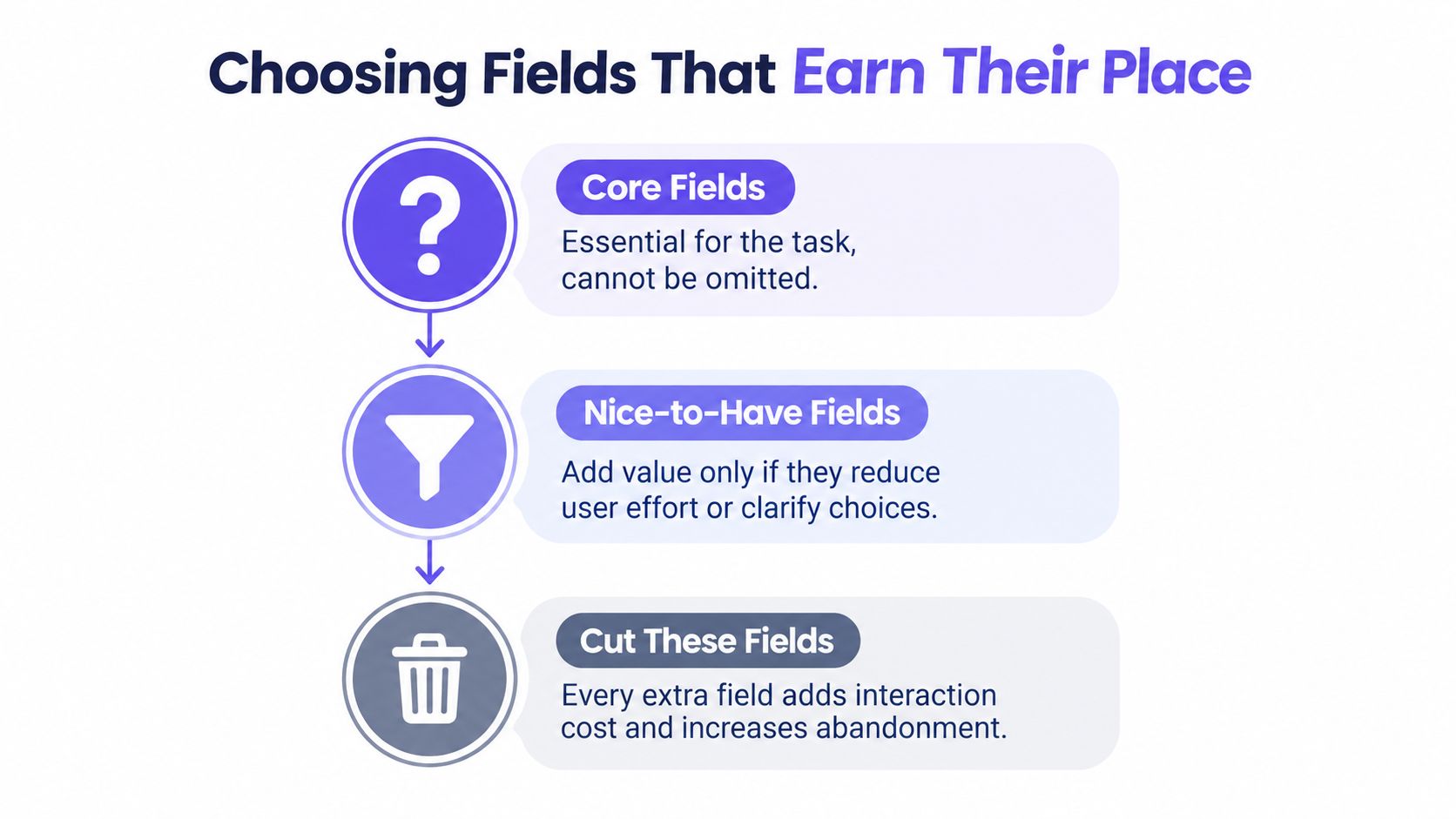
The hierarchy separates essential information from deferrable enrichment and unnecessary collection. “Nice to have” should mean optional timing, not automatic inclusion.
Work backward from account creation
For a hypothetical workspace product, define success as creating an account and entering the correct workspace. Then review candidate fields with engineering.
- Define the dependency. Keep email if it identifies the account or delivers an invitation. Keep a password only if this authentication path requires one.
- Find the moment of necessity. Ask for a workspace name when someone creates a workspace. Skip that question when an invitation already supplies the destination.
- Defer enrichment. Collect job role when it changes a meaningful onboarding choice. Don't block access merely because sales might use it later.
- Challenge sensitive requests. Ask for a phone number when a real workflow needs it, such as a requested callback. For that decision, CartBoss's phone data collection tips offer a focused resource to review alongside your purpose and consent requirements.
What breaks if the answer is missing? If nobody can name the broken behavior, the field probably needs further justification.
Measure the trade-off
Field reduction should be an experiment with guardrails. Compare completion, correction frequency, field-level exits, and downstream account quality before and after the change.
A shorter form can still create worse outcomes if users enter the wrong workspace or cannot complete setup afterward. Document both the expected benefit and the operational risk.
A privacy-aware discussion of form design also connects minimization with legitimate business needs. Treat purpose as part of the field specification, then decide whether collection belongs now, later, or nowhere.
Labels, Grouping and Input Types That Reduce Guesswork
Labels should make the requested information and its obligation clear before someone starts typing. Grouping and control choice should reinforce that meaning.
Baymard found that failing to identify both required and optional fields caused confusion, slower checkout, unnecessary validation errors, and abandonment in its required and optional field research. Choose an explicit convention and apply it consistently.
An account-setup comparison
Bad example
- Heading: Register.
- Fields: Placeholder-only “Email,” “Password,” and “Company*.”
- Help: Password requirements appear only after rejection.
- Action: Submit.
The unresolved question is “Company.” Does it mean an existing employer or a new workspace? An asterisk doesn't answer either question.
Better example
- Heading: Create your account.
- Account group: “Email address, required” and “Password, required,” with the actual password rules visible beforehand.
- Workspace group: “Workspace name, required,” shown only for people creating a workspace.
- Action: Create account, followed by a clear explanation of what happens next.
This version makes the product model visible. It also gives engineering less ambiguous behavior to implement.
Input Type Choices and Their Effect on Form Errors
Field intent: email address
Recommended input type: email.
Mistake to address: Missing address structure. Treat browser-level format checks as an initial check, not proof that someone owns the address.
Field intent: telephone number
Recommended input type: tel.
Mistake to address: Avoidable typing friction. Specify accepted formats separately rather than assuming the control validates them.
Field intent: new password
Recommended input type: password, with appropriate new-password autofill semantics.
Mistake to address: Confusing account creation with entry of an existing credential.
Field intent: a constrained workspace category
Recommended control: A select or an explicit choice group, depending on the options.
Mistake to address: Unrecognized free-text values when the product needs a fixed category.
These are implementation choices to test in your supported browsers, not substitutes for server-side checks.
Visual grouping also needs semantic structure. W3C's accessible design guidance recommends descriptive labels programmatically associated with controls, such as matching a label's for attribute with an input's id.
Would the field still make sense without its surrounding layout? That's a useful copy review. The guide on UX writing for product teams can help teams distinguish concise labels from explanatory help.
Validation Timing, Error Messages and Recovery
Validate when the feedback becomes useful, then make correction straightforward. A form shouldn't interrupt unfinished input or hide a blocking problem until recovery becomes expensive.
For account setup, I'd start with this timing policy and test it against real behavior:
- During entry: Show constructive guidance, such as progress against password requirements, without treating an unfinished value as a failure.
- After leaving a field: Check a completed-looking value when the result is actionable and reasonably dependable.
- On submission: Check the complete request, including server-side rules and relationships between fields.
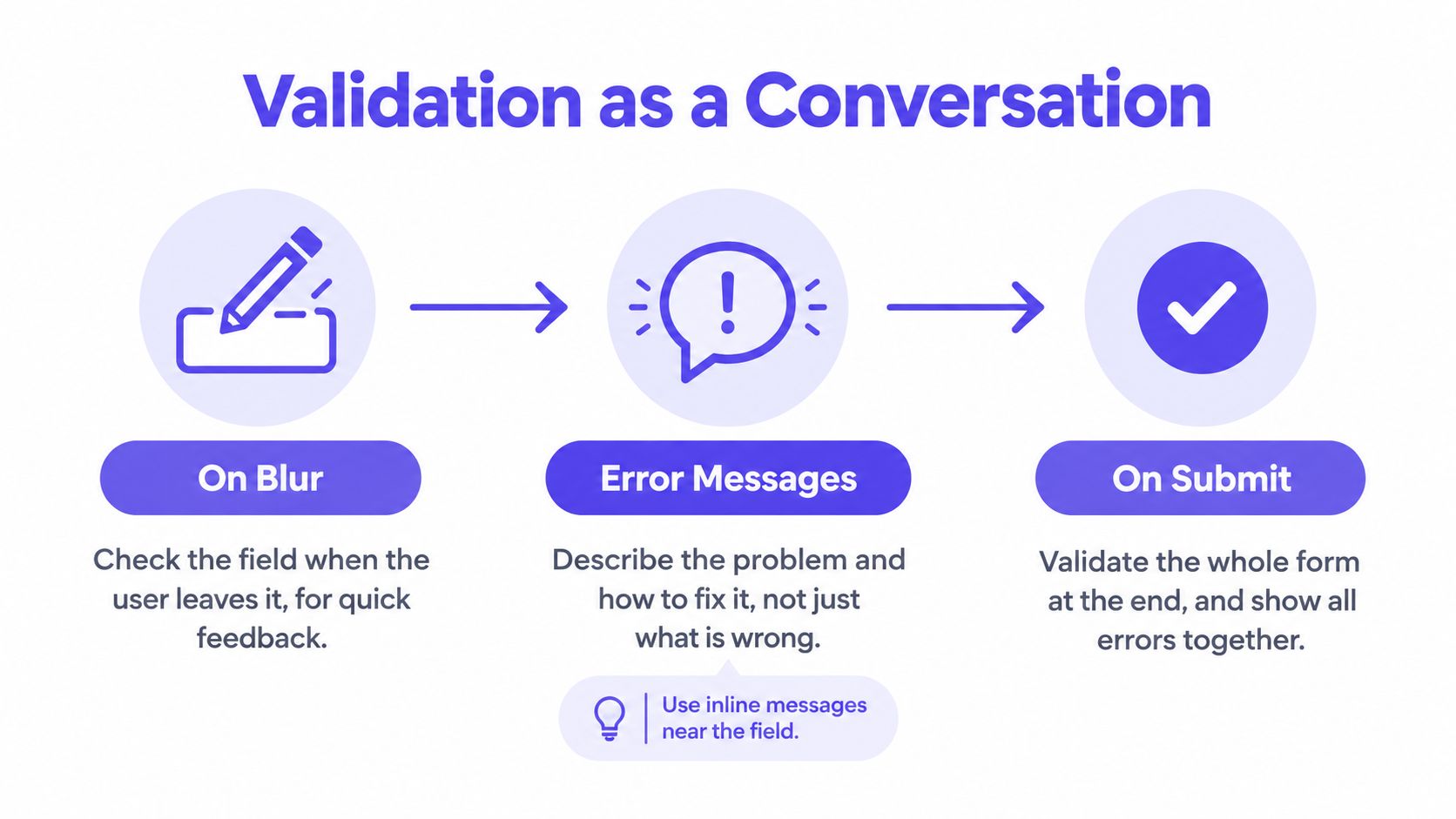
The diagram summarizes a feedback loop, not a requirement to validate every field on blur. Timing should reflect the field's rules and the cost of a premature warning.
Separate requirements from design advice
WCAG 2.2 Success Criterion 3.3.1, Error Identification, Level A, requires automatically detected input errors to identify the affected item and describe the error in text. A red outline alone is insufficient, as explained in W3C's Error Identification guidance.
WCAG 2.2 Success Criterion 3.3.3, Error Suggestion, Level AA, addresses providing known correction suggestions, subject to its security and purpose exceptions. Treat the specific timing policy above as design advice, separate from those requirements.
Write the next useful action
Weak: “Invalid input.”
Better: “Email address: enter a valid address.”
For a service accepting only a domestic format, “Enter a 10-digit phone number, including area code” can expose the constraint. For international accounts, that same message would impose the wrong rule.
Recovery principle: Explain the constraint your system actually enforces, not the format the designer happened to type.
If email checks involve an external service, review CleanMyList's email API validation tips while defining how uncertain responses and service failures should appear. Don't turn an unavailable checker into a misleading claim that the user's address is invalid.
Preserve valid input, associate messages with affected controls, and make the correction route obvious. The error patterns from Figr are a supporting reference for examining those recovery states.
A recoverable error gives the user a path forward. Whether a particular implementation improves completion still needs measurement.
Mobile Behavior, Touch Targets and Adaptive States
A mobile form must accommodate constrained width, touch input, device keyboards, and interrupted attention. Shrinking the desktop layout leaves too many decisions unresolved.
Baymard studied 18 mobile e-commerce sites where participants completed more than 1,000 checkout fields. Above-field labels performed better because inputs could use the screen's full width, making entered text easier to inspect, according to its mobile label-position research.
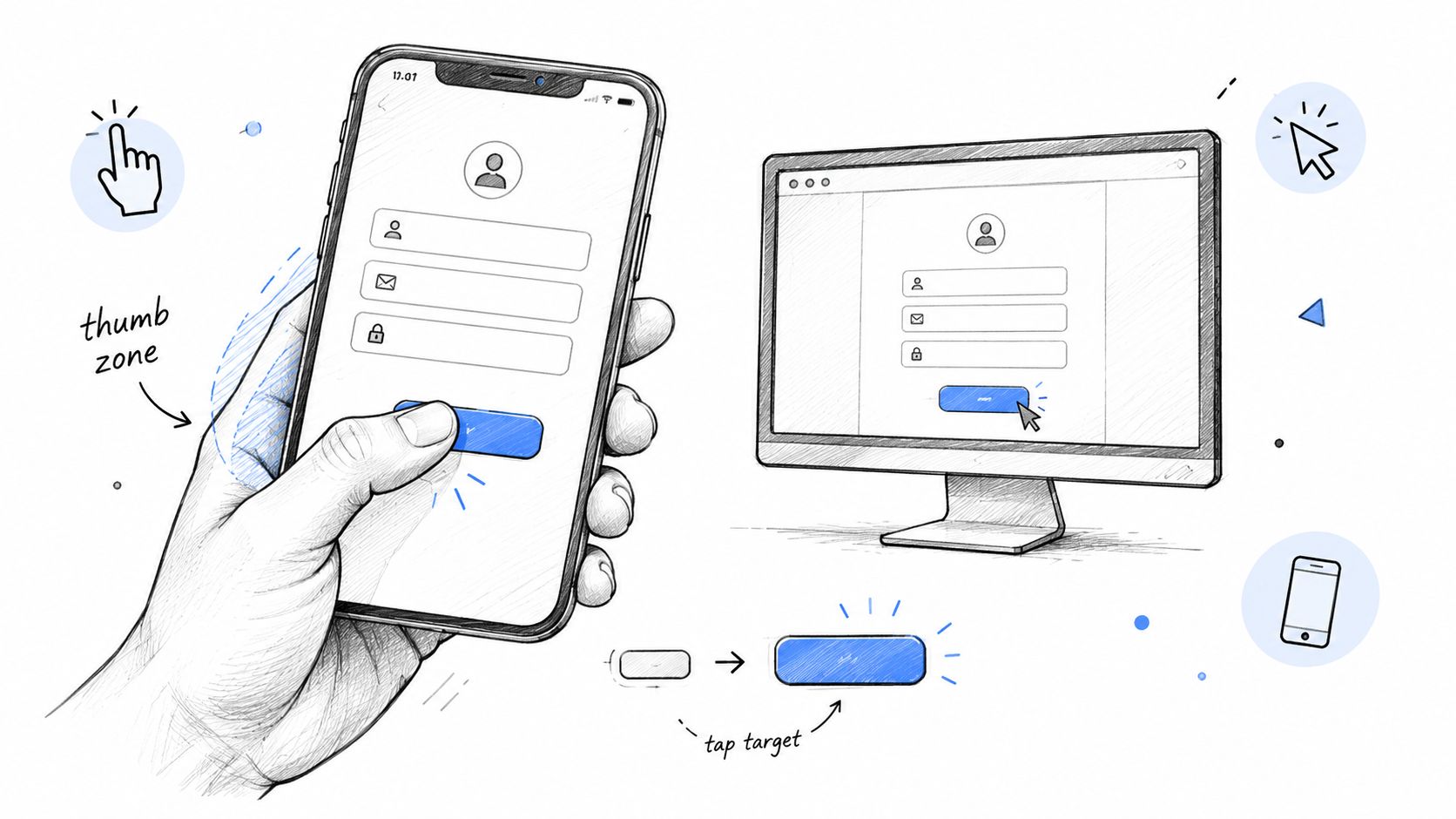
The visual contrasts compact pointer-oriented controls with more forgiving touch layouts. Evaluate the interactive area and surrounding spacing, not just the visible button.
Compare behavior across surfaces
Desktop layout
Adjacent fields may fit, but the reading order and keyboard sequence still need to agree. Don't use available width as a reason to create unnecessary columns.
Mobile layout
Default to above-field labels and enough width to inspect entered values. Check the screen with the keyboard open, especially whether help, errors, and the primary action remain reachable.
Touch interaction
Provide comfortably tappable controls with separation from competing actions. Test password visibility toggles and small help controls as carefully as the submit button.
Autofill interaction
Use field semantics that match the requested information. Test actual autofill behavior rather than assuming a polished mockup predicts browser behavior.
What happens when an address is longer than the example in Figma? Layout review should include realistic content, enlarged text, and translated labels.
Design the period after tapping
Submission needs explicit states:
- Ready: The action explains the expected outcome.
- Submitting: Visible progress acknowledges the request and prevents accidental duplicate actions.
- Failed: The interface distinguishes a connection problem from rejected field data.
- Succeeded: Confirmation explains what happened and what the user should do next.
On unreliable connections, avoid claiming success before the system confirms it. Retain a sensible retry path and make the request's status understandable.
Use Figr's mobile first design guide as a supporting reference for reviewing the surrounding screen. The strongest comparison uses your own navigation, components, and content rather than a detached signup template.
The Designer to Engineer Checklist
A handoff-ready form specifies behavior well enough that engineering doesn't have to invent the missing states. The checklist should expose unresolved decisions before implementation.
W3C's Technique G83 for missing required information describes error recovery that identifies omitted fields in text, preserves entered data, and provides a route back to correction. That's a useful model for turning a static design into acceptance criteria.
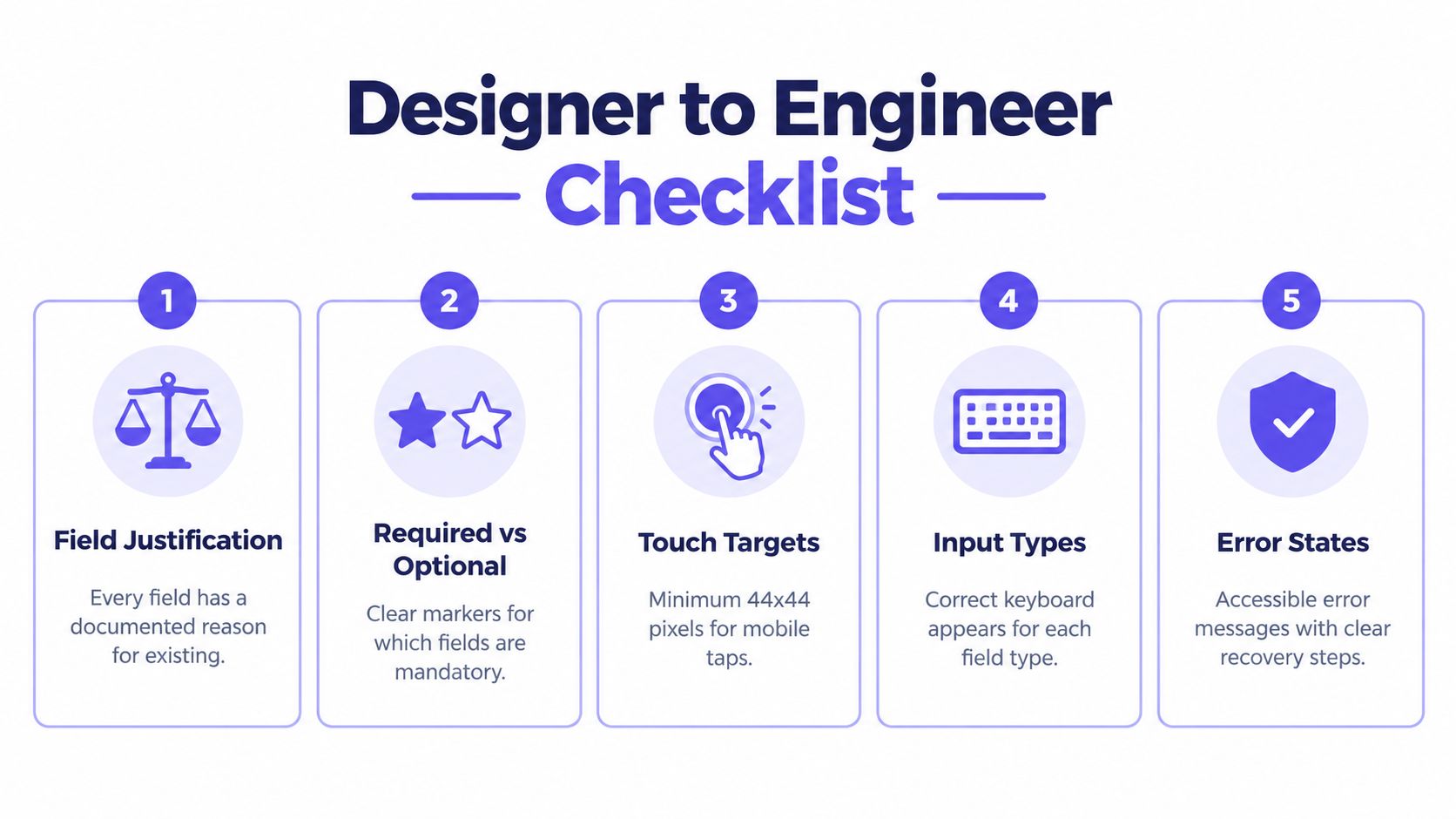
The infographic summarizes the review categories. Treat its touch-size guidance as a design recommendation rather than a universal statement of accessibility conformance.
Before implementation
- Field purpose: Does every input have a documented dependency or user benefit?
- Obligation: Are required and optional fields explicitly identified?
- Label association: Does every control have a descriptive, programmatically associated label?
- Control choice: Do input types, autocomplete semantics, and allowed values match the intended data?
- Help: Are format constraints and sensitive-data explanations available before submission?
- Validation: Are timing, server responses, and uncertain external checks specified?
Before release
- Recovery: Can users identify and reach each error without losing valid answers?
- Mobile: Can users inspect values and operate controls with the device keyboard visible?
- Keyboard: Does focus follow the intended sequence through every supported state?
- Adaptive behavior: Are revealed controls and status changes understandable with assistive technology?
- Submission: Are loading, failure, retry, and confirmation states covered?
- Measurement: Are completion and downstream quality defined without recording sensitive field contents unnecessarily?
A screenshot approves an appearance. Acceptance criteria approve behavior.
For a concrete review exercise, compare an account-setup layout with inline errors against an alternative that adds a linked error summary. Keep the fields, rules, and components unchanged so reviewers can isolate the recovery decision.
Attach that comparison to the implementation ticket with expected behavior for each state. The developer handoff guide offers a broader framework for making those decisions reviewable across disciplines.
The Edge Cases Most Form Guides Skip
The hardest form decisions concern timing, trust, and changing context. Removing inputs alone won't resolve them.
Zoom out to the organization's incentives. A team requesting account data gets a potential qualification benefit, while the person registering bears the immediate effort and disclosure cost. That imbalance deserves explicit review.
Could qualification happen after the user experiences the product? Could a fraud-control requirement use information already available? These questions help distinguish genuine dependencies from habitual collection.
Adaptive behavior needs its own tests
Recent W3C discussion of autofill in dynamically changing forms highlights an active standards problem. Conditional forms can create unexpected focus changes, unannounced inserted fields, and incorrect autofill mappings.
Test state transitions with keyboard and screen-reader users, including corrections to earlier answers. Use the review to find missing UX edge cases, especially when changing an answer removes previously completed controls.
Should account setup use a multi-step form?
Use multiple steps when the task has meaningful stages that justify separate attention. Don't split a compact task merely to make the initial screen look shorter.
Should a submit button stay disabled until everything is valid?
Prefer an actionable button that can explain remaining problems. A disabled button needs a clear, accessible explanation of what prevents progress.
Can autofill replace clear labels?
No. Users still need to understand, inspect, and correct the values supplied on their behalf. Review autofilled states with the same care as manual entry.
What should a team improve first?
Start with a consequential form in your existing product. Review observed failures, trace the field dependencies, and resolve the most disruptive recovery problem before changing decorative details.
Form Design FAQ
How many fields should a signup form have?
There is no universal target. Include the fields needed to create the account and deliver the immediate outcome, then defer anything that can wait. Check completion and downstream account quality before deciding whether a shorter form works better.
Should forms mark optional or required fields?
Yes. State which fields are required and which are optional using a consistent convention. Do not rely on an unexplained asterisk or a validation error to reveal the rule.
When should a form show validation errors?
Show guidance before an error is likely, check a field when its answer is complete enough to assess, and validate the whole request on submission. Avoid warning users while they are still typing an unfinished value.
What makes a form error message useful?
Name the affected field, describe the actual problem in text, and explain how to correct it when the solution is known. Keep valid answers intact so users can recover without starting over.
How should a team test a mobile form?
Try it on a device with the keyboard open. Check whether users can read labels, inspect entered values, reach errors and controls, use autofill, and understand what happens after tapping the primary action.
In short, make the next review about decisions you can verify. Bring the current screen, the actual constraints, and examples of failure into the room.
Bring an existing account-setup screen, its components, and your field requirements to Figr, an AI product design agent for teams improving existing software. Explore alternative layouts and error states, then use your team's judgment to refine reviewable, Figma-ready output before handoff.