
Your Figma file holds a checkout flow that three people have approved, a component library with 40 variants, and a prototype that has survived two review rounds. Engineering ships 25 React components, and the date picker on the canvas isn't one of them. Two weeks after handoff, QA finds the mismatch, design reopens the file, and the fix lands in code rather than in the tool that started it.
Each loop like that costs a review cycle, a rebuild, and a day of a designer's attention. Teams that hit it twice start shopping for a different tool, which is usually when the UXPin vs Figma question arrives. Then they compare feature lists, notice that both tools can draw a button, and learn nothing that helps them decide.
This comparison takes a narrower route. It treats the choice as a question of where the design canvas meets production code, and who absorbs the cost of keeping two sources of truth aligned. What follows is a criteria table, a candid reading of the vendor speed claim, seat math you can rerun with your own headcount, and a two-week pilot that settles the decision with your team's evidence.
UXPin and Figma at a Glance
The practical difference is where the canvas gets its components and how much work remains between a prototype and implementation. Six criteria make that distinction clearer than a feature checklist.
Table: UXPin and Figma compared on core criteria
| Criterion | UXPin | Figma |
|---|---|---|
| Component source | React, Angular or Vue components from Git or Storybook through Merge | Visual components, libraries, variables and variants |
| Prototype logic | Variables, conditional logic, input validation and state changes | Screen-to-screen transitions, overlays and interactive components |
| Design-to-code handoff | Components on the canvas are production code | Developers inspect specs; Code Connect supports handoff |
| Reported prototyping time for one page | 8 minutes, vendor claim | 60 minutes, vendor claim |
| Reported user base | Not established by the survey cited below | More than 4 million users as of March 2024 |
| Pricing model | Per seat: Core at $49 and Growth at $69 per month | Seat types: Full, Dev and Collab |
The time comparison is a UXPin vendor claim: its comparison reports 60 minutes in Figma and 8 minutes in UXPin. Treat the figures as a claim to assess against your own workflow, not as a guaranteed time saving.
The UX Tools 2024 Design Tools Survey found that Figma was used more widely than UXPin among its respondents. That survey describes its participants, not the total user base of either product. Separately, UXPin's 2024 comparison article says Figma had passed 4 million users as of March 2024.
What the Adoption Numbers Do Not Say
Survey adoption can indicate which tool designers are more likely to know, but it does not measure how well either tool fits a team's handoff. Familiarity may reduce training and hiring friction; the table's component-source and handoff rows address a different cost: keeping the canvas aligned with what engineering can build.
A large user base is useful context, not a proxy for design-system fidelity. The decision turns on which tool makes the path from design to production components easier for your team to maintain.
Why the Canvas Model Decides Design-System Fidelity
Open both tools and the first difference is texture. Figma feels like a drawing surface. UXPin feels like a component browser with a canvas attached.
The distinction is architectural. UXPin Merge imports coded React components from a Git repository and makes them available inside the UXPin Editor, where they can be added, nested and edited through the properties and styles each component exposes, as the Merge editor documentation describes. The object on the canvas is the component engineering ships, not a picture of it.
That changes what fidelity means, and the fork is easy to see:
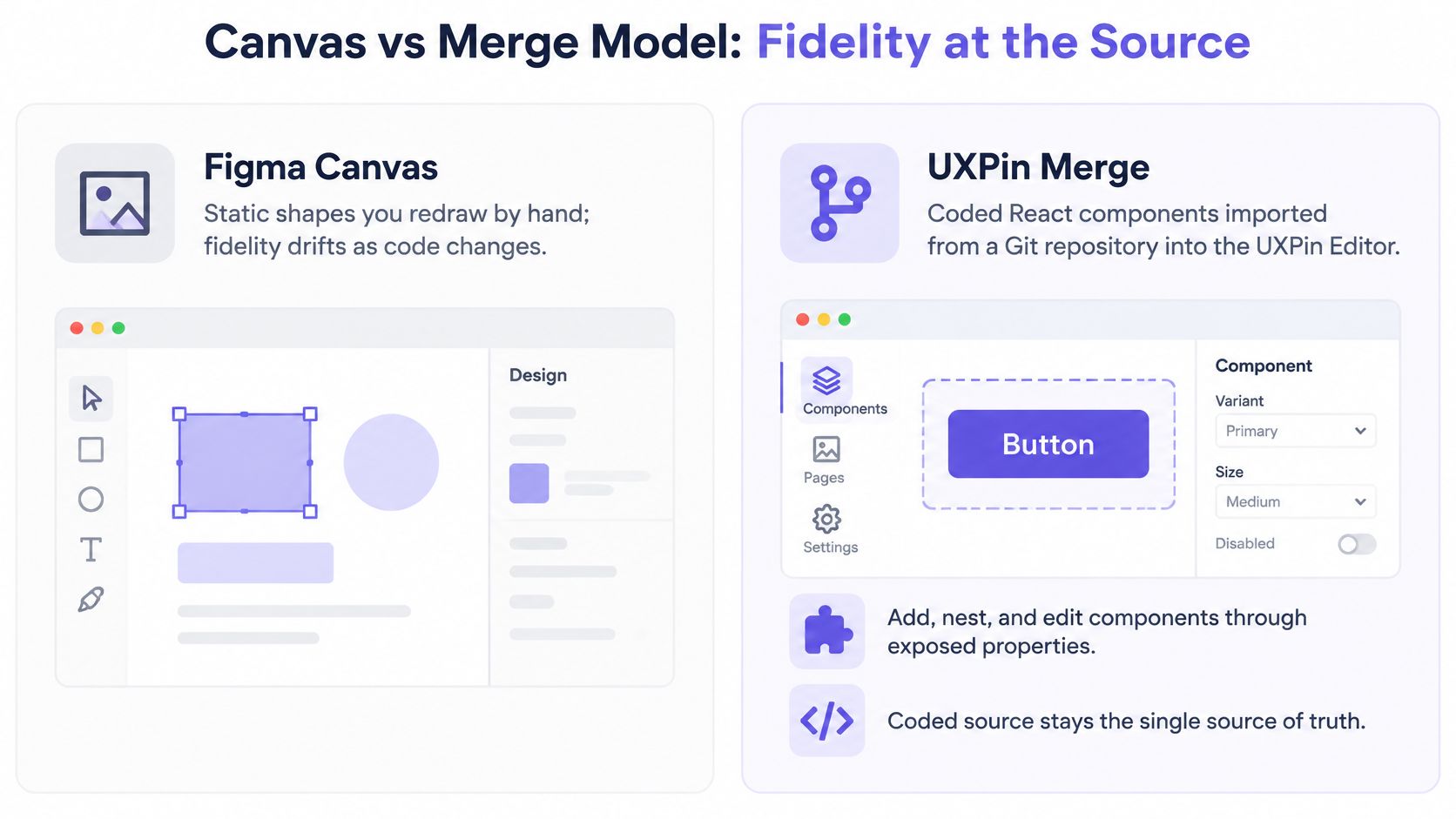
Figma's documented model is built from visual components, libraries, variables and prototype properties. Code Connect supports developer handoff, but the canvas stays separate from the application's runtime component library. A Figma prototype can look identical to production while being assembled from layers that behave nothing like it.
Visual Consistency or Structural Reuse
That's the question a design-system team has to answer before it picks a tool. Fidelity means visual consistency when reviewers compare screens to a spec. It means structural reuse when the prototype has to behave like the shipped product, down to validation, disabled states and responsive breakpoints.
Illustrative example, not a real team: a product manager reviews a checkout flow built from a Figma library of 40 components while engineering ships 25 React components. The mockup clears review because it looks right. Three weeks later, the date picker rejects a date the production component accepts, and the mismatch surfaces at handoff when the cheapest fix is no longer available.
Three diagnostic questions cut through that:
- Does the design system live in code? If engineers import components from a published package, a prototype can import the same package and inherit the same behavior.
- Do engineers reuse components from a shared library? A team that rebuilds UI per feature has less to align with, so visual fidelity is the realistic target.
- Must the prototype reproduce production states? Error, loading, empty and permission states are where visual mockups and runtime components diverge fastest.
The Rule That Settles It
A governed React design system with strict behavior requirements favors UXPin, because the prototype can only be assembled from approved components. A visual-first team that needs flexible exploration favors Figma, because a drawing surface tolerates half-formed ideas in a way a strict component library won't. If you're building and scaling design systems across several products, that governance question outranks any single feature. In short, the canvas decides what the prototype can tell you.
Prototype Depth and Speed in Practice
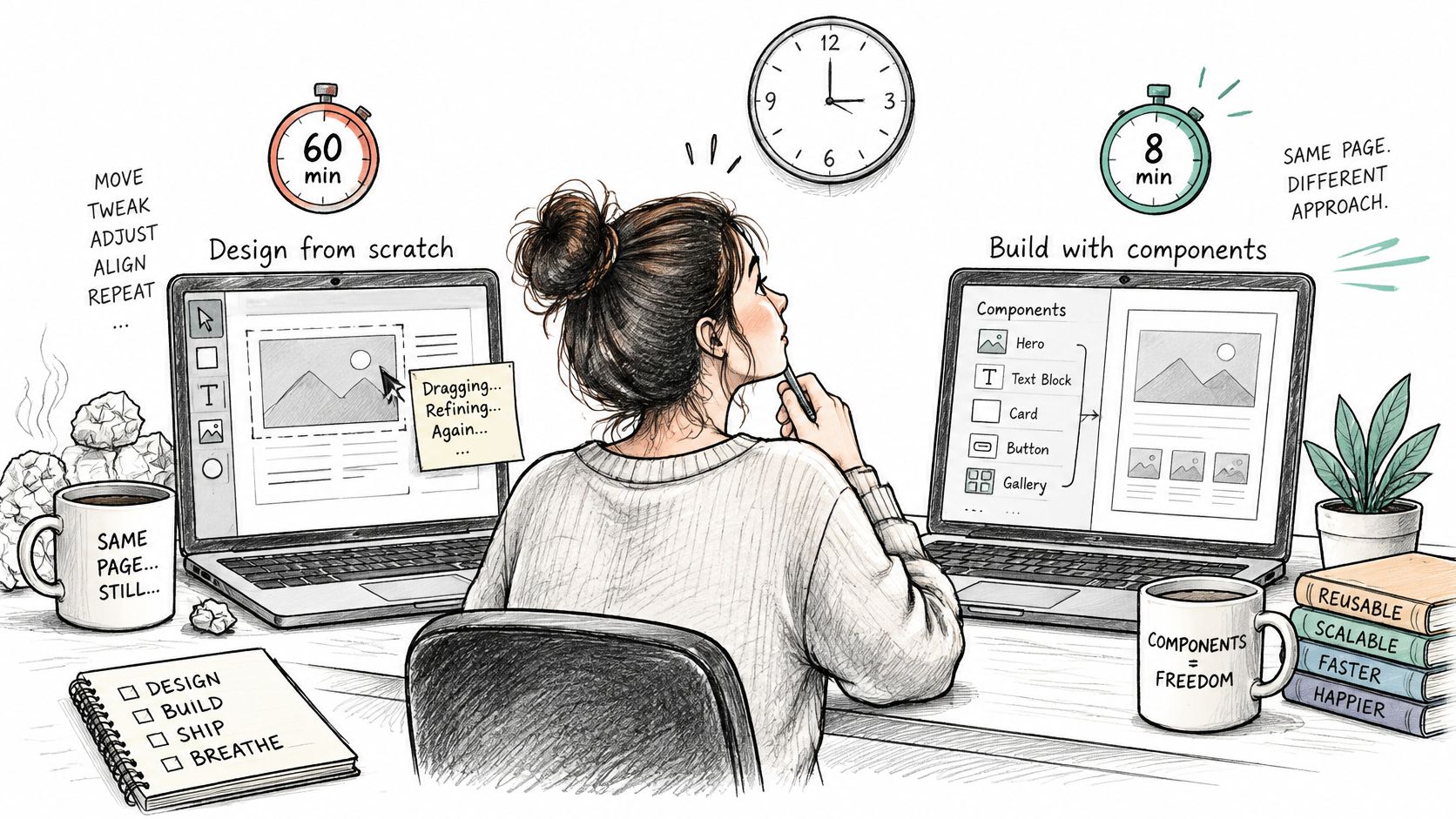
UXPin's published comparison reports one page taking about 60 minutes in Figma against about 8 minutes in UXPin, an eightfold difference, per UXPin's prototyping comparison. Read that as directional. The result moves with task complexity, component-library readiness, participant expertise, and whether the UXPin workflow already has production components configured. It comes from the vendor's own material, not an independent replication, so it doesn't generalize on its own.
What the claim describes is a shift in where the time goes.
Where the Minutes Go
UXPin supports variables, conditional logic, input validation and state changes inside the prototype. Figma is optimized more for screen-to-screen transitions, overlays and interactive visual components. On a flow where a form rejects an invalid card number and a summary panel recalculates from that state, the interaction model does the work, not the layout. On a five-screen tour, layout is most of the work and the model barely matters.
Setup cost runs the other way. A Merge library has to be wired to Git or Storybook, components have to expose clean props, and someone has to own that connection. Figma asks for an account and a frame.
A Benchmark You Can Run in a Sprint
- Pick three representative flows. Choose one simple, one form-heavy and one with branching logic, so the result covers the shapes your product ships.
- Time each team to a first clickable prototype. Stop the clock when someone outside the design pair can click through without a walkthrough.
- Count manual component substitutions. Every screen where a designer rebuilt something engineering already ships is a hidden recurring cost.
- Count interaction defects in one usability round. Log which states broke and whether the prototype or the product was wrong.
- Count engineering rework after handoff. Track hours spent rebuilding or correcting, not opinions about which file looked cleaner.
Boundary case, illustrative: a five-screen onboarding flow with no forms and no conditional states. Figma usually reaches a usable prototype first, because wiring components in UXPin costs more time than the linear flow saves.
The rule that follows: the speed advantage grows with the number of stateful components and shrinks toward nothing on simple linear flows. Teams rapid prototyping for product teams every week get compounding returns from a code-backed canvas. Teams prototyping once a quarter mostly get setup work.
Running Both Tools Without Version Drift
A design review approves a flow in Figma, but the validation rules and component states live in UXPin. The handoff now depends on two files staying aligned. Choosing both tools means deciding which artifact is authoritative, how changes move between them, and who owns that work.
Answer five questions before copying a frame:
- Which artifact is authoritative for each decision?
- How do component and token changes synchronize?
- Who owns interaction logic in the prototype?
- What permissions and naming conventions apply in each file?
- How do validated screens return to Figma?
A Staged Model That Holds
- Stage 1. Explore in Figma. Use its multiplayer collaboration for ideation and stakeholder alignment. Early concepts can change without building out component behavior.
- Stage 2. Set a gate. Move a flow into UXPin only when a named owner approves it against agreed criteria, such as validation or permission states.
- Stage 3. Test behavior in UXPin. Use it for flows where conditional logic, input validation, or production components affect what users need to test or engineers need to estimate.
- Stage 4. Return validated screens to Figma. Keep final visual specifications and review decisions together in the file used for design refinement.
Component and token updates need their own process. Treat a Merge library update like a dependency change, with a named reviewer responsible for managing breaking changes in UI libraries.
Match Fidelity to the Decision
The prototype should contain only the detail needed to make the next decision. Visual approval calls for layout, hierarchy, and copy. Usability testing needs realistic content, states, and validation. Engineering estimation needs production components so the estimate reflects the available library. QA needs mapped edge cases and error paths before test cases are written.
Name the owner before creating a second library. A written sync cadence makes responsibility clearer when components or tokens change.
Two component libraries without a named owner tend to drift. Figr can help without becoming another design home: it uses Figma context before generating designs that fit inside Figma, where designers can review, refine, and prepare final work.
Plan Prices and Seat Access Compared
A 10-person design team's bill depends on more than its headcount. The cost changes with plan and seat type, so distinguish people who create from those who review or inspect handoff details.
Table: Plan prices and seat access
| Plan or seat | Price | Access and included features | AI credits per month |
|---|---|---|---|
| UXPin Core | $49 per seat per month | Unlimited prototypes, built-in coded libraries, conditional logic, variables and expressions, custom fonts, password-protected preview, seven-day version history | Not specified |
| UXPin Growth | $69 per seat per month | Core features, advanced AI models and patterns, roles and permissions, design systems, Storybook integration, SSO, two-factor authentication, 30-day version history | Not specified |
| Figma Full seat | Varies by plan | Design and Dev Mode access | Omit: no supported figure |
| Figma Dev or Collab seat | Varies by plan | Narrower access, including view or comment rights in Design files | Omit: no supported figure |
UXPin lists Core at $49 per seat per month and Growth at $69 per seat per month, with the features shown above on its pricing page. Figma separates access by seat type: Full seats include Design and Dev Mode, while Dev and Collab seats provide narrower access. Check the current plan and seat options before budgeting, since the total depends on the mix your team needs.
The Seat Math for a Ten-Designer Team
Illustrative calculation: ten designers on UXPin Core cost 10 × $49 = $490 per month, or $5,880 per year. On Growth, the same ten seats cost 10 × $69 = $690 per month, or $8,280 per year. Figma's total depends on the selected plan and seat mix, so compare current prices for the access each person needs.
For a clearer cost comparison, compare design collaboration tools by role, not just headcount:
- Editors need access that lets them create and change designs or prototypes.
- Reviewers may need only viewing or commenting access; assigning them editing seats can raise the bill without adding useful access.
- Engineers need access suited to design handoff. In Figma, Dev Mode is included with a Full seat.
Which Tool Fits Which Team
Teams don't pick a design tool in the abstract. They pick it while staring at a specific mess, usually a handoff that keeps reopening. The table below is a first filter, not a verdict.
Table: Which tool to start with by team situation
| Team situation | Stronger starting point | Reason |
|---|---|---|
| Governed React design system, prototypes must use production components | UXPin | Merge imports the same components engineering ships |
| Broad stakeholder review with many commenters | Figma | Visual flexibility and collaborative review |
| Usability tests needing complex states and validation | UXPin | Variables, conditional logic and input validation |
| Early concept exploration with rough visuals | Figma | Lower setup barrier and faster iteration |
| Team already invested in a Figma library | Figma, with UXPin for validated flows | Avoids rebuilding the library and keeps a staged handoff |
The trade-off is documented in UXPin's own comparison material, which is vendor-authored and shouldn't be read as an independent benchmark. Its useful point is directional: a code-backed canvas is most valuable when component-level behavior, responsive states or strict design-system governance must be validated before handoff, while a visual canvas is generally more efficient for rapid exploration and collaborative review.
A Worked Example, Labeled as Illustrative
Imagine a 12-person SaaS team with a React component library, three PMs who review screens, and two researchers who run usability tests on checkout states. The team explores in Figma, moves the checkout flow into UXPin to test with production components, and returns validated screens to Figma for final production. Two outcomes to watch: components rebuilt at handoff, and state defects found in testing. Record both before and after the change. These are targets to measure, not results anyone has promised.
The Boundary Where Figma Alone Wins
If the team has no coded component library and no stateful flows, the code-backed advantage has little to act on, and Figma alone is the simpler, cheaper choice. Adding a second tool there creates maintenance with no matching return.
Choose the tool that closes the most expensive gap in your current workflow. For a governed design system, that's the canvas-model test from earlier, not the plan comparison.
Frequently Asked Questions
Is UXPin better than Figma for design systems?
It's stronger when the design system lives in React, Angular or Vue code and prototypes must use those production components, because Merge puts the shipped components on the canvas. Figma is stronger for visual-first exploration, broad review and library governance at the specification level. Neither wins in general.
Does UXPin replace Figma?
No. The staged model keeps Figma for exploration, stakeholder review and final visual specifications, and moves only validated flows into UXPin for behavior testing. Running both without an owner for component sync and naming is how teams end up with two libraries that disagree.
How much does UXPin cost per designer?
Core is $49 per seat per month and Growth is $69 per seat per month. For ten editors that's $490 or $690 monthly before annual terms. Figma seat prices aren't in the sources reviewed, so a two-tool total can't be compared until you pull current quotes for Full, Dev and Collab seats.
Is UXPin really 8x faster than Figma?
That figure comes from UXPin's own single-page comparison, roughly 60 minutes against 8 minutes, and it hasn't been independently replicated. Treat it as a hypothesis shaped by component readiness and task complexity. A two-week pilot on your own flows is the only way to know what your team gets.
Confirm the Choice With a Two-Week Pilot
Run the pilot this month and let it produce a number your team owns.
- Step 1. Choose two flows. Pick one simple flow, such as onboarding, and one stateful flow, such as checkout. Confirm both with the product lead so the pilot tests decisions the team cares about.
- Step 2. Build each flow twice. Build each in Figma and in UXPin using the same copy and components. Log setup time separately from build time.
- Step 3. Record three measures. Note time to a first clickable prototype, the number of manual component substitutions, and the number of state defects a reviewer finds.
- Step 4. Ask two engineers. Show them both versions and ask which one they'd rebuild less at handoff. Their answer usually predicts where the rework lands.
Then apply the rule. If UXPin wins on rework and defects for the stateful flow but loses on setup time for the simple one, the staged model fits your team. If Figma wins on both, keep Figma and revisit when the design system moves into code. When you test the stateful flow with real participants, test prototypes before development so the defects you count are behavioral rather than visual.
Write the results down, add your seat count, and buy on your own evidence rather than a vendor's eightfold claim.
If the pilot shows that the expensive gap is upstream of the canvas, where briefs, flows and edge cases never get specified well enough to prototype, that's the work Figr takes on. It reads your Figma files, components, tokens and written guidelines as context, then generates flows, edge cases, UX reviews and Figma-ready designs that stay close to what your product can support. Visit Figr to run one of your own flows through it before the next planning cycle.