

Poor data table design makes people lose their place between the record they're reading and the decision they need to make. On a crowded SaaS dashboard, that can mean dragging a horizontal scrollbar while trying to remember an account name.
When the relationships are unclear, users compensate. They export records, compare values in spreadsheets, or ask support whether a missing row was deleted. A polished interface can still leave people doing the hardest work themselves.
A better approach treats every table as a relationship system built around a specific comparison. That gives product managers, designers, and QA teams a practical way to judge layout, interaction states, and accessibility before another column reaches production.
Anatomy of a Data Table and Its Parts
Say a product manager opens a billing dashboard at 9 a.m. There's no caption, a total sits in an unlabeled footer, and the row actions resemble ordinary data. Before checking overdue accounts, they have to work out what they're looking at.
Context before content is the rule I'd apply here. The table should explain its scope, identify each record, and distinguish values from controls. Bold text and shading help sighted users find their way around, but the relationships must remain understandable when that visual layout disappears.
Nielsen Norman Group's data-table guidance organizes table use around finding records, comparing values, viewing or editing rows, and taking action. It recommends ordering columns by importance, placing related fields together, and preserving context through persistent headers or an appropriate frozen identifier.
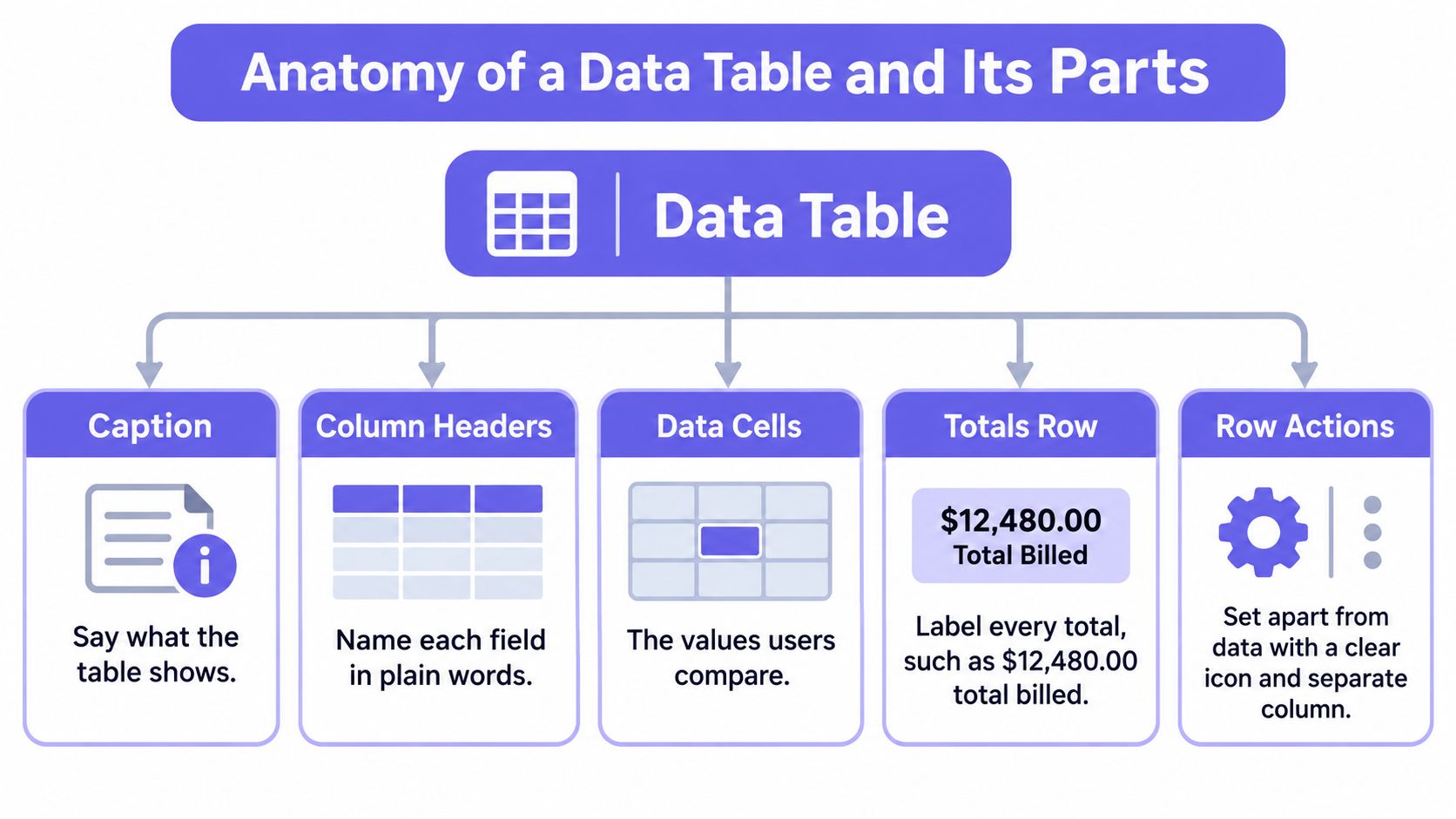
Give every part a defined job
Data table parts, their jobs and design rules
| Part | What It Does | Design Rule |
|---|---|---|
| Caption or title | Names the dataset and time window | State the scope in one line |
| Toolbar | Holds search, filters and bulk actions | Keep it above the header on one line on desktop |
| Column header | Names the field and shows sort state | Use sentence case and include units such as USD or % |
| Identifier column | Names the record | Freeze it when the table scrolls sideways |
| Data cell | Holds one value | One value per cell, no stacked text |
| Row actions | Opens, edits or deletes a record | Place at the right end and keep destructive actions separate |
| Summary row | Shows totals and counts | Label it clearly and right-align numbers |
| Pagination | Moves through rows and shows the total | Show the visible range and total, and disable unavailable navigation |
For a hypothetical billing table, pagination might read 1-25 of 340. A summary must also say whether it covers the current page, filtered results, or all records. Otherwise, a correctly calculated total can still mislead.
Give the identifier the strongest visual emphasis. Decision fields belong nearby, while operational metadata should remain readable without competing for attention. Row actions need recognizable controls and accessible names, especially when an icon's meaning is ambiguous.
Can someone state what a row represents and what each column measures without searching outside the table? If they can't, fix the anatomy before adjusting spacing.
Order Columns Around the Four Tasks Users Bring
Column order is a decision about attention, and database schemas make poor defaults. An internal ID may matter to engineering while contributing nothing to the user's immediate decision.
The task changes what belongs near the beginning. Someone locating a record needs a recognizable identifier and distinguishing detail. Someone comparing values needs the relevant measures adjacent, while someone editing or acting needs enough context to avoid changing the wrong record.
Follow the decision, not the schema
- Locate a record. Prioritize names, reference codes, or another identifier people recognize. Provide search without making users inspect every row.
- Compare values. Keep the fields involved in the decision together. Separate unrelated metadata from the comparison area.
- View or edit a row. Make the record's current state clear before offering an edit. Preserve its position when the user returns.
- Take action. Keep the action attached to its record, and distinguish selection for bulk work from opening record details.
Consider a QA lead assigning failed test cases. In a hypothetical layout, status sits eight columns away from owner. The lead repeatedly scans sideways to connect the failure with the person responsible.
What does that distance accomplish? Usually, it reflects the order fields entered the product rather than the order someone needs them.
Place status and owner beside each other, with the test-case identifier immediately available. Group execution timestamps and environment details farther along unless those fields determine assignment. The same dataset now supports a different, more deliberate reading path.
Practical rule: Ask which fields users compare together before asking which fields they want included.
Treat scanning as an operating cost
Repeated scanning costs attention across routine sessions. A column added for an occasional administrative task can make everyday triage harder for everyone else. That's a product prioritization decision disguised as a layout request.
Use user research techniques to observe the decision sequence, including where people pause, scroll, or open another tool. Ask users to explain what evidence makes them act, rather than requesting their preferred column order.
Finish by identifying the pair of fields people compare most often. Put them side by side, then check whether the identifier and decision-critical fields remain visible together.
Sorting and Filtering Without Hiding the Answer
A filter that removes rows without saying so makes users question every number on screen. They need to understand both the result and the conditions that produced it.
The basic gist is this: sorting controls sequence; filtering controls membership. Those changes deserve separate, visible feedback.
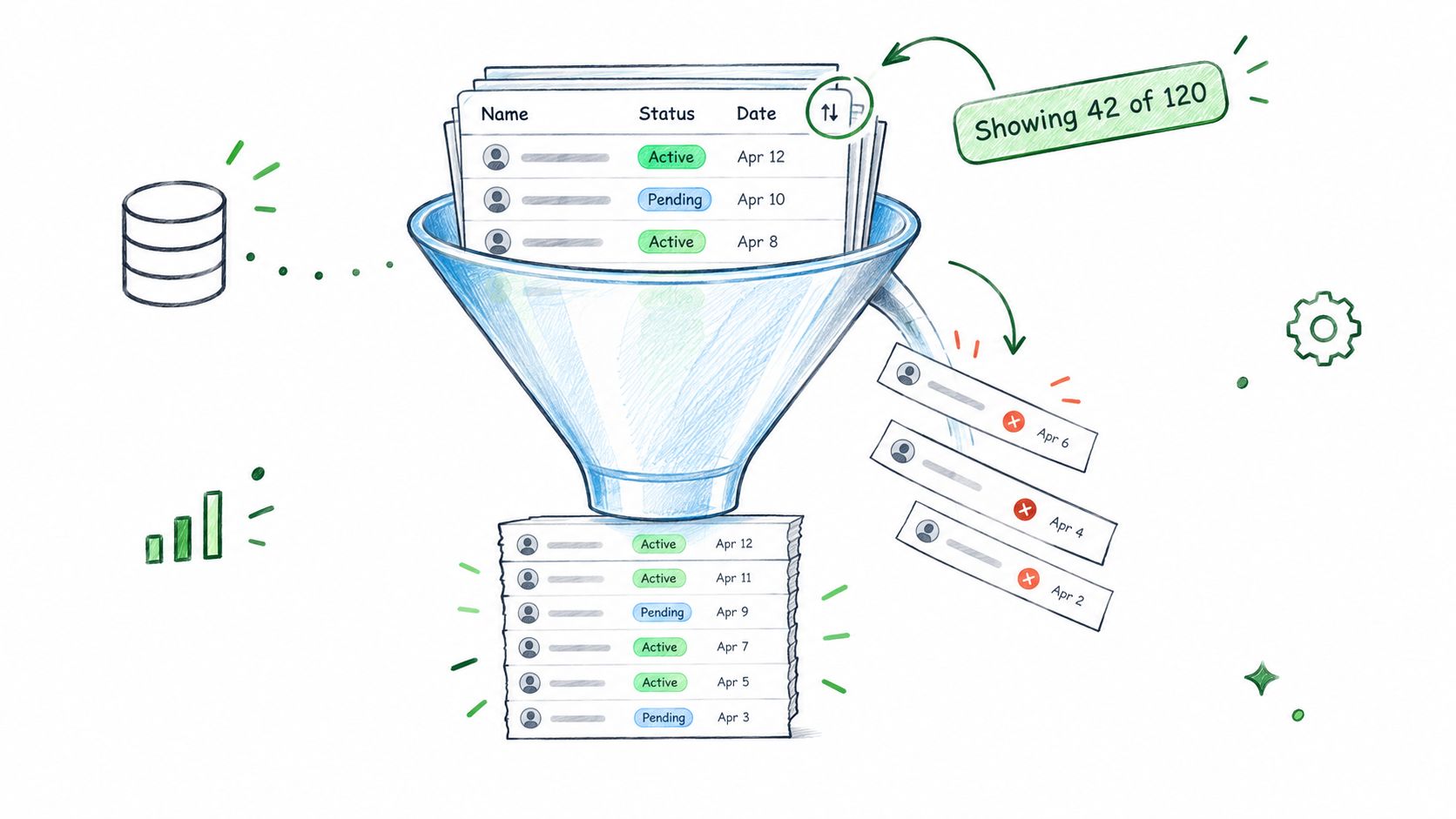
Make the current view explainable
Step 1. Choose a meaningful default sort.
Start with the field that supports the immediate decision, such as overdue date for collections. Show direction visibly and expose the state througharia-sorton the appropriate header.Step 2. Separate search from structured filters.
Label which fields search covers. Use column filters for known attributes and a facet panel when users explore combinations across the dataset.Step 3. Keep active conditions visible.
Show removable chips with field names and values. In a hypothetical view, Showing 42 of 1,310 explains the filtered scope better than an isolated result count.Step 4. Provide a predictable reset.
Make Clear all restore the documented default view. Keep that behavior consistent across search, filters, and any saved-view controls.
Multi-column sorting can help expert users resolve ties, but it adds precedence rules people must remember. Introduce it when a real workflow needs it, and display the ordering priority explicitly.
Test the dataset boundary
With server-side pagination, sorting must apply to the full matching dataset before the server returns a page. Sorting only the records already visible produces a convincing but incomplete ranking.
Preserve sort and filter state after an edit and a refresh. Store shareable view state in URL parameters where appropriate, while keeping sensitive values out of URLs. When conditions change, return to a valid page rather than leaving users stranded beyond the new result range.
Also define what bulk selection means after filtering. Does it include selected visible rows, or every matching record? The confirmation should answer that before an irreversible action.
After applying three filters, can a user explain in one sentence why these rows are on screen? That's the trust test.
Density and Numeric Alignment for Fast Comparison
A table earns its density through the comparison it supports. Row height sets how many records someone can hold in view before scrolling, and the right setting depends on whether users scan one column, compare two rows, or check a value against its neighbors.
In an 800 px area reserved entirely for rows, a 32 px row height shows 25 complete records; at 48 px, it shows 16 complete records and part of another, roughly 17 visible. Toolbars, headers, and pagination cut into that area in a real viewport, so treat these as upper bounds rather than guaranteed counts.
Choose density deliberately
Treat the settings below as example component values. Validate the dimensions against your typography, controls, and users' input methods.
Row density modes and where each one fits
| Density | Best For | Trade-off |
|---|---|---|
| Compact, for example 32 px rows | Monitoring dashboards with many rows | Harder to scan and hit precisely over long sessions |
| Default, for example 40 px rows | General admin and SaaS tables | Balanced starting point for most products |
| Comfortable, for example 48 px rows | Tables with editing or mixed content | Fewer records visible per screen |
| Touch, with roomier rows sized around controls | Tablet and phone tables | Fewer columns fit at once |
A density switch lets one table serve both a monitoring task and a review task, provided compact mode doesn't clip text or shrink controls into unreliable targets. Tight padding cannot rescue a table carrying too many responsibilities: if every row needs an editor, a chart, and three actions, the problem is scope, and no amount of compression fixes it.
Make numbers line up with the task
Vertical comparison fails without warning. Right-align numeric columns and use tabular figures, such as font-variant-numeric: tabular-nums, so every digit occupies the same width and magnitudes stack cleanly down the column. In proportional fonts, a value like 1,111 starts further right than 9,999, and users end up rereading numbers they already saw.
A clean-looking table can still make comparison unnecessarily difficult.
Keep decimal precision consistent within a column, since comparing 4.2 against 4.187 asks users to do the rounding the design skipped. Put units in the header instead of repeating them per cell, and give missing values their own marker, because "no data yet" and "measured zero" answer different questions. For statistical results, mark significance explicitly and explain the notation once, in a legend or tooltip.
For a concrete comparison task outside SaaS, CruiseLobster.com's icon of the seas vs utopia of the seas size resource gives readers a reason to inspect corresponding measures side by side. Your table faces the same question: can someone compare like with like without translating units mentally?
This set of Power BI dashboard design inspiration shows how tables behave when they sit beside charts and summary cards, and how much surrounding context changes the density a table can afford. Pick the density for the comparison the user came to make; screen size is the second constraint, not the first.
Accessible Markup Every Data Table Needs
A table can look correct while leaving a screen-reader user unable to identify what a value describes. Accessibility belongs in the component's structure, before teams polish the presentation.
WCAG 2.1 Success Criterion 1.3.1 requires visually conveyed information and relationships to be programmatically determinable, as explained in the web-table accessibility review. That review reports 49.28% of observed table elements were used for layout; among approximately 8,162 genuine data tables, only 4.71% included a caption and 0% used ID-and-HEADERS associations.
Those figures describe the audited tables, not every SaaS product. They still illustrate the gap between drawing a grid and encoding its relationships.
Build explicit header relationships
The W3C's header-scope technique specifies <th> for header cells and <td> for data cells, with scope identifying the applicable row, column, or group. For more irregular structures, the W3C tables tutorial explains explicit header associations.
- Basic tables. Use
scope="col"for column headers andscope="row"for row headers. - Grouped headers. Use
scope="colgroup"orscope="rowgroup"where the structure genuinely represents those groups. - Irregular relationships. Give headers unique
idvalues and list the applicable IDs in each data cell'sheadersattribute when scope alone is insufficient. - Table context. Provide a meaningful caption or accessible contextual label so users know which dataset they've entered.
Can someone understand the value when its position and background color are unavailable? That's the structural question to resolve.
Avoid ambiguous merged cells. They can force users to remember several layers of context, and they make implementation and testing more demanding. Sometimes splitting an overloaded table is the better decision.
Test behavior as well as markup
Layout tables arrange page content; data tables express relationships among records and measures. Use CSS layout for the former, reserving table semantics for genuine tabular information.
- Keyboard pass. Reach search, sorting, pagination, and row actions with visible focus. Don't make every static cell a tab stop.
- Screen-reader pass. Verify announced headers, values, sort changes, and meaningful control names with tools such as NVDA or VoiceOver.
- Zoom pass. Test at an illustrative 200% zoom, checking clipped controls, hidden labels, and sticky elements that cover content.
When you apply WCAG 2.2 to design tokens, cover focus appearance and contrast, but keep semantic requirements in the component contract. Tokens can support accessibility; they can't supply missing relationships.
Responsive Patterns That Keep Rows Comparable
Shrinking a table until it fits leaves narrow columns, broken labels, and no usable comparison path. A responsive pattern should preserve the task, even when it changes the presentation.
What must remain comparable on the smaller screen? Answer that before choosing cards or hiding columns.
Responsive table patterns and when to use them
| Pattern | How It Works | Keeps the Comparison | Best When |
|---|---|---|---|
| Horizontal scroll with frozen identifier | Full table scrolls while the identifier column stays fixed | High | Users compare many numeric columns across rows |
| Column priority hiding | Low-priority columns collapse into an expandable detail row | Medium | Columns have a clear and agreed importance order |
| Stacked cards | Each record becomes a card with labeled fields | Low | Few columns and record-level actions dominate |
| Summary and drill-down | Aggregates show first and detail opens on tap | Medium | Users look up a few records among thousands |
Horizontal scrolling retains the shared column structure, which is what makes cross-row comparison fast. Its cost is discoverability: users need a visible indication that more content exists, and the frozen identifier must leave enough room for useful values. I default to this pattern for numeric comparison and reach for cards only when the task is single-record work.
Column priority hiding works when the product team agrees which fields can disappear. If a hidden field determines the decision, the expandable row becomes a required step in every comparison.
Simplify before adding navigation
Stacked cards make record-level actions easier to arrange, but people lose the shared vertical alignment used to compare values at a glance. Summary and drill-down reduces initial complexity while adding an interaction before anyone can inspect an individual record.
Restructuring also changes what assistive technology announces. When a table becomes cards, the column header stops being shared context, so every card has to carry its own field labels. Accessibility audits regularly flag missing or unclear column-header labels in data tables, and the W3C accessibility curriculum's table guidance treats identifiable header relationships as a baseline requirement.
Preserving every field can preserve the very complexity users need you to remove.
Elaborate navigation wrapped around an overloaded structure just adds interaction cost. Remove unnecessary header levels, repeated metadata, and fields that belong in record details before adding more controls.
For building adaptive experiences with Figr, a task-first decision path keeps the choice grounded in the comparison:
- Count and rank columns. Separate decision fields from occasional reference information.
- Assess urgency. Decide whether users need rapid comparison or deliberate record inspection.
- Inspect header depth. Simplify grouped relationships before selecting a responsive presentation.
Test the chosen pattern with actual labels and the widest values the data produces. Short placeholder content conceals the failures users will encounter.
Designing Empty, Loading and Error States in Tables
Suppose a team ships a status filter that returns no rows. The grid goes blank, and support receives tickets within an hour asking whether records disappeared. The filter worked, but the interface failed to explain its result.
That hypothetical support queue is avoidable. Every state should tell users whether there's nothing to show, work is still happening, or something failed.
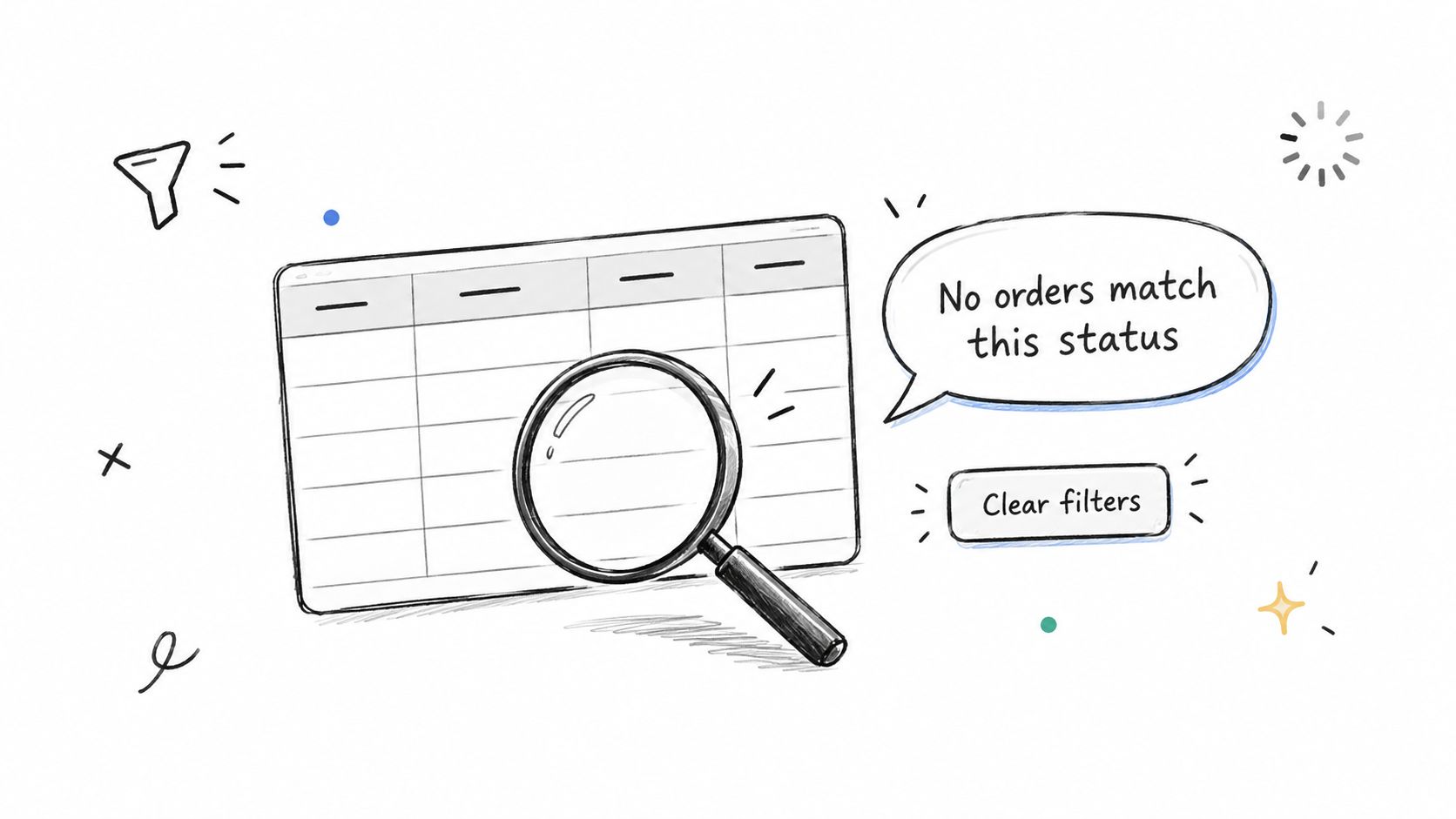
Distinguish absence from failure
Table states, triggers and what the user should see
| State | When It Appears | What the User Sees |
|---|---|---|
| First-time empty | No records exist yet | An explanation and a create action |
| Filtered empty | Active filters match no rows | The named filters and a clear action |
| Permission empty | Records exist but the user cannot see them | A message that access is restricted and who to ask |
| Loading | Data is being fetched | Skeleton rows matching the columns, with previous data kept during refresh |
| Partial error | Some rows fail to load | Affected rows marked with a retry |
| Full error | The whole load fails | What happened, why, and the next step with a retry |
A first-time empty state can invite creation. A filtered empty state should name the conditions and offer to clear them. Permission messaging must follow the product's security policy, without revealing protected records or counts.
How would users distinguish these situations if all they saw was an empty grid?
Preserve useful context during recovery
Skeleton rows should mirror the actual columns so the layout doesn't jump when records arrive. Use a placeholder for an unknown row count rather than briefly displaying zero.
During a background refresh, keep previous data visible and identify it as updating. Disable actions only when stale information would make them unsafe. Don't replace a usable table with a full-screen spinner for every request.
For partial errors, preserve successful records and mark the affected rows. If the failed request prevents identifying specific missing records, show an incomplete-results warning instead of pretending the table is complete.
Explain known causes plainly. When the cause is uncertain, say the records couldn't load and offer a retry rather than inventing an explanation. The principles behind designing helpful inline validation apply here: attach feedback to the problem and provide a usable next action.
Review Your Next Table Before It Ships
A table is ready when a new user can find a record, compare values, and recover without help. Treat those outcomes as release criteria.
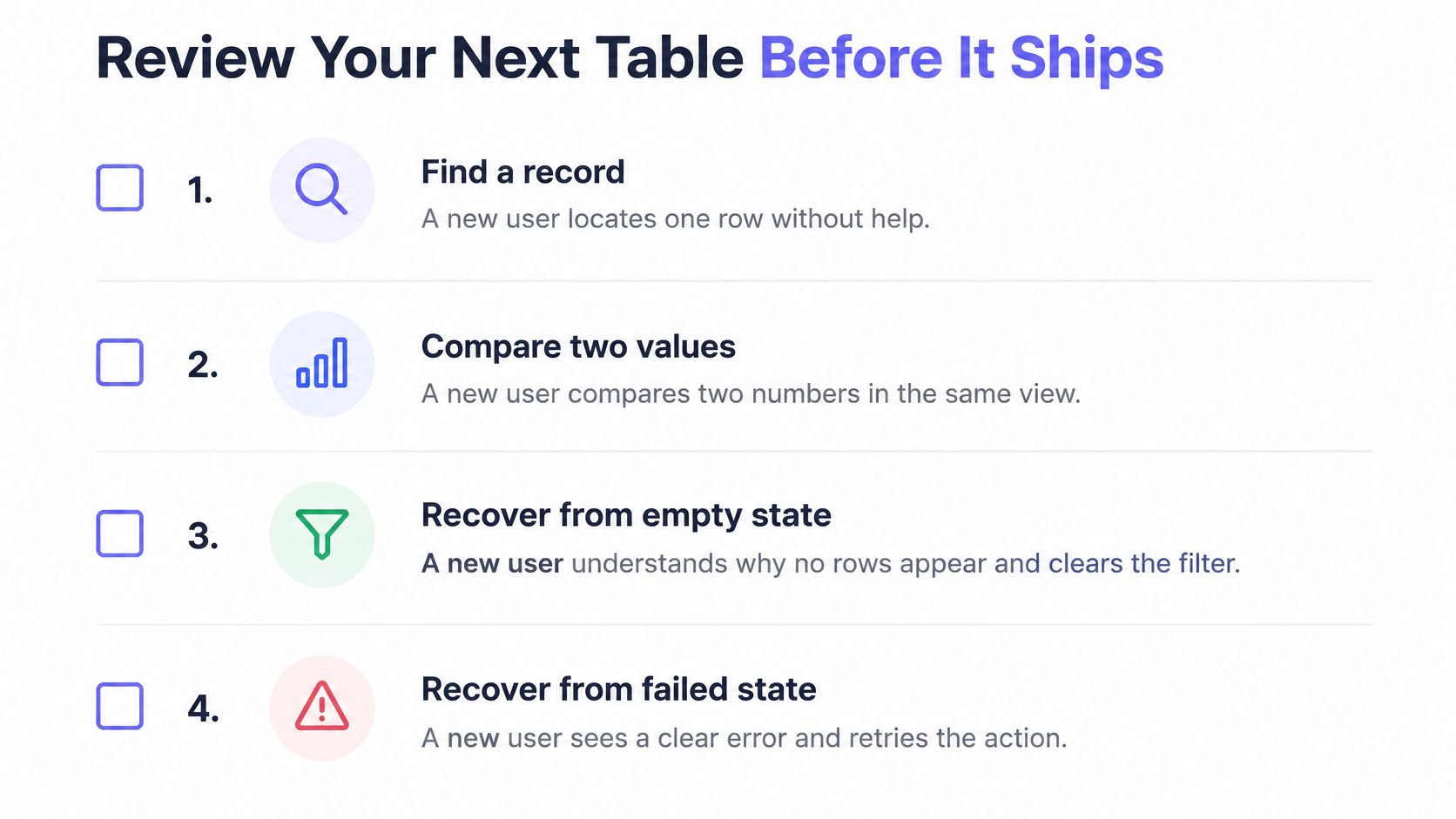
Step 1. Name the comparison.
Check whether the first two columns support it. Pass only when their order has a task-based reason.Step 2. Inspect the default sort.
Confirm the decision-relevant field and visible direction. Missing or misleading feedback fails.Step 3. Apply three filters.
Check active chips and the updated result count. Hidden conditions fail.Step 4. Compare numeric values.
Verify right alignment, tabular figures, and header units. Unexplained precision changes fail.Step 5. Navigate without a mouse.
Then read the table with a screen reader. Unreachable actions or missing context fail.Step 6. Stress the responsive layout.
Use test settings of 375 px width and 200% zoom. Obscured controls or lost decision fields fail.Step 7. Force non-default states.
Use real failing requests and unmatched filters. Missing explanations or recovery actions fail.
Figr's design tool can mock states before build, including the error and empty states user stories call for. Its Loan Pricing Scenario Builder template includes Default, Selected, Filtered, Empty, Loading, Warning, Error and Success states.
In short, pick the table your team uses most and run this checklist on it this week.
Data Table Design FAQ
What should a data table show first?
Start with a recognizable record identifier and the fields people need for their main comparison. Put related decision fields together rather than following the database schema.
When should a table scroll horizontally on a small screen?
Use horizontal scrolling when people need to compare several columns across rows, especially numeric values. Keep the record identifier visible and make it clear that more columns are available.
How do you make a data table accessible?
Use table markup with a caption or accessible label, <th> cells for headers, and appropriate scope or explicit headers associations. Make sorting and row actions keyboard accessible, then check header announcements and focus behavior with a screen reader.
What is the difference between an empty table and no filter results?
A first-time empty table means there are no records yet and can offer a create action. No filter results means records may exist, but none match the active conditions; show those conditions and a way to clear them.
Our generated designs can include the empty and error states your user stories require, with variants shaped around your components and implementation limits. Visit Figr to explore your next table's comparison flow and recovery states before handing it to engineering.