

A complex task split across too many screens with no clear order leaves users guessing what matters, what they already answered, and whether they can safely go back. The wizard design pattern exists for that exact moment, when one long form asks for dependent decisions all at once.
Leave that problem unsolved and you get abandoned onboarding, half-finished checkout, and configuration screens where a small error only appears after submission. Users lose entered work, support teams absorb avoidable questions, and product teams cannot tell which step caused the drop.
A well-built multi-step wizard helps by turning one goal into ordered decisions, visible progress, and recoverable states. The basic gist is this: treat the wizard as a state machine that users can get lost in, and design every branch, error, and focus move before you polish the screens.
What a Wizard Design Pattern Is and Where It Came From
Someone configures a payment integration once a year, opens settings with no memory of last time, and needs the software to hold the sequence for them. A wizard is a guided flow that moves one task to a finished outcome through ordered steps, where order carries logic.
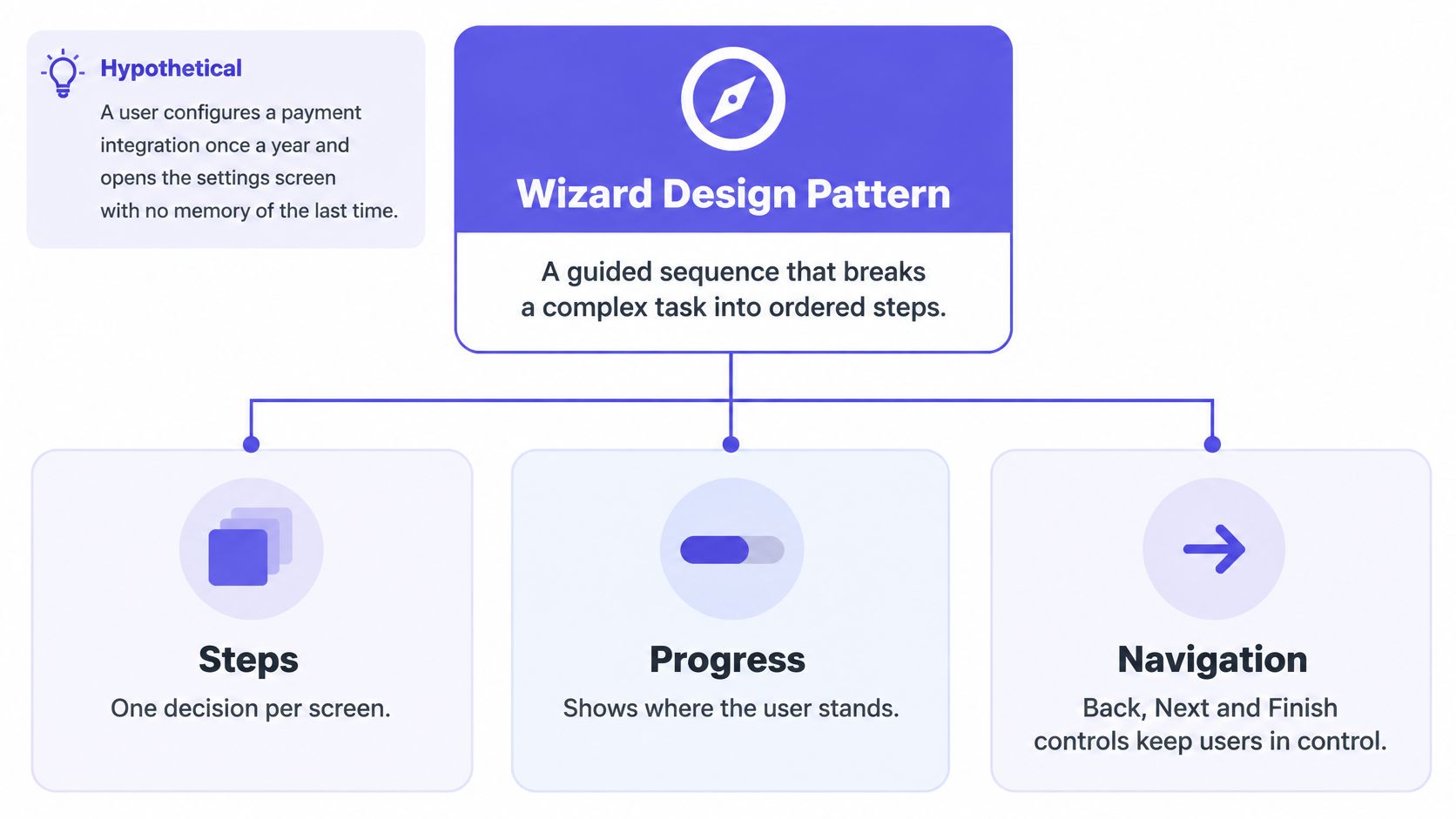
Anatomy worth naming
- Container: Holds at least two linked steps so the sequence can be determined.
- Steps: Each screen answers one focused decision.
- Progress indicator: Shows completed, current, and upcoming work.
- Navigation: Back, Next, Save, and Finish controls with explicit rules.
- Review and confirmation: A check before irreversible action, then a clear outcome.
The pattern has practical roots. The Wikipedia history of software wizards) traces Microsoft Publisher Page Wizards to around 1991 and Microsoft Access to November 1992, with wizards commonplace by 2001. Why does that history matter now? People still perform some tasks rarely, and relearning a rare task costs more than following a guided one. List these parts in one flow you own and mark what is missing.
Wizard, Stepper and Multi-Step Form Compared
These terms blur because they describe different layers. A wizard is the task pattern, a stepper design pattern component shows position, and a multi-step form is a data collection technique.
Attribute: Core job
Wizard: Guides one task to a finished outcome
Stepper: Shows position within a sequence
Multi-step form: Splits one data collection into pages
Attribute: Navigation
Wizard: Next and Back, with forward moves gated by validation
Stepper: Often clickable, sometimes limited to completed steps
Multi-step form: Next and Back between pages of one form
Attribute: Branching
Wizard: Common, conditional steps change the path
Stepper: Usually none, it displays state only
Multi-step form: Common, fields appear based on earlier answers
Attribute: Typical use
Wizard: Onboarding, permissions, configuration, checkout
Stepper: Progress inside a wizard or checkout
Multi-step form: Long data entry such as applications or profiles
Attribute: Common failure
Wizard: Progress hidden, input lost on Back
Stepper: Steps that look clickable but are not, or completed steps hidden
Multi-step form: Pages split with no logical grouping
The confusion that causes rework is simple. If a clickable stepper lets users jump ahead past required decisions, your wizard becomes a menu. If it hides completed steps, users lose evidence that they are progressing.
Practical rule: Decide whether the stepper is navigation or only status, then make its appearance tell that truth.
Most setup flows need a wizard with a stepper inside it. Long data entry without decisions usually needs only a wizard form design split into sensible pages. Which layer are you designing?
When a Wizard Beats a Single-Page Form
Use a wizard when a task has one clear goal, dependent decisions, and enough complexity that users need guidance. Don't reach for one merely because a form looks long.
The fit checklist
- One goal: The flow ends in a defined outcome such as activation or purchase.
- Dependent decisions: Later fields change because of earlier answers.
- Infrequent use: Users cannot be expected to remember the sequence.
- Volume or conditions: The task carries many fields or conditional paths.
- Early validation: Errors should surface before the user advances.
That logic matches cases with a logical sequence where the multi-step form comparison summarized by WebzWorld reported 22% higher completion for multi-step checkout forms than for single-page forms. Treat that figure carefully. It describes checkout, and the mechanism is distributed cognitive load, not less work.
Plenty of tasks lose under a wizard. A newsletter signup or single address change is faster on one page. Experts who edit settings daily need random access, search, and direct saving. Independent sections often fit tabs, accordions, or one grouped page better.
Checkout also shows why clarity matters at the decision point, a useful reminder from resources that help booking teams make tour deposits and pricing clearer. If users don't understand total cost or commitment, extra steps won't rescue trust.
Here's the economic tension. Frequent users pay the wizard tax every time, while first-time users gain protection once. Run the checklist on a flow you're reviewing this week. Which condition fails?
How to Build Wizard Steps, Progress and Navigation
Start with decisions, not database tables. Treat the wizard as a state machine: every step is a state, every control a transition, and anything left unmapped (a branch, a failed save, an expired draft) becomes a place the user can get lost. If you cannot write the goal in one sentence, the steps will inherit that confusion.
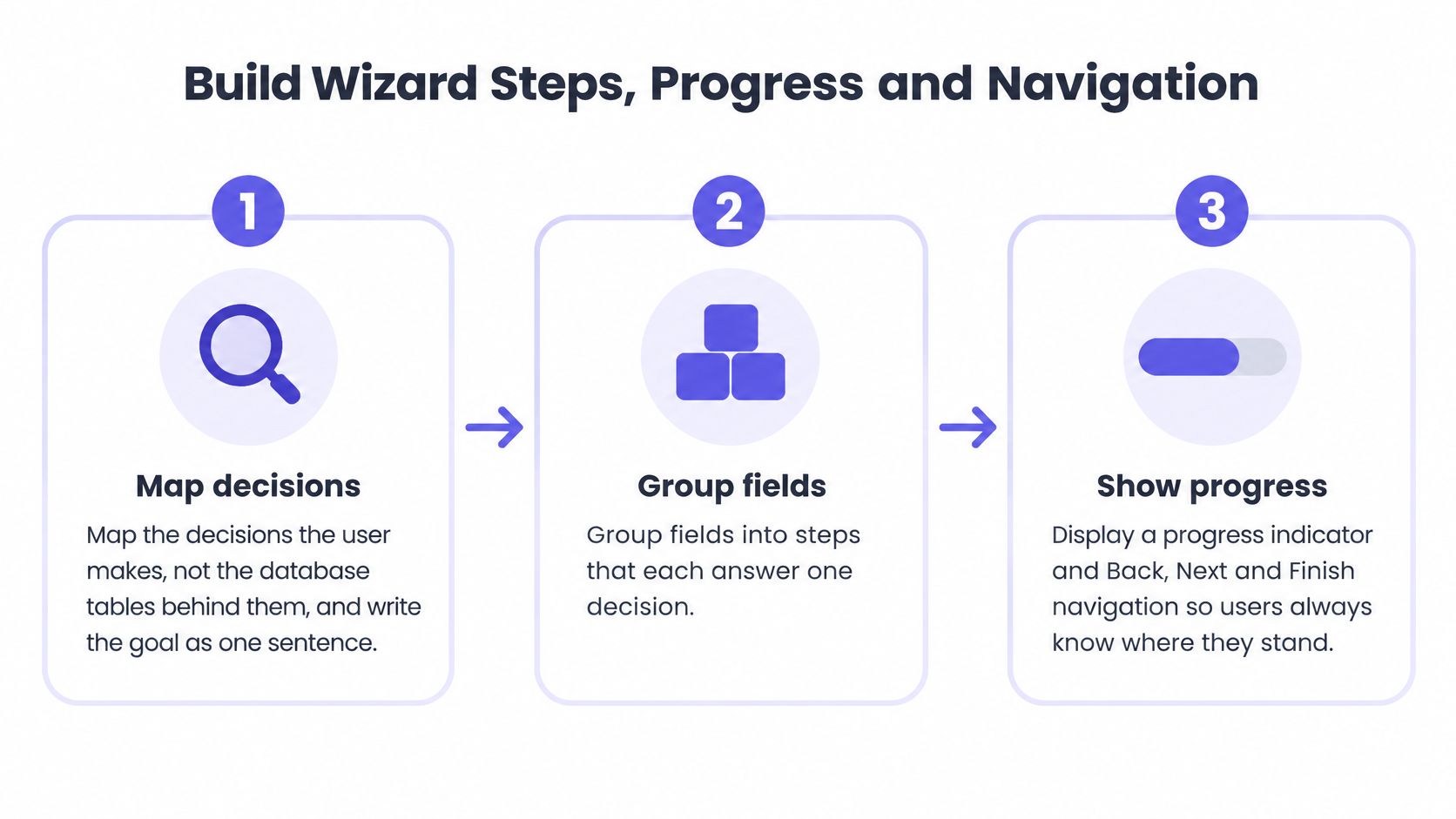
- Step 1. Map the decisions.
Write the goal as one outcome sentence.
Sketch order, branches, and exit points using flowchart process examples. - Step 2. Group fields by decision.
Put related inputs together and remove fields that don't affect the outcome. - Step 3. Name steps in user language.
Use nouns or verbs users recognize.
Show the name beside the position, such as Step 2 of 4. - Step 4. Show honest progress.
Mark completed, current, and upcoming states with text and icons.
Never rely on color alone. - Step 5. Define Back, Next, and Save.
Back preserves input.
Next validates only the current step.
Save creates a resumable draft, so decide how long that draft lives. - Step 6. Add review before commitment.
Summarize every answer with edit links.
Highlight skipped optional items and changed totals. - Step 7. Confirm the result.
State what happened, what happens next, and where to find the result.
How many steps should you aim for? The Human Standards forms guidance reports 78% of users submitted without errors on the first attempt when forms followed usability guidelines, compared with 42% for forms that violated them, and summarizes 3 to 4 steps as the strongest range, with completion declining by approximately 40% beyond the fourth step. Test these ranges in your own product before relying on them.
Grouping beats splitting. A step that answers one clear decision helps users more than two arbitrary halves of the same decision.
In a branched flow, honest progress means showing distance traveled, since the total step count changes with each answer. A fixed "Step 2 of 4" lies when an earlier answer adds two more screens.
I would instrument step start, validation failure, backtracking, abandonment, and completion from day one. Total conversion can hide one broken step, while step-level drop-off tells you which decision is losing people.
Four Wizard Examples and What Each Screen Must Show
Good wizard UI design changes with the risk in the task. Onboarding needs momentum, permissions need restraint, checkout needs trust, and configuration needs proof that the setup works.
Flow: Onboarding
Typical steps: Role, workspace, team invites, first goal
Decision that matters: Which steps can be skipped and when
Flow: Permissions
Typical steps: Scope, resource, role, review
Decision that matters: Least-privilege default and inherited access
Flow: Checkout
Typical steps: Cart review, shipping, payment, confirmation
Decision that matters: Guest path before account creation
Flow: Configuration
Typical steps: Source, field mapping, test connection, activation
Decision that matters: Test the connection before activating
Onboarding and permissions
For onboarding, ask for role and workspace essentials first, then make invites skippable. A new admin may not have teammate emails ready, so show a resume path and carry unfinished setup into the product home. The first goal should shape an empty state, not become a survey.
Permissions demand the opposite instinct. Default to least privilege, show inherited access before the user adds more, and make review spell out who gains what. Design pending approval and conflicting inherited roles as visible states, not toast messages.
Checkout and configuration
At checkout, offer guest purchase before account creation. Keep shipping and payment entries after a failed charge, explain price changes at confirmation, and let users edit cart items without restarting. Would you trust a flow that hides a changed total until the final click?
Configuration should test before activation. Show source connection, field mapping conflicts, a test result with sample output, and a partial save when the test fails.
There is credible evidence for guided configuration. A peer-reviewed usability study in PMC found participants completed the existing keyboard and mouse settings wizard in fewer than 6 minutes, while recommendations eliminated up to 100% of observed errors in the tested configuration tasks. That result belongs to that domain, but it supports the core idea: relevant guidance at each stage can improve accuracy.
Edge Cases, Validation and Recovery in Wizard Flows
A wizard usually fails at transitions: a Back click after an edit, a branch that adds questions, a Next click that hangs, a session that ends before submit. Treat the flow as a state machine. Each step needs defined states for idle, invalid, submitting, skipped and expired, and each transition needs a rule for what is preserved, recalculated or announced.
State: Field error on Next
What the user needs: The exact field, the reason, and a fix
Design rule: Validate the current step, keep input, move focus to the first error
State: Conditional branch
What the user needs: Why a new question appeared
Design rule: Show the branch in progress and announce added steps
State: Loading after Next
What the user needs: Confirmation that work is underway
Design rule: Disable the button once, keep the layout, announce completion
State: Skipped optional step
What the user needs: A summary of what was skipped
Design rule: Mark skipped items in review with an edit link
State: Session expiry
What the user needs: Recovery without re-entering data
Design rule: Save each step, offer a resume link, explain the expiry in plain words
State: Back after an edit
What the user needs: Inspection without data loss
Design rule: Retain values and recalculate dependent steps
The underlying rule is preservation. The Interfaces Institute wizard pattern description states that a reliable wizard preserves input in both directions, validates at the step where an error occurs, calls for review before irreversible action, and supports resumability after interruption. A changed earlier answer can invalidate later choices, so show which dependent answers were reset instead of leaving the old path looking valid.
Mistakes that create rework
- Deferred errors: Users reach the end before learning step one was wrong.
- Destructive Back: Returning to inspect an answer erases later work.
- Silent step changes: A branch alters the total count without explanation; say when “3 of 5” becomes “3 of 6” and why.
- Frozen loading: Next appears dead, so users click again; the submitting state should block repeats and show progress.
- Expiry without recovery: The session ends and the draft disappears.
Validation copy needs the same discipline teams use to reconcile running balances in bank statements, where the rule, mismatch, and next action must be explicit. Pair that rigor with guidance on handling product failures without frustrating users when you design recovery. Write each error as a repair path: field, cause, action, then the effect on later steps.
Accessible Wizards Need More Than Visual Steps
Accessible wizard UX is state management. The visual dots mean little if focus, announcements, and keyboard behavior tell a different story.
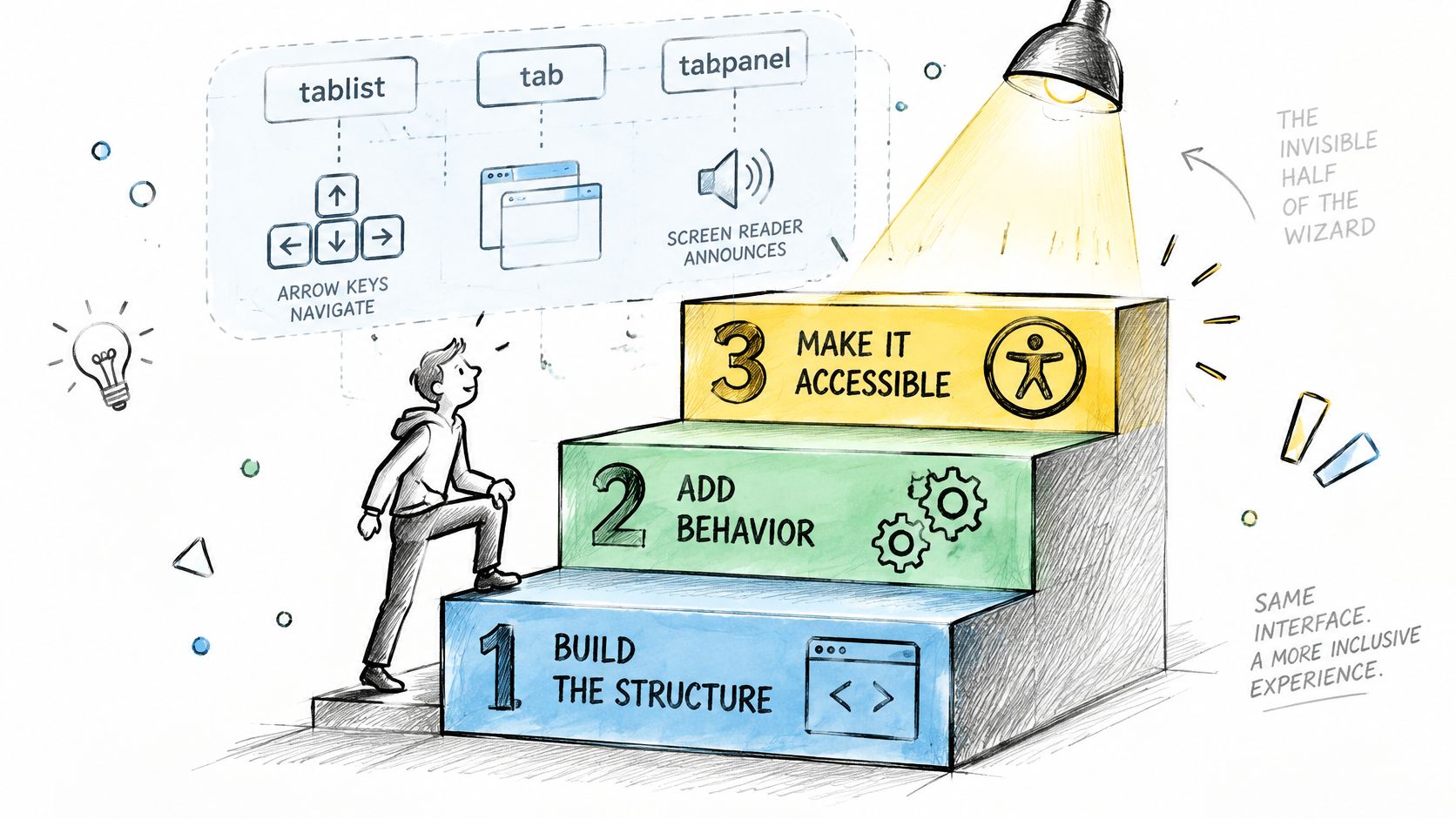
The Telerik wizard accessibility documentation maps the container to role tablist, each step control to role tab, and each content area to role tabpanel. It uses aria-controls to connect a step to its panel, aria-selected for the active step, and aria-disabled for unavailable steps.
Keyboard and focus contract
- Arrow keys: Move between step controls.
- Home and End: Jump to the first and last step.
- Tab: Continue through normal page focus order.
- After Next: Move focus to the new panel heading or first meaningful control.
- After an error: Announce the problem and place focus predictably.
VA.gov has documented why dynamic flows need extra care. Its wizard pattern guidance notes that dynamically added content may not be announced and users can tab out of the wizard. Showing one question at a time therefore doesn't guarantee accessibility.
Check the WCAG moments that arise naturally: Focus Visible, Focus Not Obscured when a sticky footer covers Next, Target Size Minimum, Error Identification, Status Messages, and Reflow. On narrow screens, compress visible progress to Step 2 of 4 while keeping step names available to assistive technology. Teams running design system accessibility testing with Figr should still test the built flow. Can you complete it using only a keyboard?
Designing Wizard Flows with Figr
Start from the product you already ship. A new wizard should reuse your form controls, validation language, spacing, and navigation behavior so users don't learn a second system inside setup.
Figr is an AI design tool for product teams for exploring complete flows within existing products and design systems. Its Visual Context Graph connects visual, behavioral, design system, product knowledge, and implementation context. That context matters when a wizard touches settings, billing, permissions, and empty states at once.
A practical working sequence
- Load the current context: Bring in the existing feature, components, and product constraints.
- Test the decision order: Use UX Reasoning against your one-sentence goal.
- Map the full path: Include Back, Next, Save, branches, review, and resume.
- Prototype the states: Build error, loading, skipped, expired, and success variants.
- Branch alternatives: Compare a four-step wizard with a grouped single page.
- Refine and hand off: Use Direct Editing, then produce Figma-ready screens.
This is what I mean by designing the state machine, not just the happy path. You can see whether a branch changes progress, whether review reflects skipped work, and whether expiry has a credible return route.
Figr speeds exploration and alignment. It doesn't replace usability testing, keyboard checks, or screen reader sessions with the implemented flow.
Measure Each Step Before You Ship the Wizard
Don't borrow a completion benchmark and call it evidence. Different funnels define starts, steps, and completion differently, so your measurement plan needs its own denominators.
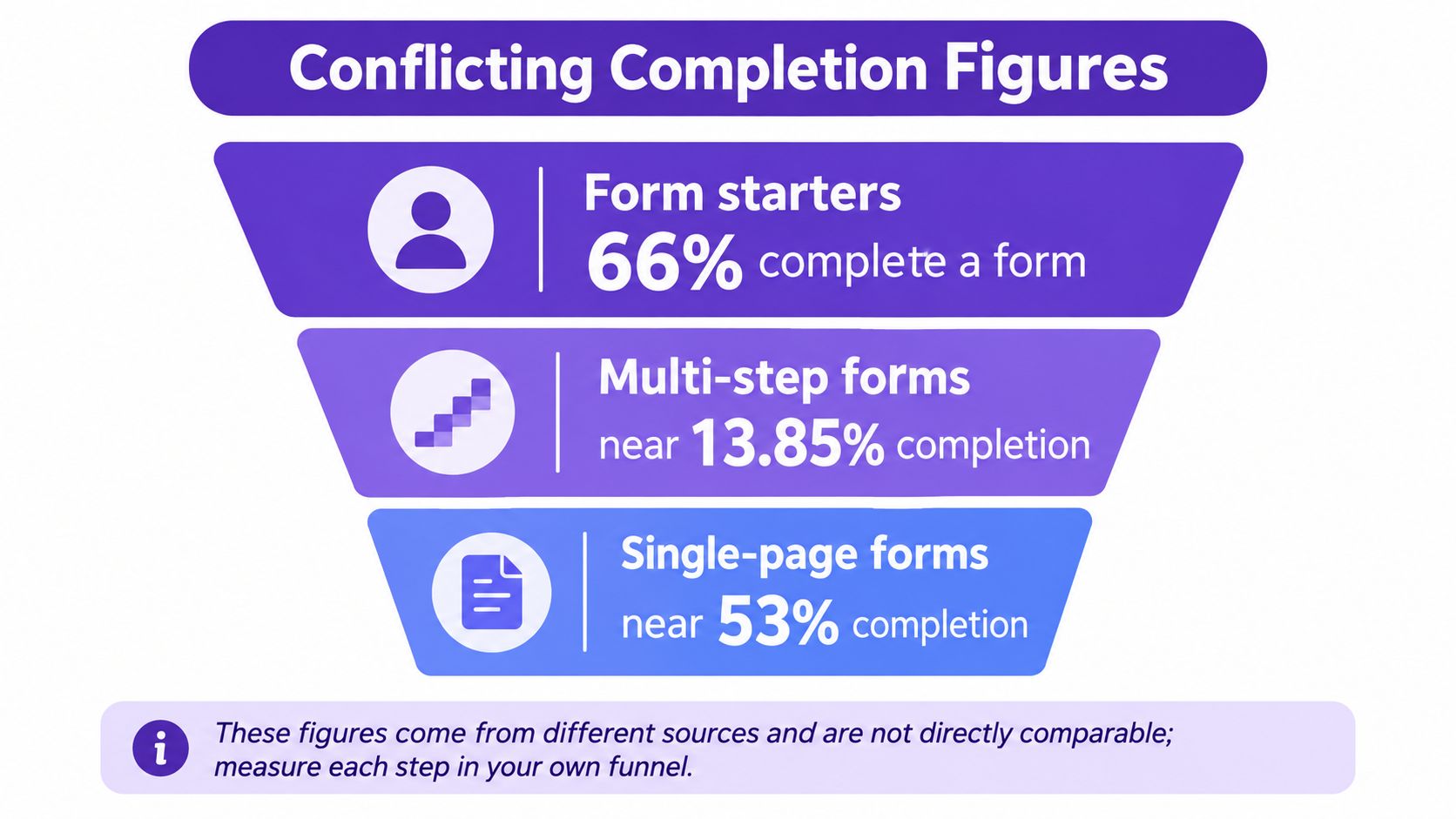
Recent commentary summarized by OpenPR on multi-step form claims reports 66% of form starters complete in one source, while another puts multi-step forms near 13.85% and single-page forms near 53%. Those figures are not directly comparable because populations, industries, and funnel definitions differ.
Events to define before launch
- Visitor to start: Did eligible users begin?
- Start to step completion: Where does effort stall?
- Step-to-step drop-off: Which transition loses users?
- Validation failures: Which field and message repeat?
- Backtracking: Are users checking work or confused?
- Time and completion: How long does success take?
- Downstream quality: Did completions activate, pay, or configure correctly?
Segment by device, traffic source, intent, and workflow complexity. Mobile deserves its own pass, including real-device release checks for mobile teams when sticky actions, keyboards, or session behavior may differ. For metric definitions, align the team around UX measurement guidance for product teams.
In short, write the step-level events before launch, then run the smallest experiment that can prove which step structure helps your users.
Wizard Design Pattern FAQ
What is a wizard design pattern?
A wizard design pattern guides one task through an ordered sequence of steps toward a finished outcome. It includes a container, focused step content, progress, Back and Next controls, validation, a review screen before irreversible action, and a confirmation state that explains what happened and what the user should do next.
When should you use a wizard?
Use a wizard when the task has one clear goal, dependent decisions, infrequent use, many or conditional fields, or errors that should be caught before progression. Prefer a single page for short tasks, direct editing by experts, or independent sections that users need to access in any order.
What is the difference between a wizard and a stepper?
A wizard is the complete task pattern with ordered logic, navigation rules, validation, branching, review, and completion. A stepper is a component that shows position within a sequence. It can sit inside a wizard or checkout, and it may be clickable, but by itself it doesn't manage the task.
How many steps should a wizard have?
Start with three to four steps when the task allows it, grouping fields around decisions rather than screens. More steps may be justified for complex branches, but each added transition creates another chance to abandon. Prototype the structure, measure step-level drop-off, and remove steps that don't change a decision.
How do you make a wizard accessible?
Give steps explicit panel semantics, connect controls to content, expose selected and disabled states, and support arrow, Home, End, and Tab keys. Move focus predictably after step changes, announce errors and added content, avoid color-only status, and test the complete flow with keyboard-only navigation and screen readers.
Map your next wizard as a complete state machine in Figr, including branches, errors, loading, expiry, review, and resume, while staying grounded in your existing product and design system. Compare alternatives, refine the screens, and hand off Figma-ready flows your team can test with real users. Visit Figr to start designing the whole journey, not just its happy path.