
FIGR / UI TEMPLATE
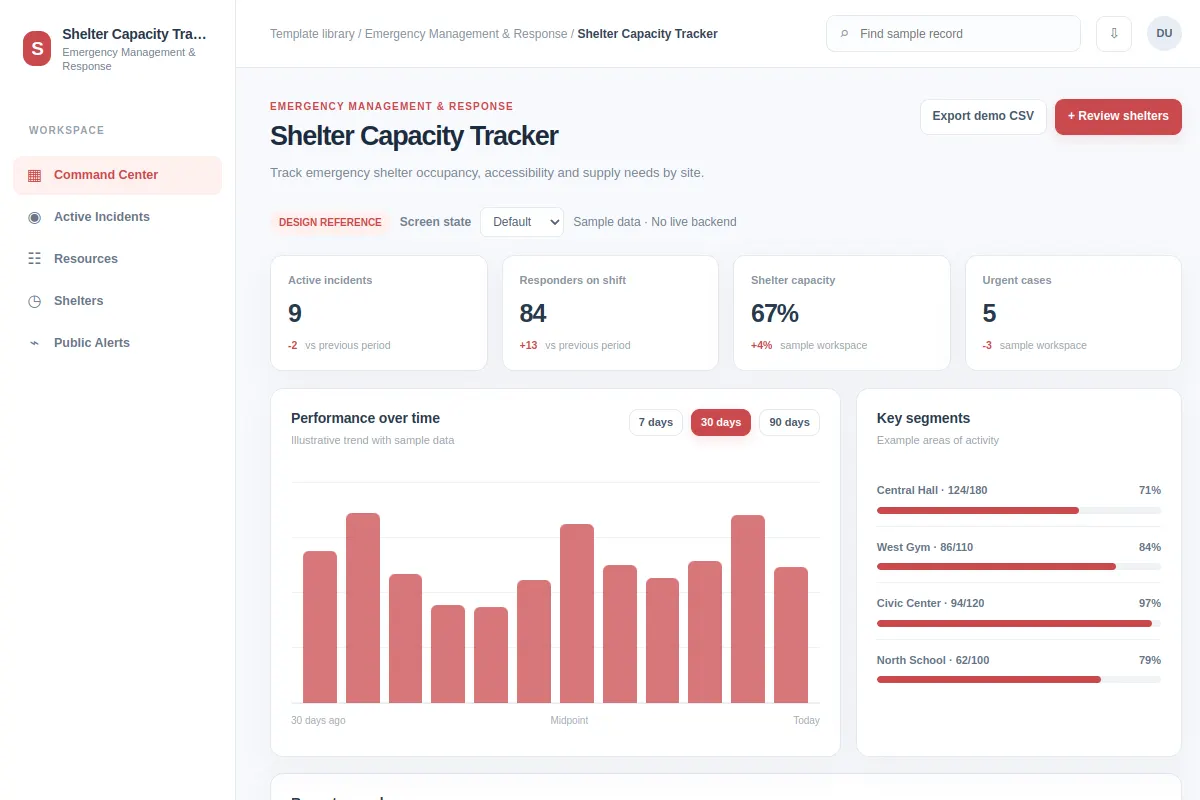
Track emergency shelter occupancy, accessibility and supply needs by site.
This analytics UI template shows a Emergency Management & Response workflow. Adapt it to your product, flows and design system. The sample data is fictional.
BUILD ON THIS
Explore this screen, then bring in your own product and design system to shape the next version.
Analytics
Review shelters
analytics product workflow
Default, Selected, Filtered, Empty, Warning, Success
Independent product UI reference; no 1mg design system
Track emergency shelter occupancy, accessibility and supply needs by site.
Sections: Command Center, Active Incidents, Resources, Shelters. Main action: Review shelters. Example: Central Hall · 124/180.
Plan for Default, Selected, Filtered, Empty, Warning, Success and show a useful recovery path for errors.
Command Center → Shelter Capacity Tracker → Review shelters
analytics, filters, status markers, drill-down
Keep definitions, comparison periods and data freshness visible.
Check the flow against sample records like Central Hall · 124/180. Include failed-save, empty and permission states.
Adapt Shelter Capacity Tracker to my existing product and design system. Review the default, selected, filtered, empty, warning, success states, challenge UX decisions and create editable Figma-ready screens that use my components.
KEEP EXPLORING
Browse other product UI examples, compare patterns, and pick the direction that suits your product.