
FIGR / UI TEMPLATE
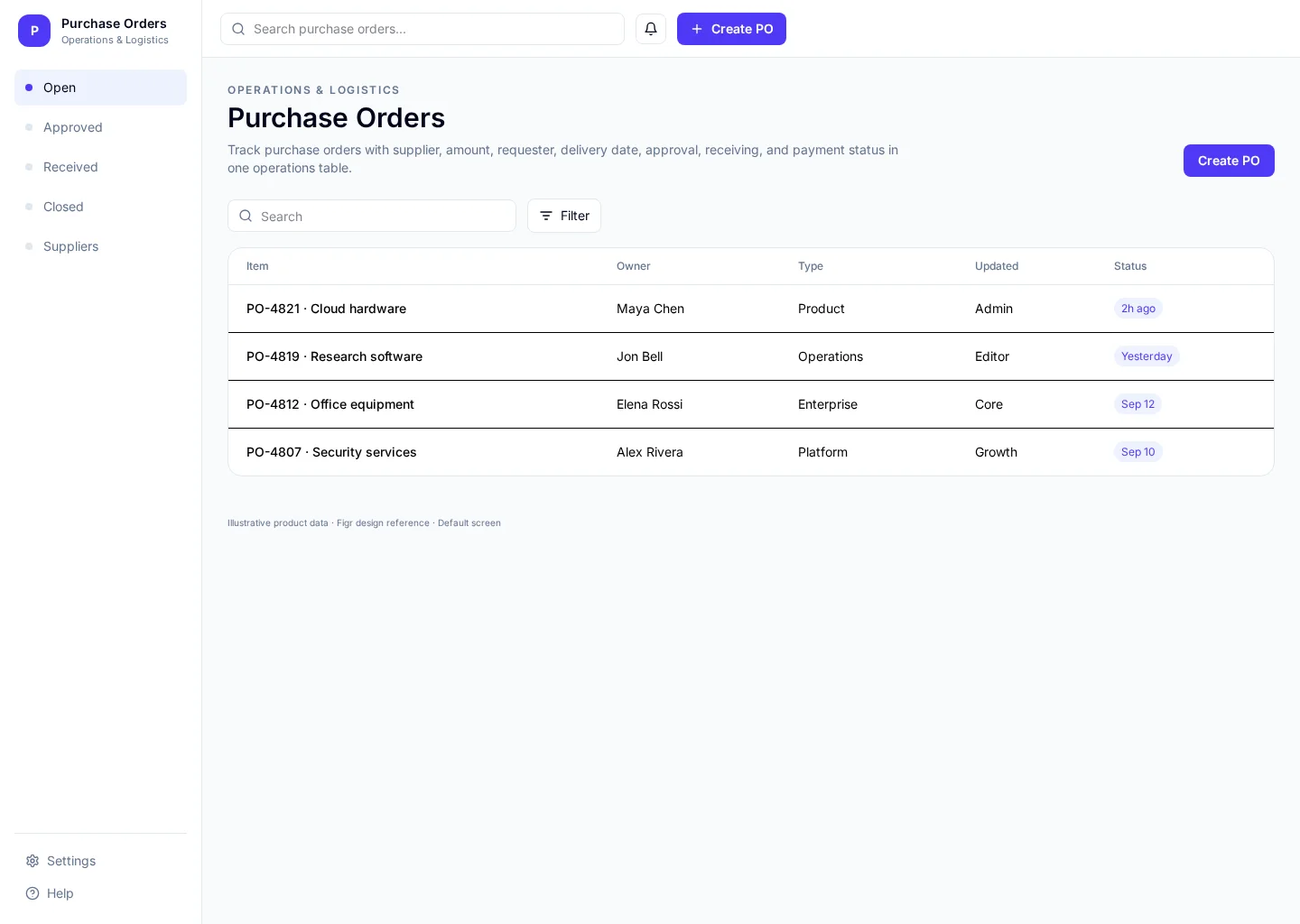
Track purchase orders with supplier, amount, requester, delivery date, approval, receiving, and payment status in one operations table. This example brings Open and Approved together so operations managers can find the next task without losing context.
It includes representative records such as PO-4821 · Cloud hardware and PO-4819 · Research software. Use the screenshot to study the layout, then adapt its components and product states to your own design system.
BUILD ON THIS
Explore this screen, then bring in your own product and design system to shape the next version.
Table
Create PO
Table
Default, loading, empty, error, permission, success
Configurable product UI theme
Operations managers need to create po while keeping open pos, value and exceptions visible. The interface should show what changed and who should act next.
Open → Approved → Create PO → Review outcome
Table, Open, Approved, contextual actions, error recovery
Prioritize columns that help people act. Keep filters when readers drill into details and return; show who owns each unresolved exception.
Pay attention to open and approved. People need to distinguish PO-4821 · Cloud hardware from PO-4819 · Research software. Keep open pos visible, especially when a record changes owner or status.
Before this screen reaches handoff, verify keyboard focus, empty and permission states, and what happens after someone chooses “Create PO”. Make error recovery as clear as the happy path.
Related screen examples to explore next: Procurement Requests, Receiving Inventory, Delivery Dispatch.
Design a purchase orders screen inside our existing product. Use our current components, tokens and content language. Include Open and Approved views, credible records like PO-4821 · Cloud hardware, and a clear “Create PO” action. Use our product permissions and show loading, empty, error and success states. Keep the output editable in Figma.
KEEP EXPLORING
Browse other product UI examples, compare patterns, and pick the direction that suits your product.