
FIGR / UI TEMPLATE
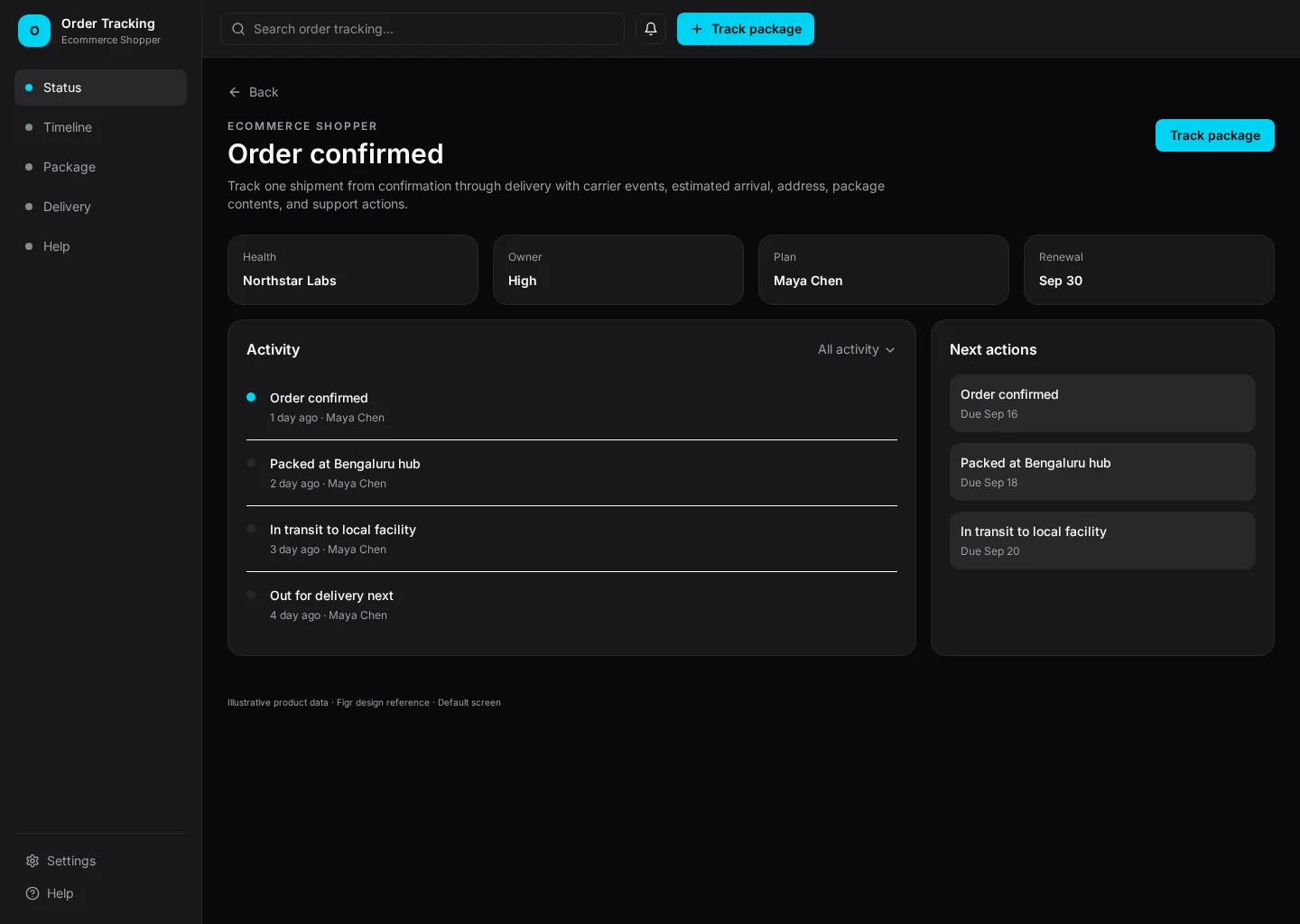
Track one shipment from confirmation through delivery with carrier events, estimated arrival, address, package contents, and support actions. This example brings Status and Timeline together so shoppers can find the next task without losing context.
It includes representative records such as Order confirmed and Packed at Bengaluru hub. Use the screenshot to study the layout, then adapt its components and product states to your own design system.
BUILD ON THIS
Explore this screen, then bring in your own product and design system to shape the next version.
Detail
Track package
Detail
Default, loading, empty, error, permission, success
Configurable product UI theme
Finance and operations teams need to track package while keeping status, eta and exceptions visible. The interface should show what changed and who should act next.
Status → Timeline → Track package → Review outcome
Detail, Status, Timeline, contextual actions, error recovery
Emphasize record status, next action and recent changes. Put secondary history nearby without competing with the primary task.
Pay attention to status and timeline. People need to distinguish Order confirmed from Packed at Bengaluru hub. Keep status visible, especially when a record changes owner or status.
Before this screen reaches handoff, verify keyboard focus, empty and permission states, and what happens after someone chooses “Track package”. Make error recovery as clear as the happy path.
Related screen examples to explore next: Delivery Options, Order Detail, Address Book.
Design a order tracking screen inside our existing product. Use our current components, tokens and content language. Include Status and Timeline views, credible records like Order confirmed, and a clear “Track package” action. Use our product permissions and show loading, empty, error and success states. Keep the output editable in Figma.
KEEP EXPLORING
Browse other product UI examples, compare patterns, and pick the direction that suits your product.