
FIGR / UI TEMPLATE
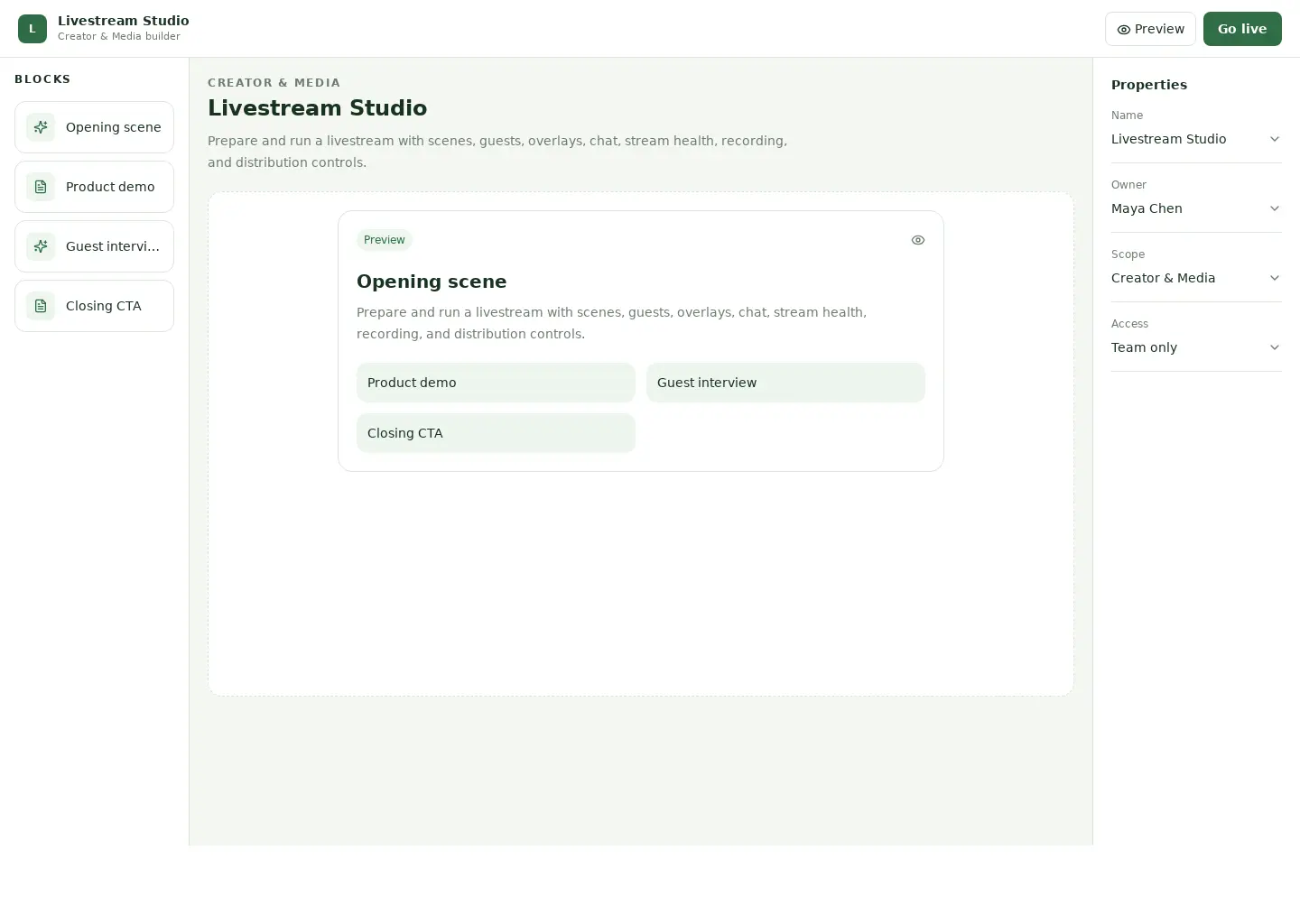
Prepare and run a livestream with scenes, guests, overlays, chat, stream health, recording, and distribution controls.
This builder reference covers creator & media. Its sample screen includes Opening scene and Product demo and the Go live action. Adapt its workflow to your product and design system.
BUILD ON THIS
Explore this screen, then bring in your own product and design system to shape the next version.
Builder
Go live
Livestream studio
Default, loading, empty, error, permission, success
Adaptable product UI theme
The livestream studio screen supports “Go live” while keeping studio and scenes in view. It should show the current state even when data is missing or access is restricted.
Studio → Scenes → Go live → Review result
Livestream studio, Studio, Scenes, permission handling, error recovery
State input requirements before the user submits the form
In this example, Opening scene is one of the records worth checking. Keep the sample data clearly separate from a live system.
Keep progress and entered values when people move between steps
Show clear permission, validation, and recovery states near the affected control
Design a livestream studio screen for an existing creator & media product. Use our actual design system, components, and content rules. Cover Studio and Scenes, include believable records such as Opening scene, and make "Go live" easy to find. Map empty, loading, error, permission, and success states. Keep the result editable in Figma.
KEEP EXPLORING
Browse other product UI examples, compare patterns, and pick the direction that suits your product.