
FIGR / UI TEMPLATE
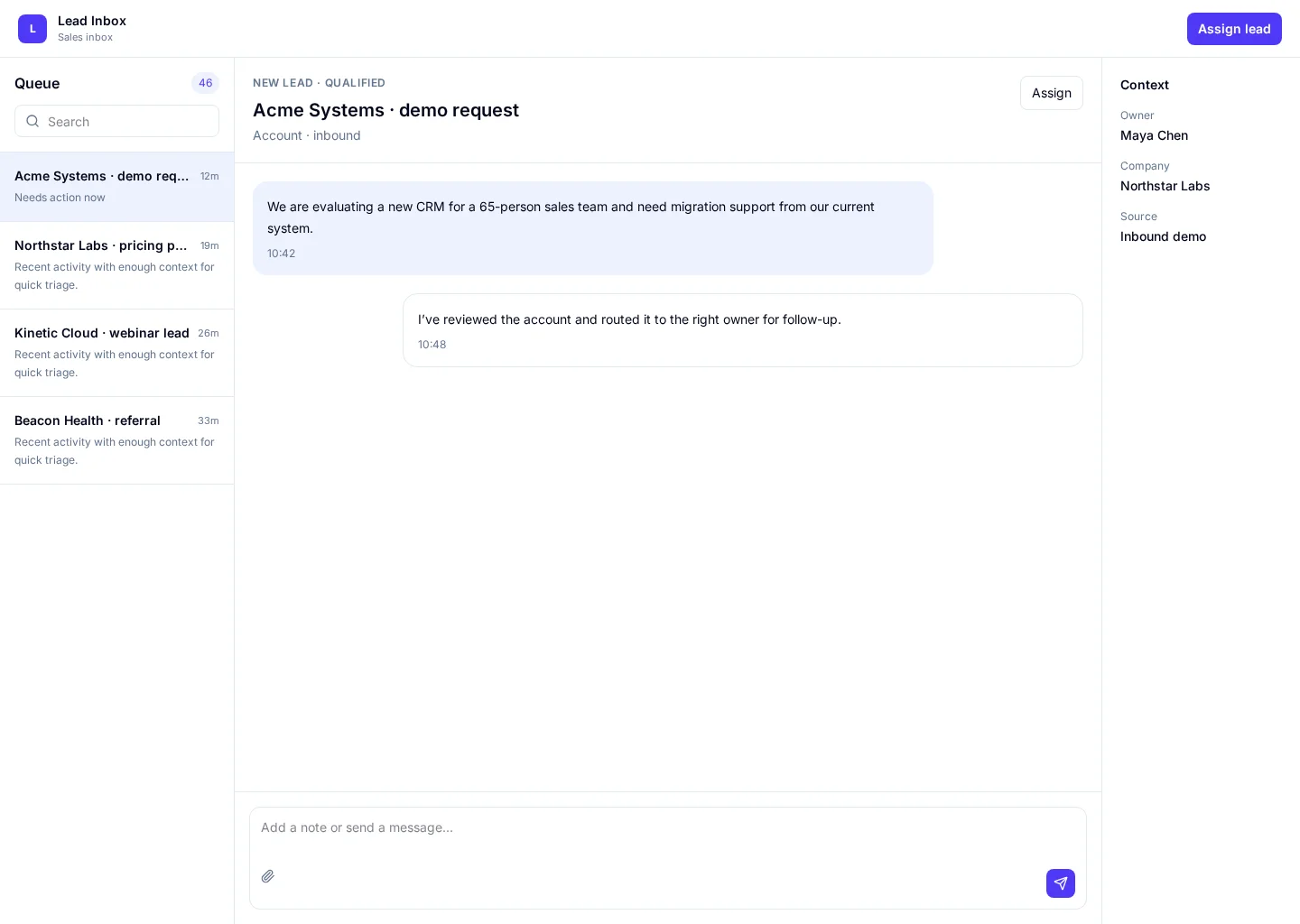
Triage inbound leads, see source and account context, and assign the next action without losing momentum. The screen connects Inbox and Leads so sales teams can find the “Assign lead” action while checking new leads and qualified.
Use this reference when you need to design this workflow inside an existing product. The example includes practical records such as Acme Systems · demo request and Northstar Labs · pricing page, rather than an empty visual shell.
BUILD ON THIS
Explore this screen, then bring in your own product and design system to shape the next version.
Inbox
Assign lead
Inbox
Default, loading, empty, error, permission, success
Adaptable product UI theme
Sales teams need a clear “Assign lead” action without losing sight of new leads, qualified and the affected records. Keep the decision and its outcome clear before moving to the next task.
Inbox → Leads → Assign lead → Review outcome
Inbox, Inbox, Leads, Accounts, accessible states, contextual actions
Keep the active record close to its history, owner and status. Make urgent items easy to find without hiding the rest.
In this design, people should be able to compare Acme Systems · demo request with Northstar Labs · pricing page. Make new leads clear, then use qualified to explain whether the next step needs attention.
Before handing this to a designer or engineer, check keyboard focus, error copy, permissions and what happens after they choose the “Assign lead” action. The happy path alone is not enough.
Related UI examples: Deal Pipeline, Account Detail, Contact Import.
Design a lead inbox screen for our existing software product. Use our real design-system tokens, components and product language. Show Inbox and Leads, include believable records such as Acme Systems · demo request, and make assign lead easy to find. Map loading, empty, failure, permission and success states before you create editable high-fidelity screens.
KEEP EXPLORING
Browse other product UI examples, compare patterns, and pick the direction that suits your product.