
FIGR / UI TEMPLATE
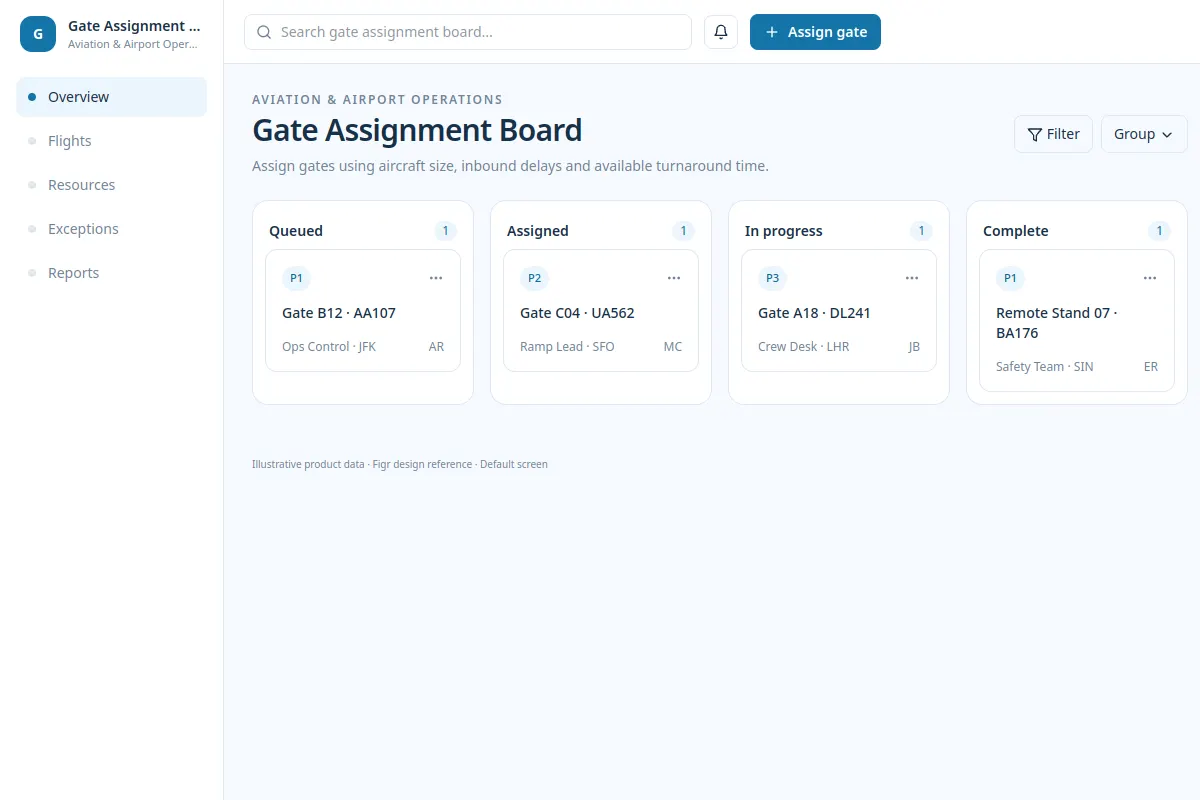
Review gate availability, aircraft turnaround, and overlapping flight schedules before assigning gates.
Use this UI reference to review the flow in your existing aviation product and design system. The records are sample data.
BUILD ON THIS
Explore this screen, then bring in your own product and design system to shape the next version.
Board
Assign gates
Resource planning board, timeline, conflict alerts
Default, loading, unavailable gate, schedule conflict, save error, permission denied
Independent product UI reference
Review gate availability, aircraft turnaround, and overlapping flight schedules before assigning gates.
Main elements: gate lanes, flight slots, arrival and departure times, assigned aircraft, conflict indicators. Primary action: Assign gates.
Design for Default, loading, unavailable gate, schedule conflict, save error, permission denied. Show the user how to recover from a failed action.
Operations overview → Gate Assignment Board → Assign gates
Resource planning board, timeline, conflict alerts
Keep time zones, gate restrictions, and turnaround buffers visible. Prevent conflicting changes and preserve unsaved assignments when saving fails.
Plan the loading, empty, warning and recovery states before handoff.
Adapt this Gate Assignment Board to my existing product and design system. Use current screen patterns, components, constraints and user flows. Explore error and conflict states before creating Figma-ready screens.
KEEP EXPLORING
Browse other product UI examples, compare patterns, and pick the direction that suits your product.