
FIGR / UI TEMPLATE
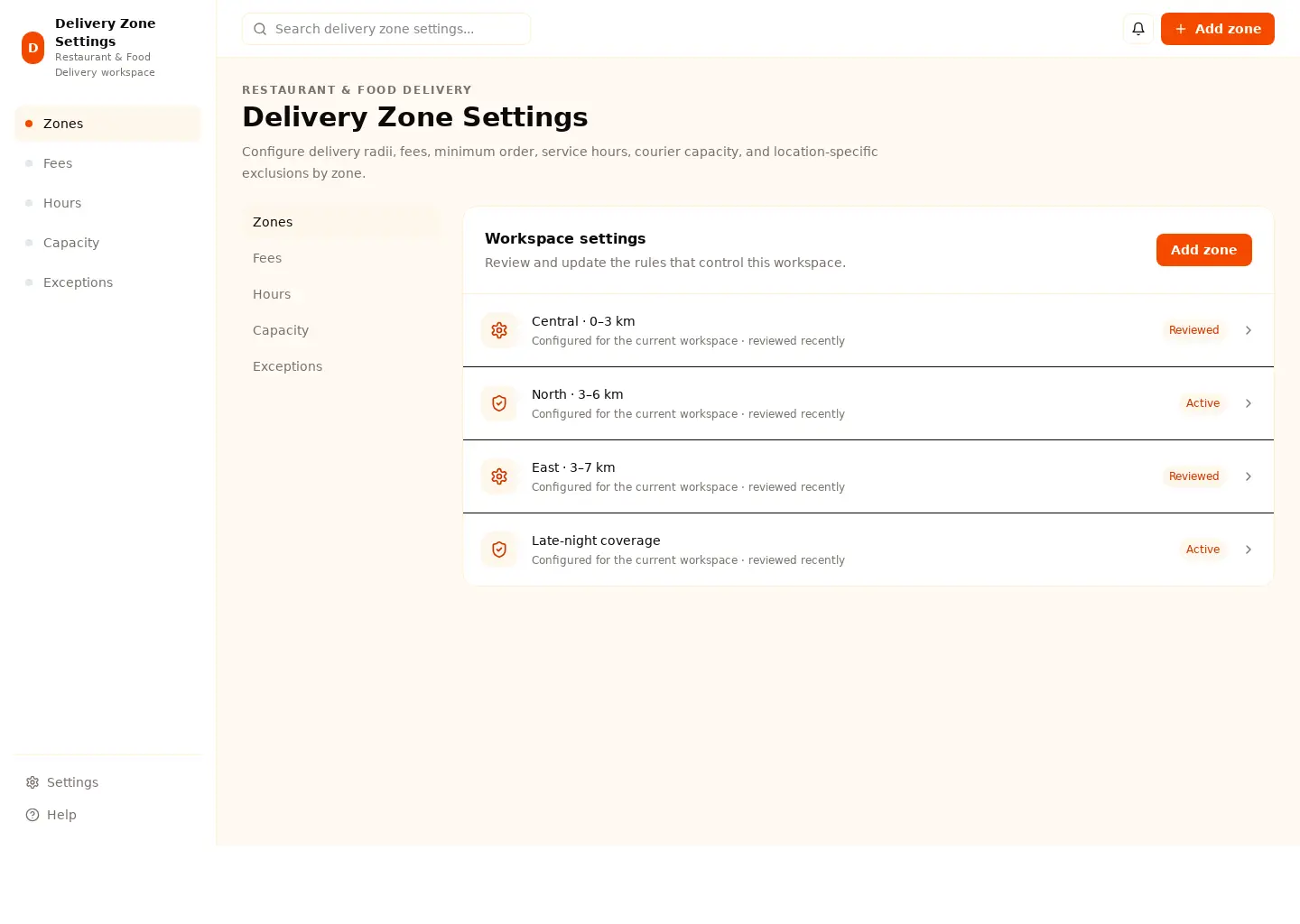
Configure delivery radii, fees, minimum order, service hours, courier capacity, and location-specific exclusions by zone.
This settings reference covers restaurant & food delivery. Its sample screen includes Central · 0–3 km and North · 3–6 km and the Add zone action. Adapt its workflow to your product and design system.
BUILD ON THIS
Explore this screen, then bring in your own product and design system to shape the next version.
Settings
Add zone
Delivery zone settings
Default, loading, empty, error, permission, success
Adaptable product UI theme
The delivery zone settings screen supports “Add zone” while keeping zones and fees in view. It should show the current state even when data is missing or access is restricted.
Zones → Fees → Add zone → Review result
Delivery zone settings, Zones, Fees, permission handling, error recovery
Separate routine settings from high-risk or irreversible changes
In this example, Central · 0–3 km is one of the records worth checking. Keep the sample data clearly separate from a live system.
Explain who can edit each setting and where it will apply
Confirm saved changes while preserving a way to review or recover
Design a delivery zone settings screen for an existing restaurant & food delivery product. Use our actual design system, components, and content rules. Cover Zones and Fees, include believable records such as Central · 0–3 km, and make "Add zone" easy to find. Map empty, loading, error, permission, and success states. Keep the result editable in Figma.
KEEP EXPLORING
Browse other product UI examples, compare patterns, and pick the direction that suits your product.