
FIGR / UI TEMPLATE
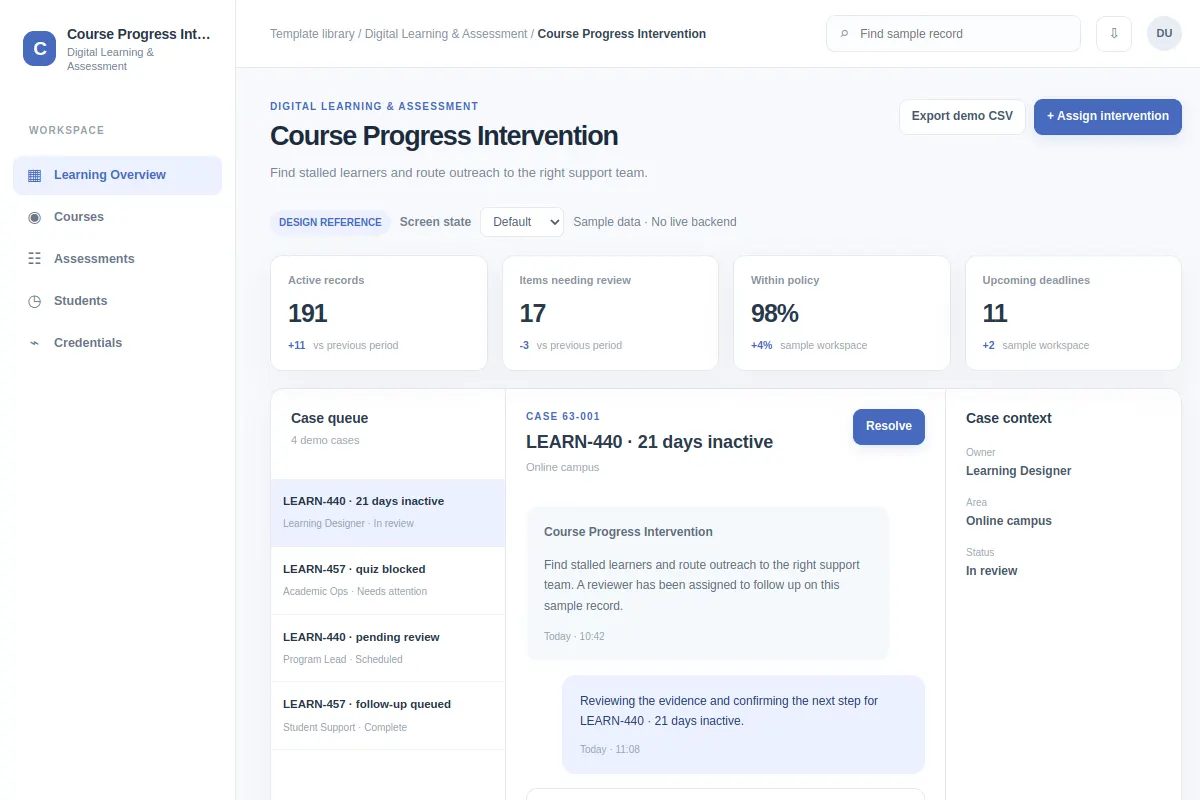
Find stalled learners and route outreach to the right support team.
This inbox template covers digital learning & assessment workflows inside an existing product. All people, records and metrics shown are fictional.
BUILD ON THIS
Explore this screen, then bring in your own product and design system to shape the next version.
Inbox
Assign intervention
inbox workflow
Default, Selected, Filtered, Empty, Warning, Success
Independent product UI reference; no external / 1mg design system
Find stalled learners and route outreach to the right support team. The user needs to assign intervention without losing context.
Product areas: Learning Overview, Courses, Assessments, Students, Credentials. Task fields: Digital Learning record, Assigned owner, Product area, Review status. Example metrics: Active records, Items needing review, Within policy, Upcoming deadlines.
Default, Selected, Filtered, Empty, Warning, Success. Also cover restricted access, interrupted saves and missing or stale data when relevant.
Learning Overview → Course Progress Intervention → Assign intervention
inbox, filters, status, record details, review actions
Show urgency, owner, case history and resolution action together.
Review assign intervention with a case such as LEARN-440 · 21 days inactive. Make room for empty, warning, permission-denied and failed-save states.
Adapt Course Progress Intervention to my existing product and design system. Keep our current screens, components and role rules. Explore default, selected, filtered, empty, warning, success and relevant edge cases before generating editable Figma-ready UI.
KEEP EXPLORING
Browse other product UI examples, compare patterns, and pick the direction that suits your product.