
FIGR / UI TEMPLATE
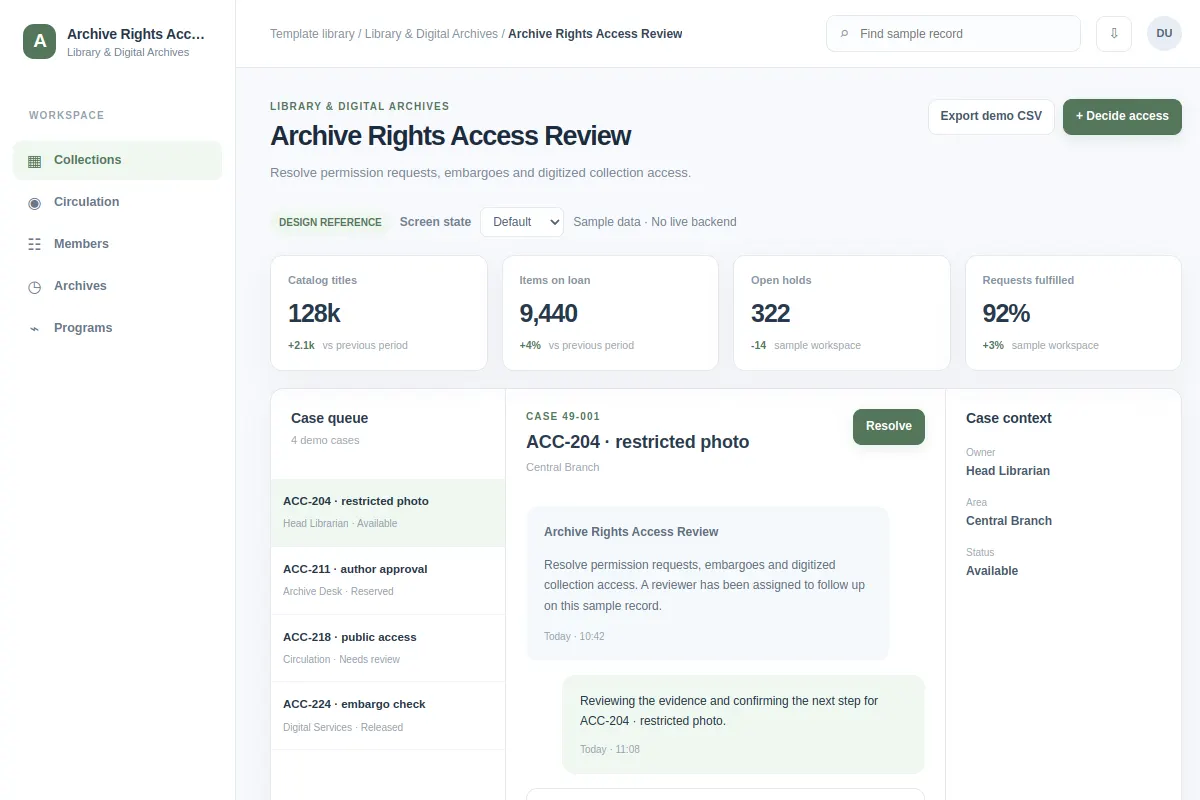
Resolve permission requests, embargoes and digitized collection access.
Use this inbox screen as a starting point for Library & Digital Archives software. Adapt it to your existing product and design system. Sample records are fictional.
BUILD ON THIS
Explore this screen, then bring in your own product and design system to shape the next version.
Inbox
Decide access
inbox product workflow
Default, Selected, Filtered, Empty, Warning, Success
Independent UI reference; no 1mg design system
Resolve permission requests, embargoes and digitized collection access.
Sections: Collections, Circulation, Members, Archives. Main action: Decide access. Example: ACC-204 · restricted photo.
Plan for Default, Selected, Filtered, Empty, Warning, Success and explain what people should do when an action fails.
Collections → Archive Rights Access Review → Decide access
inbox, status indicators, filters, detail drill-down
Keep the main task, decision context and next action together.
Test the flow with cases such as ACC-204 · restricted photo. Plan clear empty, loading, error and permission states.
Adapt this Archive Rights Access Review workflow to my existing product and design system. Review the default, selected, filtered, empty, warning, success states, explore improved user paths, and produce editable Figma-ready screens.
KEEP EXPLORING
Browse other product UI examples, compare patterns, and pick the direction that suits your product.