

In usability sessions, teams often assume ranking has failed when the right document sits third on the page and users still retype the query.
That moment names the problem with search results UX. People don't judge retrieval. They judge what the first screen lets them decide, and whether a wrong turn costs them their place.
Treat the page as a decision surface and a recovery loop, and layout choices get sharper. Cards must justify a click before anyone clicks. Filters, mobile density, and empty states must help people recover without starting over.
What a Results Page Has to Do Before Anyone Clicks
A results page fails when relevant items are present but indistinguishable. Say a user types "Q3 pricing" into an internal document tool, scans three cards with near identical titles, then retypes the phrase with "final" added. The first screen gave no signal about owner, date, or status, so the safest move felt like searching again.
The cost compounds quickly for PMs who measure only clicks. A study of search-engine-results-page structures and user behavior reported that more than half of search-engine users viewed only the first results page. Weak grouping or vague snippets on that screen don't get rescued by page two. The same screen now also answers without a click, and interpretation gets harder. Estimates reported for zero-click outcomes range from 27.2% of U.S. searches in Q1 2025 to 58.5% in another U.S. analysis in a 2025 zero-click search analysis. That spread tells you the figure moves with dataset, device, query type, and definition. Why would one click-through target fit informational lookups, commercial research, local intent, and high-stakes topics equally well?
The bridge is a design job I call trust transitions. Can the user trace an answer to its source? Do they keep control of what happens next? A strong first screen gives a concise answer where one exists, shows evidence and freshness beside it, keeps alternatives visible, and offers a clear route deeper. Those choices reflect core UX principles because they support judgment at the moment of choice. Start this week: export 20 real queries from your logs, unfiltered. For each one, mark whether the first screen answers, invites a next step, or forces a retype.
Where Decision Cues Belong on Every Result Card
The card is the unit of decision. Users compare cards using only visible context, a quality often called information scent. A card with no distinguishing detail gives them nothing to follow, so they skip it or open it speculatively.
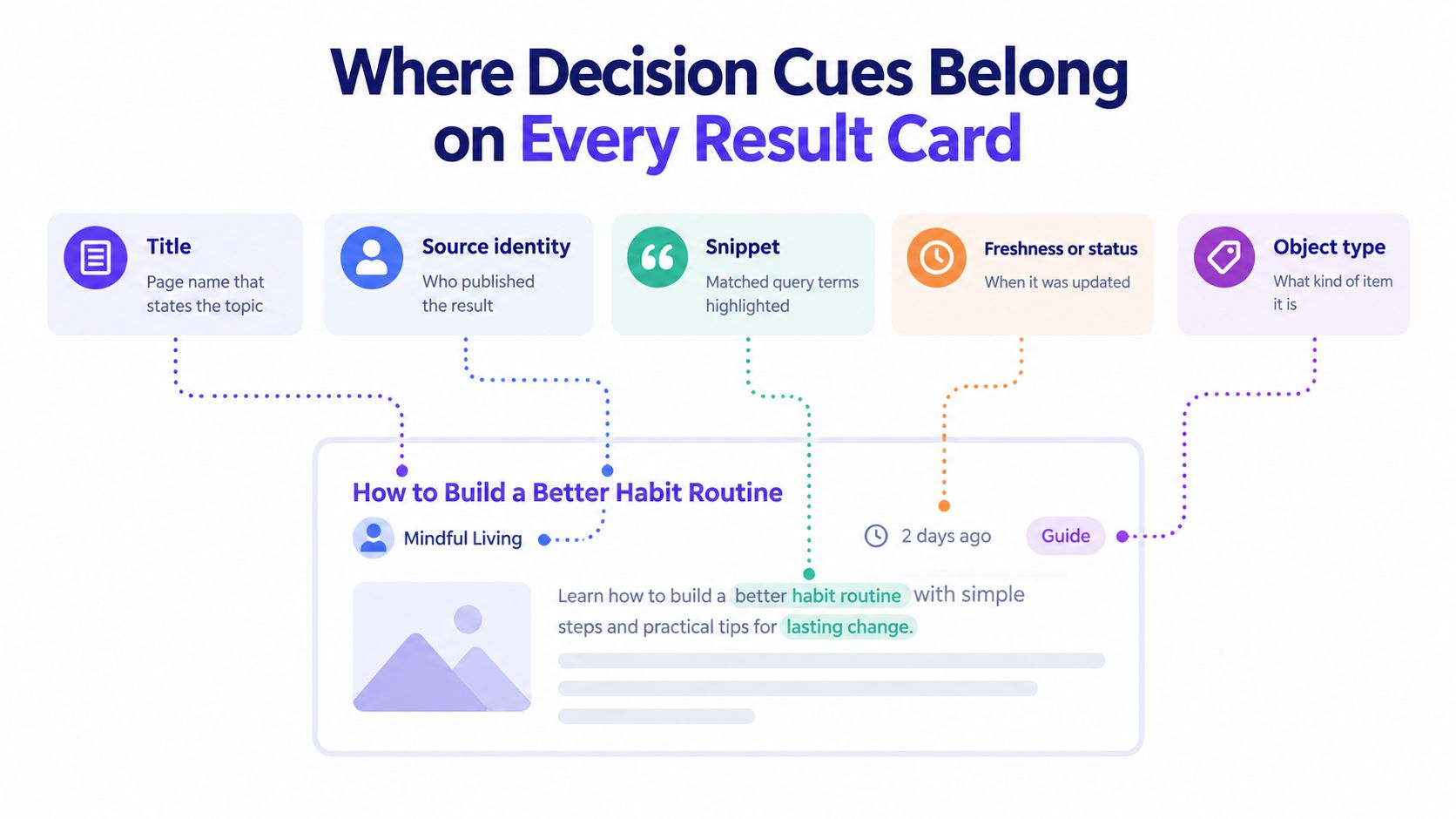
Result Card Elements Decisions and Placement
| Element | Decision it supports | Placement | Test |
|---|---|---|---|
| Title | Is this the thing I meant | First line, leftmost | Scan 10 titles and check whether they are distinguishable |
| Source identity | Can I trust where this came from | Second line, left side | Source is readable before the snippet |
| Snippet with query terms | Does it match why I searched | Below title, matched terms visible | Matched terms appear in the first visible line |
| Freshness or status | Is this current | Beside title or source | Date or status is visible without opening |
| Object type | What kind of item is this | Label above or beside title | Documents and tickets are distinguishable at a glance |
| Next action | What do I do now | Right end or below snippet | One primary action is obvious |
Placement follows attention, not symmetry. In a Nielsen Norman Group eye-tracking study published in 2017, 94% of all fixations on search-engine results pages landed on the left side, and 60% of those fixations were concentrated within the leftmost 400 pixels. Put the cues that decide relevance in that left column of each card: title first, source identity close behind, then a snippet showing matched query terms.
This is what I mean by hierarchy doing retrieval work. A title like "Pricing update" tells a user almost nothing beside three similar titles. "Q3 pricing update, approved" with a source, date, and document label lets them reject two cards and choose one without opening anything. Freshness or status belongs beside the title or source because "is this current" often decides between otherwise equal matches. Object type prevents a ticket, a document, and an account record from reading as the same kind of thing.
Keep the caveat attached to the guidance. The 400-pixel figure comes from desktop observation, so mobile needs its own placement logic rather than a shrunk copy. On a narrow screen, leading edge still matters, but vertical order and truncation matter more.
Practical rule: if you cover the snippet, title and source alone should separate three plausible results.
Run that cover test on your top queries before debating color or spacing. Teams trying to improve product cards with Figr should see the same discipline: every element earns its place by supporting a named decision. Which cue on your card could disappear without changing anyone's choice?
Matching Layout to Query Intent
One layout can't serve every query well. A known-item search wants speed and certainty. An exploratory search wants comparison. When you force both through identical cards, one of them pays.
Query Intent and the Layout Each One Needs
| Query intent | Example | What the page must show | Role of filters |
|---|---|---|---|
| Known-item | Q3 board deck | Exact match first, with title and date | Sort only, minimal controls |
| Category-level | invoice templates | Scope count and results grouped by type | Facets for the category |
| Attribute-based | open tickets assigned to me | Matched attributes highlighted on each card | Query terms turned into toggles |
| Exploratory | onboarding ideas | Comparison cues covering snippet, type, date | Broad facets, query kept visible |
| Problem-oriented | customer cannot log in | Answers, source identity and next steps | Scoped by product area |
For known-item queries, the failure is hesitation. The exact match should lead, with title and date confirming identity. Extra facets only slow a user who already knows the name.
Category-level queries fail when scope stays hidden. Without a count or grouping by type, users can't tell whether the set is narrow, broad, or missing a whole class of item. Facets for that category turn a pile into a map.
Attribute-based queries fail when matched attributes stay invisible. Someone searching "open tickets assigned to me" needs status and assignee on the card itself. Turning those query terms into toggles also shows how the system interpreted the request.
Exploratory queries fail through weak scent from the card anatomy described earlier. Users open several pages, pogo-stick back to results, or abandon the task. Broad facets and comparison cues carry the load here, while ranking tweaks alone change little.
Problem-oriented queries fail when results read as documents instead of help. A user typing "customer cannot log in" needs an answer, a credible source, and a next step. Scoping by product area keeps irrelevant fixes out of the way.
The basic gist is this: visible layers decide whether good retrieval gets used. In Baymard's testing of 19 major e-commerce sites, researchers identified more than 700 search-specific usability issues, and over half of its 31 search-UX guidelines concern visible interaction layers such as the search field, autocomplete, and results presentation.
Measure by intent before redesigning. Track query reformulation rate, card click-through rate, time to first useful click, backtracking, zero-result exits, and downstream task completion for each intent segment. If exploratory queries show heavy backtracking, add comparison cues before touching ranking. What else would backtracking be telling you?
Filters and Query Persistence Without Dead Ends
Search and filtering do different jobs. Search locates the universe of items. Facets let users adjust structured dimensions within that universe, such as size, color, price, brand, status, owner, or date. Baymard's guidance on search and filtering recommends exposing filter and sort controls directly on search results, with category-specific options where possible.
Two failure modes follow when teams blur the jobs, and both break the recovery loop. Filters that replace search create dead ends, because users must guess your taxonomy before seeing anything. Search that replaces filters forces users to rewrite queries again and again to express one changed attribute. In both cases the user did not make a bad decision. The page denied them a cheap way to reverse it.

The linking rule is simple. When a query contains an attribute with a matching filter value, convert it into a visible, toggleable filter. A SaaS query for "open tickets from Acme" should surface status and account chips the user can remove. That transparency lets people narrow or widen the set without guessing how the system read their words. The same mechanic applies to projects, documents, and accounts, since each carries structured dimensions users reason about.
Query Persistence as Iteration
Search is rarely one shot. People start broad, inspect results, then add or remove a word. Baymard's research on persisting search queries describes this as filtering via search query iteration, and its usability testing found that interfaces clearing the field forced a halt and retype behavior. Keeping submitted text visible and editable preserves momentum, especially on mobile and in dense enterprise workflows. Every preserved word is one less decision the user has to reconstruct.
Advanced search will not rescue weak defaults, since most users rarely reach for advanced controls at all. Strong relevance and visible facets have to carry the experience for everyone; expert controls layer on top of that foundation rather than compensating for its absence.
- Keep the query visible: retain the text after filter or sort changes so users can edit one word instead of retyping
- Show counts beside facets: counts tell users whether a choice narrows usefully or empties the set
- Offer one clear-all control: recovery from over-filtering should take one action, not six
- Order facets by category relevance: put the attributes that matter for projects, tickets, or documents first
- Keep applied state visible on small screens: hidden filters make changed results look like broken ranking
Mobile Results and Where Desktop Benchmarks Break
Mobile search results UX is a distinct environment. A compressed desktop layout inherits desktop assumptions about space, scanning, and filter placement, then fails without warning in a narrower viewport.
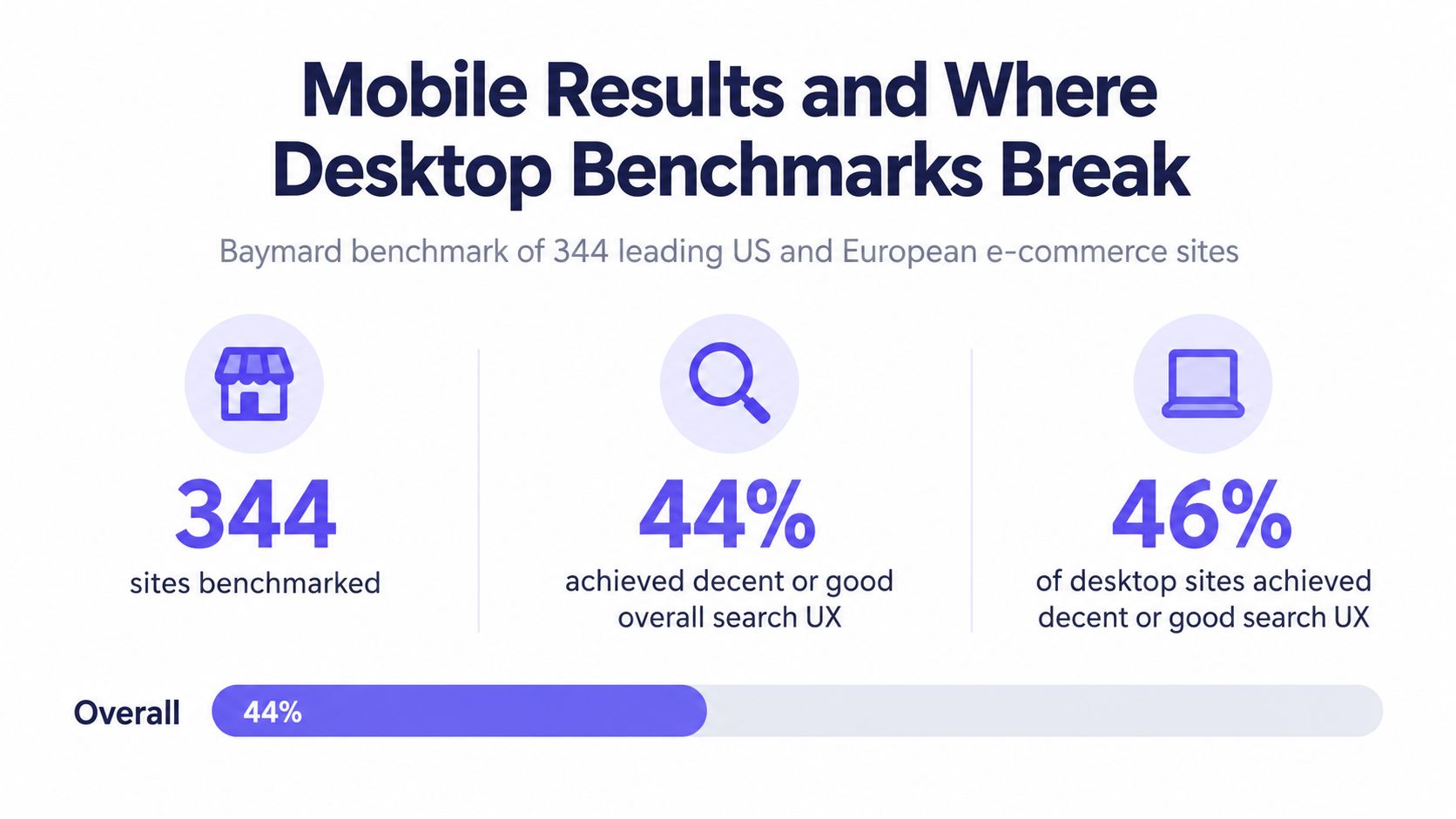
Search UX Performance by Environment
| Environment | Mediocre or worse | Decent or good |
|---|---|---|
| Desktop websites | 46% | 54% |
| Mobile websites | 58% | 42% |
| Apps | 64% | 36% |
| All sites | 56% | 44% |
The table reflects Baymard's benchmark of 344 leading US and European e-commerce sites, where only 44% achieved a "decent" or "good" overall search-UX performance, while performance was mediocre or worse for 46% of desktop sites, 58% of mobile sites, and 64% of apps. The gap by environment is the finding. If you benchmark the funnel only on desktop, you'll ship confidence you haven't earned. Does your current dashboard even split search success by device?
Mobile cards face a trade-off: enough imagery and metadata to prevent irrelevant openings, yet compact enough to preserve overview and comparison.
Design for that trade-off directly. Keep the query visible so iteration stays cheap. Keep the filter entry point reachable without scrolling back to the top. Show why a result matched within the first visible lines, since Google describes snippets as previews selected to emphasize content relevant to the user's specific search. Query-aligned summaries do that work on a small screen where every line competes.
Track viewport-level metrics tied to decisions. First meaningful result visibility tells you whether chrome and controls push value below the fold. Filter and sort usage shows whether refinement is discoverable. Card expansion and detail-page returns reveal cards that promised more than they delivered. Query reformulation and abandonment after scrolling flag sets users couldn't judge.
Pair those numbers with task-based usability tests on real phones. Behavioral data shows where people stall, while observed tasks show whether the cause is missing information, weak hierarchy, poor filter discoverability, or interaction cost. Then A/B test card metadata and snippet wording against qualified clicks and task success, not raw click-through. Figr's guide to responsive design covers the broader layout discipline, but search needs this decision efficiency test on top.
Recovering From Zero Results and Wrong Queries
Say a user types "refund policy" into a help center, gets zero results, retypes the whole query twice, then leaves. Many teams file that under content gaps. Look closer. The page offered no spelling correction, no alternative, and cleared the query each time. Recovery failed before content had a chance.
Treat search as a recovery loop. Retrieval quality gets a query to the page; recovery design decides whether the user stays. A zero-results page is a working state with a job: explain what happened and offer the next useful move.
Recovery States and What Each One Must Do
| Recovery state | What the user needs | What the page should show | How to test it |
|---|---|---|---|
| Zero results | Know why, and what to try next | Spelling correction, alternatives, search field still filled | Keyboard-only run from empty query |
| Results changed by filter | Know what changed | Applied filters summarised, count updated | Screen reader announces the new count |
| Autocomplete suggestions | Choose without guessing | Suggestions readable without highlight, Home, End and Escape work | Keyboard-only selection and dismissal |
| Too many results | Narrow without retyping | Scope count, facet prompt, original query kept | Task test with a broad query |
| Wrong query | Return to the original | Query persisted, previous query reachable | Edit one word and check the result set |
| Dynamic update | Know that the page changed | aria-live announcement of the result state | Focus and announcement check with a screen reader |
Each row is a decision point. The user has to understand the state, pick a next move, and act without losing the context they already built. A state that clears the query or hides what changed forces a restart, and restarts are where sessions end.
Concrete standards exist for each row. The U.K. Intelligence Community Design System search bar accessibility guidance recommends a visible search button, a way to clear entered text, keyboard-operable autocomplete including Home, End, and Escape, and an aria-live announcement when search completion or results change, with its component tested against WCAG 2.2 AA.
The framing goes back further. A comparative study cited in W3C WCAG technique G161 found blind participants spent between 0.2 and 1.9 minutes per Google results page, while sighted participants spent between 0.1 and 1.8 minutes. The technique describes search as an accessible form built on meaningful keywords, metadata, and accessible navigation. The overlapping ranges matter: screen reader users move through results at a similar pace yet hit different failures, so visual usability metrics alone miss recovery breakdowns.
Regulatory pressure on accessible digital experiences keeps rising, and WCAG 2.2 AA is the yardstick these recovery states are measured against. There's also a tension to manage with care. Aggressive autocomplete can speed some users while reducing predictability and control for others, and the "Autocomplete suggestions" row is where that trade-off lands.
End every review with three questions. Can the user see why results changed? Can they return to the original query? Can they understand suggestions without relying on color? Teams working to improve error handling UX with Figr will recognize the pattern: a failed state that preserves context keeps the task alive.
Run This Results Page Audit Before Your Next Release
Run this audit this week with logs you already have. In short, you're checking whether people can decide on the first screen and recover when they can't.
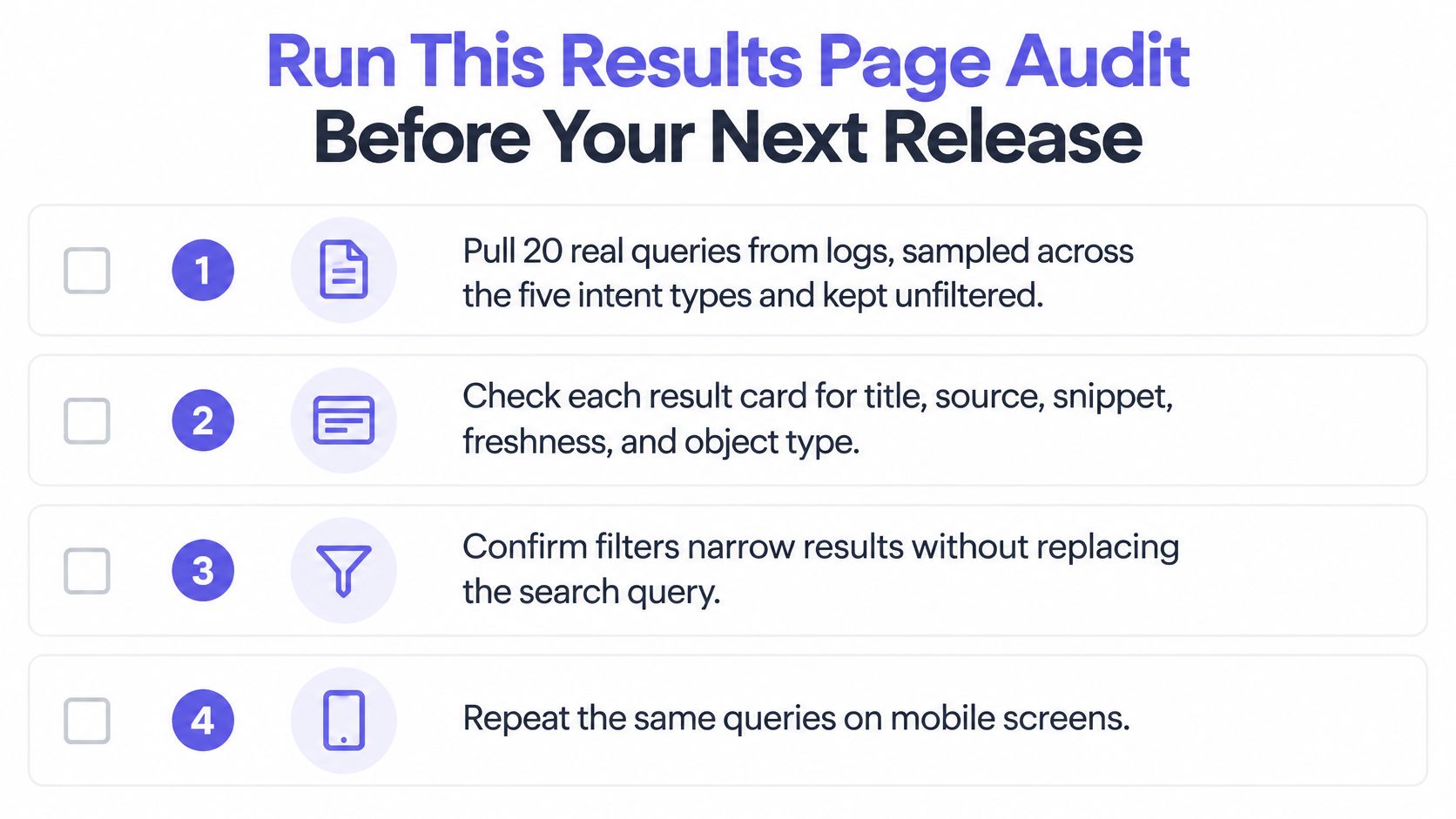
- Sample across the five intent types
- Keep the set unfiltered so failures stay visible
- Save each query at desktop and mobile widths
- Mark every card missing a decision cue from the anatomy table
- Test zero results, filter changes, and autocomplete keyboard only
- Repeat with a screen reader
- Count both for the queries that fail
- Sort by how many failing queries each fix unblocks
Use a practical UX audit checklist to keep the pass consistent across reviewers. Figr's UX review can evaluate an existing flow, check accessibility, map flows and states, and surface edge cases before handoff, while your team keeps the final decision. Book the audit before your next release, and give one named owner the zero-results state.
Search Results UX FAQs
What makes a search results page easy to scan?
Distinct titles, visible source and status information, and snippets that show why each item matches the query. Users should be able to compare plausible results without opening every card.
How should search filters work with a query?
Keep the submitted query visible and editable. When it includes a structured attribute, such as status or owner, show that interpretation as a removable filter so users can adjust the results without starting over.
What should a zero-results page include?
Keep the query in the search field, explain that nothing matched, and offer useful next steps such as a spelling correction or a broader search. Make it clear how to undo applied filters.
How do you measure whether search results UX is improving?
Segment queries by intent and device, then compare reformulation, backtracking, time to first useful click, zero-result exits, and downstream task completion. A higher click-through rate alone does not prove that users found what they needed.
Bring your 20 failing queries to Figr and run them through a UX review that checks accessibility, maps flows and states, finds edge cases, and compares your results page against proven UX patterns before handoff. You'll get artifacts your engineers can build from, with tradeoffs explained and the final decision left with your team. Fix the first screen before your next release, starting with the queries your users already typed today.