
FIGR / UI TEMPLATE
Mark student responses against rubric criteria and moderation rules.
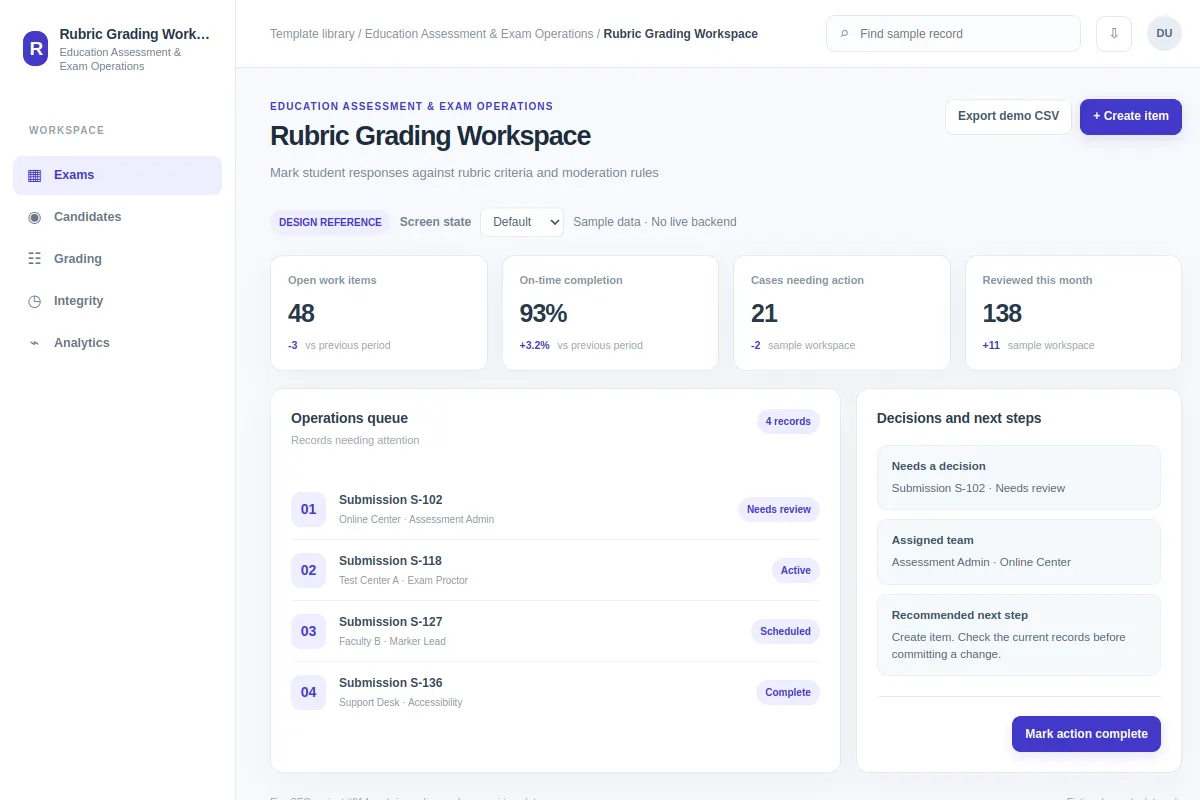
Explore how teams create item in Education Assessment & Exam Operations software. This workspace shows records such as Submission S-102 and Submission S-118. Adapt the flow to your own product and design system. All data is fictional.
BUILD ON THIS
Explore this screen, then bring in your own product and design system to shape the next version.
Workspace
Create item
workspace with searchable sample records and selected-record details
Default, Selected, Filtered, Empty, Loading, Warning, Error, Success
Independent product UI reference; no 1mg design-system assets
Review Submission S-102 and Submission S-118, spot issues and create item while retaining the current owner and status.
Exams → Candidates → Create item
workspace, record selection, search, filters, status chips, task feedback
Keep records and their current context together.
Adapt Rubric Grading Workspace inside our existing product. First inspect our screens, flows, permissions, components and design tokens. Help us create item using examples like Submission S-102 and Submission S-118. Compare two layouts, cover default, selected, filtered, empty, loading, warning, error and success states, then create an editable UI our designers can keep working on. Treat the example records as fictional.
KEEP EXPLORING
Browse other product UI examples, compare patterns, and pick the direction that suits your product.