
FIGR / UI TEMPLATE
Set concession rules, transfer windows and daily fare limits.
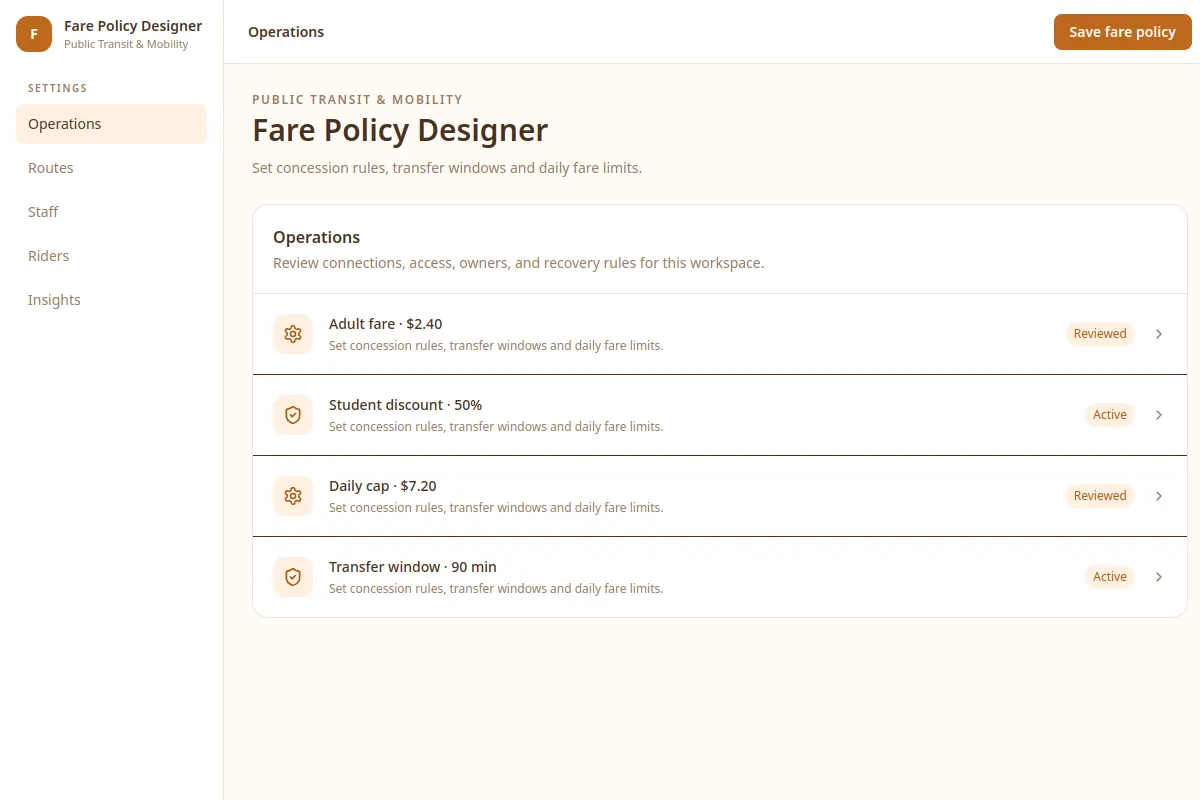
Explore this settings as a reference for Public Transit & Mobility software. Review a real workflow and its UX states, then adapt the design to your product. All sample records are fictional.
BUILD ON THIS
Explore this screen, then bring in your own product and design system to shape the next version.
Settings
Save fare policy
settings product workflow
Default, selected, filtered, empty, warning, error and success
Independent product UI reference; no 1mg design system
Set concession rules, transfer windows and daily fare limits.
Core sections: Operations, Routes, Staff, Riders, Insights. Key action: Save fare policy. Example records: Adult fare · $2.40; Student discount · 50%.
Default, selected, filtered, empty, warning, error and success. Where relevant, cover restricted access, stale data, save failures and conflicting changes.
Operations → Fare Policy Designer → Save fare policy
settings, status labels, filtering, record details
Keep the current task, related records, ownership and next action close together.
Check how the save fare policy task works with example cases like Adult fare · $2.40. Include clear recovery actions when a record is missing or a change fails.
Adapt the Fare Policy Designer workflow to my existing product and design system. Keep our current screens, components, roles and business rules. Review missing states and edge cases before generating editable screens.
KEEP EXPLORING
Browse other product UI examples, compare patterns, and pick the direction that suits your product.