It’s 4:07 on a Wednesday, the release train leaves tomorrow, and a small UI tweak has somehow turned into a miniature novel inside Figma. A PM is trying to explain how a filter should collapse on mobile, how the selected state should persist, and why the empty result should suggest a broader search instead of a dead end. The designer replies with one interpretation. Engineering reads another. The comment thread grows teeth.
That friction is why prompt to ui design matters.
A friend at a SaaS company described this perfectly last week. The hard part wasn’t deciding what the product should do. The hard part was translating intent into something visual, precise, and reusable before everyone lost half a day in clarification loops. That’s the primary bottleneck. Not talent. Not effort. The medium itself.
The Figma Comment That Took an Hour to Write
Most product teams know this moment.
You’re not asking for a new product line. You’re asking for a modest change. Maybe a settings drawer needs to feel lighter on mobile. Maybe the login error state needs to explain itself without sounding accusatory. Maybe the empty state should route users somewhere useful instead of quietly ending the journey.
Yet the request expands the second you try to write it down.
A PM starts with, “Can we make the filter easier to use on smaller screens?” Then comes the cleanup. Add screenshots. Clarify edge cases. Explain what happens when there are no selected items. Mention the interaction with the sticky footer. Add one more note because the first note didn’t cover disabled states.
An hour disappears. The design still hasn’t started.
That’s why teams obsess over faster handoff, faster prototyping, and tighter loops. A lot of that pressure shows up in workflow conversations around fast prototyping, but the pain usually begins earlier, in the gap between a thought and a screen.
Where the drag actually comes from
The basic gist is this: language is a poor container for layout unless you add structure, examples, and context.
Design comments collapse several things into one thread:
- Interaction logic, what changes when the user taps, filters, cancels, or retries
- Visual hierarchy, which element should dominate and which should recede
- State management, including loading, empty, success, failure, and partial completion
- Brand consistency, whether the proposed screen still feels like your product
A long comment tries to do all four.
The hidden cost isn’t the comment itself. It’s the chain of interpretation that follows it.
Once you see that, the opportunity becomes obvious. Instead of writing prose about a future interface, you want a workflow that turns intent into something visual while the conversation is still hot.
That’s the shift.
What Exactly Is Prompt to UI Design?
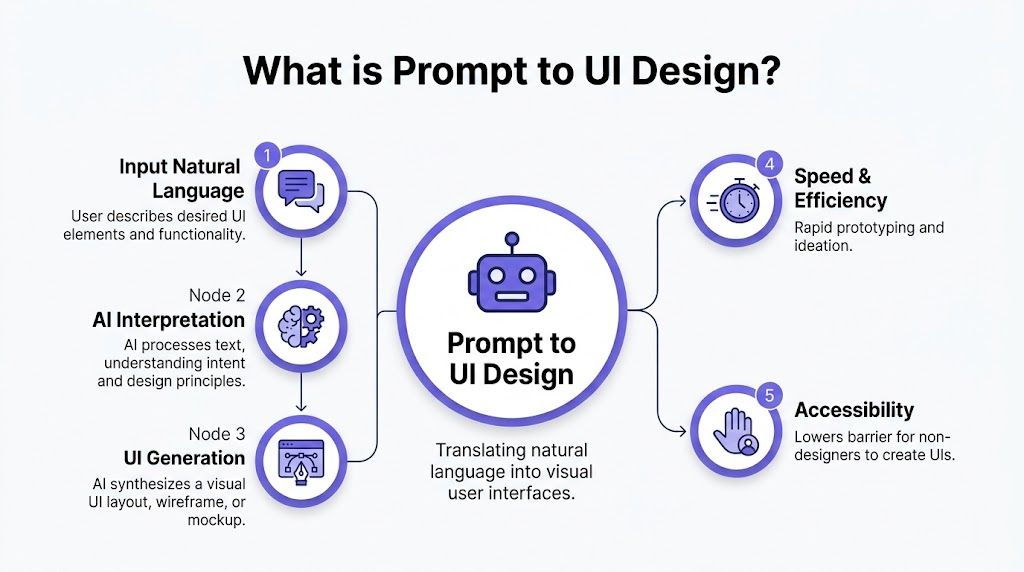
Prompt to ui design is the practice of translating a text instruction into a visual interface, usually a wireframe, mockup, or interactive layout. You describe the screen, its purpose, its constraints, and sometimes its states. The system generates the interface from that description.
That sounds simple because, at a surface level, it is.
But the actual value isn’t “type words, get screen.” The value is compressing the lag between product thinking and design output. A PM can describe a billing page revision. A designer can refine the prompt and inspect the result. A team can react to something concrete instead of debating abstractions.
From commands to interfaces
There’s a useful historical frame here. The command line era of the 1960s and 1970s rewarded technical fluency. Then the GUI shift of the 1980s, shaped by Apple’s Macintosh in 1984 and Microsoft’s Windows 1.0 in 1985, brought computing to far more people by replacing text commands with windows, icons, graphics, and WYSIWYG editing, as described in this history of the evolution of UI design.
Prompt-based creation follows that same arc.
Instead of learning design tooling first, you can start by expressing intent. That doesn’t remove the need for design judgment, but it lowers the cost of getting from idea to artifact. That’s why this category sits naturally alongside broader work in AI UX design.
What happens under the hood
An ai prompt to interface workflow usually does three things in sequence:
- Interprets the request, including layout goals, user intent, and visual cues
- Maps the request to interface patterns, such as forms, dashboards, search layouts, settings pages, or onboarding flows
- Outputs a screen representation, often as a wireframe, mockup, or editable design artifact
Imagine you're briefing a carpenter, except the sketch appears while you’re still talking. If your brief is shallow, you get a generic shelf. If your brief is precise, you get something that fits the room.
That difference becomes everything once you’re building software inside a real company.
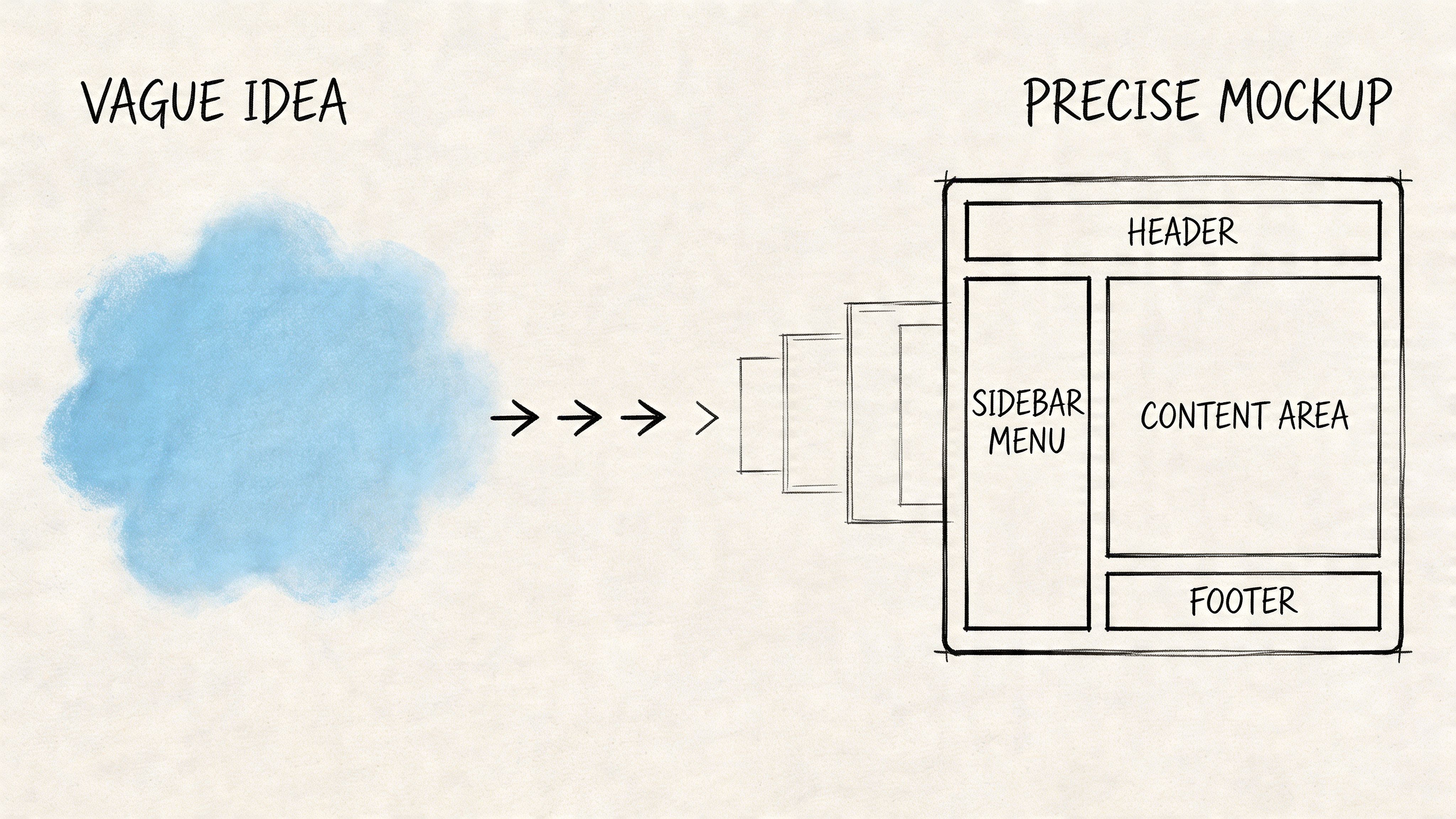
The Spectrum from Vague Ideas to Precise Mockups
Not all text to ui design workflows solve the same problem.
Some tools are good at ideation. You type “calming meditation app” and get a polished concept with soft gradients, rounded cards, and serene illustrations. That’s useful when you’re searching for direction. It’s weak when you need to change a real product with real constraints.
Two categories that look similar, but aren’t
The category split is sharper than is generally perceived.
On one side, you have blank-slate generation. It’s good for broad exploration, mood, and early concepting. On the other, you have context-aware generation, where the system works against the shape of your existing product.
That distinction matters because generic prompts often fail to mirror real app requirements, leading to 40-60% rework in prototypes, and the biggest gap is usually the failure to integrate live product context and design systems, as noted by Nielsen Norman Group in its analysis of vague prototyping.
A pretty screen that ignores your component library isn’t velocity. It’s deferred cleanup.
Why enterprise teams care more than everyone else
A startup exploring a new concept can tolerate drift. An enterprise team usually can’t.
If your product already has established tokens, accessibility rules, interaction conventions, and shared components, then “generate something nice” is the wrong brief. You need the system to respect what already exists. That’s why product leaders keep looking at categories like AI tools that turn ideas into wireframes, then realize the harder problem isn’t generation. It’s fidelity.
Practical rule: If the output can’t survive contact with your design system, it’s still concept art.
Most prompt-to-UI tools start from a blank prompt. Figr starts from your product. You don’t just describe what you want, you feed Figr your existing product context, including HTML, Figma, and screenshots, and then describe the change. The output matches your app because Figr already knows your design system.
That’s the missing lens for many teams. The market rewards speed at the surface, but product organizations pay for consistency underneath. Once you operate at scale, context-aware generation isn’t a feature. It’s the boundary between experimentation and rework.
How to Write Prompts That Generate Usable Designs
Bad prompts don’t fail because the model is weak. They fail because the request leaves too many decisions unmade.
If you want to describe ui get design in a way that produces something usable, the prompt needs structure. The cleanest working model I’ve seen is RTCF, short for Role, Task, Context, Format. Miro reports that using a structured prompting framework like RTCF can improve AI-generated UI quality by 3-5x and reduce iteration cycles from 5-7 to 1-2 in practice, according to its guide to UI design prompts.
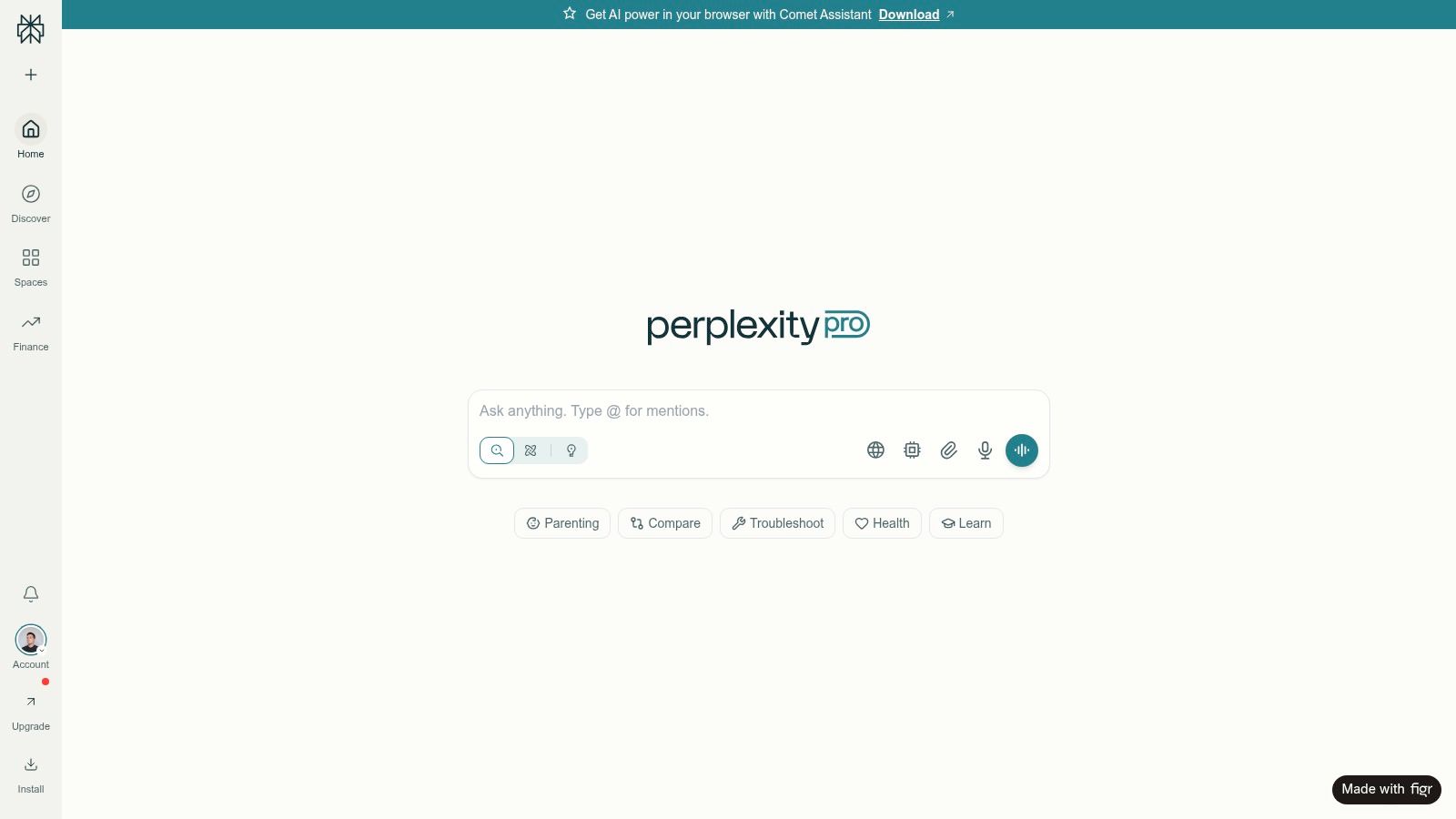
You can see the difference in outputs when the prompt behaves less like a wish and more like a design brief. For a high-fidelity example, this Perplexity search UI artifact is the kind of result teams aim for when the brief is specific and grounded.
The four parts that matter
Role sets the perspective.
“Act as a senior UX designer focused on accessibility and enterprise workflows” produces a different result than “make a nice login screen.”
Task narrows the deliverable.
Ask for “a mobile login wireframe with email, SSO, error state, and password reset path,” not “an auth screen.”
Context prevents the generic answer. On this, product managers' output either succeeds or fails. Say who the user is, what environment they’re in, what constraints matter, and what existing system should be respected.
Format makes the result operational.
Do you want a wireframe description, Figma-ready layer structure, component map, or annotated mockup? If you skip this, the tool picks for you.
Here’s the kind of shape that works:
- Role: Senior UX architect for B2B SaaS
- Task: Redesign invoice filter panel for mobile
- Context: Used by non-technical finance teams, must preserve existing design tokens and support empty, loading, and error states
- Format: Figma-exportable layout description with component hierarchy and rationale
If you want a broader primer on why this works, this explainer on prompt engineering is a useful companion read.
What good prompting sounds like in practice
A vague prompt says, “Generate a dashboard.”
A working prompt says, “Create a dashboard for a head of customer success reviewing renewals. Prioritize churn risk, upcoming contract dates, and account health. Use a dense enterprise layout, preserve our left nav pattern, and include empty and loading states.”
That’s how you generate ui from text without getting generic wallpaper.
The same principle shows up in context engineering. Better prompts aren’t more poetic. They’re more constrained.
A quick walkthrough helps here:
A short checklist before you hit enter
- State the user clearly, not just the screen
- Name the job to be done, not just the page type
- Include edge states, because that’s where designs usually break
- Specify output format, so the result is easier to inspect or import
The difference between an ai text to mockup command and a useful design asset is almost always the quality of the brief.
Beyond the Prompt Integrating Your Product's DNA
Text alone is rarely enough.
The strongest ai prompt to interface workflow isn’t a prompt in the narrow sense. It’s a packet of intent plus evidence. Screenshots. Design tokens. Component libraries. API docs. Existing HTML. Maybe even the current state of the live app.
Why context beats eloquence
Builder.io found that integrating repo-context prompting with screenshots, design systems, and API docs can reduce hallucinated code by 85% and boost component fidelity to 95% across 500+ frontend projects, as described in its analysis of prompting tips.
That should change how teams frame the job.
You’re not asking the system to imagine a product. You’re asking it to operate inside one.
Give the model the same context you’d give a new designer on day one, and the output gets much closer to something a team can ship.
That’s also why this work fits into the larger challenge of integrating Generative AI into broader strategies. The economic question isn’t whether AI can produce screens. It’s whether those screens reduce downstream work across design, engineering, QA, and review.
What product DNA actually includes
Teams usually think about brand first, but product DNA is wider than brand.
It includes:
- Component rules, which button types, spacing systems, and card patterns are allowed
- Flow logic, how users move across core tasks and where states branch
- Data realism, what fields are available and what endpoints are real
- Accessibility expectations, including contrast, labeling, keyboard use, and state clarity
That’s why prompt-based UI generation becomes more valuable when it’s tied to how AI can auto-generate UI components from design systems, not treated as a separate toy.
And once you connect the output to real user flow examples, richer user experience flows, and full digital customer journeys, the screens stop being isolated artifacts. They become part of a working product narrative.
Real-World Scenarios Where This Changes the Game
Last quarter, I spoke with a product lead at a Series C company who had a familiar problem. Leadership wanted options for a feature review by the next morning. Not one design. Several, each showing a different tradeoff. The old workflow would have produced one polished path and a lot of verbal debate around the others.
Instead, the team used a prompt-driven flow to explore variations quickly, then spent human time on selection rather than translation.
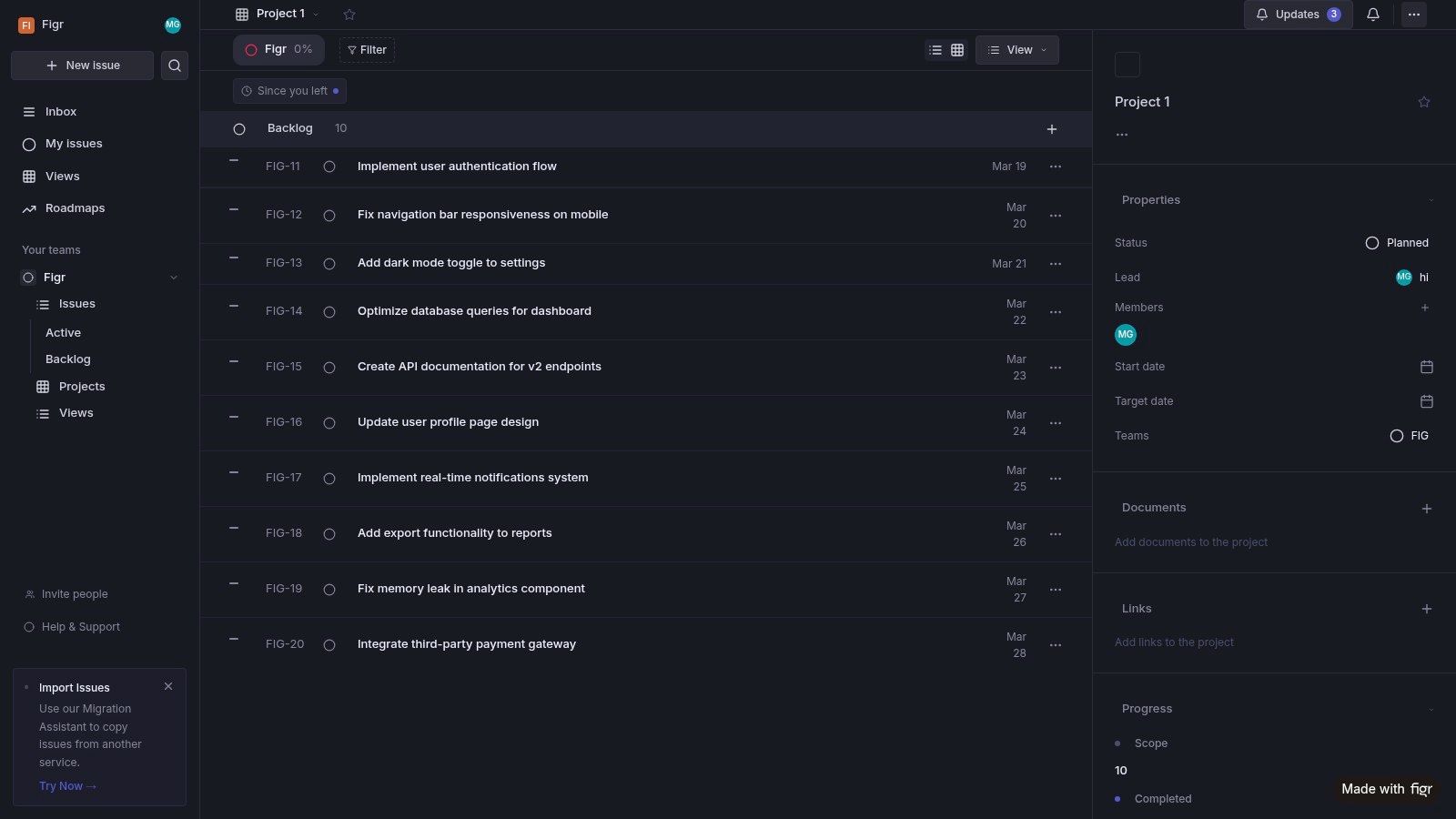
The pattern keeps repeating in a few places.
Three moments where it pays off
One is the stakeholder meeting that needs options, not theory. A PM can ask the system to explore different pricing page structures, compare density levels, or test alternate CTA placement. The value isn’t just speed. It’s that the team can react to visible tradeoffs.
Another is edge-state design. Error messages, empty tables, partial permissions, invite failures, and first-run screens often get less attention than primary flows. Prompt-based generation helps teams make those moments tangible earlier.
A third is feature expansion inside an existing product. When you need a new digest panel, search pattern, or admin setting to feel native, a context-grounded workflow reduces the drift that usually shows up in first-pass mockups.
This is what I mean: the tool becomes useful when it shortens decision time, not just drawing time.
You can see that kind of applied output in this Linear digest feature artifact, and the broader Figr gallery shows the range of product patterns teams are already exploring.
The Limitations and the Future of AI in Design
There’s a trap in this category. Teams see a strong generated screen and assume the strategy came with it.
It didn’t.
Prompt-driven generation is excellent at acceleration. It is weaker at deciding whether the workflow itself should exist, whether the mental model is right, or whether the problem has been framed correctly. It can produce strong first passes. It can’t own product judgment.
What it still struggles with
The weak spots are usually predictable.
- Novel interaction models, where there isn’t a well-worn pattern to lean on
- Deep product ambiguity, where the team hasn’t aligned on the problem
- Cross-functional negotiation, which still depends on humans resolving tradeoffs
- Research interpretation, especially when user needs conflict or remain unclear
That’s why the strongest teams treat this category as part of a broader stack that includes AI for UX design, AI tools that generate prototypes from sketches, and the more exploratory side of interface ideation.
The future isn’t one perfect prompt. It’s a persistent design partner that remembers your product, your constraints, and your prior decisions.
That future is already taking shape in context-heavy, agentic workflows. The direction is clear. Less one-shot generation, more system memory. Less “make me a screen,” more “work inside this product and propose the next best move.”
Your First Step into Generative UI
Start smaller than you want to.
Pick one annoying UI problem that already exists in your product. A confusing modal. A brittle settings page. An empty search result that leaves users stranded. Write a structured prompt for that exact problem, using the user, the job to be done, the constraints, and the required states.
Then add context.
Include the current screen, your design rules, and any components the output must respect. That’s the difference between experimentation that creates noise and experimentation that yields significant impact.
For the complete framework on this topic, see our guide to best AI design tools.
If you remember one thing, make it this: better results don’t come from cleverer commands. They come from better context.
If you want to try that workflow in practice, Figr is built for teams that need UI generation grounded in existing product context rather than blank-slate prompts. Feed it your app context, then describe the change you need. That’s a much more useful place to begin.