

UI generation from design systems uses your existing components, tokens, and usage rules to create new interfaces. For product teams, the useful starting point is a real feature in the product you already have. Supply the system and product context, generate options, then review component choices, states, and implementation details before shipping.
Jump to the step-by-step workflow, copyable prompt, or worked SaaS example.
Design systems exist to create consistency. Every button, form, card, and modal should follow the same patterns. But creating components manually is tedious. You define the component once in Figma, then recreate it in code, then document it, then maintain it as requirements change. Ever feel like you are doing the same work three times in slightly different formats? Yes, that repetition is exactly what design systems are supposed to reduce, not multiply.
What if your design system could generate components automatically? What if you defined a button once, and AI generated all the variants (sizes, states, themes), the code implementation, and the documentation? If that were possible in your stack today, how much design system work would you stop doing by hand?
That's the promise of AI-powered component generation from design systems. It's not science fiction. Tools are doing this today, with varying levels of sophistication.
Why Manual Component Creation Doesn't Scale
Let's start with the problem. Design systems require dozens or hundreds of components. If you have worked on a mature system before, you already know how quickly this explodes, right?
For example, four button types (primary, secondary, tertiary, ghost), three sizes, and five states create 4 × 3 × 5 = 60 possible combinations. Your system may not need every combination; define the valid ones explicitly.
Now consider forms, cards, modals, navigation, tables, and charts. As a system grows, the number of component variants and relationships can become difficult to maintain manually.
Here's what manual creation requires:
- Design: Create every variant in Figma
- Code: Implement every variant in your framework (React, Vue, etc.)
- Documentation: Document usage, props, accessibility
- Maintenance: Update all three when requirements change
Design system updates can affect design files, code, and documentation together. Automating repeatable work helps, but teams still need to decide which changes belong in the shared library.
What if AI could generate variants automatically? What if you defined the design tokens (colors, spacing, typography) and component logic once, and AI generated all the implementations?
flowchart TD
    A[Design Tokens] --> B[AI Component Generator]
    C[Component Logic] --> B
    D[Accessibility Requirements] --> B
    B --> E[Figma Components]
    B --> F[React/Vue Code]
    B --> G[Documentation]
    B --> H[Storybook Stories]
    E --> I[Outputs for Review]
    F --> I
    G --> I
    H --> I
Illustrative component-generation pipeline. Supported outputs vary by tool; each output needs review before joining the shared system.
How AI Tools That Convert Sketches Into Product UI Designs Work
A sketch can communicate layout intent, but it does not contain your component APIs, token references, or interaction rules. Image recognition may identify a table or form; the next step is deciding which approved components should represent it.
Evaluate tools such as Uizard, Visily, and Figma's AI features against your required inputs and output formats. If your starting point is a sketch, provide the existing system separately and review the result for component reuse, missing states, and responsive behavior.
How AI Tools Map Outputs to Existing Component Libraries for Production Readiness
The hardest part of AI-generated designs isn't creating pretty screens. It's creating screens that map to your existing component library so engineers can actually build them. Pretty comps that ignore your library are just another kind of design debt.
Mapping requires more than matching colors. A tool needs usable information about the component library and its rules. Depending on the tool, inputs may come from Figma, Storybook, or the codebase. Confirm which sources and formats the tool actually supports.
For a generated dashboard, review whether the workflow:
- Identifies approved components such as Button, Card, Table, and Chart
- Uses the correct variants and semantic tokens
- Flags missing components or unsupported behavior
- Records proposed component properties and interaction rules
- Preserves a clear reference for engineering review
A useful specification might reference <Button variant="primary" size="large">Submit</Button>, provided those properties exist in your library. Engineers should verify the actual import, API, state behavior, and accessibility.
Three outputs to distinguish: A screen can visually match your brand; an editable design can retain variables and component structure; code can import your production components. These are different outcomes. Ask for a sample export and inspect it instead of assuming one proves the others.
Figr uses your design-system context to guide generated work. Your team should still review component choices and implementation details. See the developer handoff checklist for what to pass to engineering.
How Best AI Tools for Automating Customer Interviews Feed Into Component Design
Research helps decide what to generate. Feedback collected or analyzed with tools such as Dovetail, UserTesting with AI, and Maze may reveal missing filters, confusing actions, or unclear states.
Turn those findings into a reviewed requirement: which user needs a change, in which flow, and why? Then check whether an existing component solves it. Generate a new component only when the team agrees the library has a gap, and test the proposed interaction before promoting it into the system.
How Figr Uses Your Design System for UI Generation and Handoff
Start with one feature in your existing product. Figr’s design-system setup documentation describes connecting Figma through Figr Sync or uploading files, then adding instructions for rules that tokens alone cannot explain.
- Choose the source of truth. Identify the approved library, relevant product screens, and current usage guidance. Resolve conflicting or deprecated examples before generation.
- Connect and set up the system. Select the relevant frames, components, or pages through the Figma plugin, or upload supported reference files. Review the imported tokens and rules.
- Provide feature context. Explain the user goal, current flow, permissions, data limits, and behavior that must stay consistent. Attach the intended Design System to the project.
- Generate alternatives. Ask for two directions and name the states each must cover. Require missing components and assumptions to be listed for review.
- Refine together. Compare the flow, component choices, copy, and state coverage with product and design. Use focused follow-up prompts or direct edits for corrections.
- Prepare the handoff. Export the reviewed screens and link the approved version from the implementation ticket. Engineering validates component APIs, data handling, and acceptance criteria.
Figr’s changelog documents Figma export with Auto Layout and mapped variables, multi-screen export, and generation of additional states. Verify the exported structure against your team’s actual library.
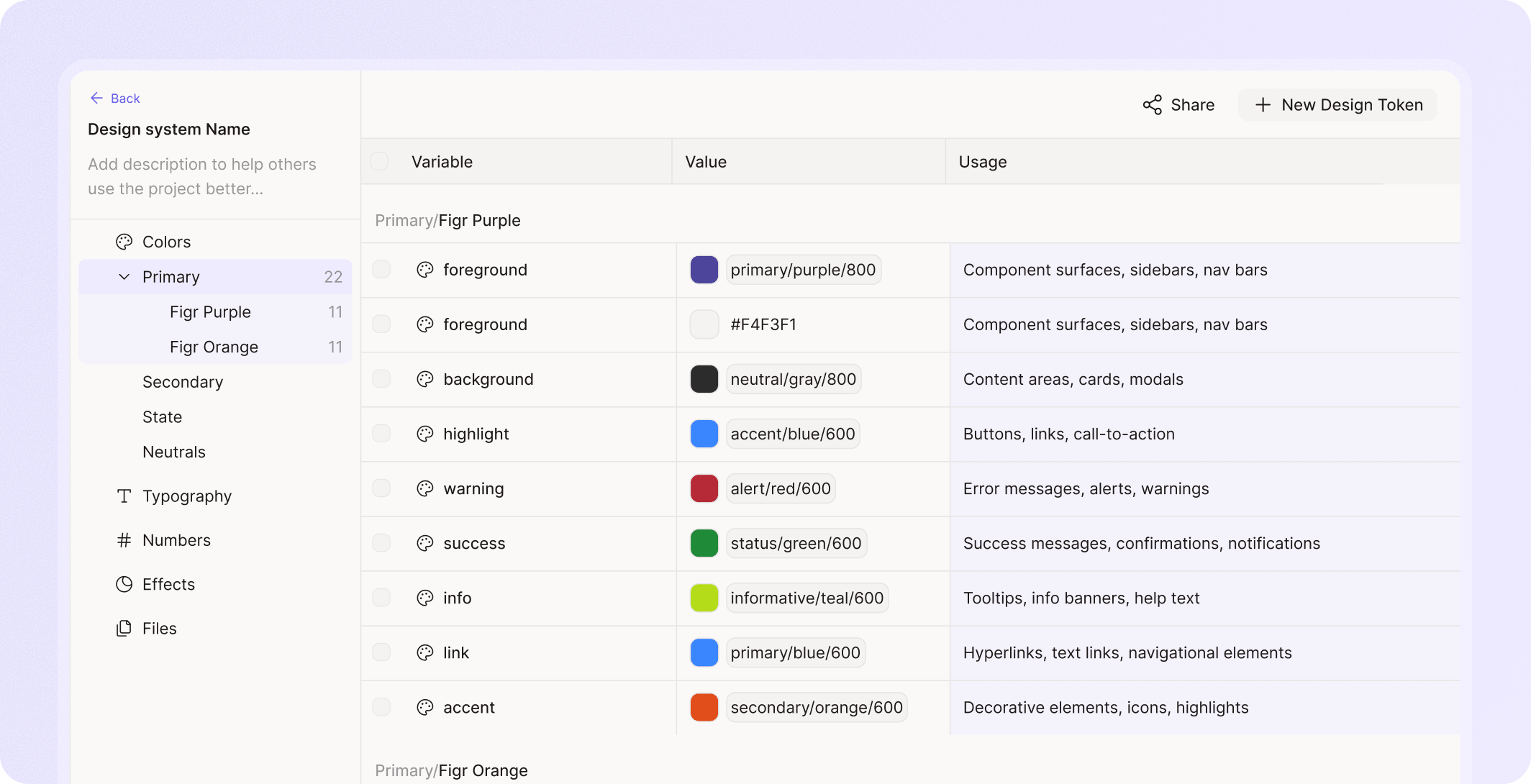
What to provide before generating UI
- Library: Approved component names, variants, and examples
- Tokens: Semantic colors, spacing, typography, and supported themes
- Rules: When to use each pattern, prohibited variants, and exceptions
- Product context: Existing screens, requirements, roles, and data constraints
- Review criteria: Required states, supported sizes, accessibility checks, and expected export format
Copyable prompt for design-system UI generation
Replace the bracketed fields with your real references. Use actual component and token names from the attached system.
Create two directions for [feature] in our existing [product].
User goal: [goal]. Start from [current screen or flow].
Use the attached [Design System name/version] and [requirements].
Reuse [approved components] with their supported variants and tokens.
Preserve [navigation, terminology, permissions, and business rules].
Include default, loading, empty, error, permission, and success states where relevant.
Explain responsive behavior at [supported sizes].
List each proposed component, variant, and token reference for review.
Flag missing components or uncertain rules before inventing replacements.
Compare the directions and explain their trade-offs.
Keep the selected direction editable for design review and Figma export.
Try Figr with your design system
Review the generated design and component references before engineering implementation.
flowchart LR
    A[Design System] --> B[Figr AI]
    C[Component Library] --> B
    D[User Requirements] --> B
    B --> E[Generated Designs]
    E --> F[Figma Export]
    E --> G[Component Specs]
    G --> H[Engineer Implementation]
    H --> I[Implementation Review]
Real Use Cases: When Component Generation Matters
Example: a SaaS billing settings flow
This illustrative brief shows how to apply the workflow; it is not a customer result or a measured Figr output. Assume an existing SaaS product lets workspace admins update billing details while other members have read-only access.
Inputs: The current settings screen, approved navigation and form components, billing requirements, semantic tokens, and permission rules. Ask for two directions: an inline editing layout and a summary layout with an edit dialog. Compare information density, discoverability, and recovery from errors.
| UI element | System reference to supply | Review before acceptance |
|---|---|---|
| Settings navigation | Existing navigation component and active-state variant | Preserves current routes, labels, and selected state. |
| Billing form | Approved text fields, validation variants, and spacing tokens | Includes field labels, error copy, and keyboard focus behavior. |
| Save action | Primary Button and supported loading variant | Prevents duplicate submissions and shows a recoverable failure state. |
| Permission notice | Approved read-only or access-restricted pattern | Matches the product’s role rules; engineering verifies server enforcement. |
| Success feedback | Existing confirmation component and semantic success token | Clearly states what changed without losing the user’s place. |
State coverage: Include the saved view, editing, saving, validation failure, network failure, read-only access, and confirmation. Document what happens if data changes while the form is open.
Decision: Review both directions with the designer and engineer. Record the selected layout, unresolved component gaps, and acceptance criteria. A matching color palette is only one check; the flow must also behave like the existing product.
Explore a feature in your existing product with Figr
Let's ground this in specific scenarios where AI component generation makes a difference. As you read these, which one sounds closest to your team right now?
Building a design system from scratch. Use agreed tokens and usage rules to draft a small set of base components. Review their APIs, states, and documentation before expanding the library.
Expanding an existing design system. Generate proposed additions against existing patterns. Check whether a current component can be extended before introducing another one.
Responsive design. Request layouts for the supported sizes, then test wrapping, density, navigation, and interaction changes.
Dark mode. Supply the supported theme tokens and review contrast, focus indicators, charts, and status messages in the resulting screens.
Themeable systems. You need to support multiple brands (white-label products). AI generates component variants for each theme.
Component documentation. Draft usage guidelines, property descriptions, and accessibility notes from approved component references, then verify them against the implementation.
Common Pitfalls and How to Avoid Them
AI component generation is powerful, but it's easy to misuse. Think of this list as a quick pre-flight check before you go all in.
Generating components without user research. Components should solve user needs, not just look nice. Ground component design in research.
Ignoring accessibility. AI-generated components still need evaluation against the applicable WCAG requirements. Always validate for accessibility: color contrast, keyboard navigation, screen reader support. If you are not testing these explicitly, assume gaps exist.
Creating too many variants. More isn't better. A button with 50 variants is harder to maintain than a button with 10. Generate what you need, not everything possible.
Skipping code review. AI-generated code is a starting point. Always review for performance, security, and best practices before shipping.
Forgetting documentation. Components without documentation are half-useful. Make sure AI generates usage docs, not just code.
Review checklist before accepting generated UI
- Components: Check names, variants, and properties against the approved library.
- Tokens: Confirm semantic references and flag unexplained hardcoded values.
- Behavior: Test loading, empty, error, permission, and recovery paths.
- Responsive layout: Review supported sizes, long labels, and realistic data.
- Accessibility: Check contrast, labels, keyboard operation, and focus behavior. Automated tools cannot perform every accessibility check.
- Handoff: Inspect the exported design or code, record gaps, and confirm ownership before implementation.
How to Evaluate Component Generation Tools
When shopping for tools, ask these questions. You can literally use them as a checklist in your next vendor call.
Does it respect your existing design system? Tools that generate new components every time create bloat. Look for tools that reuse your existing library.
Does it generate code, or just designs? Check whether the output is an editable design, prototype code, or code that imports your actual components. Compare the remaining implementation work.
Does it handle variants automatically? Check support for the responsive layouts, themes, and states you actually need. Test one real flow instead of relying on a feature label.
Does it generate documentation? Components need docs. Look for tools that auto-generate usage guidelines and prop definitions.
Does it validate accessibility? Ask which checks are supported and which require manual review. Evaluate the implemented interaction as well as the generated design.
Compare tools by their design-system workflow
| Tool | Documented workflow | What to validate |
|---|---|---|
| Figr | Use product context and an attached Design System to explore flows and screens; export to Figma or share context through MCP. | Component choices, state coverage, export structure, and implementation fit. |
| Figma | Generate and refine UI variations on the canvas using a connected design library. | Component instances, variables, behavior, and handoff details. |
| Magic Patterns | Combine style instructions and components in a Design System, with documented import routes. | How imported components and generated code relate to your production library. |
| UXPin Forge / Merge | Connect supported React libraries, generate layouts, and export JSX. | Library setup, component compatibility, and integration requirements. |
Use the same feature brief to compare tools. Inspect the output and review effort alongside generation speed. Avoid treating a visually similar screen as proof of production-component reuse.
Figr's Approach to Design System Integration
Figr brings product context and design-system guidance into the same design workflow. Its value for PMs and designers is being able to explore a feature while keeping the existing product’s patterns visible throughout review.
- System context: Figma sources and uploaded reference files provide tokens, components, and written rules.
- Focused refinement: Direct editing can use values from the attached Design System.
- State exploration: Generate additional screens and review missing states on the flow board.
- Team consistency: Organizations can set a default Design System for new projects.
- Engineering context: Figr MCP exposes project artifacts and design decisions to supported coding assistants.
Use the current release notes to check feature changes. Component reuse and token alignment still need review against your chosen library, and accessibility must be evaluated in the implemented experience.
The Bigger Picture: Design Systems as AI-Enabled Infrastructure
Ten years ago, design systems were documentation. A style guide, maybe a Figma library.
Today, design systems are infrastructure. They're code libraries, automated tests, design tokens, and AI-powered generation. The best design systems don't just enforce consistency. They accelerate creation. If you treat your system like a static style guide, you are leaving a lot of leverage on the table.
AI component generation is the next evolution. Instead of manually creating every component, you define patterns once and AI generates implementations. Design systems become generative, not just prescriptive.
The companies building design systems today should be thinking about AI from the start: How will AI use our tokens? How will AI map to our components? How will AI generate variants?
The design systems that integrate AI will accelerate teams. The ones that don't will be maintenance burdens. Which side of that line do you want to be on in a few years?
Takeaway
Manual component creation doesn't scale. AI tools can help draft component variants, interfaces, code, and documentation when supplied with a clear design system and product context.
Start with one real feature and an approved library. Compare the generated directions, review component and token choices, and confirm the handoff before expanding the workflow. AI generation works best when your tokens are solid. Start with our guide on how to use design tokens, and browse design system examples for real-world inspiration. AI-powered generation works best when your system is well-architected. Start with the foundations in our design system best practices guide, then let AI accelerate what you've built.
Try Figr with your product and design system
UI Generation From Design Systems: FAQs
How do I generate UI that matches my existing design system?
Provide the approved components, tokens, usage rules, and relevant product screens. Attach that context before generation, specify the required behavior and states, and review the output against the source library.
Can AI reuse components instead of creating new ones?
Some workflows can work with connected libraries, but reuse depends on the tool and setup. Inspect component references, variants, and imports. Ask the tool to flag gaps rather than silently invent replacements.
Can I generate multiple flow variations with the same system?
Yes, you can request different layouts or interaction approaches while keeping the same system context. Hold business rules and required states constant so the team can compare the alternatives meaningfully.
Does a matching design system make generated code production-ready?
No. Engineers still need to review data integration, permissions, component APIs, accessibility, performance, and tests. Design-system alignment addresses only part of implementation readiness.