

The blank canvas is a myth. Every design choice rests on a foundation of user expectations, established patterns, and the hard lessons learned from products already in the world. We don't just create screens; we architect systems of interaction. This demands a new class of UX and UI design tools, ones that grasp context, accelerate thought, and forge a clear path from an idea to a shipped feature.
Your toolstack is not a set of brushes, it's a system of levers. Each one applies force to a different point in the product development lifecycle, from initial concept to final developer handoff. A simple user flow diagram, like this one for a scheduling page redesign, is a lever that clarifies scope and prevents weeks of rework. The core challenge is selecting the right levers.
Which ones grant the most leverage?
This guide examines the 12 tools that shape the modern design and product workflow. We will explore them not by their marketing slogans, but by the specific problems they solve and the capabilities they unlock. We'll analyze Figma, Sketch, Framer, and others, including newer AI-driven platforms like Figr that help map complex states, such as the many failure modes in a Dropbox upload. Before choosing any tool, understanding core principles like the key User Experience Design Best Practices is essential for creating digital products that connect with users. This article will provide screenshots and direct links for each tool, helping you assemble a stack that moves your product from concept to code with clarity and speed.
1. Figr
Figr is not another blank canvas design tool; it’s a product-aware AI agent built to accelerate how product teams think, design, and ship. Instead of starting from scratch, you begin with reality. Figr uses a one-click Chrome capture to ingest your live product, imports your Figma design systems, and connects to your analytics. This grounds every generated artifact, from PRDs to high-fidelity prototypes, in the context of your actual app, not generic templates.
The core strength of this platform is its ability to compress weeks of discovery and definition into hours. It generates user flows, maps out complex edge cases, and even produces detailed test cases for QA. A product manager can take an existing feature, like the complex checkout setup in Shopify, and have Figr map the information architecture and identify drop-off points to inspire a redesigned setup flow that is demonstrably better. Similarly, for a critical but often overlooked flow like freezing a credit card, Figr can generate comprehensive test cases, as shown in this Wise card freeze example, ensuring no scenario is missed.
Why It Stands Out
What differentiates Figr from other UX and UI design tools is its focus on product thinking over pixel pushing. It acts as an AI partner that helps you explore variations, uncover blind spots, and defend your decisions with data. Because it’s trained on a massive dataset and can benchmark your funnels, its recommendations for fixes are prioritized and actionable. Prototypes export to Figma with one click, respecting your existing design tokens and components. This creates a powerful bridge between product strategy, design execution, and engineering handoff, significantly reducing rework.
Best for: Product managers, UX leads, and QA teams who need to move from idea to production-ready artifacts quickly and with confidence. It is especially useful for teams looking to improve existing products by identifying friction and exploring validated solutions.
Pros:
Product-aware output: Live product capture and Figma integration mean designs match your real UI.
Accelerated delivery: Generates PRDs, user flows, edge cases, test cases, and Figma-ready prototypes.
Data-grounded recommendations: Connects to analytics to provide evidence-based fixes.
Enterprise-ready: SOC 2 compliant, offers SSO, and has a zero data retention policy for security-conscious organizations.
Cons:
Pricing is not public, requiring a demo for exact costs, which can slow down evaluation for smaller teams.
Requires initial setup (Chrome capture, Figma, analytics) and active human oversight of AI recommendations.
Pricing: Custom pricing available upon booking a demo. A free trial is also offered.
2. Figma
Figma is the de facto design tool for product teams, operating less like a traditional application and more like a shared language. Its brilliance lies in making design a multiplayer experience, moving it from isolated files on a designer's hard drive to a live, browser-based canvas where everyone can participate. PMs, engineers, and designers can drop into the same file, at the same time, to review mockups, leave comments, and watch ideas take shape. It has become a central hub for the entire product design process.
This collaborative nature fundamentally changes team dynamics. It transforms design reviews from formal presentations into real-time working sessions. Product managers can directly access and link to specific frames or prototypes in their documentation, ensuring a single source of truth. Features like Auto Layout and Variants allow designers to build robust, component-based systems that mirror how developers think in code, making the handoff process smoother.
Key Strengths & Use Cases
Real-time Collaboration: Multiple users can design, comment, and iterate in the same file simultaneously. This is ideal for remote teams and rapid feedback cycles.
Prototyping: Build high-fidelity, interactive prototypes with conditional logic and variables to simulate complex user flows without writing code. This is perfect for usability testing and stakeholder demos.
Developer Handoff: Dev Mode provides engineers with inspectable properties, code snippets (CSS, iOS, Android), and a direct link to the design system, reducing ambiguity.
Ecosystem: A vast library of community plugins and files extends Figma’s functionality for tasks like content generation, accessibility checking, and workflow automation.
Limitations to Consider
Performance: Files with thousands of components or many high-resolution images can become sluggish, even on powerful machines.
Cost: While it offers a generous free tier, the Professional and Organization plans can be a significant expense, especially for larger teams. Recent price increases have made some organizations more cost-sensitive.
Pricing and Access
Figma offers a free "Starter" plan for individuals and small teams, which is quite capable. The "Professional" plan ($12 per editor/month) adds unlimited projects and team libraries, while the "Organization" plan ($45 per editor/month) includes advanced design system analytics, private plugins, and centralized administration.
Website: https://www.figma.com
3. Sketch
Sketch was the tool that started the modern UI design revolution, building a loyal following by focusing on one thing: a fast, polished, native macOS application for vector-based design. While browser-based tools have captured the market, Sketch remains the choice for designers and teams who value raw performance and a focused, offline-first workflow. It’s like a well-honed chef’s knife: specific, sharp, and perfect for its intended purpose.
Its core strength is its Mac-native editor, which feels incredibly responsive and seamlessly integrates with the operating system. This is what I mean: for designers who spend all day inside a single application, this lack of browser lag and immediate responsiveness is not a small detail; it’s a quality-of-life improvement. In recent years, Sketch has added a robust web-based workspace for real-time collaboration, developer handoff, and commenting, bridging the gap between its native editor and the needs of a modern, distributed team.
Key Strengths & Use Cases
Mac-Native Performance: The editor is exceptionally fast and stable, handling complex vector operations and large files with an efficiency browser-based tools often can't match.
Structured Design Systems: Sketch pioneered features like Symbols (now Components) and Libraries, making it a strong choice for creating and maintaining rigorous, structured design systems.
Developer Handoff: The web-based inspector allows developers to inspect designs, get measurements, and download assets for free, reducing the cost of involving engineering stakeholders.
Predictable Pricing: Sketch offers a straightforward subscription model without the per-editor complexity of some competitors, making it easier for teams to budget.
Limitations to Consider
Mac-Only Editor: This is the most significant limitation. If your team includes designers on Windows or Linux, Sketch is a non-starter for cross-platform editing collaboration.
Smaller Plugin Ecosystem: While it has a solid library of plugins, its ecosystem is not as vast or dynamic as Figma's community, which can mean fewer integrations and automation tools.
Pricing and Access
Sketch has a simple pricing structure. The "Standard" plan is $12 per editor/month ($120 annually) and includes the Mac app, a shared workspace, and unlimited free viewers. The "Business" plan ($20 per editor/month, annual only) adds SSO, priority support, and advanced administration features.
Website: https://www.sketch.com
4. Axure RP (v11)
Where most UX and UI design tools are like drafting tables for visual ideas, Axure RP is an engineering workbench for interactive logic. It’s built for the deep, complex problems found in enterprise applications, SaaS platforms, and expert systems where the behavior of the interface is as important as its appearance. If you need to simulate a multi-step checkout with dynamic pricing, a data-heavy dashboard with conditional filters, or an onboarding flow that changes based on user input, Axure is your tool.
This focus on logic makes Axure a different kind of partner in the design process. It forces conversations about edge cases and system states much earlier than a static tool would. For product managers and business analysts, it’s a way to translate dense requirements into a tangible, testable artifact without writing a single line of code. The prototype becomes the specification, reducing ambiguity and ensuring that what gets tested with users is a true representation of the intended experience.
Key Strengths & Use Cases
Logic-Driven Prototyping: Use variables, conditions, and expressions to build prototypes that can do math, remember user choices, and react to inputs. This is essential for enterprise UX, fintech, and complex user flows.
Documentation and Specs: Every element can have detailed notes attached, which are then published alongside the prototype in a spec-friendly format for developers and QA.
Team Collaboration: With co-authoring and revision history on its team plan, Axure supports multiple contributors working on the same project, though it's less fluid than browser-native tools.
Enterprise-Grade Security: Offers options for on-premises deployment and SSO integration, meeting the security requirements of large organizations.
Limitations to Consider
Steep Learning Curve: Its power comes with complexity. The interface and concepts like conditional logic are less intuitive than modern UI design tools, requiring a real investment to master.
Overkill for Simple Designs: Using Axure for a basic marketing site or a simple mobile app is like using a sledgehammer to crack a nut. It’s not built for quick, purely visual mockups.
Pricing and Access
Axure RP is a desktop application with cloud hosting for prototypes. The "Pro" plan is $25 per user/month and offers the core prototyping features. The "Team" plan is $42 per user/month, adding co-authoring, revision history, and team project hosting on Axure Cloud. Enterprise options are available with advanced security controls.
Website: https://www.axure.com
5. Framer
Framer answers a question that has plagued product teams for years: what if your high-fidelity prototype wasn't just a picture of a website, but the actual website? It collapses the distance between design and production by making the design canvas itself a web builder. This isn't just about drawing boxes and text; it’s about creating real, performant websites with a built-in CMS, animations, and hosting, all from a familiar design interface.
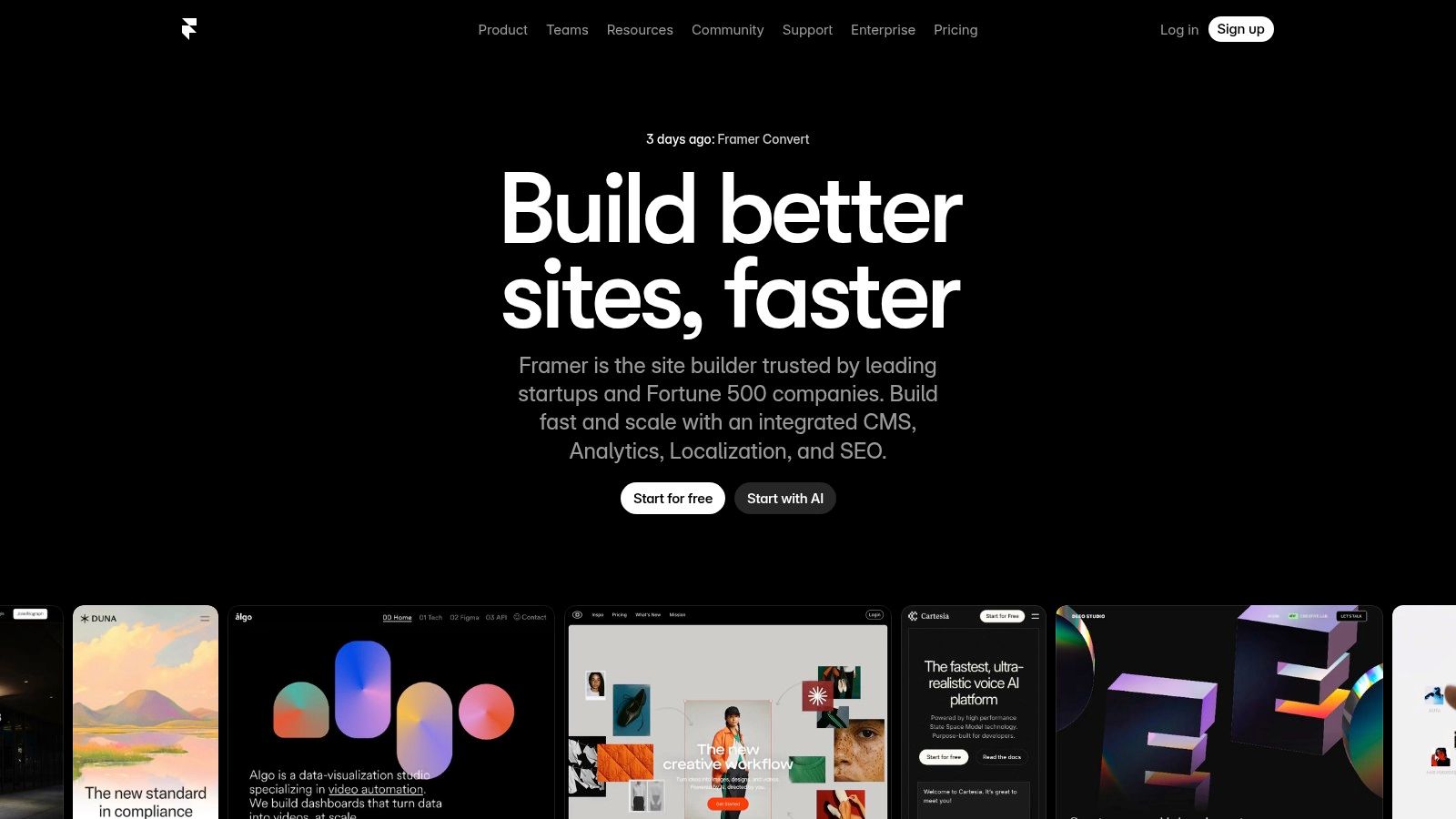
The core idea is to treat web design like product design. For teams building marketing sites, landing pages, or interactive portfolios, Framer removes entire steps from the workflow. Instead of a designer creating a mockup, a developer translating it to code, and then a marketer managing content in a separate system, one person can do it all. Its AI-powered design tools can even generate initial layouts, accelerating the path from a blank page to a live URL.
Key Strengths & Use Cases
Design-to-Live: The fastest path from concept to a published, SEO-friendly website. Ideal for marketing teams, startups, and agencies that need to ship beautiful sites quickly.
High-Fidelity Prototyping: Create prototypes that are indistinguishable from the final product because they are the final product. This is perfect for user testing complex animations and interactions.
Integrated CMS: Manage website content directly within the design tool. This allows content creators to update text and images on a live site without needing a designer or developer.
Growth Tools: Built-in features like analytics, A/B testing, and localization add-ons make it a powerful tool for growth and marketing teams looking to optimize their web presence.
Limitations to Consider
Cost at Scale: While initial plans are accessible, the total cost of ownership can grow. Adding more editor seats, CMS users, and premium add-ons for features like A/B testing increases the overall expense for larger teams.
Not for Complex Web Apps: Framer excels at content-driven sites but is not a replacement for a full-stack development framework for building complex, data-heavy web applications.
Pricing and Access
Framer offers a free plan for hobby projects. Paid plans start with "Mini" at $5 per site/month for simple sites and "Basic" at $15 per site/month, which includes a CMS for up to 1,000 items. The "Pro" plan ($25 per site/month) is aimed at larger sites and unlocks more traffic and CMS capacity.
Website: https://www.framer.com
6. Webflow
Webflow occupies a unique space, acting as a bridge between a design tool and a production environment. It’s where high-fidelity designs don't just get prototyped; they get built and shipped. For teams tired of the endless cycle of designing in one tool and then watching developers rebuild it from scratch, Webflow offers an integrated path to launch. It translates visual design decisions directly into clean, semantic code, allowing designers and marketing teams to own the entire process of creating and deploying responsive websites.
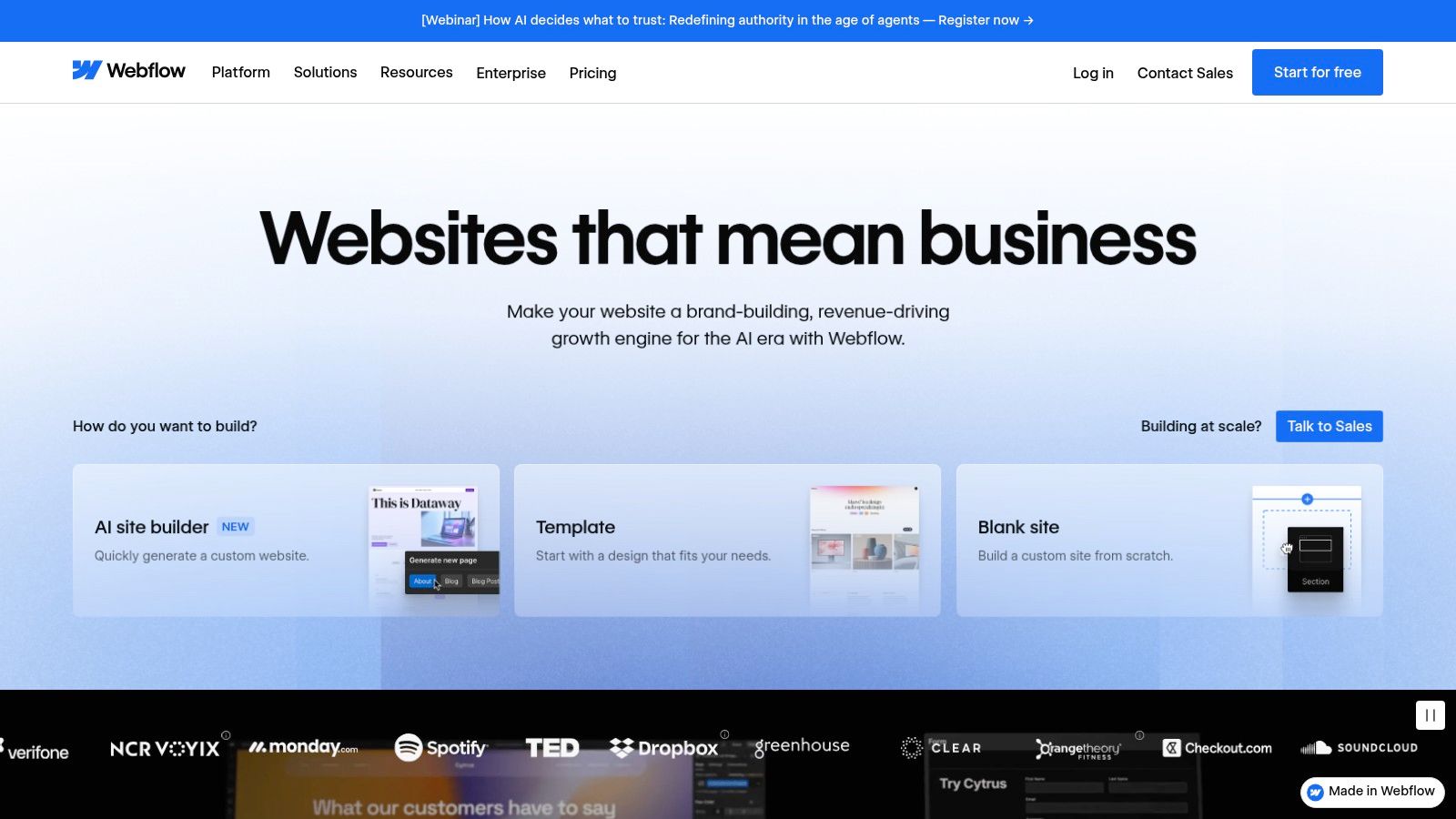
This tool is less about creating mockups and more about creating the final product. It empowers teams to build with production-grade components, a full content management system (CMS), and even e-commerce capabilities, all without needing deep engineering involvement for every change. This makes it one of the most powerful UX and UI design tools for projects where the output is a live website, from marketing pages to full-scale web applications.
Key Strengths & Use Cases
Design to Production: Visually build responsive websites with a "box model" interface that generates clean HTML, CSS, and JavaScript. This is ideal for marketing sites, landing pages, and portfolios that need to go live quickly.
Integrated CMS & Ecommerce: Manage dynamic content like blog posts or product listings directly within the platform. The ecommerce support is robust enough for small to medium-sized businesses to launch online stores.
Client & Agency Workflows: Features like guest access and distinct roles for workspaces and sites make it well-suited for agencies and freelancers managing multiple client projects.
Hosting and SEO: Provides fast, reliable hosting with strong SEO-friendly defaults out of the box, removing a significant technical hurdle for many teams.
Limitations to Consider
Complexity: The learning curve is steeper than a simple design tool. Understanding concepts like flexbox and grid is necessary to use it effectively.
Pricing Structure: The separation of Site plans (for hosting) and Workspace plans (for collaboration seats) can be confusing and costs can add up depending on usage and project needs.
Pricing and Access
Webflow offers a "Starter" plan that is free forever for getting started. Paid Site plans, which are required to connect a custom domain, start at $14/month (billed annually). Workspace plans for team collaboration start at the "Core" tier for $19 per seat/month.
Website: https://webflow.com
7. UXPin
UXPin operates on a principle that many teams discover the hard way: a picture of a button is not a button. It bridges the chasm between visual design and coded reality by treating prototypes not as static images, but as interactive, stateful applications. This is where designers can work with the same building blocks that engineers use, creating prototypes that feel less like a movie set and more like the actual product.
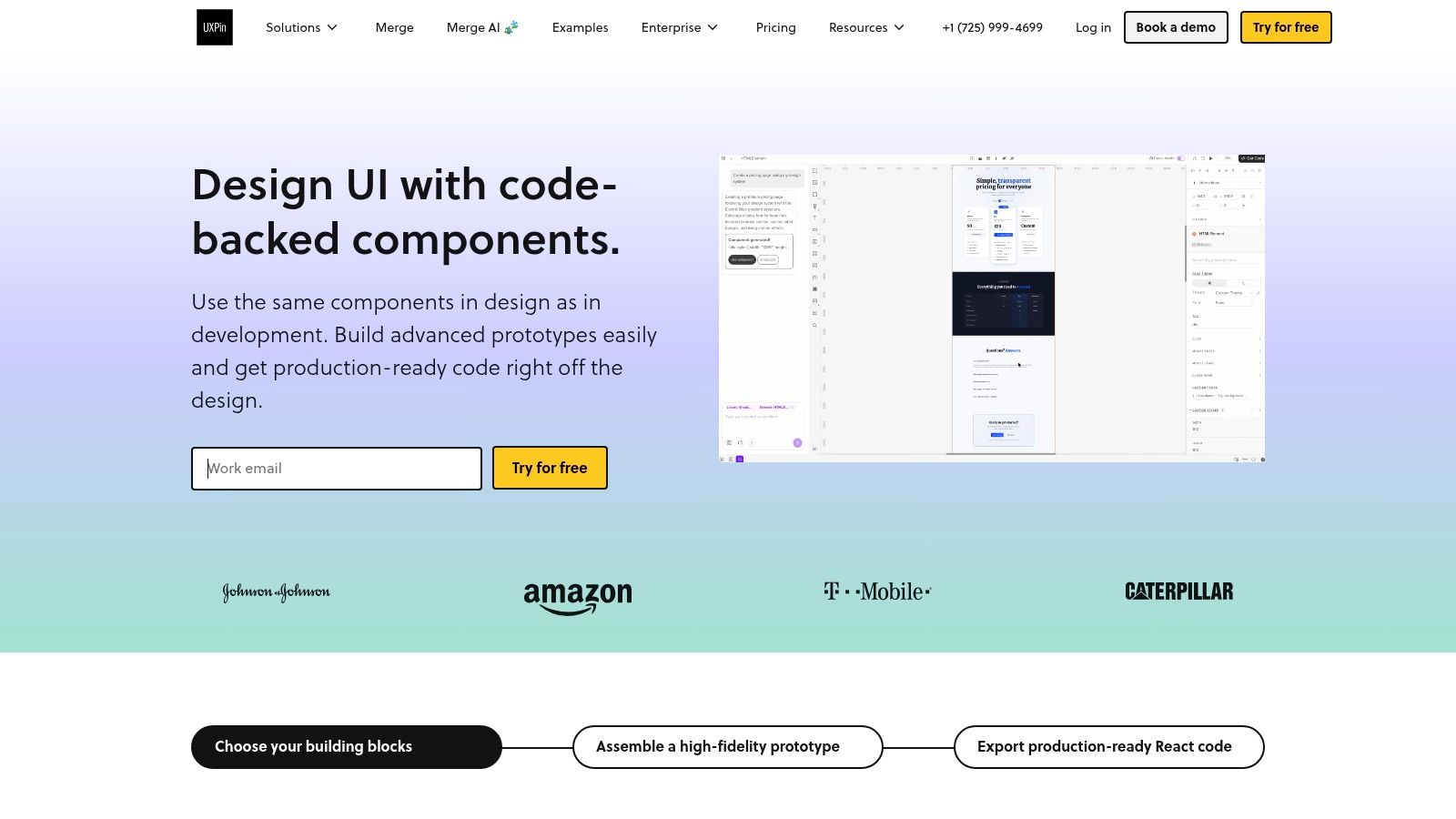
This code-based approach fundamentally changes the nature of user testing and developer handoff. Instead of a user clicking a static shape and being told "imagine this form validates," they can interact with a form that has real conditional logic and data variables. Its 'Merge' technology, which syncs with Storybook or Git repositories, allows designers to use production-ready components directly. This makes it one of the most powerful UX and UI design tools for mature organizations aiming for true design-engineering parity.
Key Strengths & Use Cases
High-Fidelity Prototyping: Build prototypes with conditional logic, expressions, and variables to simulate complex interactions like shopping carts or dynamic forms, making usability tests far more realistic.
Design with Code Components: The Merge feature allows teams to import their React components from a Git repo. This ensures designers and developers are using the exact same system, eliminating design drift.
Enterprise-Grade Design Systems: Perfect for large organizations that need to enforce consistency. By using production components, teams ensure that what is designed is exactly what gets built.
Stateful Design: Move beyond simple screen-to-screen links and design components with their own internal states (e.g., hover, active, disabled), mirroring how they behave in code.
Limitations to Consider
Learning Curve: The paradigm shift from a freeform visual canvas to a more structured, code-based environment can be challenging for designers accustomed to tools like Figma or Sketch.
Specialized Workflow: It is not a general-purpose visual design tool. Its strength lies in high-fidelity prototyping and design system integration, making it less ideal for quick, early-stage ideation.
Pricing and Access
UXPin offers several tiers. The "Advanced" plan ($29 per editor/month) provides unlimited prototypes and advanced interactions. The "Merge" plans, which enable designing with code components, start at $83 per editor/month, scaling up for larger teams with enterprise needs like SSO and dedicated support.
Website: https://www.uxpin.com
8. ProtoPie
While Figma and Sketch let you draw the map of your application, ProtoPie lets you build a working vehicle. It’s a specialized tool for when static screens and simple click-throughs fail to communicate the feel of an interaction. ProtoPie starts where other UI and UX design tools stop, allowing designers to create high-fidelity prototypes that behave like real, native applications, complete with sensor access, multi-device communication, and hardware integrations.
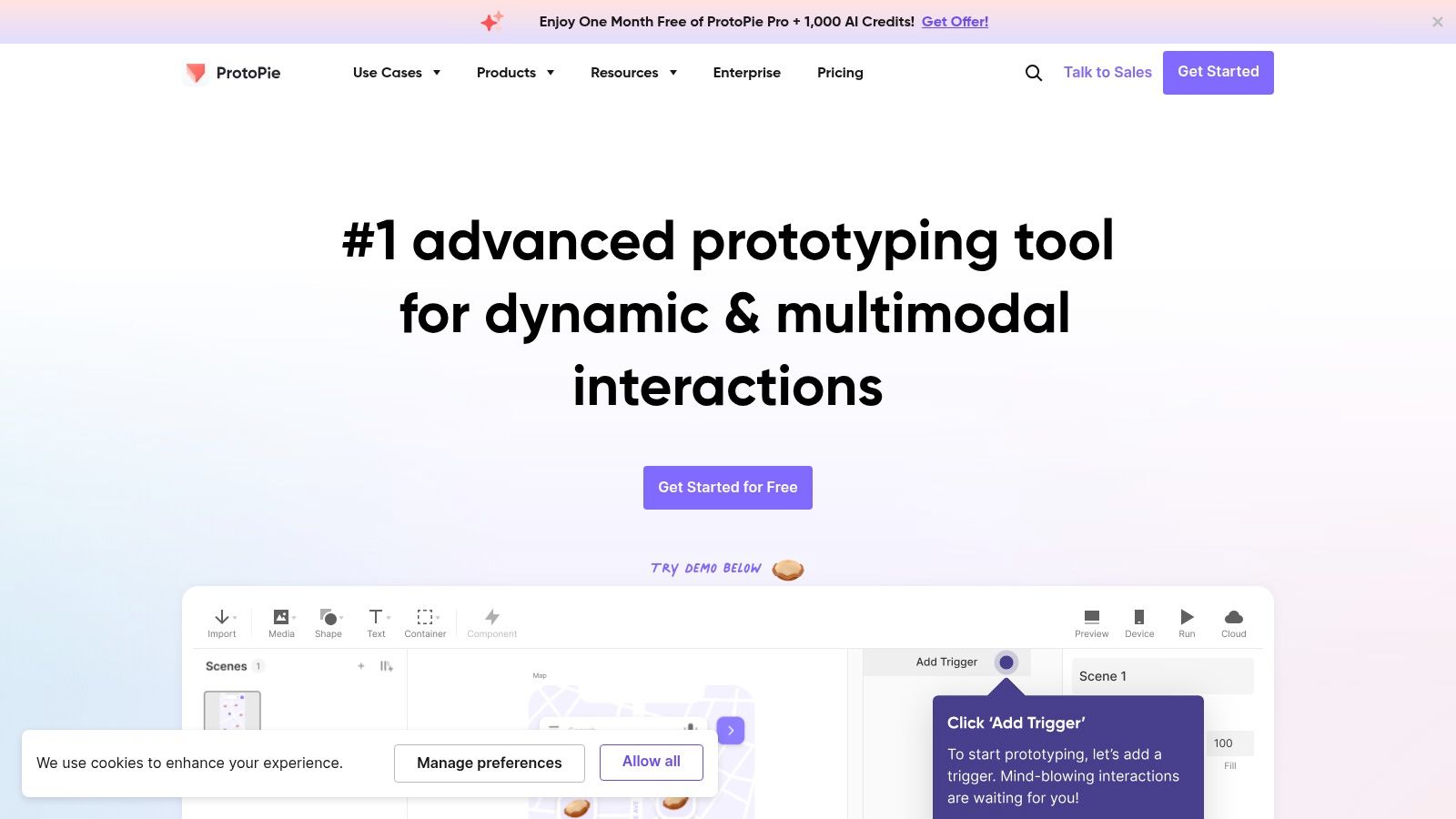
This is the tool you reach for when you need to demonstrate how a camera-based feature will work, how an app responds to voice commands, or how a smartwatch display interacts with a phone. It treats a prototype not just as a sequence of screens but as a system of conditional logic, variables, and triggers. For a product manager, this means you can get stakeholder or user feedback on complex micro-interactions and device-specific behaviors long before a single line of production code is written.
Key Strengths & Use Cases
Advanced Interaction Prototyping: Go beyond simple taps and swipes. Use device sensors like the camera, microphone, and gyroscope to build realistic demos. Ideal for mobile apps with rich, physical interactions.
Multi-device Experiences: Create prototypes that span across different devices. Show how an action on a smartwatch can trigger a change on a phone or TV, perfect for connected ecosystem products.
Hardware and API Integration: Connect prototypes to physical hardware (like Arduino or game controllers) and external APIs. This is essential for IoT, automotive, and other complex system demonstrations.
No-Code Logic: Build complex conditional flows using an intuitive trigger-object-response model without needing to write any code, making it accessible to designers.
Limitations to Consider
Learning Curve: The logic-based system is more complex than standard prototyping tools and requires an initial time investment to master.
Not for Early Ideation: ProtoPie is overkill for low-fidelity wireframing or exploring basic screen flows. It's best used once the core UI is established and needs sophisticated interaction design.
Pricing and Access
ProtoPie offers a limited free plan for one project. The "Pro" plan ($67 per editor/month) unlocks unlimited projects, team libraries, and advanced features. The "Enterprise" plan provides custom pricing for large organizations needing private cloud, SSO, and dedicated support.
Website: https://www.protopie.io
9. Principle for Mac
While browser-based tools dominate the collaboration conversation, Principle for Mac carves out a vital niche. It is a lightweight, focused application for bringing static screens to life with high-fidelity motion. Think of it less as a full design environment and more as a specialist's workshop for perfecting the feel of an interaction. If Figma is where you build the car's frame, Principle is where you tune the satisfying click of the door handle. It’s the go-to for designers who need to sell an idea based on its dynamic polish.
Its core strength is a timeline-based animation interface that feels intuitive to anyone with a background in video editing or motion graphics. You can easily import assets from Figma or Sketch and quickly wire up component states and transitions. This makes it an essential part of the modern UX and UI design tools stack for demonstrating complex micro-interactions, like the animated feedback on a button press or the physics of a card being swiped away.
Key Strengths & Use Cases
Polished Motion Design: The timeline editor gives granular control over easing and timing, perfect for creating fluid, production-quality animations and micro-interactions.
Rapid Prototyping: Its focused toolset makes it fast to learn and use for a specific purpose. You can move from a static design to a convincing interactive prototype in minutes, not hours.
Device Mirroring: Live previewing on an iOS device is seamless, allowing designers to physically feel the responsiveness and timing of their interactions on the target hardware.
Figma & Sketch Integration: Easily import layered design files, preserving your component structure to begin animating immediately.
Limitations to Consider
Mac-only: This is the most significant limitation. It excludes designers on Windows or Linux and creates friction in cross-platform teams.
No Real-time Collaboration: As a desktop application, it lacks the multiplayer features of tools like Figma, making it more suited for individual work that is then shared.
Specialized Focus: It’s not an all-in-one design tool. It excels at motion but lacks the vector editing, component management, and developer handoff features of its larger counterparts.
Pricing and Access
Principle operates on a one-time purchase model for a lifetime license, which is a refreshing alternative to the subscription-heavy market. A single license costs $129 and includes one year of updates. After the first year, users can continue using their version forever or purchase another year of updates at a reduced price.
Website: https://principleformac.com
10. Zeplin
Zeplin acts as a dedicated bridge between design and development, translating design files into a structured, developer-friendly workspace. It isn't a design tool itself, but rather a post-design environment. Its core function is to take finished designs from Figma or Sketch and create a clean, locked-down handoff package. This creates a clear boundary: designers work in their native tool, and developers get a purpose-built view with organized specs, assets, and code snippets, free from the noise of the design canvas.
This separation of concerns is Zeplin's main proposition. While tools like Figma have built-in developer modes, Zeplin argues for a dedicated space where the "source of truth" for implementation is managed. It provides features like versioning, approval workflows, and deep integrations with developer tools that go beyond simple inspection. For engineering teams, it means less ambiguity and more focus on the finalized components and flows they need to build.
Key Strengths & Use Cases
Structured Handoff: Translates design files into organized specs, styleguides, and component libraries. Ideal for teams that want a clean separation between design exploration and final implementation specs.
Developer-Centric Workflow: Integrates directly into developer environments like VS Code and IDEs. Engineers can access specs, code snippets, and even connect components to their Storybook library without leaving their editor.
Version Control for Designs: Provides clear version history for screens and components, making it easy to track changes and ensure developers are building against the correct iteration.
Multi-Platform Support: Acts as a universal handoff layer, supporting files from Figma, Sketch, Adobe XD, and Photoshop, which is useful for organizations using a mix of UX and UI design tools.
Limitations to Consider
Redundant Tooling: For teams heavily invested in Figma's ecosystem, Zeplin can feel like an extra, unnecessary step. Figma’s Dev Mode now offers many of the same core inspection features.
Synchronization Overhead: Maintaining parity between the design file and the Zeplin project requires disciplined manual updates, adding another process for the design team to manage.
Pricing and Access
Zeplin has a free plan for a single project. The "Team" plan is $10 per seat/month, offering unlimited projects and versions. The "Organization" plan ($16 per seat/month) adds features like Storybook integration and advanced security controls. An "Enterprise" plan is available for larger needs.
Website: https://zeplin.io
11. Balsamiq
Balsamiq is the digital equivalent of a sharpie on a whiteboard, forcing conversations to stay focused on structure, flow, and function. Its entire philosophy is built around speed and the deliberate avoidance of high-fidelity details. By presenting ideas in a sketchy, hand-drawn style, it disarms stakeholders and invites critique on the core concepts, not the button color. It’s a tool for thinking, not for polishing. This makes it one of the most effective UX and UI design tools for the earliest stages of ideation.
This low-fidelity approach is a strategic choice. When a wireframe looks like a finished product, feedback often gets sidetracked by superficial elements. Balsamiq prevents this, keeping the team centered on information architecture and user journeys. Product managers and non-designers feel comfortable sketching in it, making it a democratizing force in workshops and brainstorming sessions. It's the fastest way to get an idea out of your head and onto a canvas for group discussion.
Key Strengths & Use Cases
Rapid Wireframing: Ideal for quickly translating product requirements into basic screen layouts and user flows during workshops or early-stage planning.
Stakeholder Alignment: The sketchy, non-intimidating style encourages feedback on functionality rather than visual aesthetics, perfect for aligning cross-functional teams.
Information Architecture: Simple drag-and-drop components make it easy to map out site structures and application flows before any visual design begins.
Collaborative Ideation: Cloud-based projects with unlimited users per space allow product managers, engineers, and marketers to contribute ideas without needing design expertise.
Limitations to Consider
Low-Fidelity Only: The tool is not intended for high-fidelity mockups or interactive prototyping. You will need to move to another tool like Figma for visual polish and testing.
Limited Interaction: Prototyping is basic, typically limited to linking between static screens. It cannot simulate complex component states or user inputs.
Pricing and Access
Balsamiq offers several options. Balsamiq Cloud has a unique pricing model: it's not per-user. Plans start at $9/month for 2 projects and scale up, with all plans allowing unlimited users. This is extremely cost-effective for large, cross-functional teams. They also offer Balsamiq for Desktop for a one-time purchase and integrations for Jira and Confluence.
Website: https://balsamiq.com
12. Miro
Miro is less a design tool and more a shared brain for product teams. It's the digital equivalent of a massive workshop wall, a place where messy, nonlinear thinking can find structure. Before a single pixel is pushed in Figma, teams use Miro to map customer journeys, synthesize user research, and build out information architectures. It's where the chaos of discovery gets wrestled into the clarity of a plan, serving as one of the most vital upstream UX and UI design tools.
Its core function is providing an infinite canvas for collaborative thinking. Where other tools focus on the final artifact, Miro excels at the journey. It's built for workshops with clients, for PMs to dump research findings and connect them with sticky notes, and for UX designers to create low-fidelity wireframes that provoke discussion rather than critique details. This makes it an essential bridge from abstract strategy to tangible design direction.
Key Strengths & Use Cases
Upstream UX Work: Perfect for product discovery, brainstorming, and research synthesis. Use its vast template library for persona creation, empathy mapping, and prioritization frameworks like MoSCoW or RICE.
Collaborative Workshops: Run live, interactive sessions with stakeholders, clients, and distributed teams. Features like voting, timers, and "bring everyone to me" keep sessions focused and engaging.
Information Architecture & Flow Mapping: Visually map out complex user flows, site maps, and system diagrams before committing to high-fidelity design. This is crucial for identifying logic gaps early.
Growing AI & Prototyping Features: Use Miro AI to generate ideas, summarize stickies, or build mind maps. Its newer prototyping add-on allows for creating basic, clickable wireframes directly on the board.
Limitations to Consider
Not a UI Design Tool: It is not built for creating pixel-perfect mockups or managing a design system. You will always need to pair it with a tool like Figma or Sketch for visual and UI design.
Cost at Scale: While it has a free tier, advanced features, unlimited boards, and enterprise controls come at a price. Minimum seat requirements for higher tiers can make it expensive for smaller organizations.
Pricing and Access
Miro has a free plan with three editable boards. The "Starter" plan ($8 per member/month billed annually) offers unlimited boards and private board sharing. The "Business" plan ($16 per member/month) adds features like SSO, advanced diagramming, and unlimited guests, which is ideal for consulting or client work.
Website: https://miro.com
From Tooling to Thinking: Designing Your Modern Workflow
We have surveyed the landscape, from Balsamiq’s rapid wireframing to Figma’s collaborative ecosystem and Webflow’s no-code power. It is a long list of capable UX and UI design tools, and the temptation is to pick the one with the most features. This is a mistake. The best toolstack isn't about owning the most software; it's about engineering the most direct path from a business question to shippable code.
Think of it not as a toolbox, but as a circuit board. Each tool is a component, and its value is determined by how cleanly it connects to the next one. A friend at a Series C company recently mapped their process. They realized design was not a distinct phase, but a current running through everything. They used Miro for discovery, captured their app and competitors with Figr to generate user flows like this one for Cal.com, refined high-fidelity screens in Figma, and handed off specs in Zeplin.
Why did this work?
Because each tool was a relay, not a silo. The output of one became the direct input for the next, minimizing translation errors and redundant work.
Architecting Your Workflow, Not Just Picking Tools
The basic gist is this: view your tools as a system for thinking. Use a low-fidelity tool like Balsamiq or Miro to get ideas out fast when the cost of being wrong is low. Then, instead of starting from a blank canvas in a high-fidelity tool, use an agent like Figr to capture the real-world context of your live product or a competitor's.
This grounds your exploration instantly. For example, instead of guessing how a competitor's feature works, you can capture it and have an AI map the complete user flow, as seen in this analysis of Zoom's network degradation states. From there, you can generate edge cases, produce test plans, and create redesign prototypes, all from the same starting point.
This approach flips the script. It moves from "what should we build?" to "how does this actually work now, and where are the specific points of leverage for improvement?" You can see how this plays out in practice by exploring a set of test cases for a Waymo trip modification feature, generated from just a few initial screens. The depth comes from the AI's ability to reason about the system, not from manual brute force.
Your Next Step: A Friction Audit
The next step isn't to sign up for a dozen free trials. It's to perform a friction audit on your own process.
Map a Recent Project: Take a feature you shipped in the last quarter. Whiteboard every handoff point, from the initial brief to the final QA sign-off.
Identify the Gaps: Where did ambiguity creep in? Where did engineers have to ask "what happens if..."? Where did a design decision get lost in a Slack thread?
Plug the Hole: Now, look at the tools we've discussed. Which one specifically addresses the most painful gap you just identified? Is it a handoff problem (Zeplin)? A prototyping fidelity problem (ProtoPie)? Or a "we don't even know what the real problem is" problem (Figr, Miro)?
In short, choosing a tool is not the end goal. The goal is to make thinking visible, to close the loops between idea and implementation, and to ship better products, faster. The right tool is simply the one that removes the most friction from that process for your team today. As you design your modern workflow, it's also worth considering the context in which we work. According to a 2023 report from Upwork, 28% of the US workforce will be fully remote by 2028, informing how you build a stack that supports distributed collaboration from day one. Understanding the market for remote jobs is key.
Start there.
Tired of starting from a blank canvas? Figr is the AI design partner that helps you understand existing products and accelerate your workflow from discovery to delivery. Stop recreating the wheel and start refining it. See how it works at Figr.