

It’s 4 p.m. on a Tuesday. Your design team ships a pixel-perfect mockup for a brilliant new feature. The Figma file is a work of art. Now what? The baton passes to engineering, and a silent, costly translation process begins.
This is the hidden bottleneck. It’s where visual concepts are painstakingly rebuilt, line by line, into functional code. We’ve all seen it. We’ve all felt the drag it puts on a sprint. This translation from image to html is where velocity dies.
This is what I mean: we're not just talking about converting a static picture. We’re talking about a fundamental shift in how product teams operate. It’s a move from manual transcription to strategic acceleration. The basic gist is this: we're making the leap from seeing to building, almost instantaneously.
The Bottleneck You Don't See: Manual Design Handoff
Last week I watched a product manager burn an entire week in back-and-forth cycles with her dev team. Her goal? Replicate a competitor's UI from a handful of screenshots. That week was a blur of pixel-pushing debates, hex code arguments, and layout alignment squabbles.
A whole week lost to manual transcription, not innovation.
That same task can now take minutes.
The core problem has always been one of translation. A designer’s vision, frozen in a static image, has to be painstakingly resurrected from scratch in code. It’s a process riddled with inefficiency. Hand-coding a single webpage from a design can easily eat up 8-10 hours for an experienced developer.
It’s not just a feeling; the data backs it up. A recent report by O'Reilly, Software Development in 2025, found that developers often spend up to 30% of their time on "low-value, repetitive coding tasks" like translating visual mockups. This isn't just a time sink, it's a drag on morale and a direct hit to your budget. Why do we accept this as the cost of doing business?
This is what I call "Prototype Latency": the gap between visual concept and functional code. The goal isn't just to get image to html code from a picture to html. The goal is to shrink that latency to near zero, letting teams test, learn, and iterate at a pace that was previously unimaginable.
A New Paradigm for Prototyping
Let's be clear: AI for product design and tools that convert image to html css have moved from novelty to necessity. They’ve become critical instruments for product teams that need to move fast. An image to html converter automates the most tedious, time-consuming part of the initial front-end build.
This process unlocks a few key things for your team:
Rapidly Prototype: Turn a
screenshot to htmland build a functional prototype in a fraction of the usual time. Explore more AI tools that generate prototypes from sketches.Improve Collaboration: Kickstart the conversation between design and engineering with a shared, interactive starting point, cutting down on misunderstandings.
Accelerate Validation: Get working models in front of users faster, which means getting feedback faster and making better product decisions. Explore better user experience flows with this speed.
Of course, a new tool isn't a silver bullet. Perfecting this workflow means integrating these new capabilities with solid developer handoff best practices.
How an AI Reads Your Mind: From Pixels to Prototypes
Ever wondered how a static JPG gets turned into interactive code? It’s not quite magic, but it’s close. The process is a blend of machine learning and sophisticated computer vision solutions that teach an AI to see a design the way a developer does.
At its most basic, an image to html converter works like a digital archaeologist. It scans a screenshot to map out its visual hierarchy, identifying the fundamental building blocks of the page: headers, footers, buttons, text blocks, and containers.
This process hinges on a couple of key technologies. First, Optical Character Recognition (OCR) pulls out all the text, turning image pixels into editable strings. Then, a series of layout detection algorithms figure out the spatial relationships between every element on the page.
Think of it this way: the AI mimics a front-end developer. It slices the page into logical divisions (like <header>, <div>, and <footer>), applies CSS to match the original design, and structures the content. This initial conversion spits out the raw image to HTML code, which serves as a basic blueprint.
The traditional path from a design mockup to a live site always had a slow, manual coding step in the middle.
Like this.
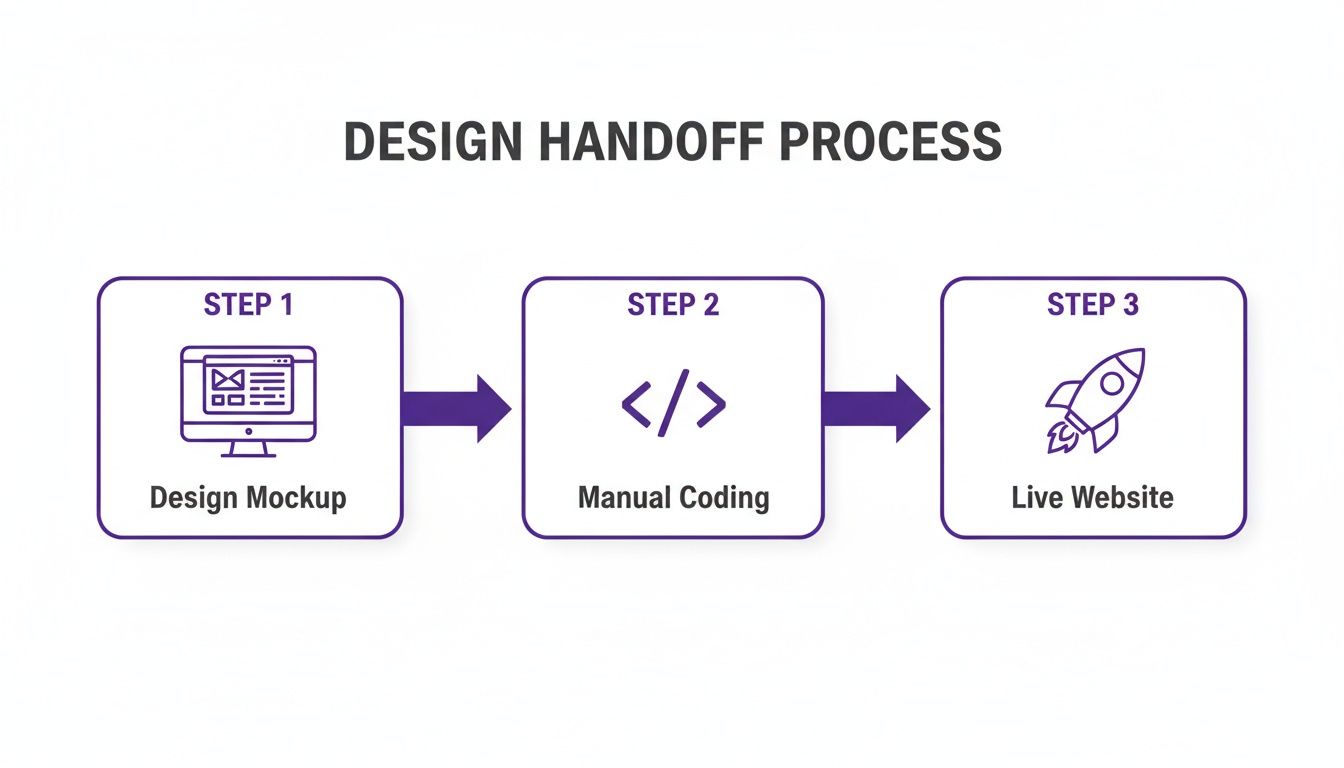
That middle step, "Manual Coding," is where projects slow down and costs add up. It’s precisely what the best conversion tools are designed to eliminate.
The Leap to Component Intelligence
But a simple pixel-to-code translation has its limits. This is where we need to talk about Component Intelligence. It's the critical difference between a basic tool that just traces pixels and an advanced AI agent that actually understands design context.
A simple converter sees a rectangle with text inside and calls it a <div> with a <p> tag. It’s technically correct, but it’s a literal translation with no real meaning. It doesn't understand intent.
An AI with Component Intelligence, on the other hand, recognizes that same combination of shapes and text as a ‘sign-up form’ or a ‘navigation bar’. It doesn’t just see pixels; it identifies a functional, reusable component. This is a massive leap forward when you want to convert a picture to HTML and get something you can actually work with.
This context-aware approach is the difference between getting a flat, lifeless blueprint and a dynamic, editable schematic. One requires a complete rebuild; the other gives you a huge head start. This higher-level understanding lets the AI generate code that’s not just more semantic but also modular and scalable. This is incredibly powerful when you need to quickly spin up wireframes from product ideas. In fact, many teams are now using AI tools that turn product ideas into wireframes to accelerate this early-stage process.
From Simple Tracing to Smart Generation
The difference between basic pixel tracing and context-aware conversion is stark. A simple tracer gives you a static snapshot, a rigid, 1:1 copy that’s often difficult to modify. It's essentially a one-time handoff. A context-aware AI, by contrast, delivers an interactive starting point.
Let's compare the two approaches directly.
A Practical Guide to Using Image to HTML
Let's get tactical. You've got a screenshot of a competitor's feature that just works. Or maybe it's a slick UI from your mood board. How do you get that static picture into a functional prototype you can actually poke, test, and build upon?
This isn't some theoretical exercise. It's about closing the gap between inspiration and execution. The first, and honestly most critical, part of this process is prepping the image itself.
It’s the classic "garbage in, garbage out" problem. A low-res, blurry screenshot will only give you messy, inaccurate code. Clean, high-resolution source images are the only way to get a successful image to html conversion.
Preparing Your Image for Conversion
Think of the AI as a meticulous, but very literal, developer. It needs a perfect blueprint. Before you even think about uploading to a picture to html converter, make sure your image checks these boxes:
High Resolution: Always start with a crisp, original-quality screenshot. Avoid anything that's been re-compressed by Slack or social media.
Clean and Uncluttered: Crop out the noise. No browser tabs, desktop icons, or other visual distractions. The AI should only see the UI elements you care about.
Standard Formats: Stick with PNG or JPG. I lean towards PNG for user interfaces because it handles sharp lines and text without creating compression artifacts.
A friend at a Series C company told me they use this exact workflow to spin up variations for A/B tests. By starting with clean screenshots, they've cut their experiment setup time in half. That means more tests, faster insights, and more complete digital customer journeys.
From Screenshot to Working Code
Once your image is prepped, the real work begins. The goal is to convert image to html css so effectively that you get both the structure and the styling right. This means the AI has to correctly read everything: colors, fonts, spacing, and the overall layout.
The quality of the output code is what makes or breaks this whole process. You’ll get the best results from high-resolution images (at least 72 DPI), which also helps ensure the generated code has optimized load times. This is the difference between a messy prototype and one that's genuinely useful.
Take a look at this example from the Figr Gallery. It shows how a screenshot of an Intercom dashboard is broken down into individual, editable components.
This shows the AI isn't just mimicking the look, it understands the underlying structure. It turns a flat image into a collection of workable UI elements. The final output isn't just a block of code; it's an interactive starting point. For teams deep in a Figma workflow, this is a game-changer. You can learn more in our guide on the Figma to code process.
Of course, a single component is just one piece of a much larger user experience. For a wider view on how this converted code fits into the bigger picture, it's worth exploring key website design essentials.
Zooming Out: The Real Impact on Product Teams
Let's pull back for a second. The ability to turn a screenshot into html is more than just a slick developer trick; it fundamentally rewires how product teams work together. What it really does is shine a harsh light on the immense friction baked into our current processes, that invisible tax we pay on every single design-to-development cycle.
The business case is brutally simple. The shorter the distance from an idea to a user's feedback, the faster you get to market. When a product manager can take a screenshot, generate a working prototype, and start mapping out real user flow examples in a single afternoon, the entire rhythm of product discovery changes. It’s a complete transformation of the product development lifecycle stages.
This isn't just a minor process tweak. It's a foundational shift.
Tearing Down the "Design Wall"
For years, making a tangible contribution to design was gatekept by skill. You had to be fluent in Figma or know how to code to build anything that felt real. The whole concept of turning an image into working code just blows that door off its hinges.
Suddenly, the PM with a killer idea, the support agent who spots a common user struggle in a competitor's app, or the marketer with an inspiring UI concept can all build something tangible. They're no longer stuck just describing their ideas in a document. They can actually build the first draft of a mockup.
This has a massive ripple effect on a team:
It massively increases the surface area for innovation. Great ideas can come from anywhere. Now, so can functional prototypes.
It cultivates a "show and iterate" culture. Teams shift away from the old "describe and wait" model.
It frees up designers. Instead of building every rough idea from scratch, designers can focus their expertise on refining the concepts that show the most promise.
This is where AI gets really interesting for product design. It automates the most soul-crushing, manual parts of creation, freeing up your team's brainpower for actual strategy and hard problem-solving.
The New Math of Prototyping
This isn't some theoretical fantasy; the economic impact is real and measurable. A recent Gartner report projects that by 2026, over 70% of enterprises will use some form of low-code or AI-driven development tools, a sharp increase driven by the need for business agility. You can read more about these trends right here.
This isn't about cutting corners. It's about reallocating investment. The time and money that used to evaporate on manual code translation can now be poured into user research, A/B testing, and building features that actually move the needle.
This is a systemic change. When the cost and time to produce a high-fidelity prototype collapse, the entire calculus of product discovery changes. You can afford to be wrong more often because the cost of failure is so much lower. More experiments lead to more learning. More learning leads to better products.
That's how you build a real competitive edge in a market that's more crowded than ever.
Speed vs. Consistency: An Important Choice
A product leader I know, let’s call her Sarah, was watching her team ship a new feature. The code was cranked out in record time from a mockup, all thanks to a new AI tool. A clear win for speed. But when she saw the feature on the staging server, her heart sank. The primary button was the wrong shade of blue. The body font was just a little off. The spacing didn't quite snap to their grid.
It was fast, but it was also wrong.
This is the core tension of using AI in design: the constant battle between raw speed and hard-won consistency. The real magic of image to html tech isn't about spitting out one-off pages. It's about systematically building components that actually follow your brand rules. So, how do you stop that shiny new AI tool from creating a mountain of design debt?
The answer is connecting it directly to your design system.
Teaching the AI Your Brand's Language
A basic converter is functionally blind to your brand. It sees pixels and makes an educated guess. An advanced system, however, can be taught your brand's specific visual language. This is where integrating it with your design system becomes non-negotiable.
Think of it as giving the AI a style guide it can actually read and follow. Instead of just tracing a blue button from a screenshot, a trained system does something far more intelligent.
First, it recognizes the element as a "primary call-to-action button."
Then, it cross-references that component with your design system's library.
It applies the correct design token for your primary button color, like
--color-primary-500.Finally, it uses the exact font, weight, padding, and corner radius defined in your system for that component.
The AI stops guessing and starts applying rules. It knows your specific buttons, input fields, colors, and typography from any screenshot or mockup and generates code using the correct, pre-defined variables. This is how you get every component to be consistent and scalable. For product leaders, this is how you get speed without sacrificing quality.
The Power of Design System Adherence
Why is this so important? When your AI converter respects your design system, you aren't just getting code; you're getting compliant, on-brand code.
This transforms the tool from a simple translator into a guardian of your brand. It actively prevents the introduction of rogue styles and one-off components, the very seeds of design debt.
This approach creates a virtuous cycle. The more the AI learns from your system, the more accurate its output becomes. This makes converting a simple picture to html a strategic part of your development process, not just a shortcut. It’s what makes extending designs, for instance, from Figma to React, actually work without constant manual fixes. You can see how this works in our article on Figma to React.
For a deeper dive into making this a reality, our guide on design systems has everything you need to know.
Your Grounded Takeaway: Convert One Thing
So you've seen the demo. The idea of turning a static picture into a tangible starting point isn't just a party trick; it's about fundamentally compressing the time between seeing something you like and actually building it.
This isn’t about replacing developers. It's about empowering your entire team to move faster, to stop debating hypotheticals and start tinkering with real code.
The grounded takeaway is this: Start small.
Don't try to feed your entire application into a converter at once. That's a recipe for disappointment. Instead, pick one tiny thing. A single UI element you've seen in another product and admired. Maybe it’s a login form, a sleek navigation menu, or a well-designed pricing card. Just one piece.
From Watching to Doing
Now, grab a screenshot of that element and run it through an image to html converter. The goal here is not to get a pixel-perfect replica on your first attempt. That isn't the point.
The point is to get your hands dirty. This simple action will show you, in a way no article can, how this workflow can shrink your design and prototyping cycles. You'll see the raw image to html code and start to understand its structure.
This is the moment you move from being a passive reader to an active participant. You’ll immediately see the gaps, the quirks, and the massive potential. You'll start thinking, "Okay, how could we use this for competitor teardowns? Or for rapidly testing three different button styles?"
In short, the next step isn't just to read about it, but to do it. The abstract concept of converting an image to html becomes a concrete skill the moment you do it yourself, even just once.
Your First Practical Experiment
This first experiment is your entry point. It demystifies the tech and makes it real. You’ll probably find the initial code needs a few tweaks. You might discover that a different screenshot angle gives you a cleaner result. Good. That's all part of the learning curve.
What you're really doing is building muscle memory for a new way of working. It’s a zero-stakes way to explore a powerful new capability that can redefine your team's velocity. You’re not just making a small piece of a webpage; you're prototyping a new process for your entire team.
For the complete framework on this topic, see our guide to best AI design tools.
The short journey from a simple screenshot to html is the first real step toward a more agile, responsive, and frankly, more creative product development cycle. Convert one image. See what happens. That’s how you start.
Frequently Asked Questions About Image to HTML
People ask me a lot about the practical side of using image-to-HTML tools. It sounds like magic, but what’s the reality of using it in a real-world workflow? Let's get into it.
So, how accurate is this stuff, really?
It completely depends on the tool you're using and what you feed it. A basic, free converter might get you 80-90% of the way there on structure, but you should absolutely expect to get your hands dirty with manual cleanup.
Advanced AI tools, on the other hand, can hit over 95% accuracy on a standard web design. They’re smart enough to correctly identify layouts, pull the right fonts, and even nail the hex codes for your colors. The biggest factor on your end? Always use a crystal-clear, high-resolution screenshot. Garbage in, garbage out.
Can it actually handle a complex dashboard screenshot?
Yes, but this is where the difference between a simple converter and an AI agent becomes night and day. A simple tool will likely choke on a complex dashboard. It might spit out something that looks right, but the code will be a flat, unstructured mess of divs.
A true context-aware AI is built for this. It doesn't just see pixels; it recognizes patterns. It spots recurring components, like your data tables, navbars, and filters, and rebuilds them as actual interactive elements. What does that save you from? Rebuilding everything from scratch. This is the fastest way I know to get a complex UI into a workable prototype.
Is the code it generates ready for production?
Let's be clear: no. You should think of the output as a high-fidelity first draft, not finished code. It’s an incredible head start.
While the HTML structure and CSS can be shockingly accurate, you'll still need a developer to work their magic. The code needs to be optimized, tied into your front-end framework (like React or Vue), and put through proper testing. Its job is to slash the initial build time, not to replace the final engineering work.
The goal is to accelerate the first 80% of the work. The final 20%, the part that requires deep engineering polish and integration, is still on your team.
What about SEO? Will this mess it up?
Most modern tools are pretty good about this. They generate clean, semantic HTML5, which is exactly what search engines want to see. Many even offer smart little helpers, like suggesting alt-text for your images.
That said, never trust it blindly. You still need to do a quick review. Make sure the heading structure makes sense (H1, H2, H3) and that the whole thing is properly responsive. The best tools give you a solid foundation to build on, but a final check from someone who knows SEO is always a good idea.
Ready to turn inspiration into iteration? Figr helps you go from screenshot to a high-fidelity, interactive prototype that understands your product's design system. Start building faster today.