
It's 4:47 PM on Thursday. Your VP just asked for something visual to anchor tomorrow's board discussion. You have a PRD. You have bullet points. You have 16 hours and zero designer availability.
What do you do?
The old way, opening a blank canvas and hoping for the best, is officially broken. This moment calls for a different mindset, a new practice I call design archaeology. It’s the art of excavating a high-fidelity design system directly from a living, breathing product.
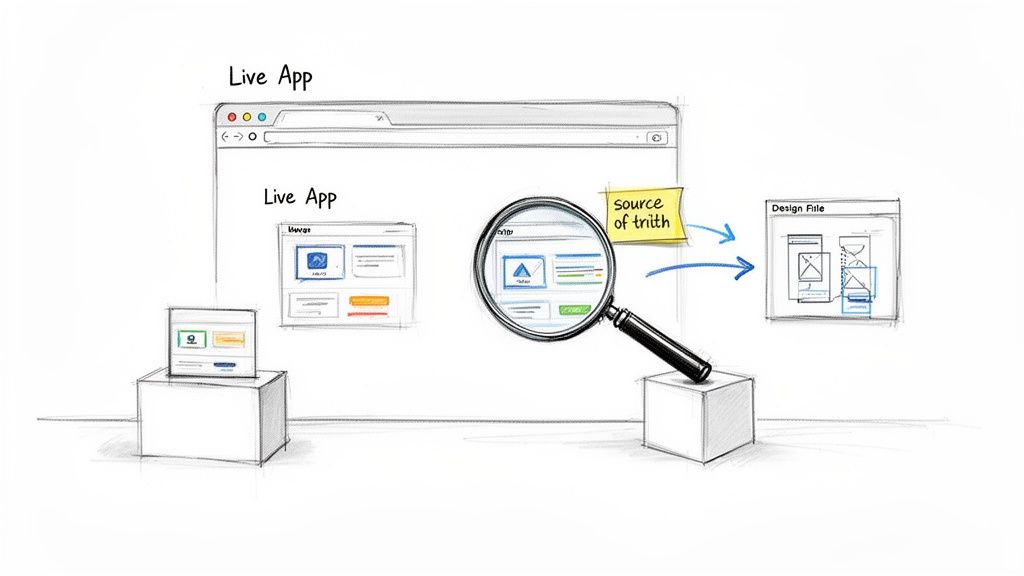
This isn’t just a technical trick. It's a strategic reframing. Your production app is no longer just the output of a design process.
It is the most accurate source of truth you have.
Why Treat Production as the Source for Design?
The basic gist is this: Every color, font, and spacing choice that survived development and reached your users is a battle-tested decision. Capturing it is the fastest way to make meaningful improvements. When you start treating your live product as the ultimate component library, several things click into place:
- You move faster. The guesswork of recreation vanishes. You jump straight to modifying and improving what is already real.
- Fidelity is a given. The design you capture isn't an approximation: it's a pixel-perfect clone of what your users interact with every single day.
- Hidden complexities surface. You will uncover states, components, and user flows that were lost in old design files but are very much alive in production.
This shift from manual recreation to intelligent capture is a systemic change, not just a tactical one. It reveals an economic truth about product development: the highest cost is often the friction between an idea and a tangible artifact. Reducing that friction changes the kinds of conversations a team can have.
Last week, I watched a product manager at a Series C company try to document all the "rogue" components shipped over the years. Her team burned an entire sprint. Their Figma library was pristine, but the live app told a different, messier story. An archaeological approach would have given them that ground truth in an afternoon, not a two-week sprint.
To keep Figma from drifting away from reality again, it's wise to monitor website changes. This creates a tight feedback loop. For deeper consistency, you can explore how to properly leverage Figma tokens in design systems.
So, you need to get a live web app into Figma. Easy, right?
Not quite. There isn't just one path. You have three choices, each with its own gravity. Picking the right one depends entirely on your goal. Are you performing a quick competitive teardown, or are you laying the foundation for a full-scale redesign? The options boil down to: The Manual Trace, The Plugin Assist, and The AI Agent.
This decision is like map-making. You can trace a map by hand, painstakingly replicating every line for absolute control. You can use a scanner, which is fast but often gives you a flat, unintelligent image. Or, you could deploy a satellite that not only captures the image but also understands the topography, the elevation, and the nature of the terrain itself.
Each has its place.
The Manual Trace
This is exactly what it sounds like. You take screenshots and meticulously recreate the UI, element by element, right inside Figma.
This method gives you total, granular control. You decide the component structure. You set the naming conventions. You build the auto-layout rules from scratch. It's an act of deep study, forcing you to understand the design on an intimate level.
But the cost is time. A lot of it. For a simple landing page, you might lose a day. For a complex user dashboard, you could easily burn a week. This approach is best for small, hyper-specific tasks, like recreating a single elegant component you admire. It’s an exercise in deconstruction, not a method for rapid progress.
The Plugin Assist
This is the common shortcut, and for good reason. Figma plugins that convert HTML to design layers are popular because they are fast. What takes days of manual work can be done in minutes.
However, that speed often comes at a steep price.
The output is frequently a chaotic jumble of detached layers and randomly grouped elements. You get a visual replica, but it almost always lacks the underlying structure needed for a scalable design system. You’ve scanned the map, but now you’re left with a file that requires a massive cleanup effort before it's truly useful. The time you save on the import is often spent untangling the digital spaghetti it creates.
The AI Agent
Here’s where the model shifts. A newer category, represented by tools like Figr, offers something different. This isn't just a capture; it's a contextual import.
An AI agent doesn't just see pixels. It interprets the Document Object Model (DOM) to understand structure, relationships, and even infer design system tokens. It’s the satellite recognizing that a cluster of pixels isn't just a textured shape: it's a mountain range with specific properties.
This is the most strategic option. Transitioning from a live website to Figma with an AI tool can slash conversion times. Manual workflows for a 5-page site can take 15-25 hours, while plugin-assisted conversions drop that to 1-3 hours (plus cleanup). In contrast, an AI agent can achieve high conversion accuracy while preserving crucial auto-layout structures, slashing revision cycles from five rounds down to just one or two.
This is the core trade-off. Are you studying a single detail, creating a quick visual aid, or building a durable foundation for future work? The answer determines whether you need the precision of a tracer, the speed of a scanner, or the intelligence of a satellite.
For many teams, the real breakthrough comes when they move beyond simple captures. Unlocking workflows like turning a static screenshot to code reveals just how much more is possible when the conversion process is intelligent.
Comparing Web to Figma Conversion Methods
To make the choice clearer, here's a breakdown of the trade-offs between speed, accuracy, and strategic value for each approach.
Ultimately, the goal isn't just to get pixels into Figma. It's to get a usable, structured, and intelligent design file that accelerates your work instead of creating more of it.
The AI-Powered Web to Figma Workflow in Practice
Anyone can take a screenshot. The real challenge is turning that static image into a living part of your design system without creating a massive headache down the line. Let's walk through how an AI-driven approach works for getting your live web app into Figma.
The goal here isn't to grab a single page. It’s to capture an entire user journey. Imagine importing your complete onboarding flow with one click, not just the sign-up screen. This is where AI moves past simple screen grabbing. It understands the connections between pages, creating a map of the user experience instead of a pile of disconnected snapshots.
This diagram shows how we got here: from the painful manual days to a smart, AI-driven workflow.
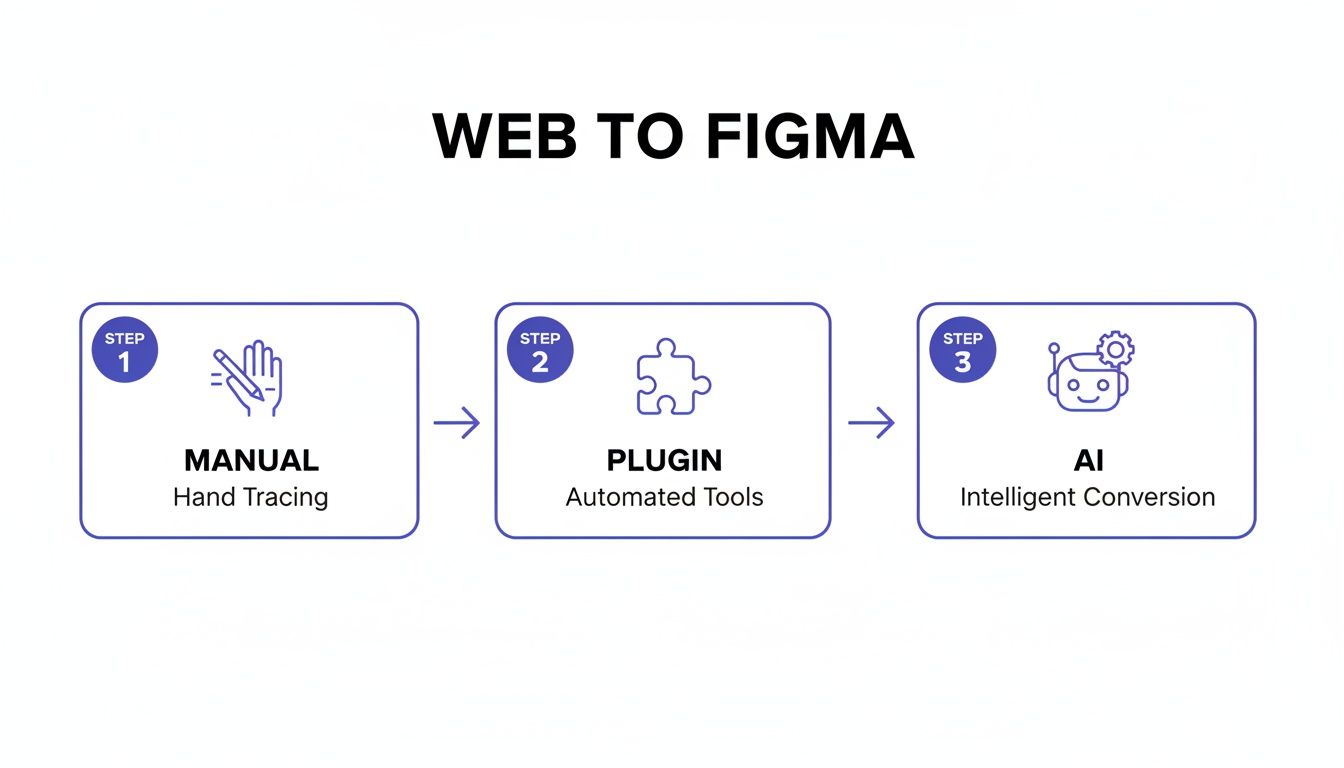
You can see the progression clearly. Manual work is slow and exhausting. Plugins are faster but often leave you with a messy, disorganized file. The AI approach aims for both speed and structure.
Mapping Imports to Your Design System
This is what I mean. If you skip this step, you’re just creating design debt.
A friend at a different company told me his team burned weeks cleaning up the mess from a standard plugin import. The tool had created hundreds of "blue button" variants, each a detached, unique style. The result was a file that looked right but was functionally useless for their design system.
An intelligent workflow avoids this catastrophe.
An AI-powered tool doesn't just see a blue button. It analyzes its properties (color hex, border-radius, font size) and suggests mapping it to your existing "Primary Button" component or a corresponding design token.
This is what contextual import is all about. Instead of generating new, rogue styles, the tool helps you reconcile the captured reality of your live app with the single source of truth in your design system.
Uncovering What a Screenshot Always Misses
Your live app is full of states that a simple screenshot will never see. What happens when a user uploads a file? What does an empty shopping cart look like? How does the UI respond when a server error pops up?
An AI-driven process forces you to consider these scenarios from the start.
- User Flow Generation: It can map out captured screens and immediately show you where logical gaps are, prompting you to think about what happens between step A and step B.
- Edge Case Discovery: By analyzing components, it suggests missing states. For an input field, it might ask you to define the design for disabled, hover, focused, and error states, because it knows those are necessary.
- Accessibility Checks: The tool can instantly run automated checks on imported designs. It flags contrast issues or missing ARIA labels that are already on the live site, giving you an actionable list of fixes.
The goal isn't a static picture of your app. It's a living prototype that accounts for the messy reality of how people use it. As you dig deeper, learning more about Artificial Intelligence (AI) in design can provide a richer understanding. If you want to explore more options, check out our guide on the best AI tools that plug into Figma.
Common Mistakes in Web to Figma Conversion
Let’s be honest: a perfect web-to-Figma import is a myth. The process isn't a magical transfer, it’s a translation. And like any translation, nuances get lost.
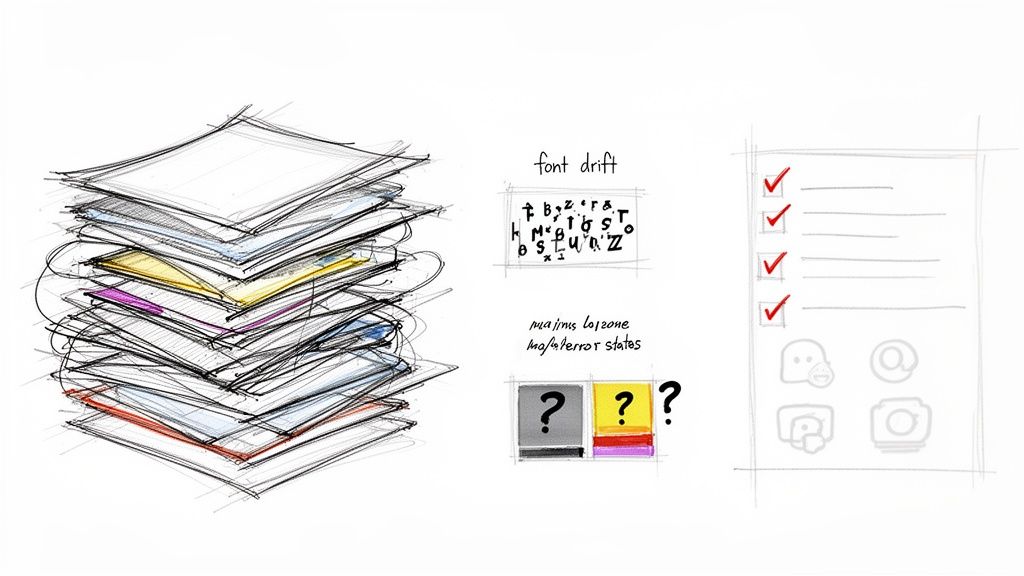
It’s tempting to see a visually perfect import and call it a day. That’s the first trap: the illusion of completeness. What looks right on the surface often hides a chaotic, unusable layer structure underneath. One study on developer productivity found that engineers can burn up to 30% of their time just trying to make sense of disorganized design files. A pixel-perfect file with thousands of ungrouped layers isn't a victory. It's just technical debt you haven't paid yet.
Uncovering Hidden Inconsistencies
Even with clean layers, subtle issues can snowball. I see these two pop up constantly:
- Font Drift: This happens when a browser's font rendering engine interprets a font just differently enough from Figma's engine. The result? Minor but noticeable shifts in line height, kerning, and weight that throw off the design's rhythm.
- Color Ambiguity: Your app’s CSS might specify
#007BFF, but the capture tool spits out#007AFFbecause of display profiles or compression. This tiny difference is all it takes to create duplicate color styles and chip away at your design system’s integrity.
These might seem like tiny details, but they add up. Soon you have a file that feels perpetually "off" and needs hours of tedious, manual cleanup. It’s a classic case where understanding the hidden cost of generic AI outputs helps you appreciate why this initial QA pass is so critical.
The Biggest Trap: Ignoring Dynamic States
The most significant mistake is forgetting that a website is a living thing, not a static image. Your live application has loading animations, error messages, and empty states that most capture tools will completely miss. When you only import the "happy path," you end up with an incomplete and fragile prototype.
A design file that only shows the ideal user journey is a fantasy document. Real products break, real data fails to load, and real users see empty states. Your Figma file must reflect this reality.
So what does this mean in practice? You have to actively hunt for these missing pieces. Open your browser's developer tools and simulate a slow network connection to capture loading spinners. Intentionally trigger a form error to see how the UI responds.
Take screenshots of these states and add them as variants to your components in Figma. It's the only way to turn a simple web capture into a resilient, realistic design artifact.
The Strategic Impact of an Instant Design Workflow
Why does any of this matter? The answer has little to do with saving a designer a few hours. It’s about flipping the economics of how we build products.
Building software has always been a game of managing risk. Every feature is a bet, and every bet costs time and money. For decades, the price of creating a high-fidelity prototype to test that bet has been steep, requiring days of specialized work to get a single concept in front of users.
That high cost is a massive bottleneck. It forces product managers to be selective, placing fewer, bigger bets that often rely more on gut feeling than on exploration.
Democratizing Design Exploration
When the cost to create a production-replica prototype drops to nearly zero, the dynamic flips. This isn't just an incremental improvement. It's a fundamental shift in access and speed.
What does this look like? A product manager can spin up a dozen data-informed variations of a new feature instead of one or two. They can visualize competitive user flows and ground every strategic conversation in something tangible, not just an abstract spec doc.
This 'web to Figma' approach is reshaping how SaaS product teams work. This workflow can turn a fleeting thought into a production-ready artifact 10x faster, a massive advantage when you learn more about how businesses are racing for high-conversion sites.
High-fidelity exploration is no longer a luxury. It's democratized. Design moves from being a downstream execution step to an upstream strategic tool.
From Execution to Upstream Strategy
Last quarter, a PM at a B2B SaaS company used an instant capture to model five different approaches to a complex data visualization feature. Before, this would have kicked off a formal project request and a week of design sprints. Instead, she had five interactive models ready for a leadership review in under an hour.
This is a direct line to the core ideas of modern product management, famously outlined in Marty Cagan's Inspired. Cagan argues that the best teams are constantly iterating and de-risking ideas long before a single line of code gets written.
An instant web to Figma workflow is the engine for that continuous discovery. It provides the fuel for rapid, low-cost experimentation, allowing teams to fail, learn, and pivot at the speed of thought, not the speed of production.
In short, this was never just about making designers faster. It’s about making the entire product organization smarter by vaporizing the friction between an idea and a testable reality. The next move is to stop treating this capability as a novelty and start baking it into the core of your discovery process.
Answering the Tough Questions on Web-to-Figma Workflows
Whenever you introduce a new way of working, good questions follow. The shift from painstaking manual design to a smarter web-to-Figma process is a big one, naturally bringing up concerns around security, team roles, and strategy.
Let's get into the real talk. These are the questions product leaders always ask when they're thinking about making this leap.
How Do AI Tools Handle Enterprise Security?
This is always question number one, and for good reason. Can you really trust a third-party tool with your app's UI? The short answer is yes, but only if you look for a few non-negotiable security standards. The best tools in this space are built with security as a bedrock principle.
Here’s what to look for on your security checklist:
- SOC 2 Compliance: This is your proof. It's an independent audit that verifies the provider manages your data securely, protecting both your company's interests and your customers' privacy.
- Data Retention Policies: The gold standard is a zero-retention model. This means the tool processes your data to generate the design file and then immediately discards it. Your sensitive application data never sits on their servers.
- SSO Integration: For any company of a certain size, Single Sign-On is a must. It lets you manage access at scale and enforce your own internal security policies, which is critical.
Will This Just Create More Cleanup Work for Designers?
I hear this fear a lot. Is this just going to dump a messy, AI-generated file on a designer's lap? In practice, it's the opposite. This kind of workflow is about elevating designers from tedious production tasks to high-impact strategic work.
Instead of burning days redrawing screens that already exist, they're freed up to solve thorny UX problems, explore new concepts, and think about the future.
The AI handles the repetitive 'archeology,' and the designer becomes the 'architect,' using perfectly excavated materials to build something better. It shifts their effort from tedious replication to genuine problem-solving.
Can I Actually Use This for Competitor Analysis?
Absolutely. This is one of the most powerful, and underrated, uses for a web-to-Figma workflow. A one-click capture lets you pull a competitor's entire user flow directly into Figma in minutes.
Suddenly, you’re not just looking at flat screenshots. You can deconstruct their entire onboarding sequence, pick apart their checkout process, or map out their feature set with incredible speed. Your team gets to interact with a tangible, layer-based representation of their product.
It’s the closest you’ll get to having their actual design source files, unlocking a deeper level of strategic analysis than was ever possible before.
Ready to stop recreating and start innovating? Figr is the AI design agent that turns your live app into a production-ready Figma prototype with one click. Ground your next big idea in your actual product, not a blank canvas. Start your free trial of Figr today.