
It's 4:47 PM on Thursday. Your VP just asked for something visual to anchor tomorrow's board discussion. You have a PRD. You have bullet points. You have 16 hours and no designer availability.
You also have a screenshot from a competitor's app that solves the exact problem. But turning that visual idea into something your team can actually build feels like translating a novel with a pocket dictionary. This friction is where good ideas go to die, caught between a clear vision and the slow mechanics of production.
So what does it mean, really, to turn a screenshot into code? It is a workflow where AI tools visually parse an image of a user interface and then automatically generate the front-end code for it, often in HTML, CSS, or even React. It’s about compressing the distance between visual concept and functional reality.
The End Of Designing In A Vacuum
The traditional design process is a relay race, with each handoff a potential point of failure. A baton passes from research to design to engineering, and with every pass, context is lost. A screenshot-to-code workflow isn't a relay. It's a switchboard, connecting every stage to a shared, tangible reality from the very beginning.
It doesn’t skip the crucial steps. It reorders them for velocity.
In short, you start with a picture and end up with a working prototype, bridging the enormous gap between inspiration and implementation in minutes, not weeks.
This workflow is part of the much broader conversation around visual development vs low code vs no code paradigms. It signals a major shift away from designing in isolation.
Why does this matter at scale? According to a report from MarketsandMarkets, the global low-code development platform market is projected to grow from $22.5 billion in 2022 to $86.9 billion by 2027. The economic incentive is clear: companies are desperate to build faster. Tools that shorten the path from idea to product are no longer a luxury, they are a competitive necessity.
I watched a product manager at a fintech company get completely stuck on a user verification flow. Instead of another whiteboarding session, she grabbed three screenshots from leading finance apps, fed them into an AI tool, and had three distinct, interactive prototypes to test by the end of the day.
This isn't about replacing designers. It's about arming product teams with the ability to test and validate ideas at the speed they have them.
Ultimately, this whole approach represents a fundamental move toward building with immediate, tangible context. We wrote a whole piece on this idea, which you can read here: https://figr.design/blog/context-is-the-new-canvas-2.
The grounded takeaway? Find a screenshot of a user interface that solves a problem you're facing. It could be from a direct competitor or an entirely different industry. Use that as the starting point for your next design exploration, not as a final destination.
How To Create The Perfect Source Image
The entire screenshot-to-code process lives or dies by the quality of your input. A blurry, partial screenshot is like a garbled requirement document, it guarantees confusion and rework down the line.
Success here isn't about how you take the picture. It’s about what the picture knows. A good screenshot is not a snapshot, it's a machine-readable artifact that carries intent.
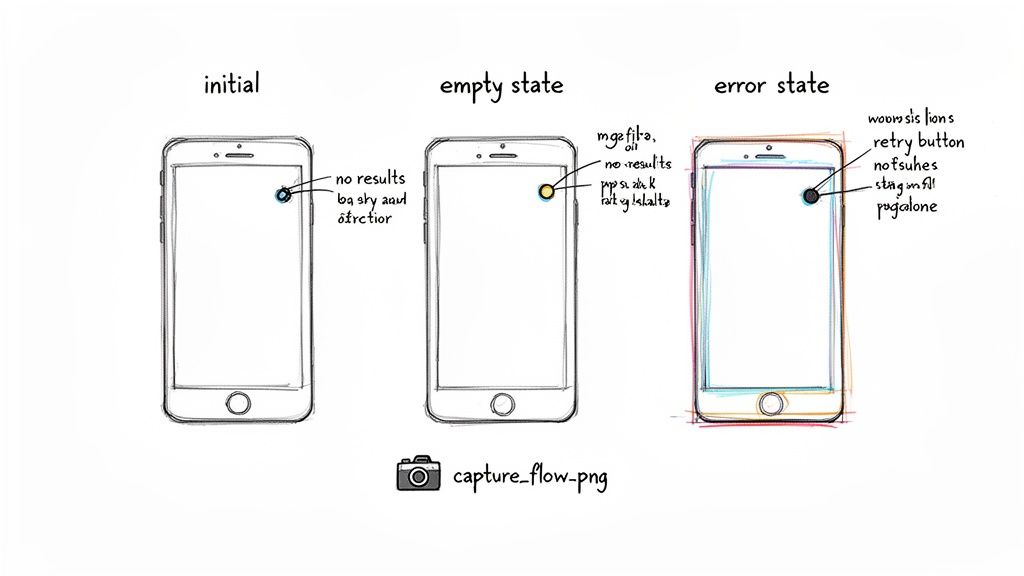
You must move beyond a quick CMD+Shift+4. The goal is to capture for context, not just for visuals. What information would the engineer building this need? What questions would they inevitably ask?
The basic gist is this: your source images should tell a story, not just show a single frame.
Capture States, Not Screens
A friend at a Series C company told me they spent a month building a new dashboard. Designs approved, code written. Then, during the demo, the CEO asked, "What does it look like before any data is loaded?"
Crickets.
The team had designed for data, not for emptiness. That one question triggered two more weeks of frantic work. This is a classic failure of static design. A user interface is not one screen, it's a collection of states. Your screenshots must reflect this reality. For any given feature, you should capture a bare minimum set of states:
- The Initial State: What a user sees before any interaction.
- The Loading State: What happens while data is being fetched.
- The Empty State: The screen when there’s no data to display.
- The Ideal State: The screen filled with data, working as intended.
- The Error State: What happens when something goes wrong.
- The Success State: A confirmation message after an action is completed.
Annotate For Clarity
Think of your screenshot as the brief and the AI as your interpreter. To get the best translation, you need annotations that provide crucial context. Never assume the AI understands your intent. It needs to be told.
A 2023 study from Stanford HAI on human-computer interaction found that AI assistants perform best when given explicit, contextual instructions, functioning less like autonomous agents and more like highly capable junior partners.
Annotations are like comments in your code. They clarify ambiguity and state what might seem obvious. Use simple text overlays or arrows to point out key details:
- "This button should use our primary action token."
- "This modal must be dismissible by clicking the background."
- "This text field should have a character limit of 250."
By capturing complete states and adding contextual annotations, you transform a simple image into a rich specification. This small, upfront investment is the single most effective way to ensure your screenshot-to-code workflow generates useful, accurate results the first time.
Translating Pixels Into Design System Components
You've captured the screen. Now for the crucial step. An AI doesn't just see a blue button with rounded corners. It has to recognize it as your primary action button, with your exact #4A90E2 hex code and your specific 16px corner radius. This is the mapping process. It's where everything either clicks into place or falls apart.
The process is like a translator learning a specific local dialect. The AI takes raw visual data from the screenshot and cross-references it with the Figma design system and tokens you’ve already defined.
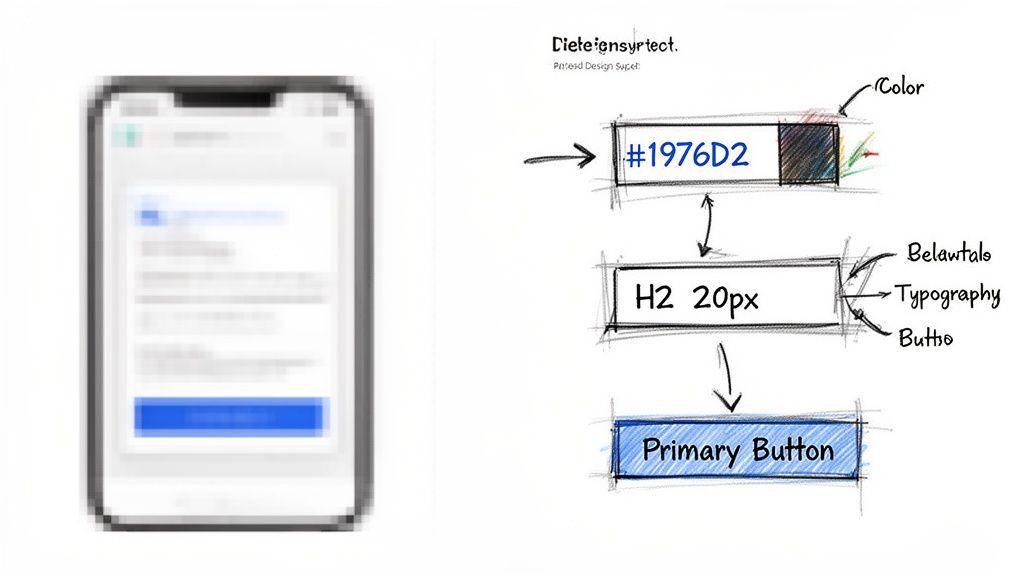
This is what I mean by translation: the agent breaks the image down into its fundamental pieces, typography, colors, spacing, component layouts, and then plays a matching game against your established system.
The System Is The Source Of Truth
A smart screenshot-to-code tool is built on system-level thinking. This is what separates a simple pixel-cloner from a true design partner. A cloner makes a visual replica, resulting in one-off, "rogue" components that pollute your codebase and rack up design debt. A system-aware agent does the opposite.
It actively enforces your brand’s consistency by mapping what it sees to your official components:
- Color Mapping: It detects
#007AFFon the screen and knows to apply your--color-brand-primarytoken. - Typography Mapping: It identifies a 24px bold heading and correctly maps it to your
Heading-Largetext style. - Component Recognition: It sees a card with an image, title, and CTA, then intelligently rebuilds it using your
Cardcomponent, inheriting all its predefined properties and variants.
This intelligent mapping is why teams report prototyping gets up to 70% faster. It’s not magic, it’s just good system integration.
Preventing Design System Drift
So what does this mean for your team? It means new features inherit your brand’s DNA from the very first line of code.
A friend at a startup told me they spent an entire quarter just auditing their app. The final tally? Seventeen different shades of blue used in production. Every single one was created by a well-meaning developer trying to perfectly match a design, but without the context of the design system. This is "design system drift," a silent killer of brand consistency and engineering velocity.
By grounding every generated element in your design system, this process acts as an automated governance layer. It prevents drift before it starts, ensuring every new screen strengthens your brand, rather than diluting it.
This workflow turns your design system from a static library into a dynamic, active participant in the creation process. For a deeper look at how this works under the hood, you might find our guide on how AI can auto-generate UI components from design systems useful.
The takeaway is simple. Before you use a screenshot-to-code tool, make sure your Figma design system is connected and your tokens are properly defined. This single step is the difference between generating a messy clone and building a scalable, consistent feature.
Generating Prototypes That Uncover Edge Cases
Once your components are mapped, that static screenshot transforms into a living canvas. This is where you stop translating a picture and start exploring possibilities. Generating a prototype stops being a week-long ordeal and becomes a real-time conversation.
The goal here isn't one perfect prototype. It’s about generating dozens of variations in minutes. Want to see a different headline or a new CTA button? Generate an A/B test. Need to visualize how this screen flows into the next one? Generate the user flow. Prototypes become disposable, low-cost tools for thinking.
This speed changes the financial equation of product development. You stress-test ideas while they're still in design, where changes are cheap, not in the middle of a sprint, where they become incredibly expensive.
From Happy Paths to Hard Questions
The most powerful part of this isn't the speed, it's the foresight. An AI agent, having processed data from hundreds of thousands of screens, can predict where your design will break based on established patterns. It starts asking the tough questions your engineers will inevitably ask later.
Last quarter, a PM at a fintech company shipped a file upload feature. Engineering estimated 2 weeks. It took 6. Why? The PM specified one screen. Engineering discovered 11 additional states during development. Each state required design decisions. Each decision required PM input. The 2-week estimate assumed one screen, the 6-week reality was 12 screens plus four rounds of "what should happen when..." conversations.
This is the tyranny of the happy path. A well-trained AI agent knows that for every form submission, there are at least three potential outcomes: success, a validation error, and a server error. It generates designs for those "unhappy paths" before you even remember to ask for them.
The real value of an AI design agent isn't just in building what you ask for. It's in surfacing the critical things you forgot to ask for in the first place.
De-Risking Development Before It Starts
This automated discovery of edge cases is how you genuinely de-risk development. Every unidentified edge case is a future bug, a moment of user frustration, or an unplanned story that will derail your sprint. As Steve McConnell notes in Code Complete, fixing a bug after launch can cost 50 to 100 times more than fixing it during the design phase.
What does this look like in practice? The agent doesn't just flag a missing state, it generates it for you.
- Network Failures: It will create a "Connection Lost" banner.
- Empty States: It designs the "No Results Found" screen.
- Permission Errors: It builds the modal for when a user denies access.
By surfacing these scenarios visually, the AI forces conversations that usually happen way too late. We've compiled a deep-dive into the most common scenarios in our guide on the 10 edge cases every PM misses.
Use these generated prototypes as your single source of truth. They aren't just pictures, they are interactive specs that demonstrate every possible user journey. This level of clarity is what turns a chaotic handoff into a smooth, predictable one.
Improving Handoffs From Design To Code
A great prototype that can’t be used is just an expensive picture. The last, most critical step in any screenshot-to-code workflow is the handoff, turning your interactive design into something a developer can actually build with. This is where translation from idea to implementation becomes real.
The handoff is like the final edit of a film. All the raw footage has been shot, but the cuts, the pacing, and the sound design determine whether the story lands. A one-click export to Figma, for instance, must generate a file that looks like a designer built it by hand, with clean layers, proper component instances, and perfect auto-layout.
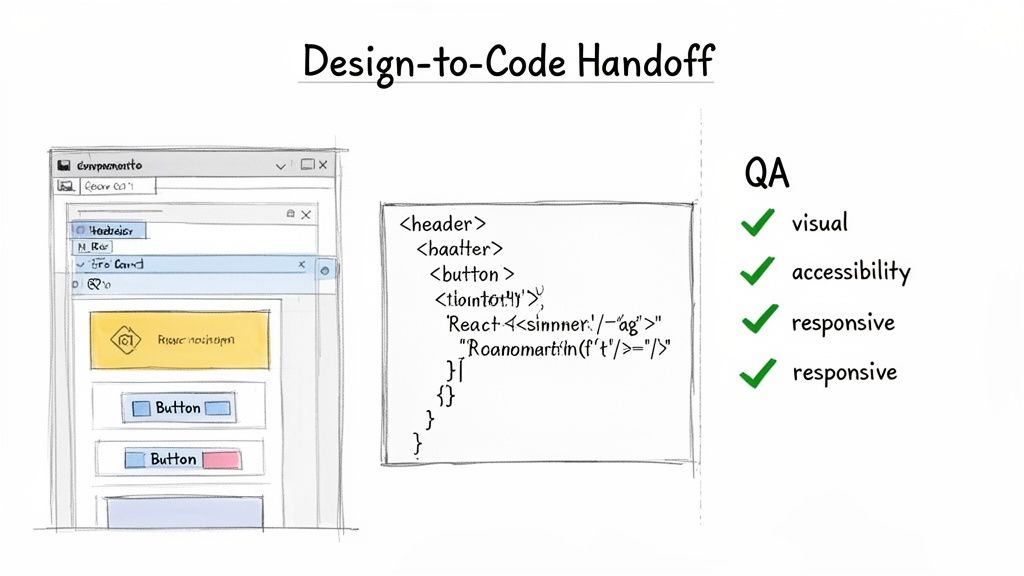
For developers, the output has to be just as refined. The goal is clean, semantic code snippets or complete, isolated components. This lets engineers focus on the hard stuff, business logic and integration, not on painstakingly recreating a UI from a static image.
Closing The Loop With QA
This process also changes how you think about quality assurance. Instead of writing test cases from a separate requirements document, QA can generate them directly from the final, approved designs.
What does this accomplish? It guarantees that what gets tested is exactly what was designed. This tight coupling eliminates the "translation error" that so often creates friction between design, product, and engineering. It's a small process shift that pays huge dividends. For a deeper look, check out our guide on how to automate designer to developer handoff.
The bigger picture is that generative AI will turbocharge low-code and no-code development. This isn't some far-off future. Analysts estimate that by 2026, a staggering 500 million apps will be built using low-code platforms. The persistent shortage of developer talent makes tools that accelerate the build process essential.
A smooth handoff isn’t just a sign of good tools. It’s the ultimate sign of a healthy, aligned team.
The practical takeaway is this: evaluate your export options critically. Your goal isn't just to get a file out of a system. The goal is to deliver an artifact so clean and well-structured that it makes the next person's job easier, whether they're a designer, developer, or QA engineer. That is the true measure of a successful handoff.
A Few Questions That Always Come Up
Shifting to a new workflow always surfaces some healthy skepticism. It's not just about the tech, it's about how that tech fits into the messy, human reality of building a product. The questions are usually less about if it works and more about how it works under pressure.
Let’s get into the most common ones we hear.
How does this handle our custom UI components?
"Okay, but how can an AI possibly understand our unique, custom-built date picker?"
It's a fair question. The best tools use computer vision to deconstruct a UI into its foundational parts. When you connect your Figma design system, the AI agent isn't just looking at pictures, it's learning the structure and purpose of your components.
During the mapping phase, it intelligently matches structures in the screenshot to the closest component in your library. What about highly bespoke elements with no direct match? The AI generates a new, structured component using your system's base tokens: your colors, fonts, and spacing. This ensures even new elements feel consistent with your brand's DNA from the start.
Is the generated code actually production-ready?
"Production-ready" can mean a lot of different things. Is the code generated here ready to be deployed to millions of users with a single click? No, and it was never designed to be.
Think of the generated code as a highly accelerated starting point. It’s the tedious part, done.
It’s typically clean, semantic HTML/CSS or framework-specific code for the visual layer. It doesn't include complex business logic or API integrations. That is still the engineer's domain.
Its purpose is to save engineers hours of translating a design into a pixel-perfect UI. This frees them up to focus on the much harder engineering challenges that actually deliver value. The code is structured and uses best practices, so it’s easy for engineers to pick up and run with.
What’s the learning curve for my team to adopt this?
The learning curve is intentionally low, especially for product managers and designers. You're not learning a technical skill, you're sharpening a strategic one: how to capture UIs for context and effectively review an AI-generated output.
Most of the heavy lifting, like component mapping and spotting edge cases, is handled by the AI agent. A product team can get the hang of this new workflow in a single afternoon.
Why so fast? Because it mirrors and accelerates what you're already doing, rather than forcing you into a totally new process. It’s less about learning a new tool and more about getting a superpower for an existing instinct.
Ready to stop designing in a vacuum and start building with context? Figr is the AI design agent that connects your ideas to your live product. Turn screenshots into high-fidelity, production-ready artifacts and ship your next feature faster. Get started at figr.design.